10.1.15.12-06212024
Replicate Intent in Intent Replication Wizard
In this step, you will select the output columns for the intents to be replicated, define the column name and add tags to intent column or map column, and finally build or update ADT columns.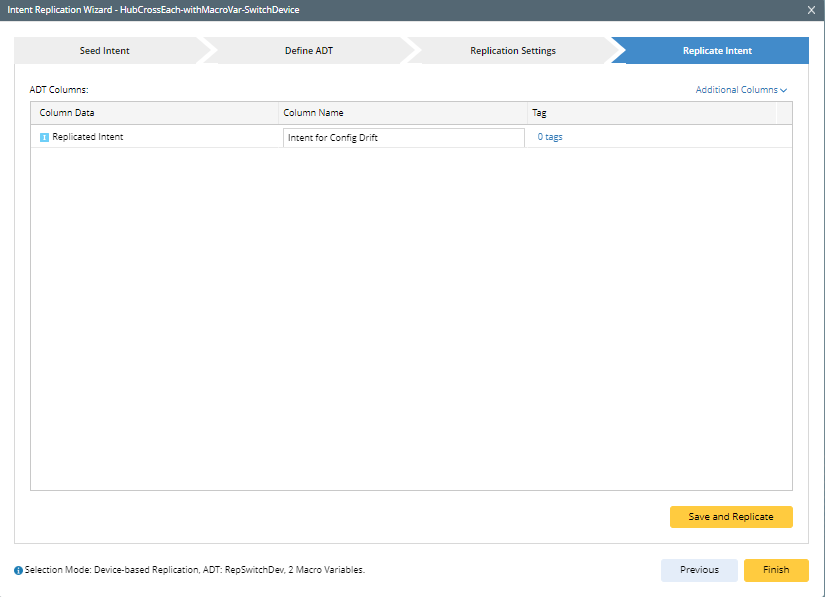
Complete the remaining settings for intent replication with the following steps:
- The ADT Columns area lists the ADT columns to be outputted. To add more columns to the list, click Additional Columns, then check the checkbox to select columns. The followings screenshot shows the output columns for device-based replication. "Replicated Intent" column is the mandatory output column.
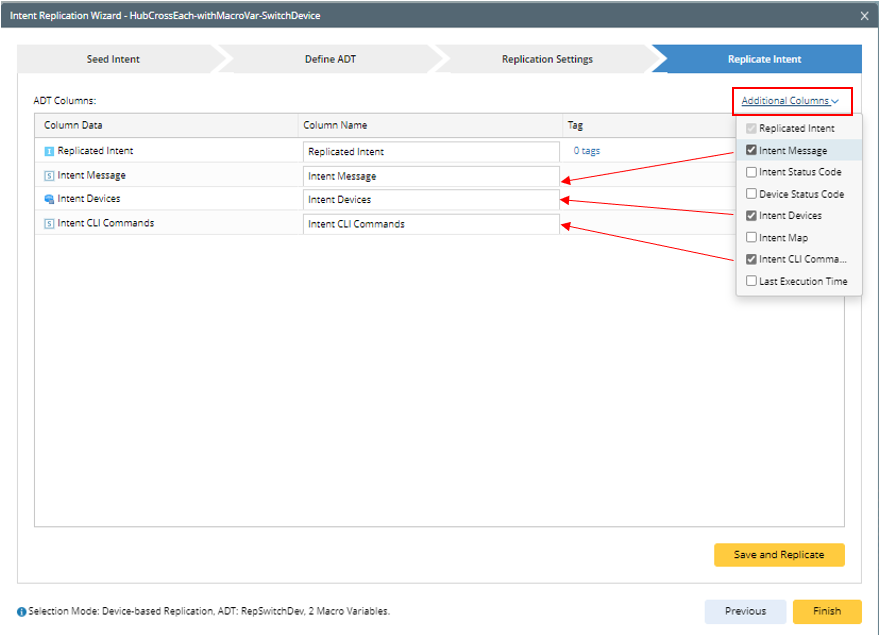
For path-based replication, the available output columns are different from the output columns for device-based replication. "Path Intent" column is the mandatory output column.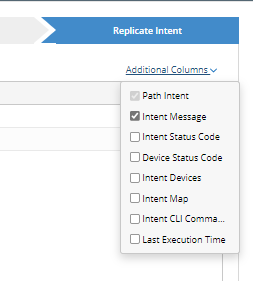
- Define the settings for the columns, including changing the column name and assigning tags to the columns.
- In the Column Name field, enter the new column name (for example, changing the column name "Replicated Intent" to "Intent for Config Drift").
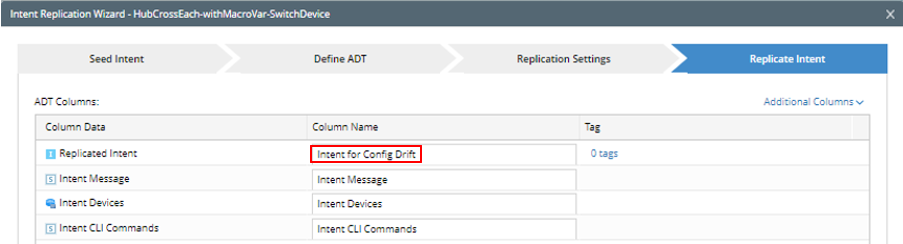
- To assign tags to a column, click the "n tags" link, then click +Add to select tags from the drop-down list. You can also click the
 icon to open the Automation Tag Manager to manage tags.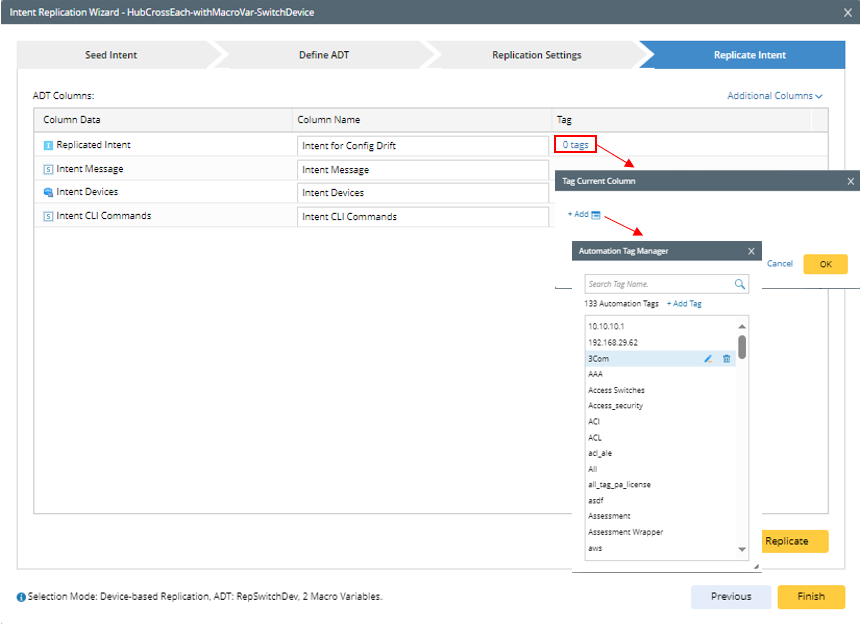
- In the Column Name field, enter the new column name (for example, changing the column name "Replicated Intent" to "Intent for Config Drift").
- Click Save and Replicate to save the settings and build/update the column groups. Then the last time the ADT columns are built will be shown.
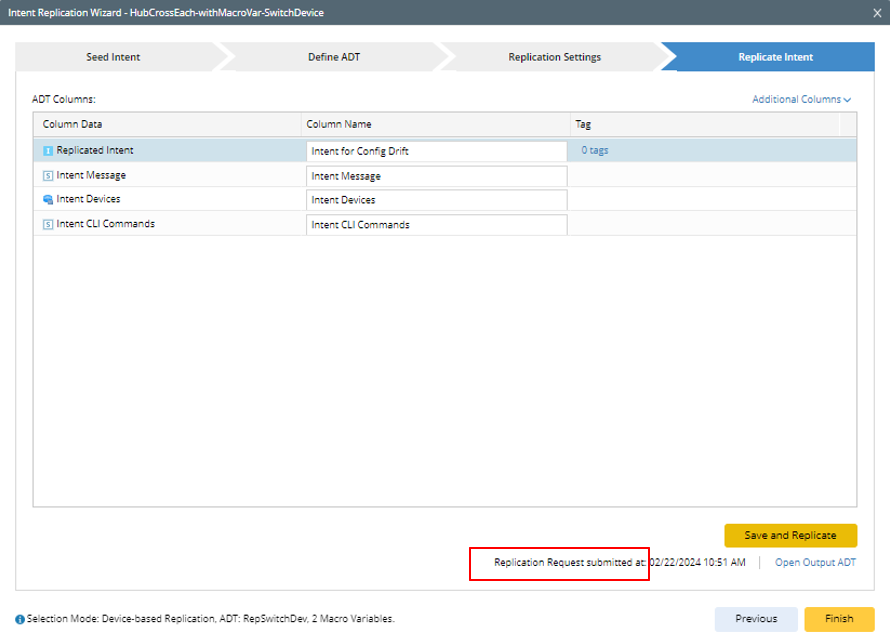

Tip: Click Open Output ADT, you can open the target ADT in the Automation Data Table Manager to check the ADT created or processed via the Intent Replication Wizard. - Click Finish to close the Intent Replication Wizard.