R12.1 JA-2025July15
Manage Prompts
- To save a prompt, you can mouse over an input and click
 and enter the title for the prompt to save it.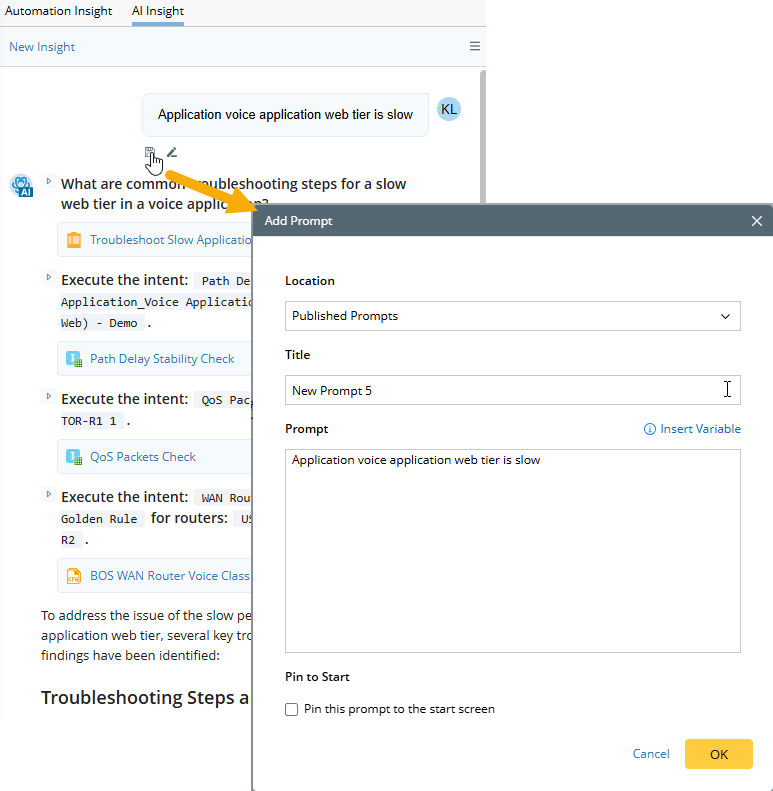
- You modify the prompt by adding a comment or inserting variables.
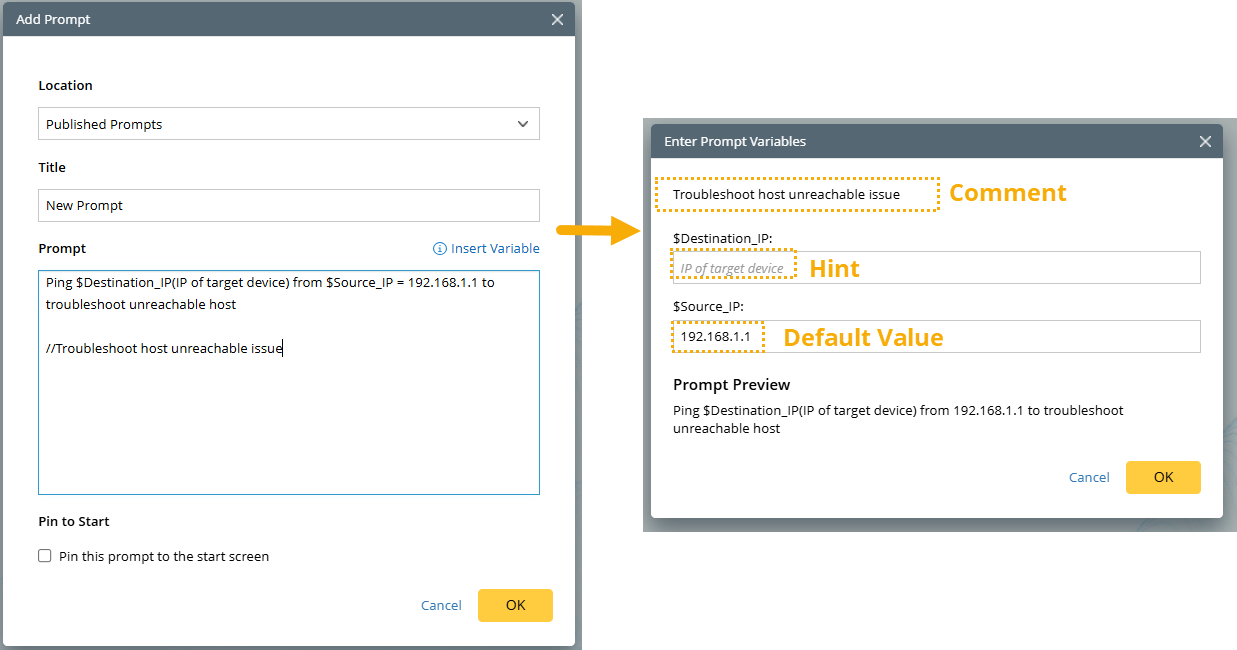
- A comment must be placed at the end of the prompt and can be added in the following format: //Comment.
Example: //Troubleshoot host unreachable issue - Variables can be inserted in four different formats.
- If there's no need to provide a hint or assign a default value for the variable $Source_IP , enter $Source_IP
- If you want to assign a default value 192.168.1.1 to the variable $Source_IP , enter $Source_IP = 192.168.1.1
- If you want to provide a hint IP of target device for the variable $Destination_IP , enter $Destination_IP(IP of target device)
- If the default value contains space, enclose it in quotation marks. For example, to assign the default value US-BOS-R1 and US-BOS-R2 to the varaible $Target_Devices, you can enter $Target_Devices = "US-BOS-R1 and US-BOS-R2"
- A comment must be placed at the end of the prompt and can be added in the following format: //Comment.
- Pin to start. After you enable the Pin this prompt to the start screen option, this prompt will appear on the start screen of AI Insight.
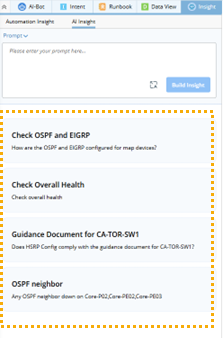
- You can click the Check Overall Health prompt to fill it in the text box.
- Edit the prompt if needed.
- Click Build Insight to send the query.
- You can add a new folder to organize the prompts, or delete, move, re-name them.