R12.1 Project Publication-2025Dec23
Set Up Benchmark Task to Auto-Update AWS Data
The discovery only retrieves basic data of your AWS network and builds L3 topology. After the discovery, you need to execute a benchmark task to retrieve all data and build all components, including visual spaces and data views. For more Information, see Setup a Benchmark Task.
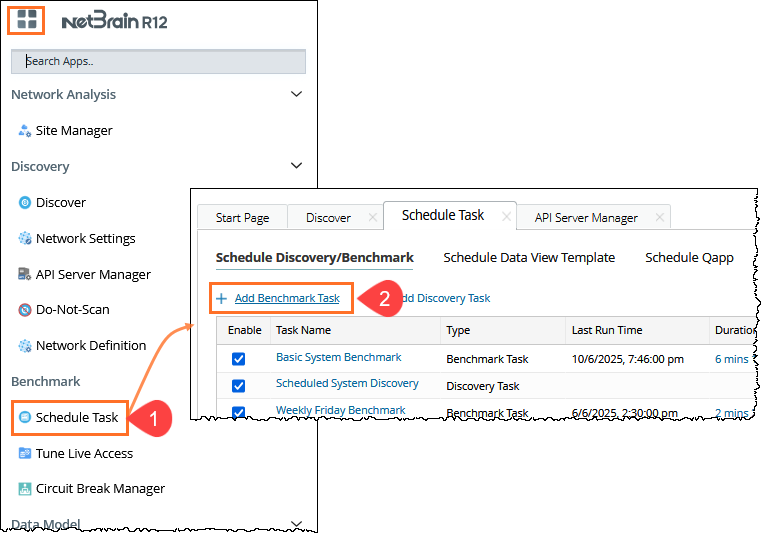
- Click the start menu
 in the Domain Management page and select Schedule Task.
 - In the Schedule Discovery/Benchmark tab, click Add Benchmark Task.
- In the Time Settings tab, define the task frequency.
- In the Batch Definition tab, perform the following tasks:
- Go to the Device Scope tab, check the Select external API servers to retrieve data checkbox and select the Amazon AWS as a source type.

Note: As a best practice, we recommend re-using the Basic System Benchmark with a full benchmark task, where all devices are selected. This ensures that all AWS-connected physical or virtual devices are selected within the device scope. 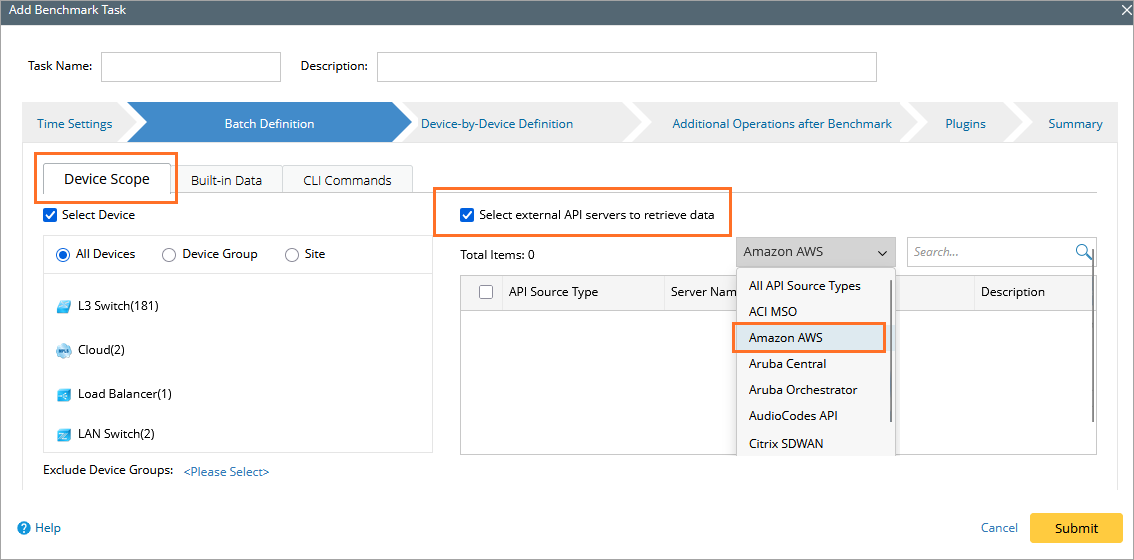
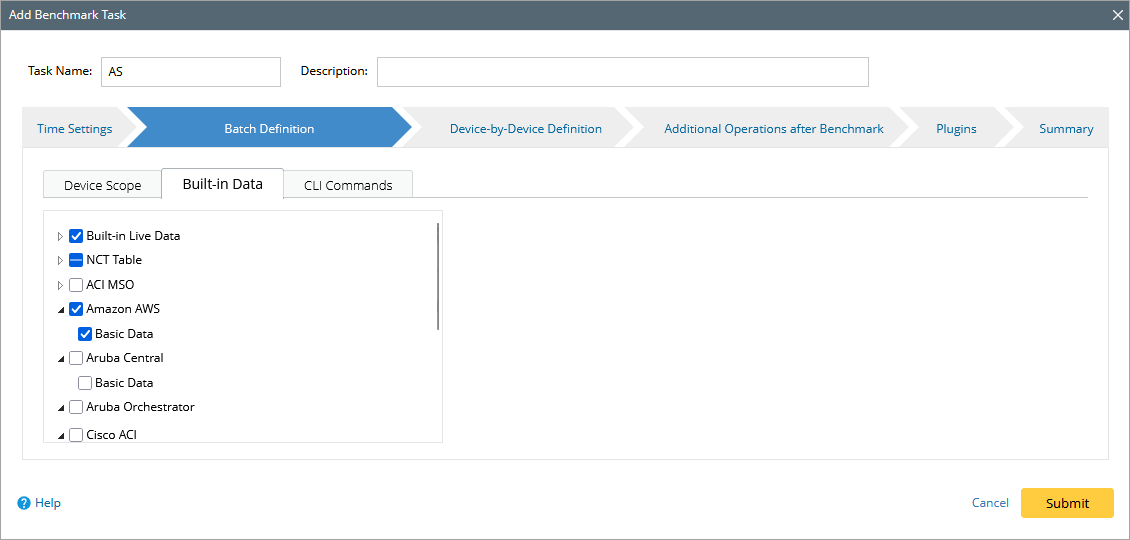
- Go to the Buil-in Data tab, and select the Amazon AWS checkbox, and make sure the following tables (under the NCT table) are selected:
- Go to the Device Scope tab, check the Select external API servers to retrieve data checkbox and select the Amazon AWS as a source type.
- AWS ENI Interface Table
- AWS ELB Listener Table
- AWS NAT Table
- AWS Network ACL Table
- AWS Security Group Table
- AWS ELB Target Group Table
- AWS Transit Gateway Attachments Table
- AWS Transit Gateway Route Table
- AWS VPC Peering Table
- AWS VPC Route Table
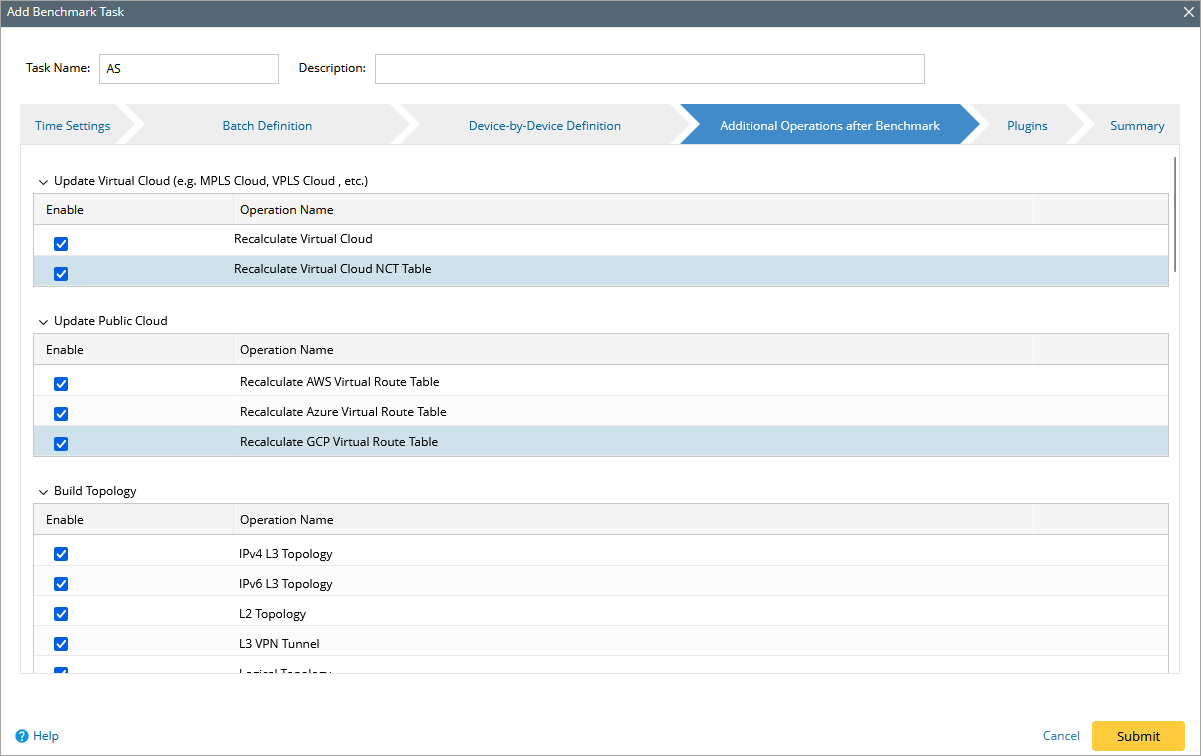
- in the Additional Operation After Benchmark tab, select the following checkboxes:
- Update Virtual Cloud (e.g. MPLS Cloud, VPLS Cloud , etc.)
- Update Public Cloud (Recalculate AWS Virtual Route Table)
- Update Build Topology
- Click Submit.