R12.1 Project Publication-2025Dec23
Automatically Updating Master Keys in Monitor Accounts
This topic describes how to automatically update Master Access Keys in monitor accounts using the Master_Access_Key_Rotation plugin.
Follow the steps below to Auto-Update Master Keys in the monitored Accounts.
- Go to the Domain Management page, click menu
 and open Plugin Manager.
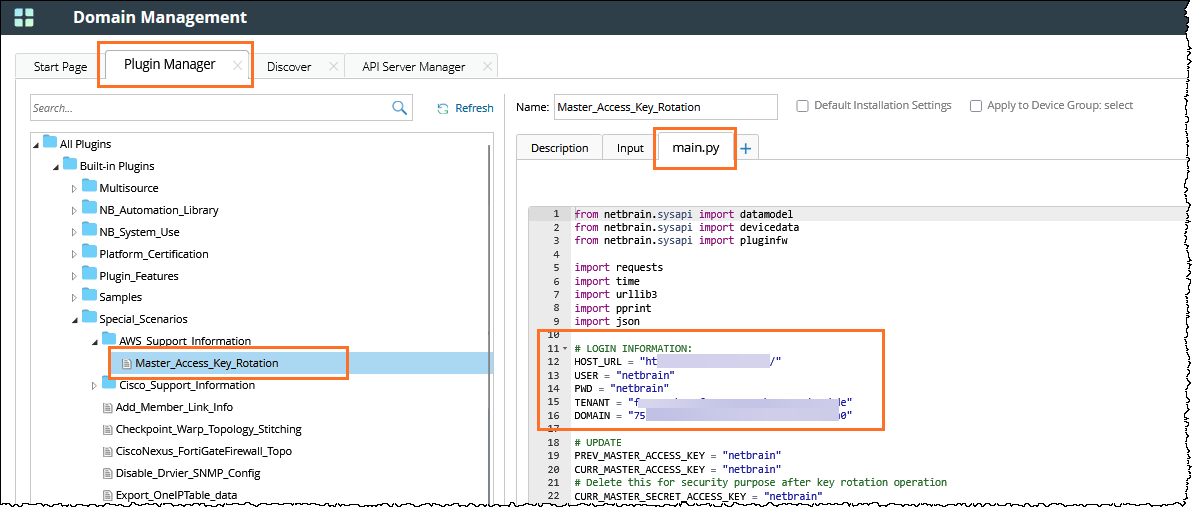
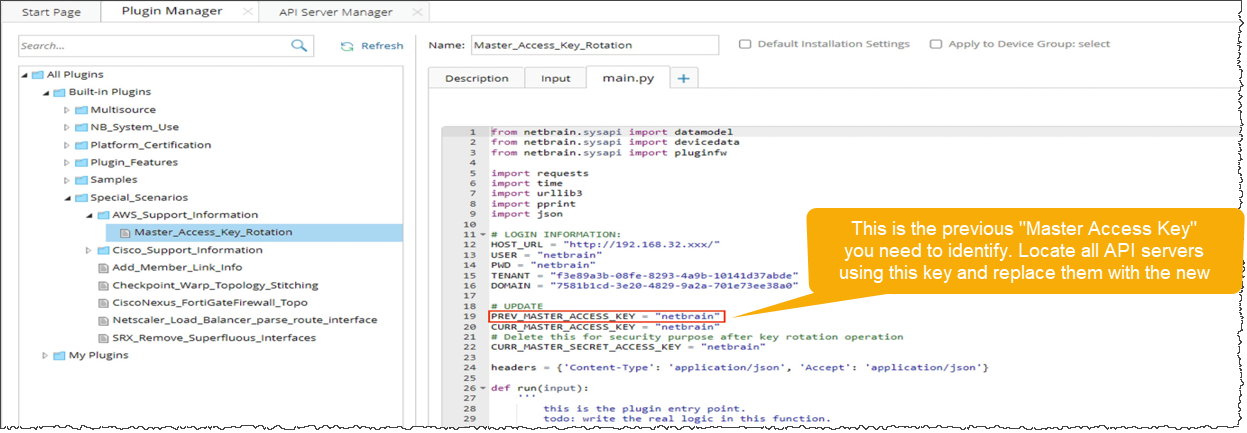
 - Navigate to the Master_Access_Key_Rotation plugin in the directory All Plugins/Built-in Plugins/Special_Scenarios/AWS_Support_Information/.
- In the mian.py tab, replace the following in the #LOGIN INFORMATION section:
- Host_URL with your NetBrain system root URL.
- User and PWD with your NetBrain login username.
- TENANT with your Tenant ID.
- DOMAIN with your Domain ID.

Tip: To find the Domain ID, navigate to the Domain Management page and refer to the URL. 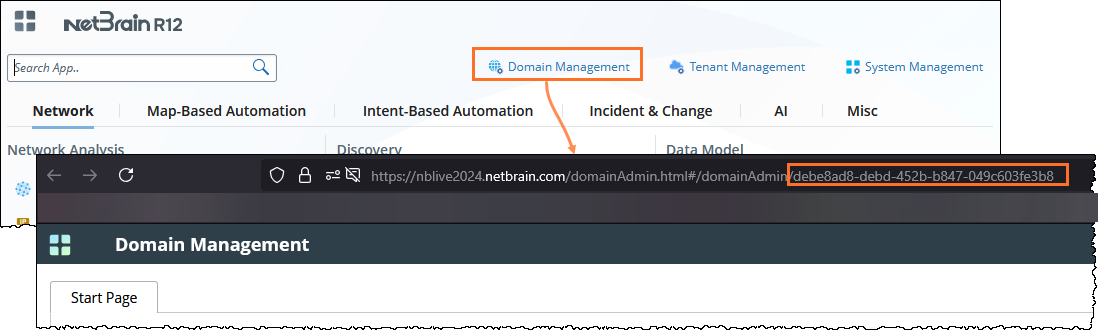
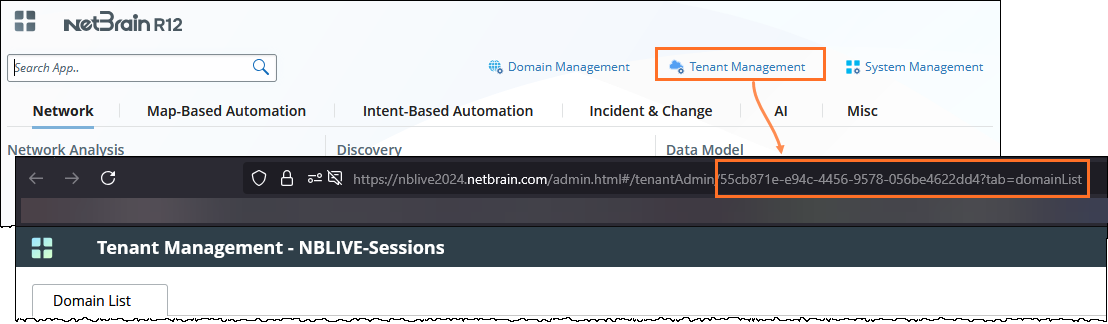
Tip: To find the Tenant ID, navigate to the Tenant Management page and refer to the URL.
- Replace the value of the the PREV_MASTER_ACCESS_KEY with the one you used previously and wish to rotate.
- Replace the value of the CURR_MASTER_ACCESS_KEY and CURR_MASTER_SECRET_ACCESS_KEY of the Gateway Account.
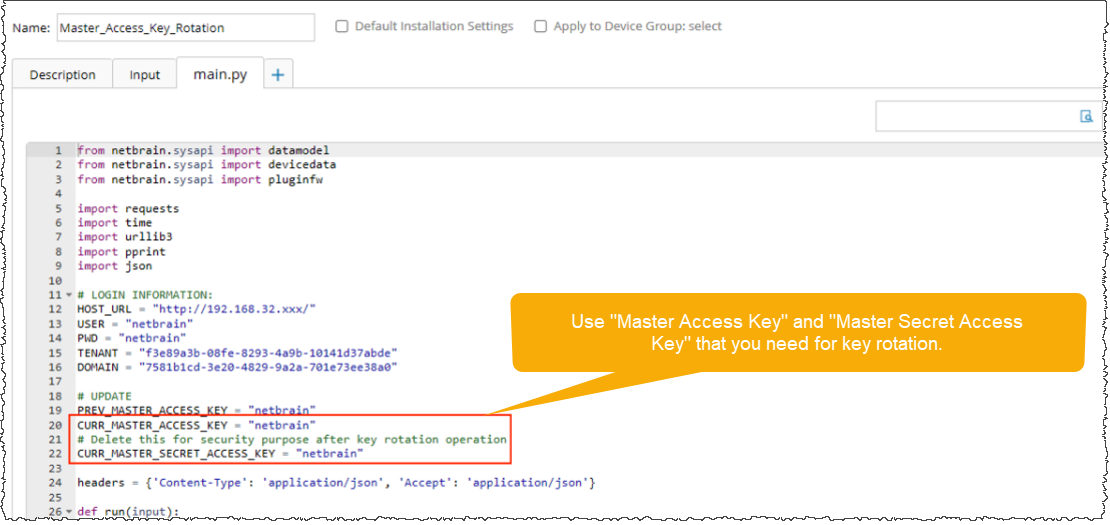
Note: After manually running the plugin, delete the Secret Access Key to ensure security. - Follow the steps to Debug the Master_Access_Key_Rotation
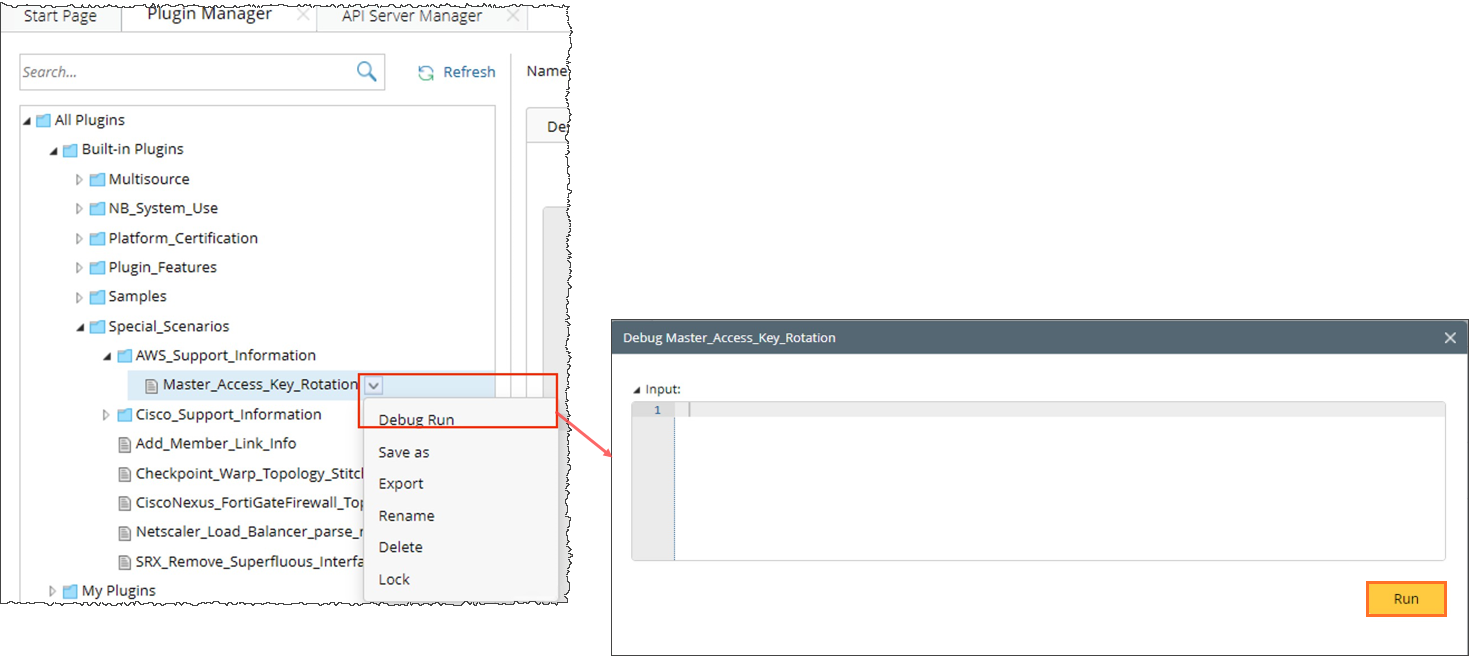
- Hover over the Master_Access_Key_Rotation plugin.
- Click
 and select Debug Run from the dropdown.
 - In the Debug Master_Access_Key_Rotation dialog, click Run and wait for the process to complete.