Define and Test
The Define and Test window enables you to configure and verify a Golden Config Template using retrieved configuration data. This includes defining match pattern rule, specifying applicable devices and instances, and validating the Golden Config using real device configurations.
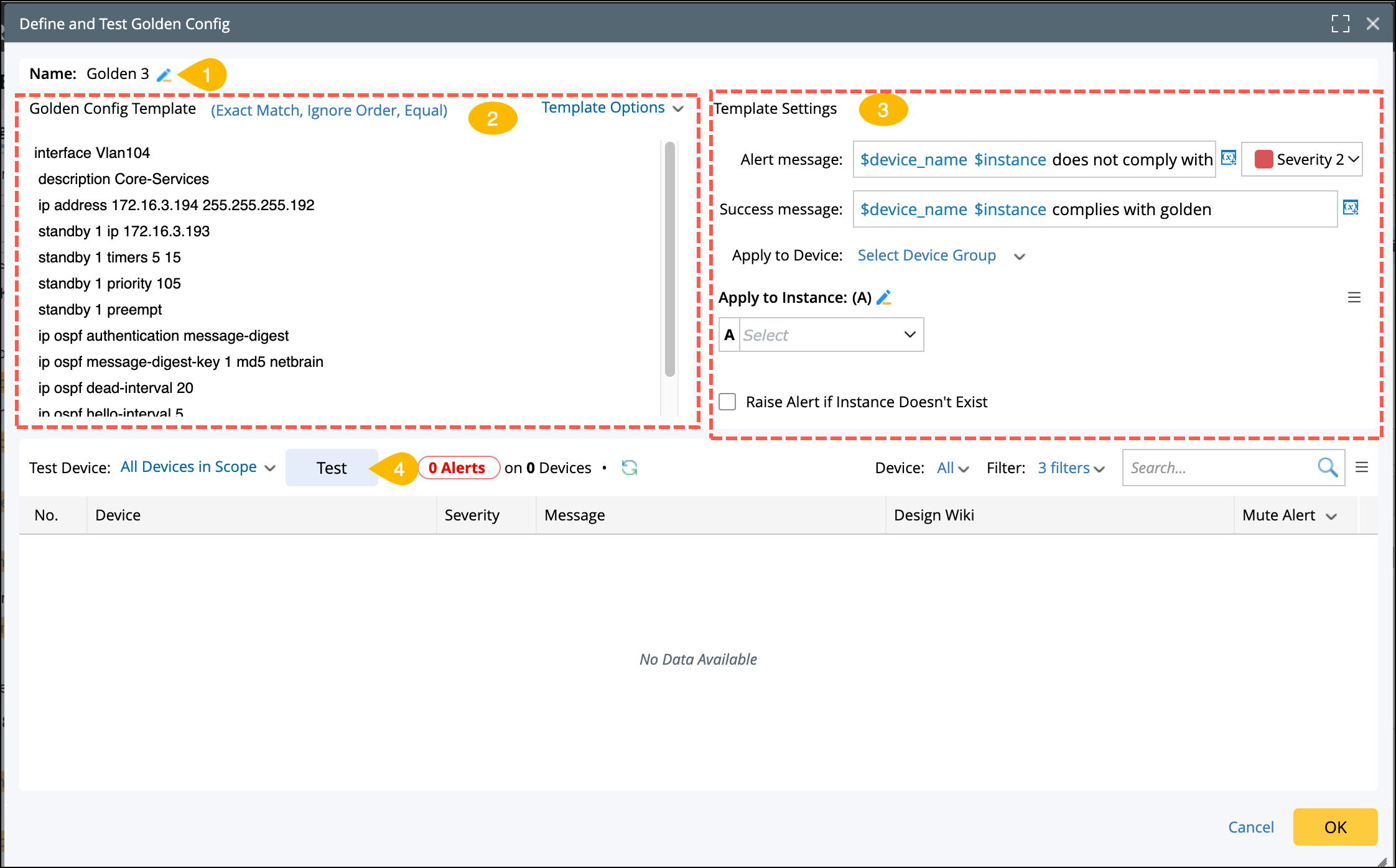
- Name: Assign a name to the Golden Config Template.
-
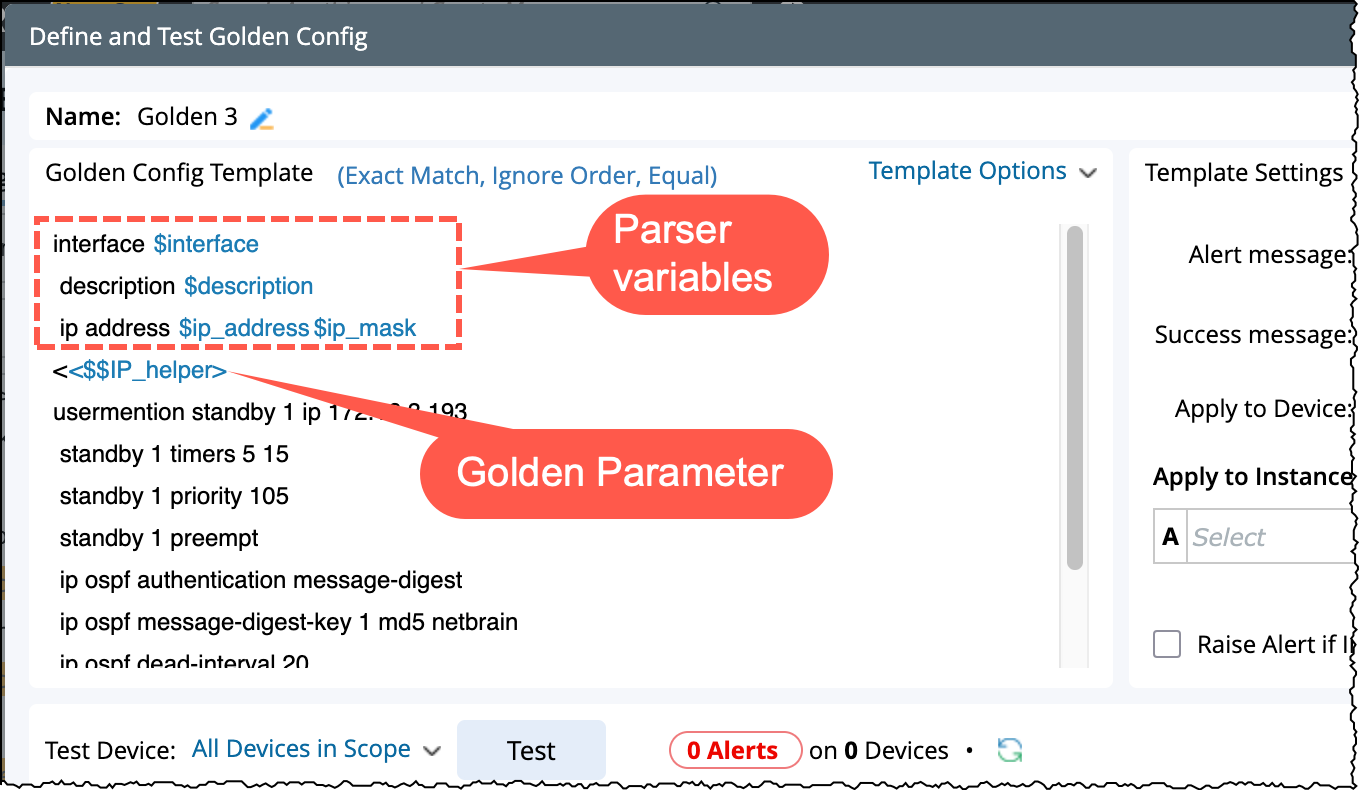
Golden Config Template: The configuration retrieved from the device is auto-populated and can be modified to include parameters/variables for template matching capability.
The final Golden config Template will be:
-
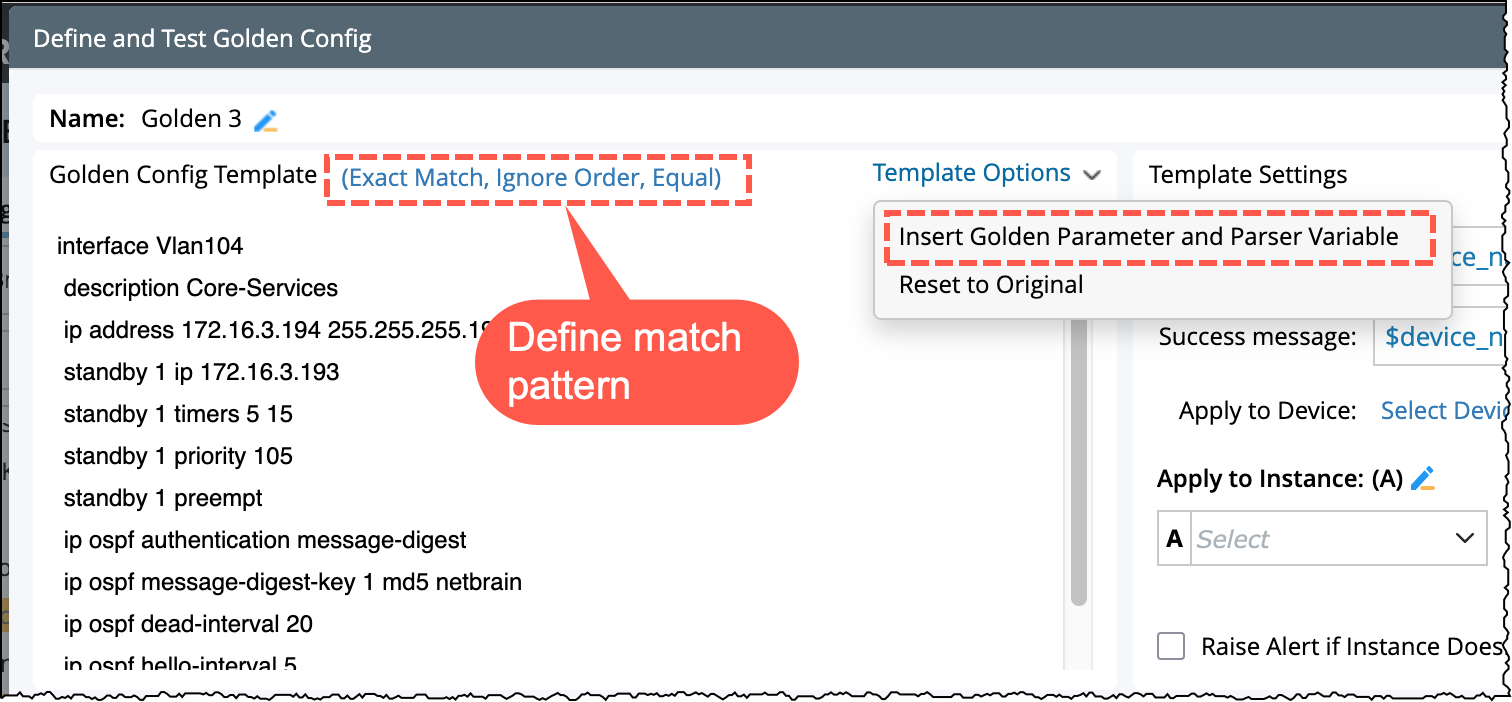
Match Pattern: Define the pattern to compare the device config with the golden config template. The functionality is same as in NI.
-
Insert Golden Parameter and Parser Variable: Replace parts of the config with variables retrieved from the current Config Parser or Golden Parameters (Base and Config Parameters).
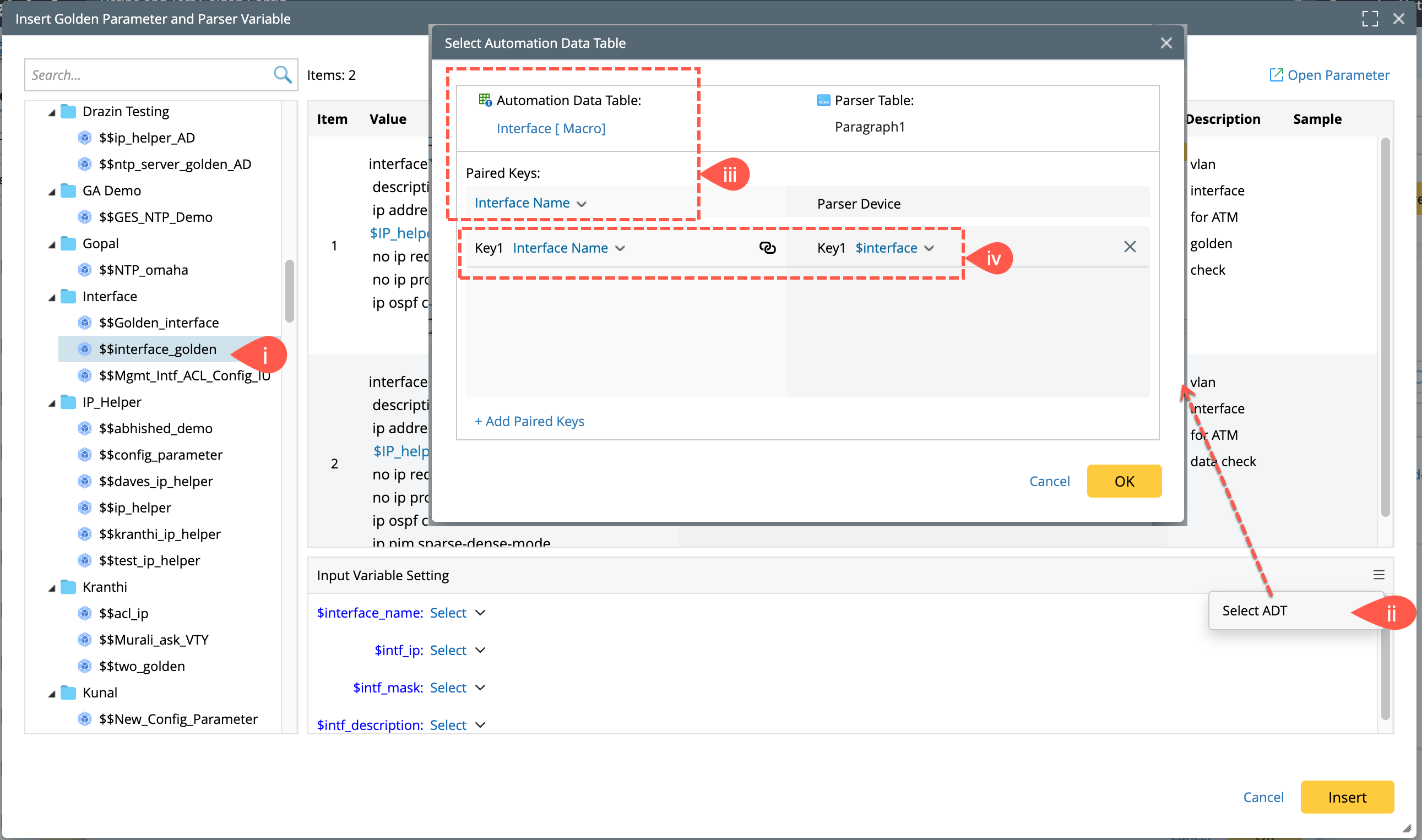
To enhance dynamic mapping between device data and the config template, set the input variables value sourced from the ADT as follows: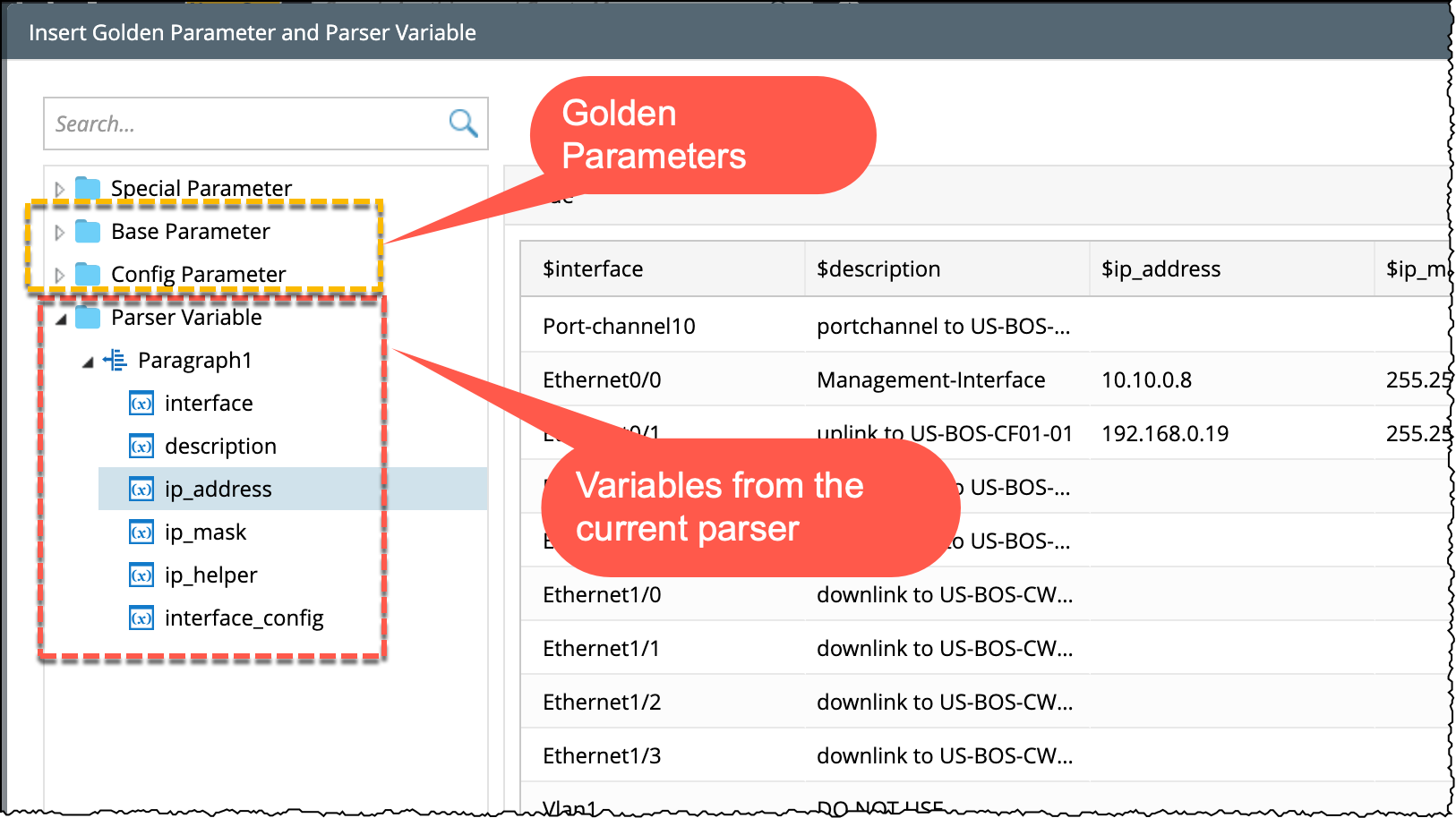
Example: Matching$interfacewithADT.interface_name.- Select a config parameter from the left pane.
-
In Input Variable Setting, open the menu (
 ) and click Select ADT.
- Choose a corresponding ADT Table and column to use as the Device Column.
- Link the ADT column variable with the parser variable.
-
Match Pattern: Define the pattern to compare the device config with the golden config template. The functionality is same as in NI.
-
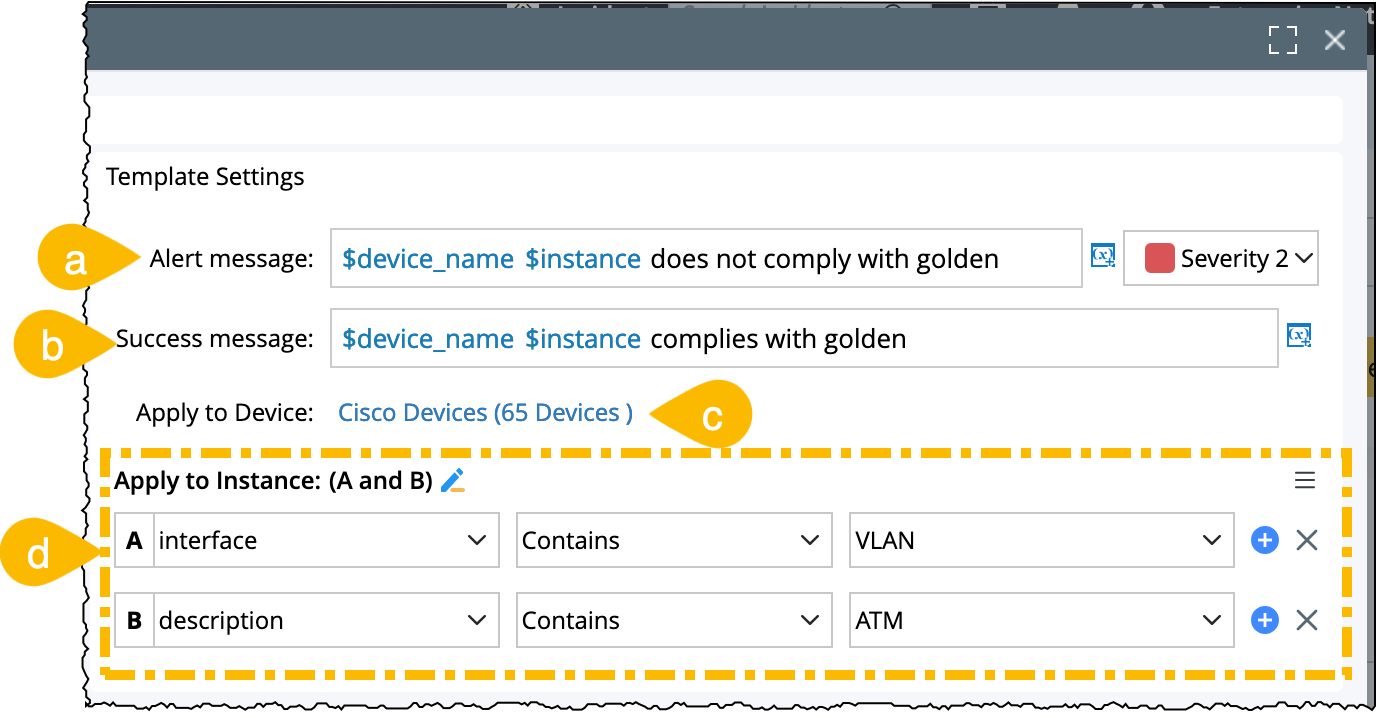
Template Settings: You can define the message, applicable device groups and instance condition.
- Alert Message: Define the alert to be triggered upon mismatch and the severity level. It includes different levels of severity.
-
Success Message: Define the message to appear on successful config match.
Both the Alert Message and Success Message can include the main variables such as Parser Variable, Golden Parameter, ADT Table Variables, and Match Pattern Return Values.
-
Apply to Device: Define the devices via device groups. The current template will be applicable only to these devices.
-
Apply to Instance: Only the instances matching the defined condition will be verified against the golden config template.
You can configure the condition with variables from ADT to enhance the data from the parser table. To use the data from ADT, define the key from the ADT and parser table and pair them together. Multiple keys can be configured to specify the correspondence with the parser table.
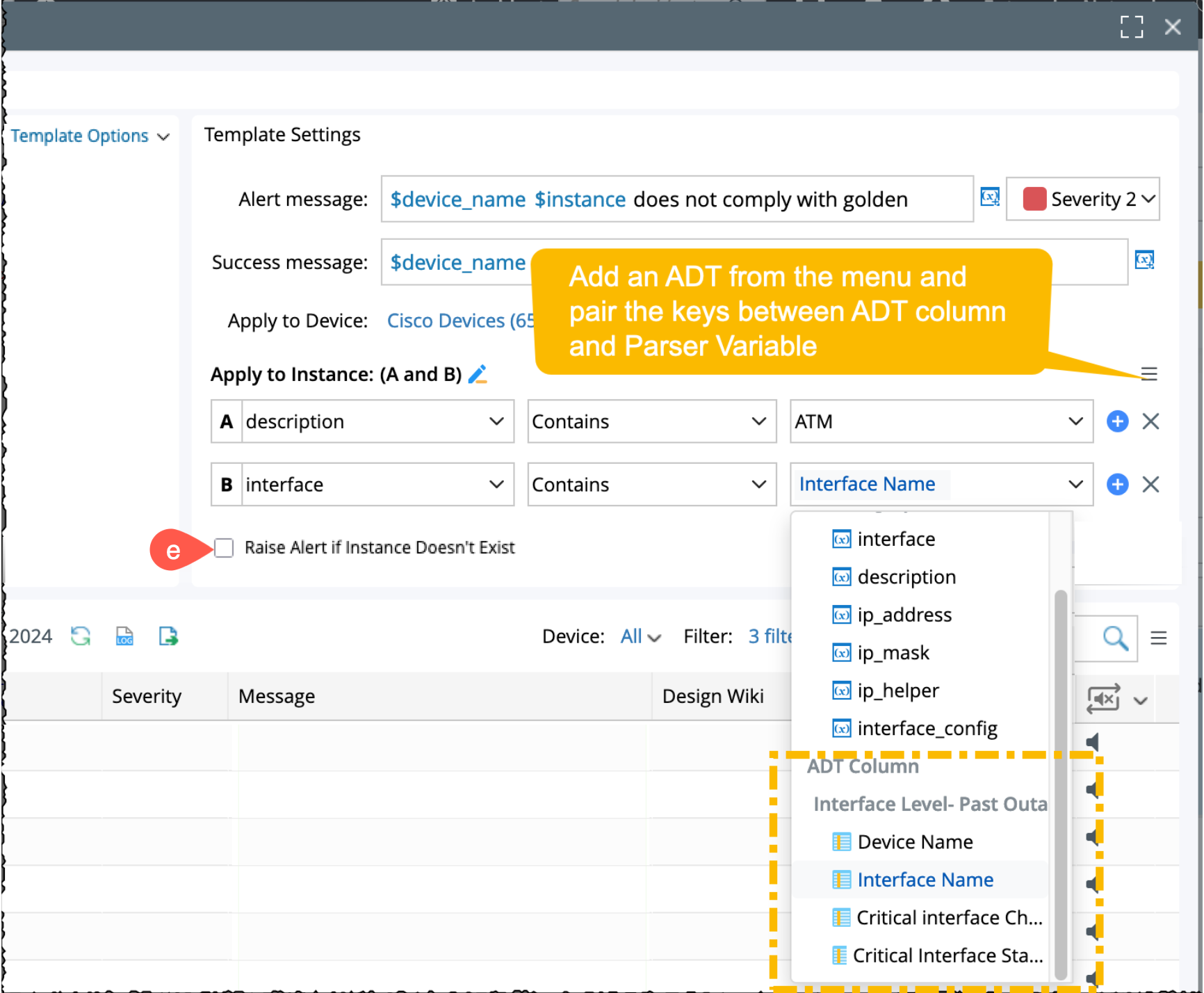
- Raise Alert if Instance Doesn't Exist: Tick the selection box to notify with an alert if instance does not exist.
- Test Golden Config:
-
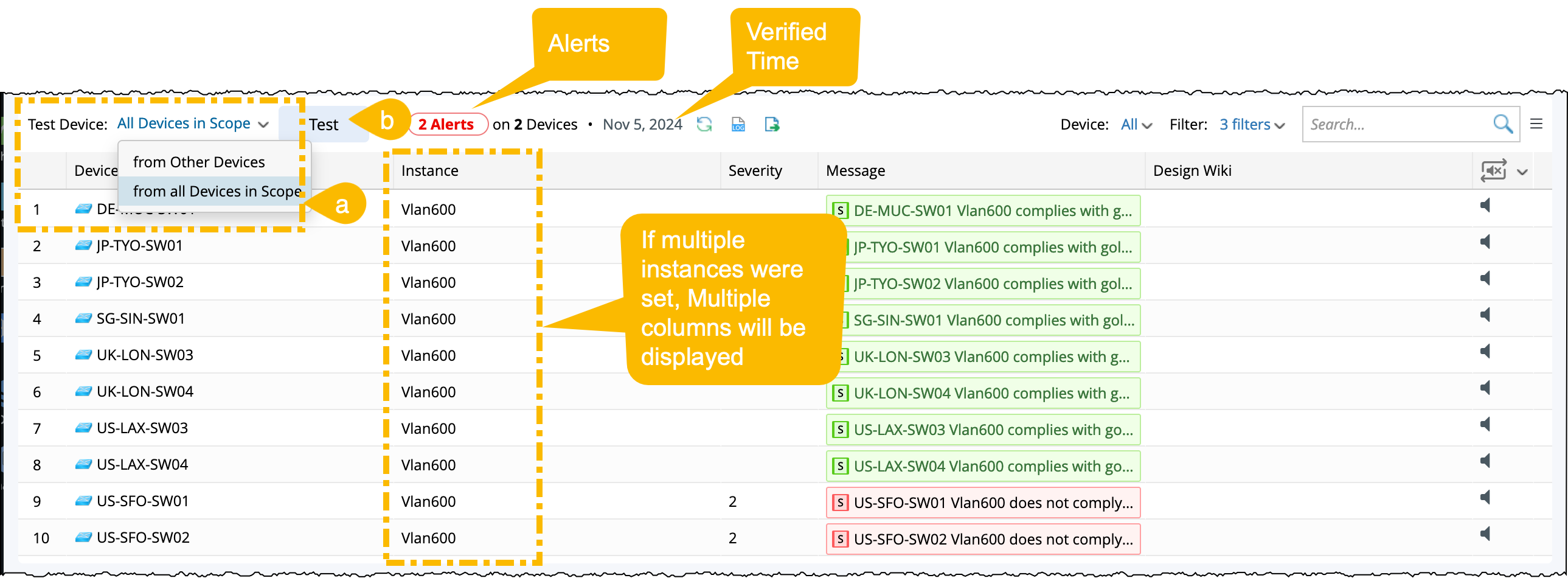
Select the devices:
- From Other Devices: Choose from the system's standard device selection window.
- All Devices in Scope: Test across all devices within the defined Apply-to-Device Scope.
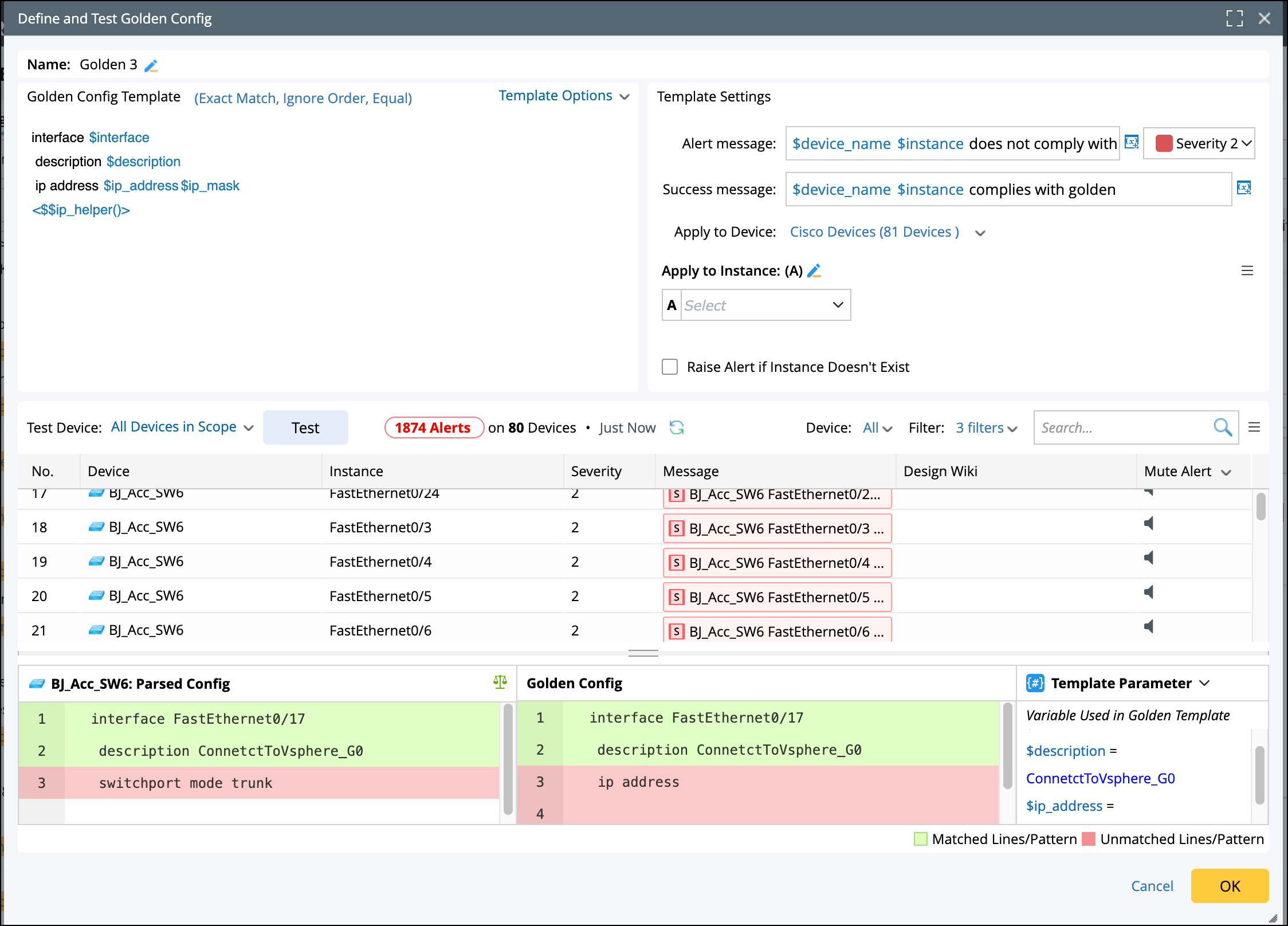
- Click Test to verify the data from the current baseline against these devices. The result will be displayed as X Alerts on Y Devices along with the timestamp.
- Instance column: If multiple table columns are set as the Instance Key, they will be displayed in the format value1, value2.
-
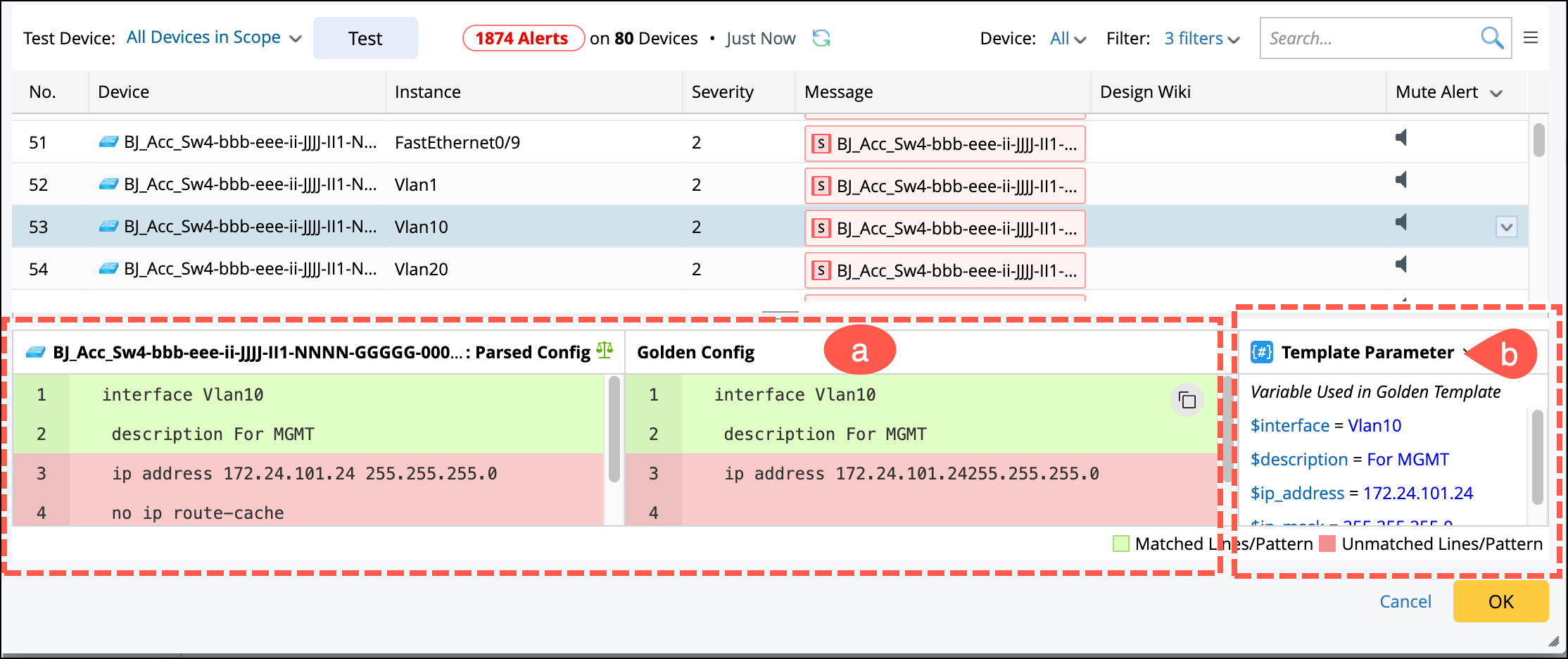
View Test Results: Select an item from the results to display the matching patterns between Target Config and Golden Config computed for the device.
- Matching pattern lines will be highlighted in green color, and the unmatched pattern lines will be highlighted in red color.
-
On the right side, Template Parameter displays the values for each variable (parser variables and golden parameters).
-
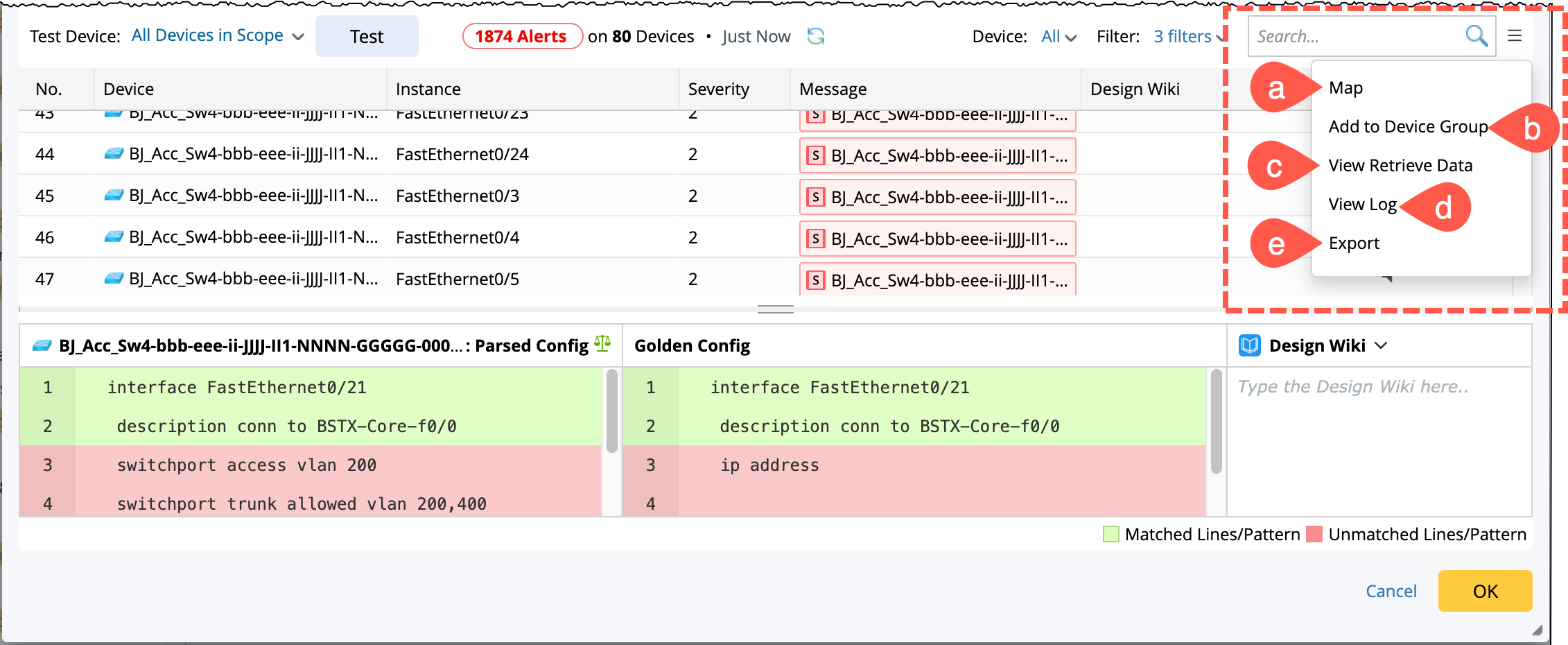
Additional Actions:
- Map: You can draw the devices to the map and view the device information like alerts and status.
- Add to Device Group: You can filter the results by alerts or severity and add them to a device group.
- View Retrieve Data: View the data retrieved from the parser, base parameter and ADT.
- View Log: It includes the instances that did not match the filter criteria, and a corresponding message to facilitate trouble shooting.
-
Export: The filtered results can be exported as a CSV file.
The final Define and Test Golden Config will be: