R12.1 Project Publication-2025Dec23
Install Intent
Follow the steps below to add an intent in the Template Mode.
-
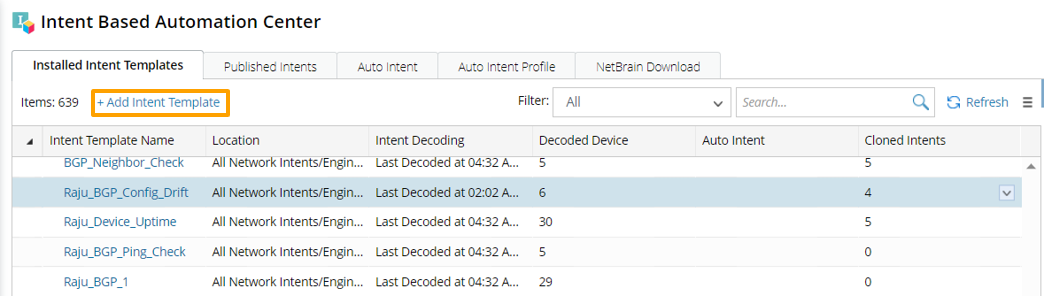
Click + Add Intent Template to open the Add Intent Template dialog box.
-
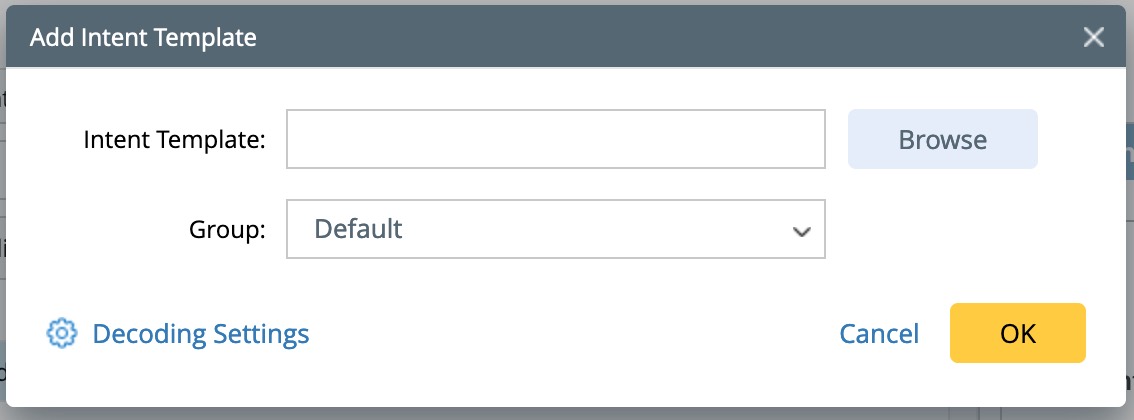
In the Add Intent Template dialog box, define the setting for adding the intent template.
-
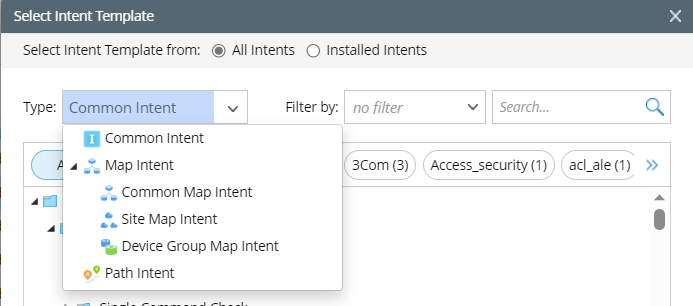
In the Intent Template field, click Browse, then select the intent template to be added. Click OK to finish selection.

You can select one Type of intent to narrow the intent scope. Also, you can filter and search desired intent in the Filter by block.

Note: Cloned intents and member intents of NIC cannot be selected. - In the Group field, select a group for organizing the intent template to be added to the IBA Center. If you do not select a group, the intent will be placed in the built-in Default group.
-
In the Intent Template field, click Browse, then select the intent template to be added. Click OK to finish selection.
Alternatively, you can create a new group to organize this newly added intent template.
-
Click Edit Group > +Add Group.
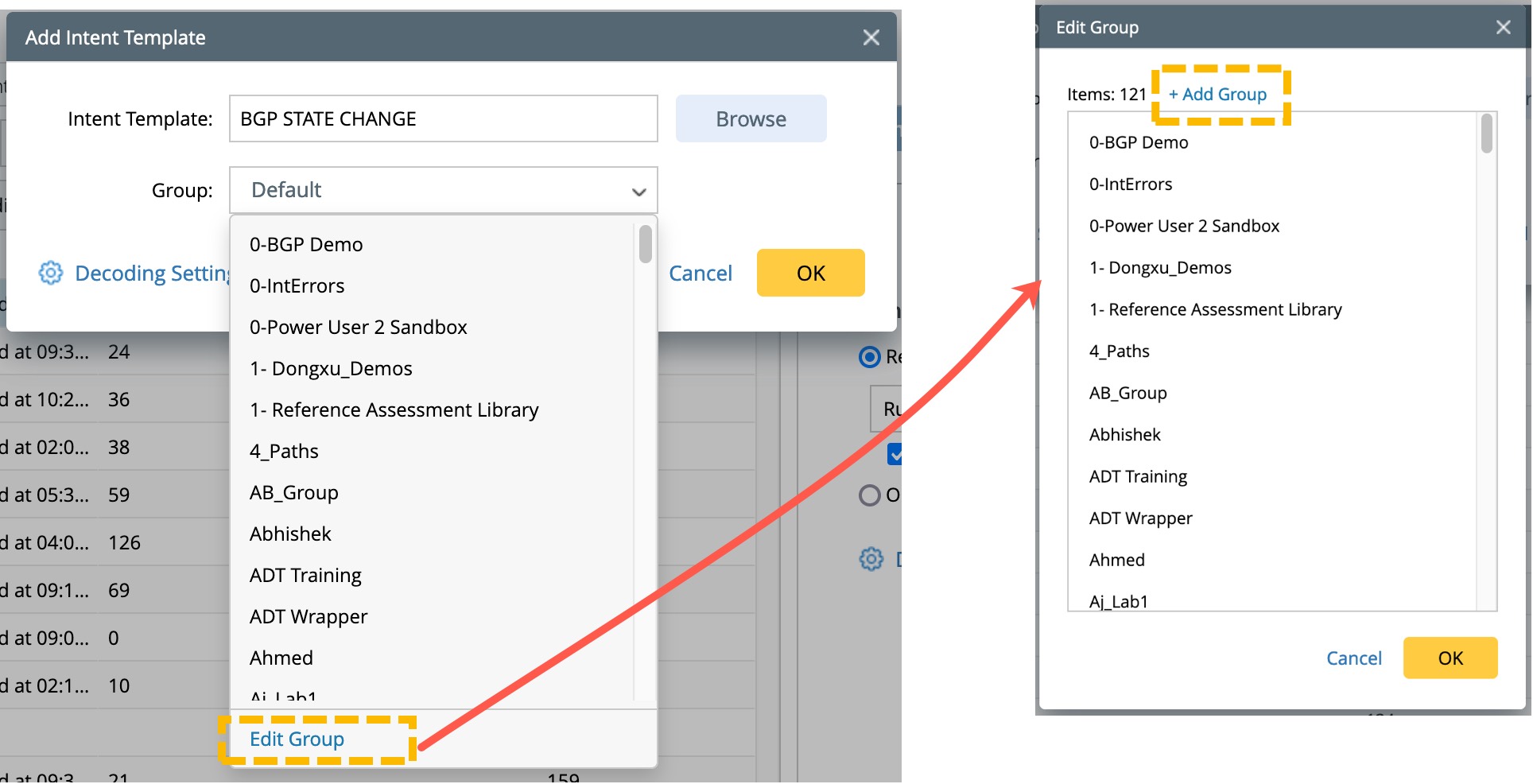
- Enter a group name, then click OK to add a new Group.
-
Click OK to complete adding the intent.
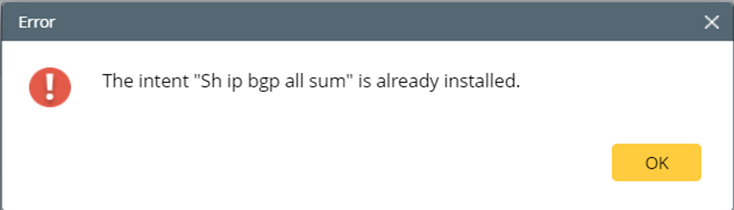
Note: If the intent template to be added already exists in the IBA Center, an error message will appear to notify you of the error.
You can also install the intent in template mode to IBA Center via Intent Replication Wizard. For more information, see Pre-Decode the Installed Intent.