R12.1 Project Publication-2025Dec23
Parse the Line By Variable
Parse the lines containing the selected one or more variables (Pattern Sample: LineByVariable[$confg]: $var1, LineByVariable[$confg]: $var1, $var2). 
- This method can be applied in single pattern, paragraph pattern and collector pattern.
- The scope of selectable variables is all the variables defined in the current pattern.
The following two examples illustrate how to create line pattern with function containing one parsed variable or more than one parsed variables.
Example 1: Parse the lines containing a single variable, e.g., parse acl config per line.
- Create a parser and name it "Access List ".

- Define the settings to collect configuration file data. In this example, select Configuration as the retrieved data and select the device US-BOS-R1.
- Double-click 1 in line 440 to parse the variable access_list first in the Auto Parser mode.
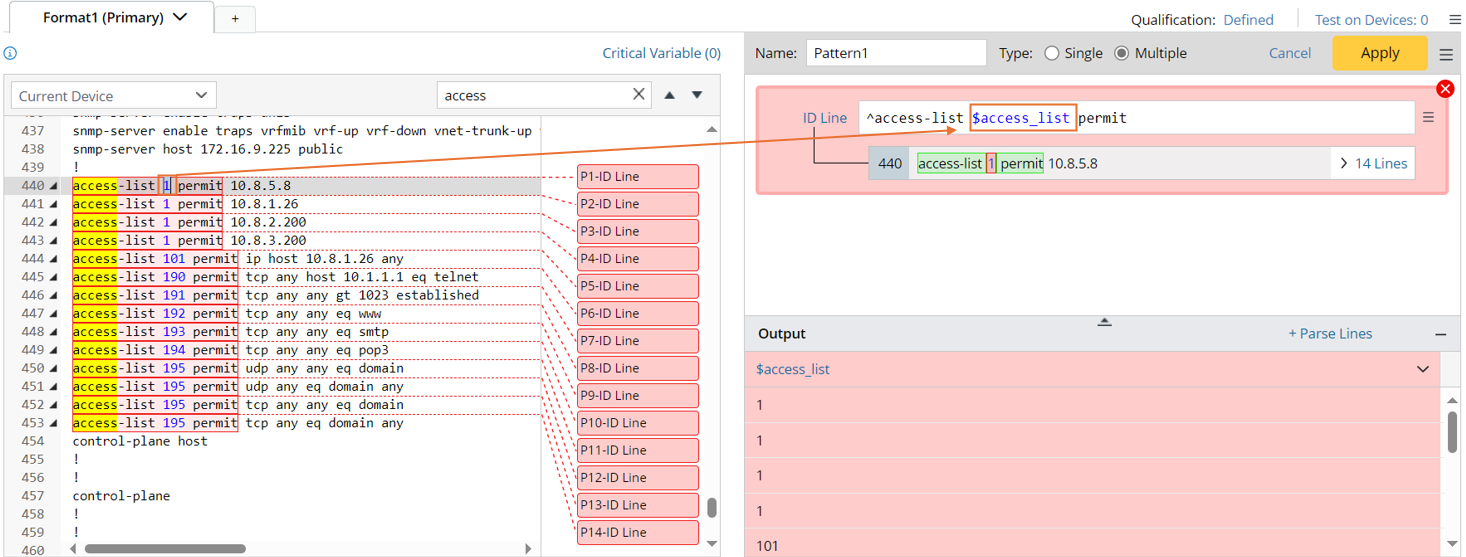
- Click +Parse Lines to define the Parse Lines Settings in the pop-up dialog:
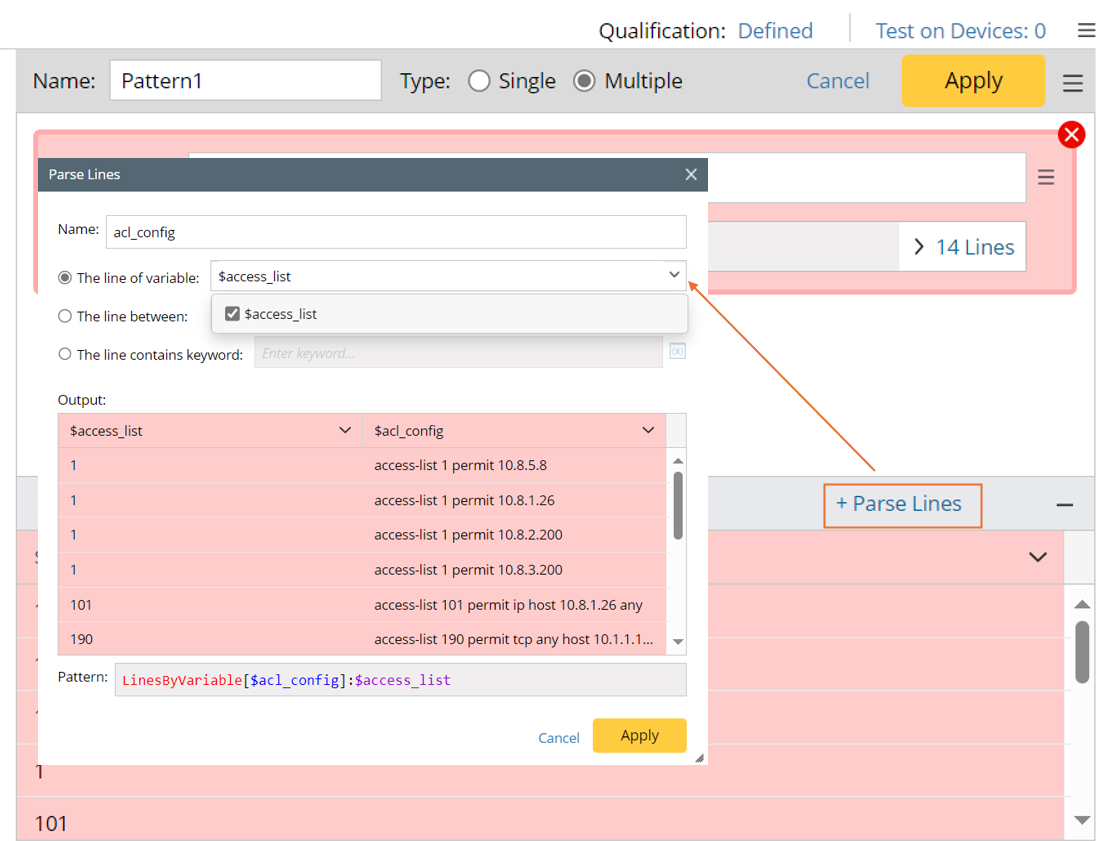
- Set the name to acl_config, The default name is Lines1.
- Keep the default option The line of variable, then select $access_list by checking the checkbox.
- You can preview the pattern command to be created in the pattern field.
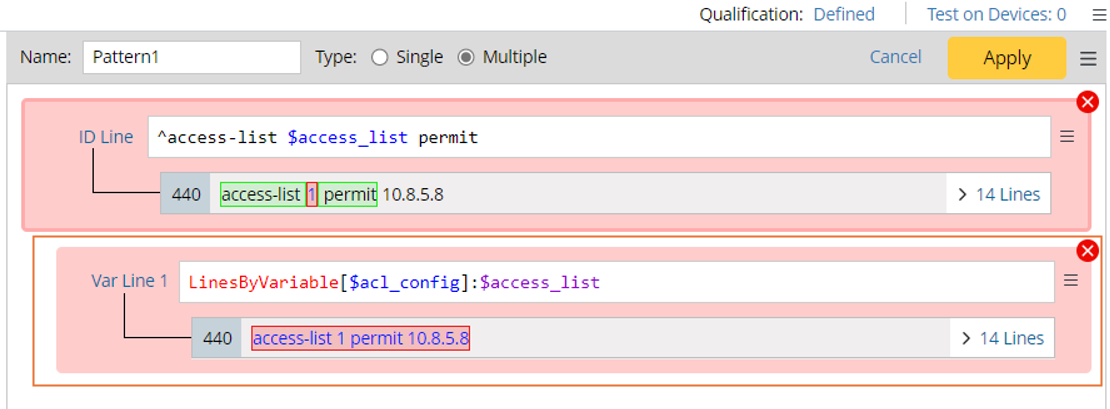
- Click Apply to close the Parse Lines dialog. After this step, you will notice that a var line containing the variable selected in step 4 is created.
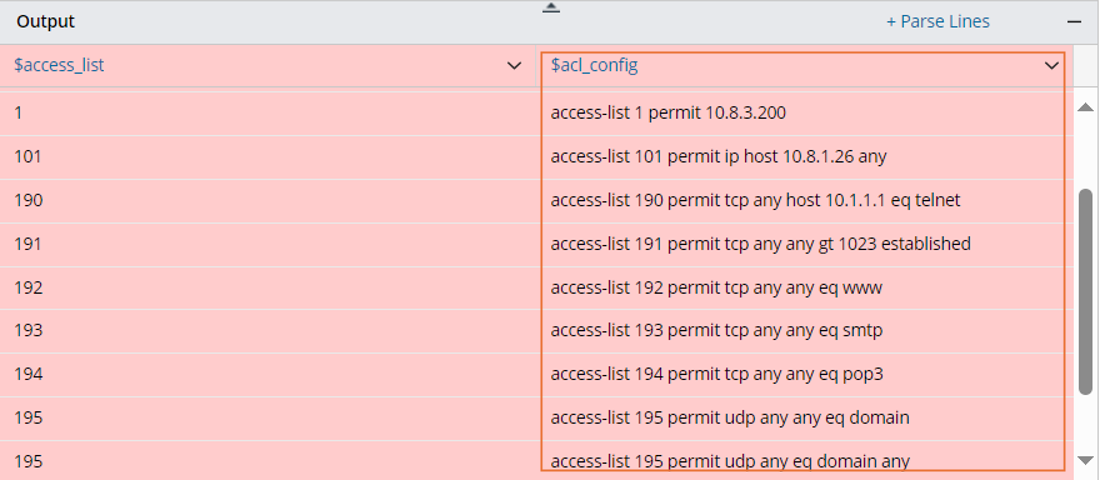
- Then check the output to view the new added data column in the Output pane.
- Click Apply at the upper-right corner to confirm all the settings.
Example 2: Parse two variables in different lines. In this example, we will parse lines including interface variable and MTU variables.
- Create a parser and name it Interface and MTU Data.

- Define the settings for collecting CLI Command data. In this example, select CLI Command of show interface as the retrieved command data and select the device US-BOS-R1 to retrieve data on it.
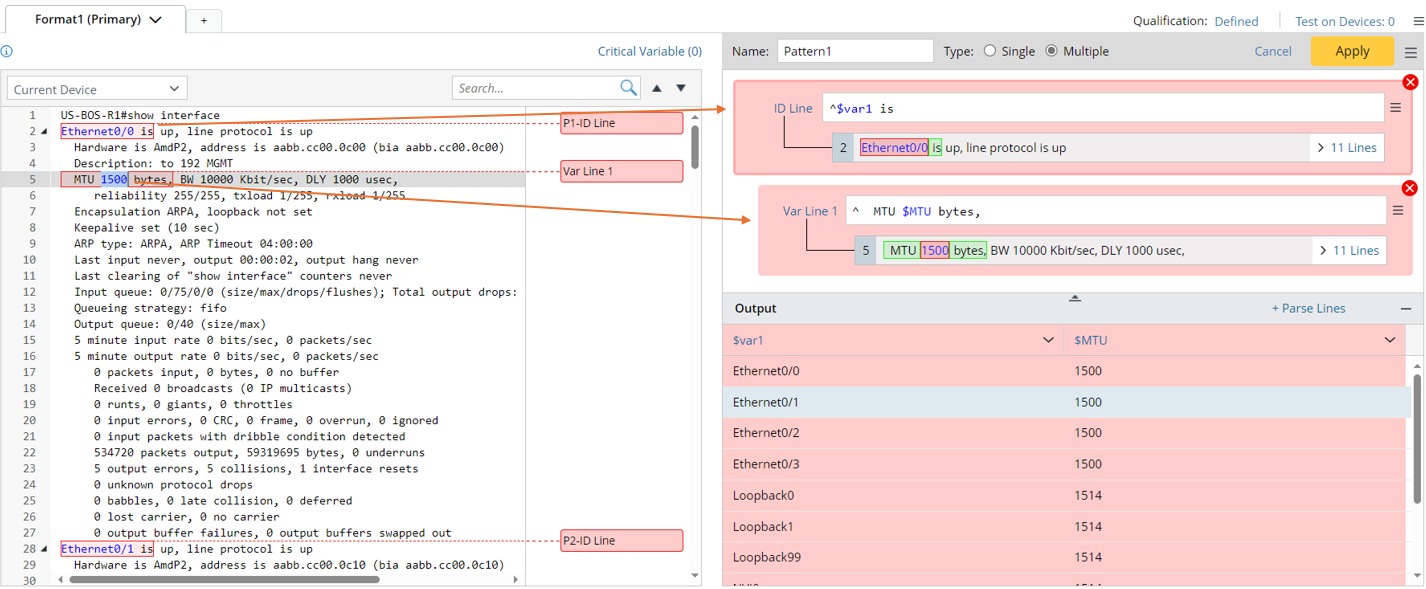
- Double-click Ethernet0/0 in line 2, then continue to double-click 1500 in line 5 to parse the variables $intf and $MTU in the Auto Parser mode.
The original parsed variable can be modified. For example, click "&var1" in the output pane, then change the name to a more suitable one (Interface).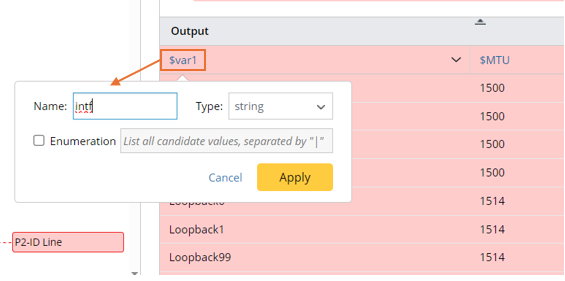
- Click +Parse Lines in the Output area, then define Parse Lines settings in the pop-up dialog:
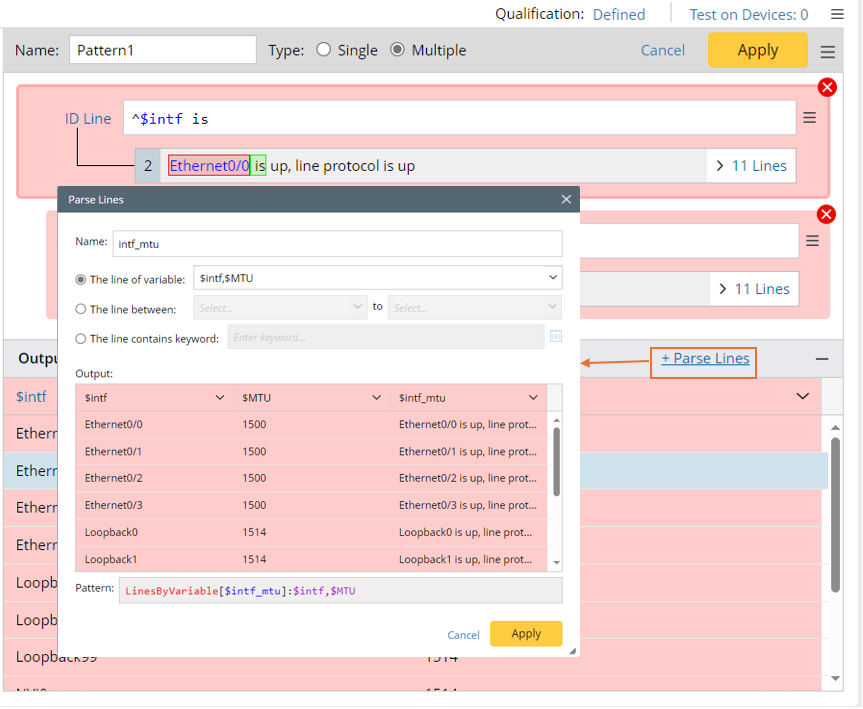
- Set the variable name to intf_mtu,
- select “The line of variable”, then select $intf and $MTU.
- You can preview the pattern command to be created in the pattern field.
- Click Apply to close the Parse Lines dialog. After this step, you will notice that a var line containing the two variables selected in the step 4 is created.
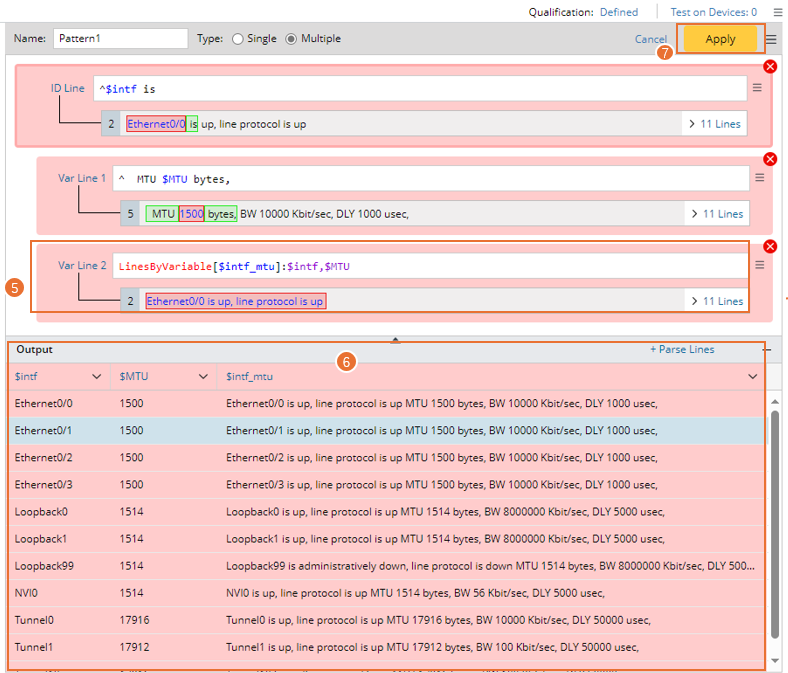
- Check the parsed lines including variables $intf and $MTU for each interface in the output.
- Click Apply at the upper-right corner to confirm all the settings.