Multi-Tenant and/or Multi-Domains
Some NetBrain Systems require that account and device data be logically segregated within the NetBrain to adhere to local security or compliance policies. This is achieved in the NetBrain platform using concepts known as Tenant and Domain. Jira Cloud Projects are mapped to NetBrain domains.
With a NetBrain System deployed with multiple tenants and/or multiple domains, the NetBrain Administrator will need to work with the Jira Cloud Administrator to identify project names that will allow the NetBrain Jira Cloud App to properly route automation requests to the correct Tenant and Domain.
For the purposes of this QuickStart Guide, NetBrain will assume that the Jira Cloud Administrator will be able to provide this additional information. If there are additional questions regarding the use of scope values in Jira Cloud and how to identify them in your environment, please contact NetBrain Technical Support.
- Log in to the NetBrain Administrator Interface with an account that has System Admin privileges.
https://<NetBrain IP Address or Hostname>/admin.html>
- In the NetBrain System Management interface, click the
 icon in upper left corner, then Integrated IT Systems.
 - In the Integrated IT Systems interface, click on Multi-Tenant Support.
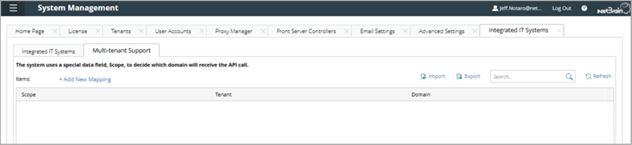
Image – NetBrain System Management (Integrated IT Systems)
- In the Multi-Tenant Support interface, click +Add New Mapping.
- In the New Mapping dialog, complete as follows, then click OK.
Field / Setting Value Scope Value The actual project name in the Jira Cloud system. Tenant <Select the correct NetBrain Tenant Name from drop-down> Domain <Select the correct NetBrain Domain Name from drop-down>
- Repeat steps 4 and 5 until all Scope Value mappings are complete.