R12.3-20260213
Auto Parser in Single Mode
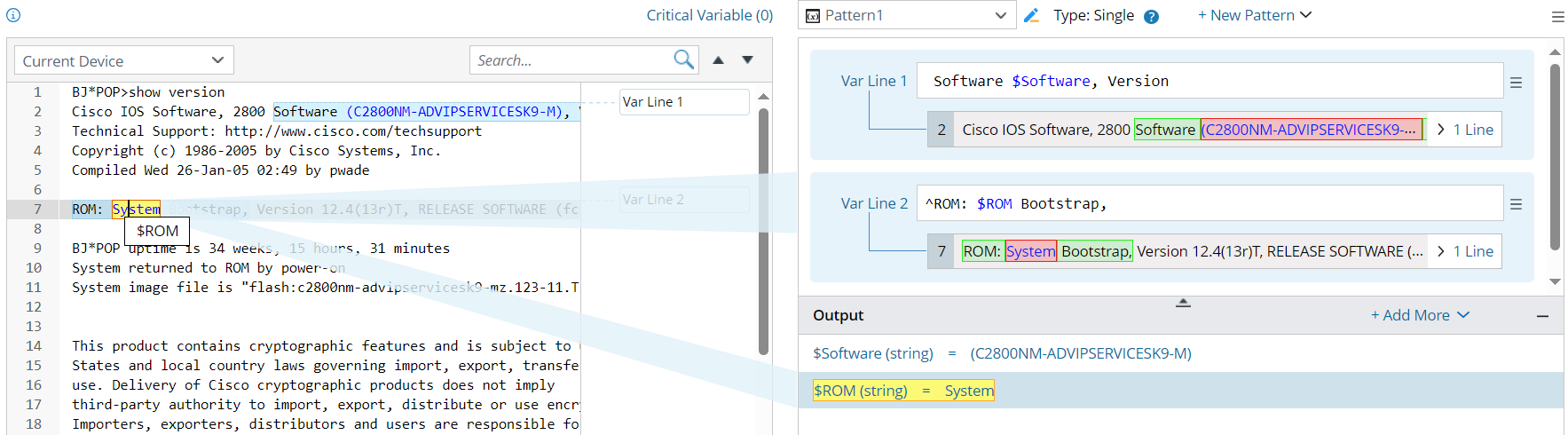
After selecting one or more words from the sample text, and only one variable value is parsed, you will enter single pattern mode. The line pattern generated from the selected variable will be added as a Var line. The output is one line for each variable. The current mode is called Temporary Edit mode (in the red background).
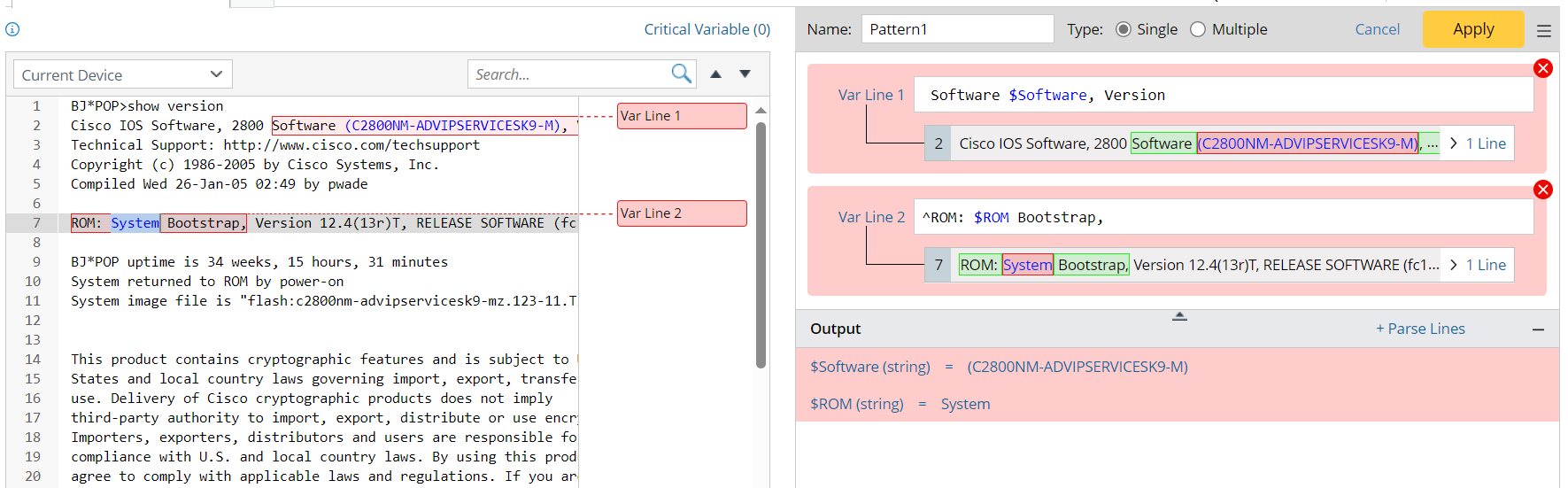
- As the var lines are modified, the matched lines for the line pattern and the final output in the output area change accordingly.
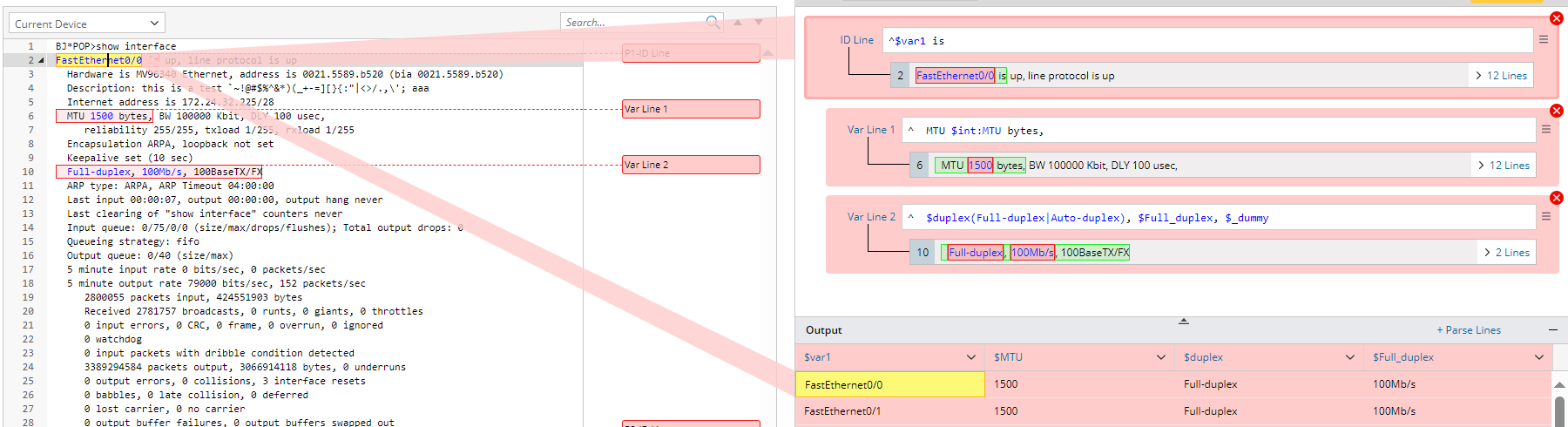
- Double-click the variable in the left input area, and the searchlight in red color appears to locate the corresponding line pattern and output.
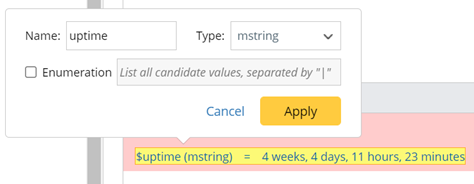
- Click the variable in the matched line area or output area, a floating tip window will appear, and you can edit the variable name, variable type and define an enumeration.
- Click
 to remove the line pattern.
 - Click Apply to confirm the current parser pattern. Then, the background turns blue to indicate that you are switching to Confirmation Mode. In conformation mode, the line patterns can be edited directly.
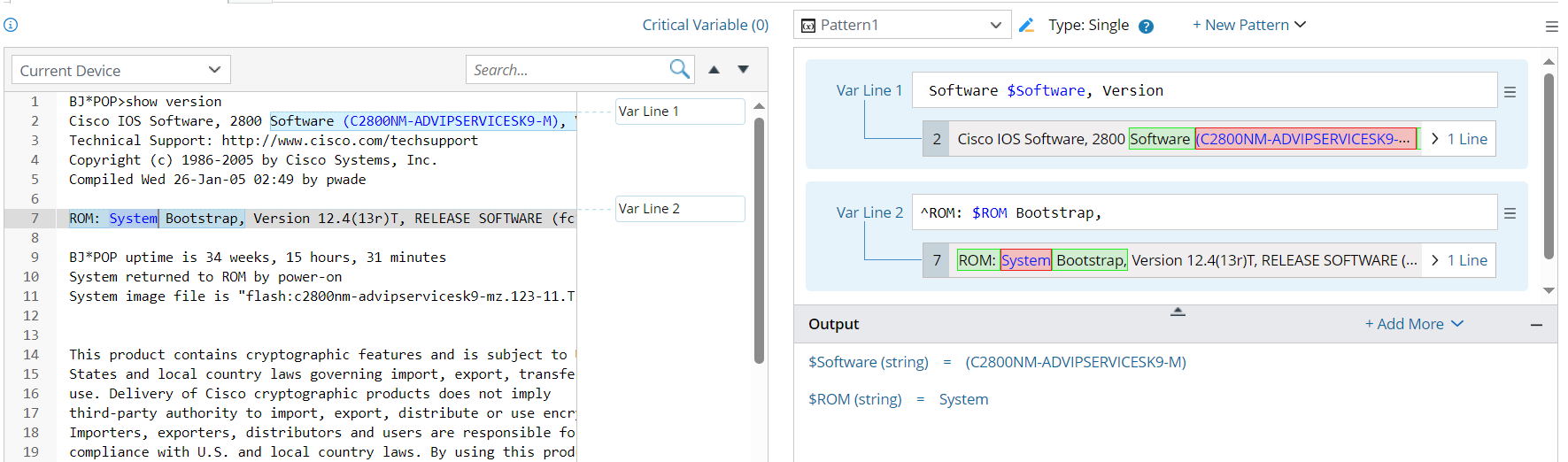
- In confirmation mode, if you select a variable from the left input area, the searchlight in blue color will appear to show the matching relationship.

Note: After confirming the definitions in auto parser - single mode, you actually enter into the add-on parser mode, and a single variable pattern is created. - If you switch from single mode to multiple mode, the variable will be parsed in multiple mode, with the first line pattern being the ID line.