R12.3-2026Apr21
Configure Outgoing Email Server Settings
To configure Outgoing Email Server Settings, complete the following steps:
- Log in to the System Management page.
- On the System Management page, select the Email Settings tab.
- In the Email Settings > Outgoing Email Server Settings tab, select the Enable Sending Email Server Settings checkbox.
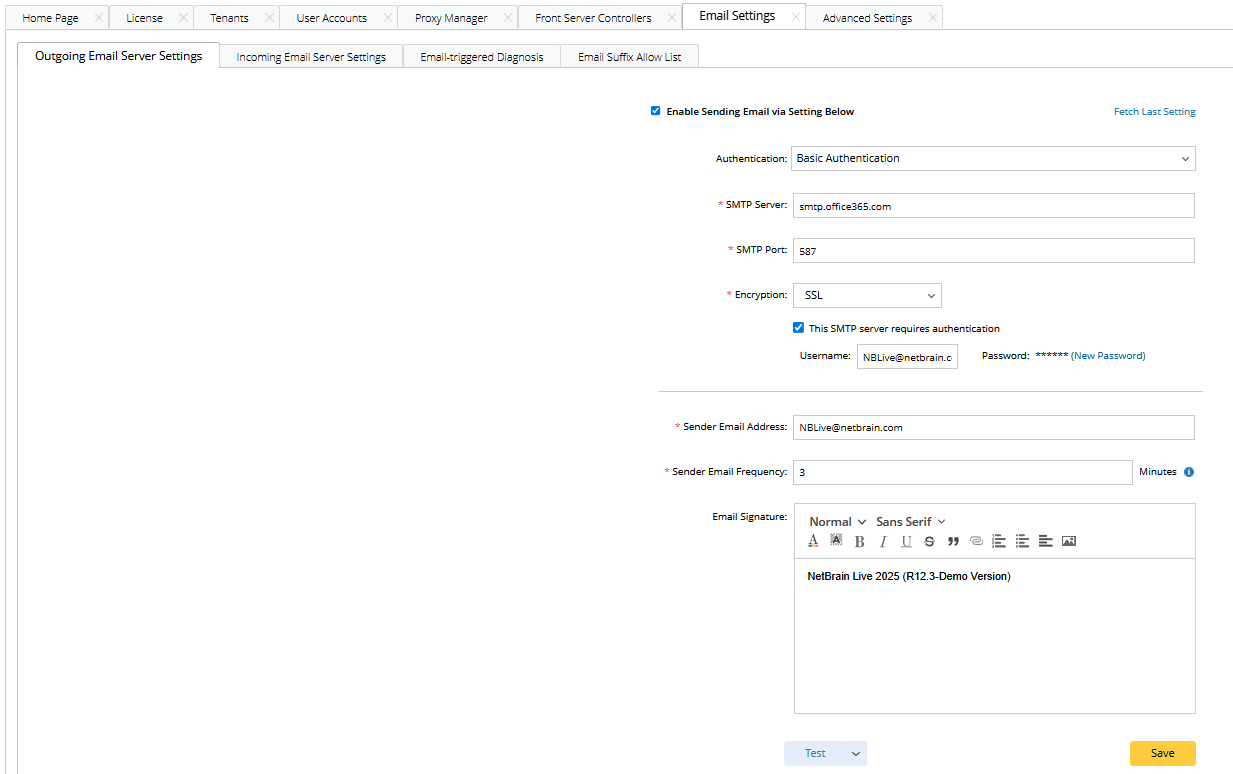
- Two authentication methods are available for outgoing email server settings. The UI for configuring the outgoing email server varies depending on the authentication method selected.
- If "Basic Authentication" is selected as the authentication method, the following fields should be configured.
Field Description Default Value Authentication Basic Authentication SMTP Server Specify the IP address of an SMTP server. - SMTP Port Specify the port number that the SMTP server listens to. 25 Encryption Specify the type of encrypted connection, such as SSL or TLS. You also require authentication for logging in the SMTP server by selecting the corresponding check box. - Sender Email Address Specify the email address for system emails. - Send Email Frequency - Specify the time interval for email alerts. The system will not duplicate email alerts to receivers until the specified time interval has passed.
- (Optional) Configure authentication for accessing SMTP server.
5 minutes Email Signature (Optional) Set up an email signature that can be applied to all system emails. - - If "OAuth 2.0 for Microsoft Office365" is selected as the authentication method, the following fields should be configured
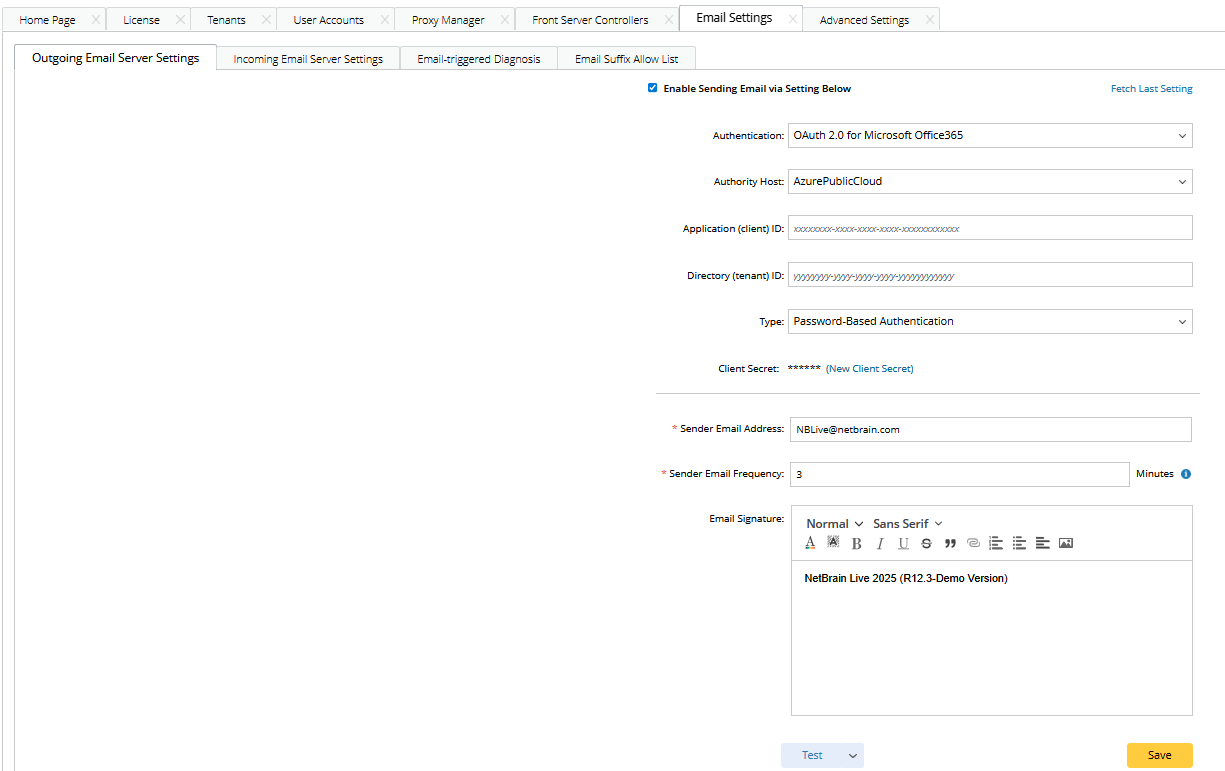
Field Description Authentication OAuth 2.0 for Microsoft Office365 Authority Host Select a Microsoft identity platform endpoint that issues authorization codes and access tokens.
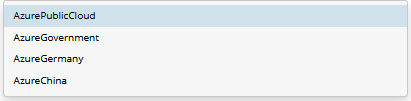
AzurePublicCloud Application (client) ID Input the ID assigned to your app when you register it in Azure App registrations. Directory (tenant) ID Input the ID that can be used to identify which organization (directory) owns the app and users. Type Select an authentication type for "OAuth 2.0 for Microsoft Office365" authentication.
- Certificate-Based Authentication
- Password-Based Authentication
Password-Based Authentication Client Secret Input the client secret. Sender Email Address Set up an email signature that can be applied to all system emails. Sender Email Frequency - Specify the time interval for email alerts. The system will not duplicate email alerts to receivers until the specified time interval has passed.
- (Optional) Configure authentication for accessing SMTP server.
Email Signature (Optional) Set up an email signature that can be applied to all system emails.
- If "Basic Authentication" is selected as the authentication method, the following fields should be configured.

|
Tip: Before saving the changes, you can click Test to verify whether the settings are valid. |
- Click Save.
|
|
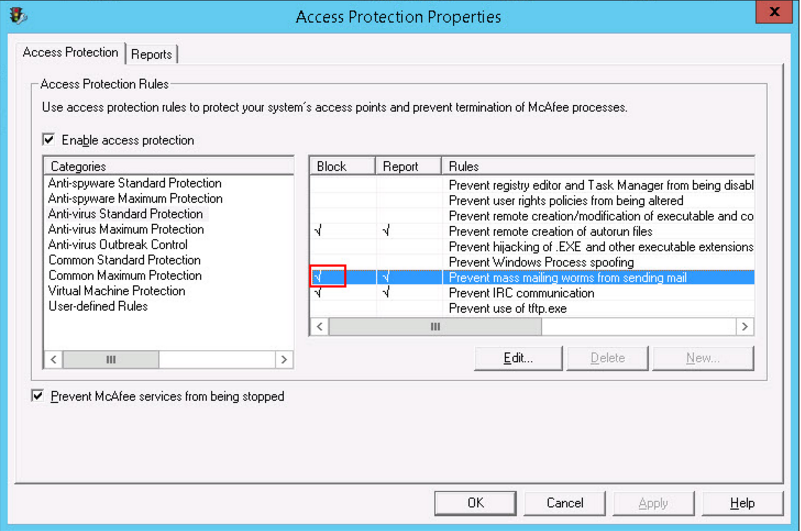
Note: If the antivirus software McAfee has been installed on the Application Server (Web Server), you need to check whether the mass mailing service is blocked by the McAfee process as follows, which may cause the failure of mail delivery. |
See also: