R12.3-2026Apr21
Export CSV Report
The values of variables and the status code from the NI execution result can be exported as a CSV report and saved in the NetBrain file system or downloaded to the local computer.
- In NI Edit Mode, click the
 icon and select Intent Settings in the drop-down menu.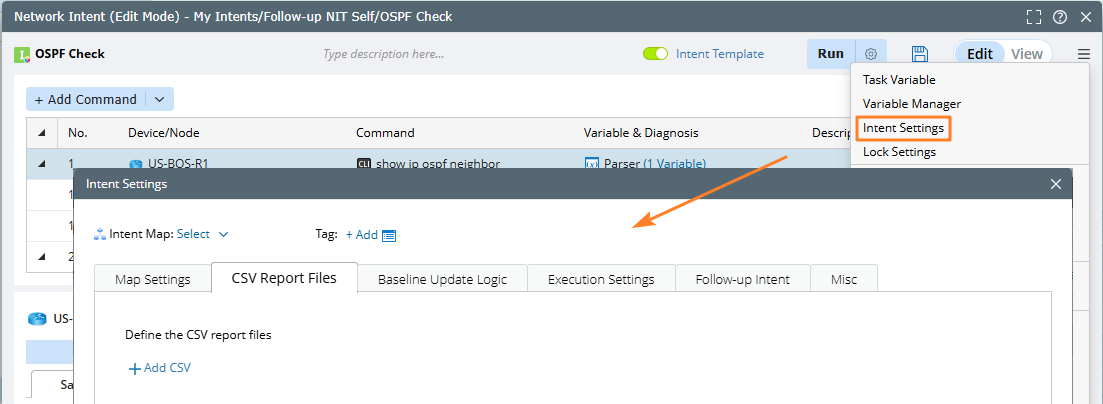
- On the CSV Report Files tab, click Add CSV to define the file name and columns for the CSV report. You can click Add CSV to define multiple CSV reports for the NI.
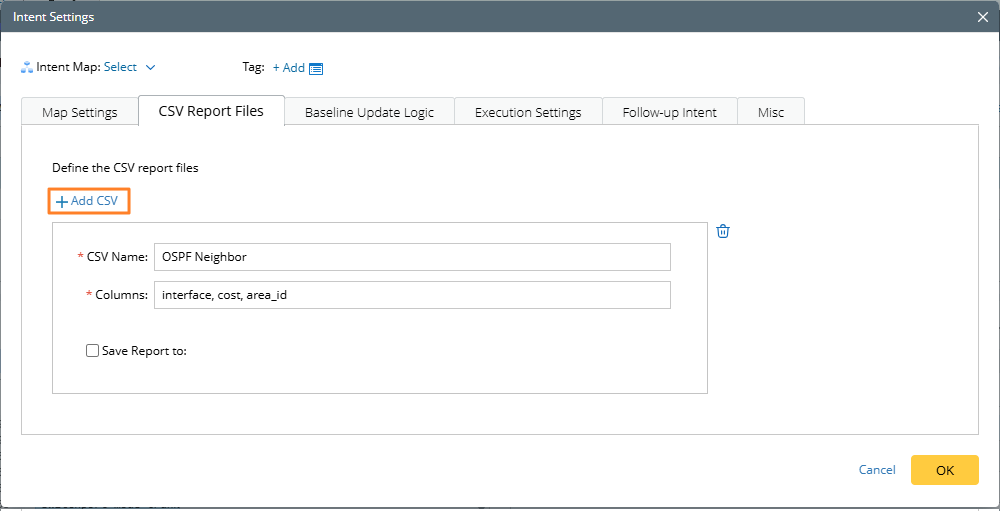
- Select the Save Report to check box to specify the NetBrain files folder for CSV report from intent.
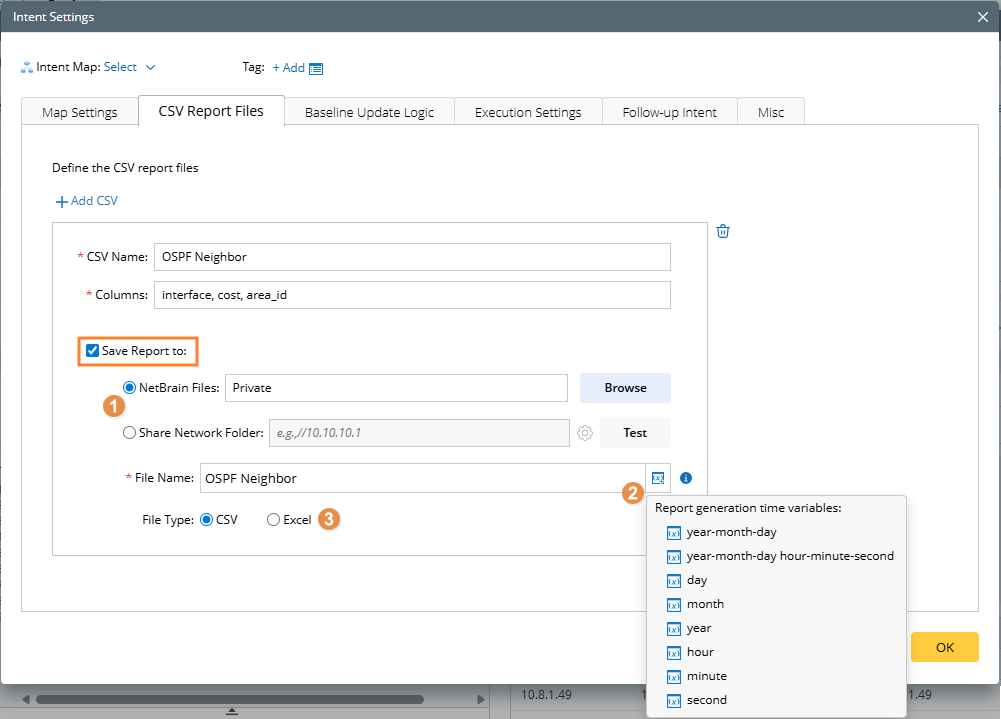
- You can save the file to NetBrain or to a shared network folder.
- Support timestamp variables in file names. Use 4-digit years and 2-digit values for all other time units (e.g., month, day).

- You can save the report in two formats: CSV or Excel.
- Add the Export to CSV Report node to diagnosis and select the report defined above.
- On the Define Diagnosis tab, click Export CSV Report from the drop-down list of Action.
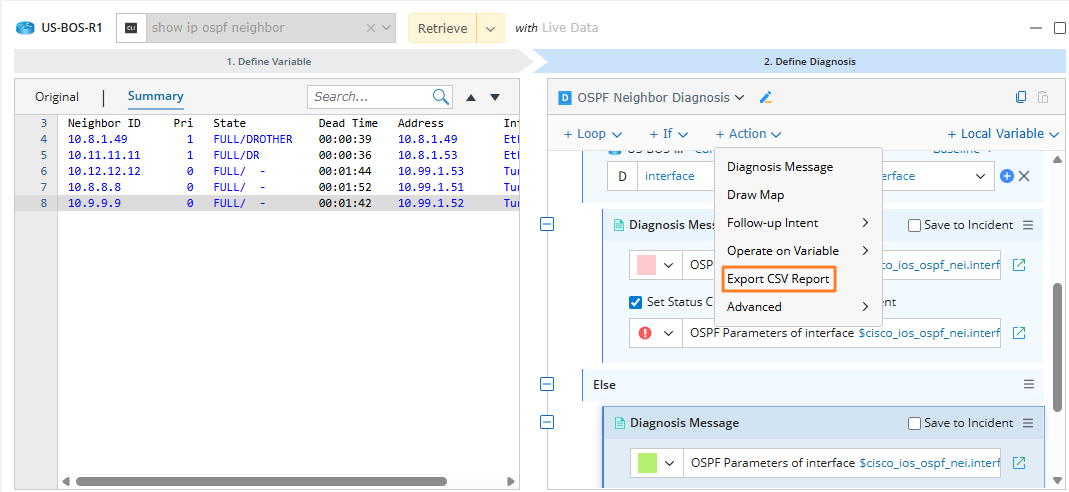
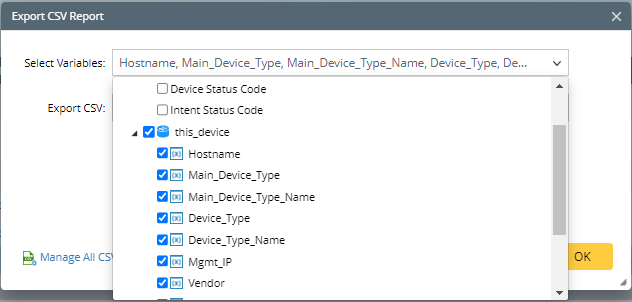
- In the pop-up window, select variables to define the column mapping from the single value to the selected CSV Report.
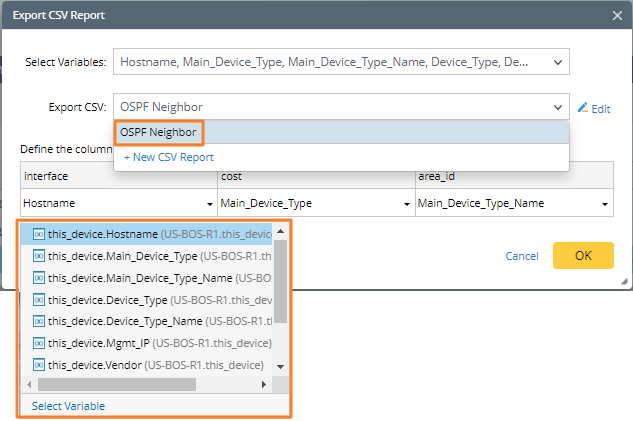
- Select the CSV report defined previously, and then use the drop-down menu to select the variable for each column in the CSV report. Click OK. Built-in data can be selected and exported, such as device name, diagnosis note and device status code.
- On the Define Diagnosis tab, click Export CSV Report from the drop-down list of Action.
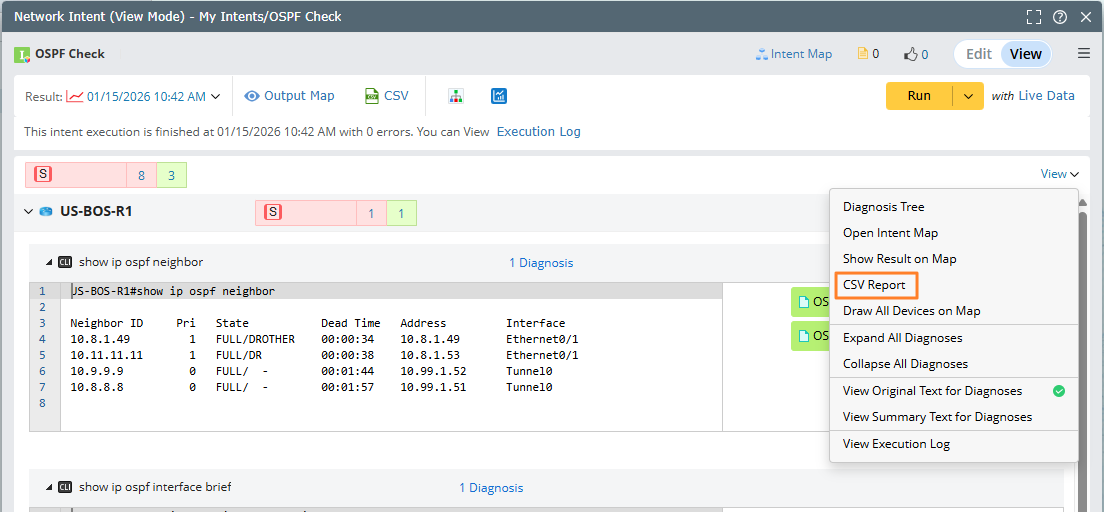
- Run this intent and in NI View Mode, click View > CSV Report to view the generated CVS report.
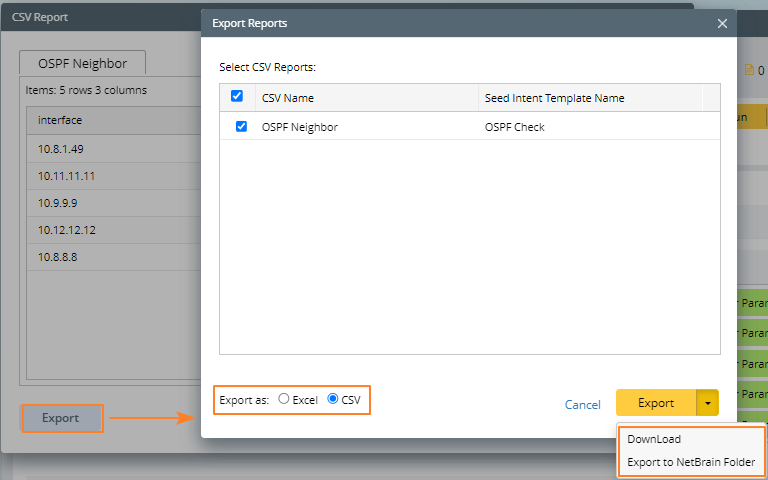
- In the CSV Reports dialog, select the report you want and click Export and select CSV as export fotmat. You can directly download the report to the local folder or save the report in the NetBrain system.