Export Intent Diagnosis Result from Dashboard
You can export diagnosis results from an Intent Dashboard to an Excel report. The export supports filtering, column selection, destination options, and flexible result formats.
Follow the steps below to Export Diagnosis Result based on ADT column.
- Open the required Intent Dashboard, click the dashboard menu (☰), and then select Export Diagnosis Result.
- In the Export Diagnosis Result for <Dashboard Name> window, define the following:
- Filter Diagnosis Message by Intent Status Code: Click
 , then select one option from the drop-down list to filter the diagnosis message by intent status code.
 - Filter Diagnosis Message by Device/Node Status Code: Click
 , then select one option from the drop-down list to filter the diagnosis message by device status code.
 - Filter Intent CSV Reports by Last Intent Execution Time: Input a number, then click
 to select a time unit to define the last intent execution time to filter the intent CSV reports.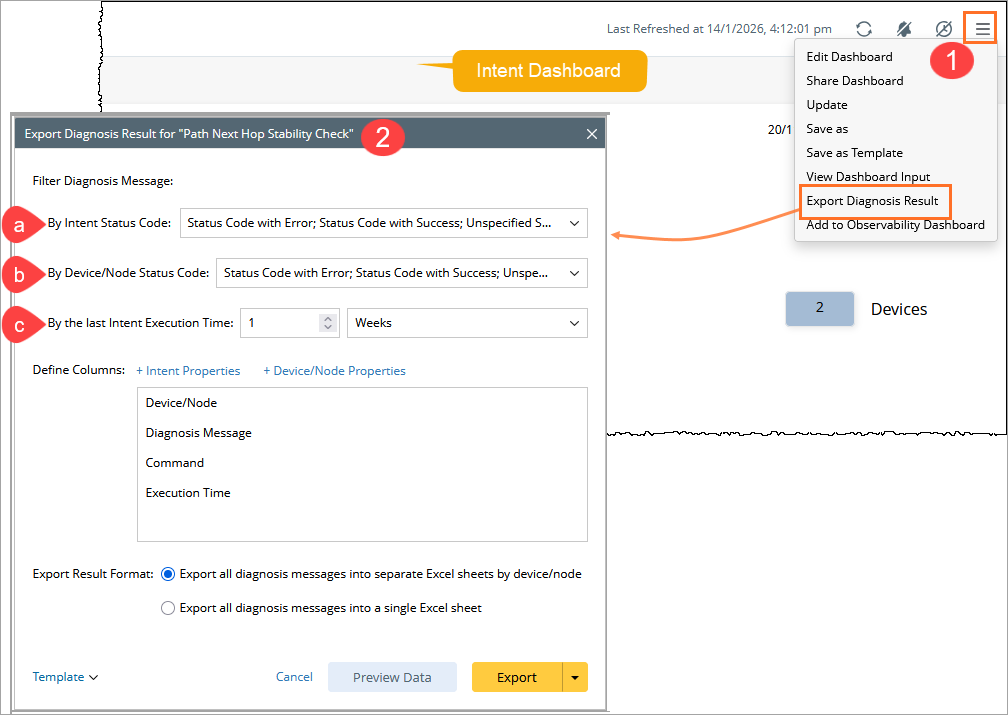
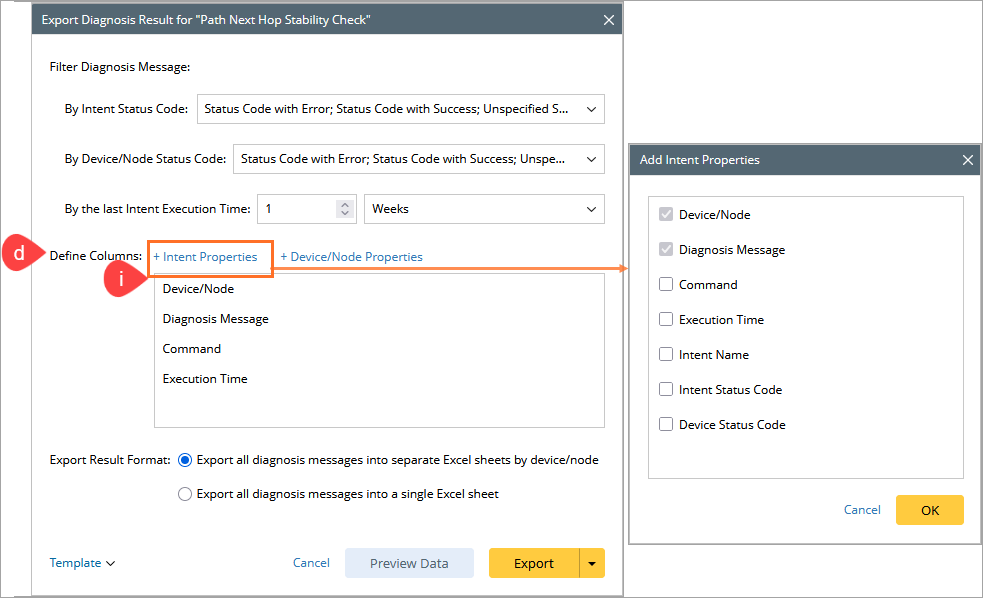
- Define Columns: Select intent properties/device property for creating the columns of the diagnosis result CSV.
- Click + Intent Properties, then select the required intent properties in the pop-up dialog, and click OK.
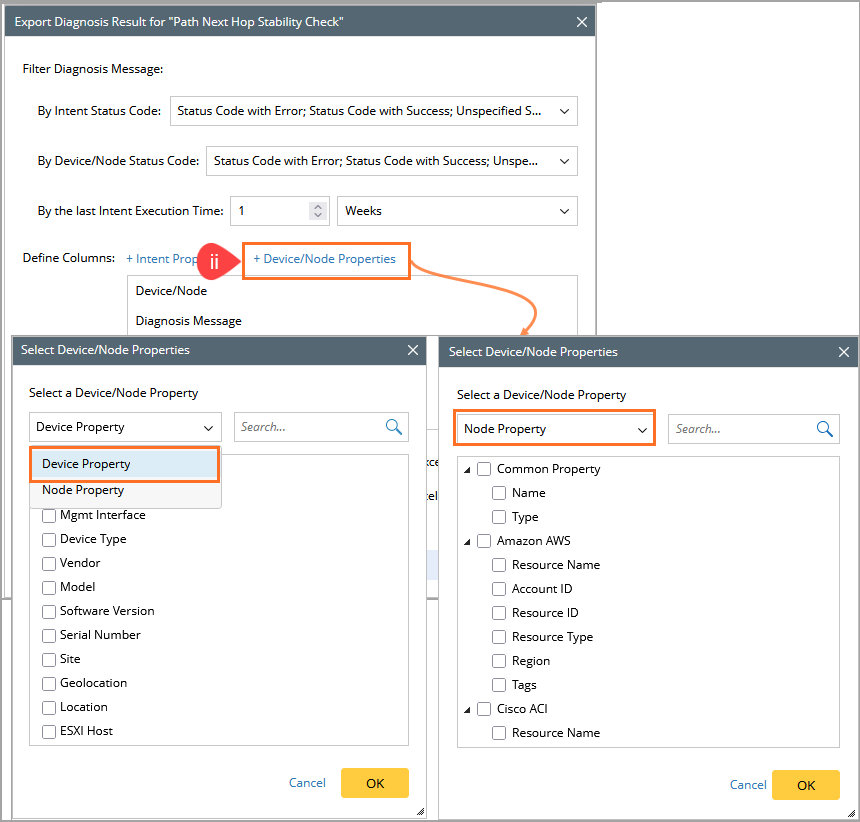
- Click + Device Properties, then select the required device or node properties in the pop-up dialog, and click OK.
- Click + Intent Properties, then select the required intent properties in the pop-up dialog, and click OK.
- Filter Diagnosis Message by Intent Status Code: Click
- Select Export Result Format.
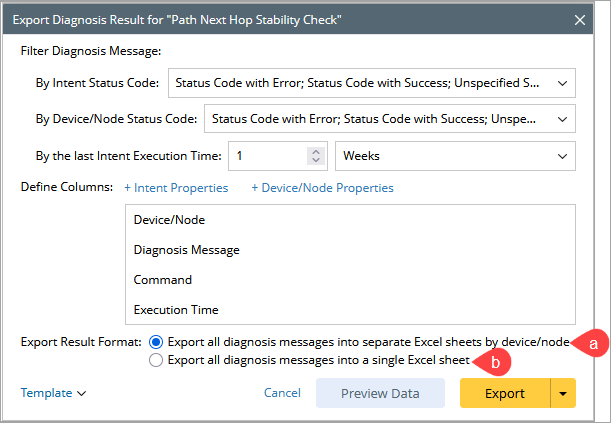
Export all diagnosis messages into separate Excel sheets by device
Creates one worksheet per device and a summary sheet that includes:-
Device names with hyperlinks to individual device sheets.
-
Selected device properties with Alert and Success statistics.
-
Export metadata, such as creation time and exporting user.
Each device sheet includes a Back to summary link.
Example Spreadsheet: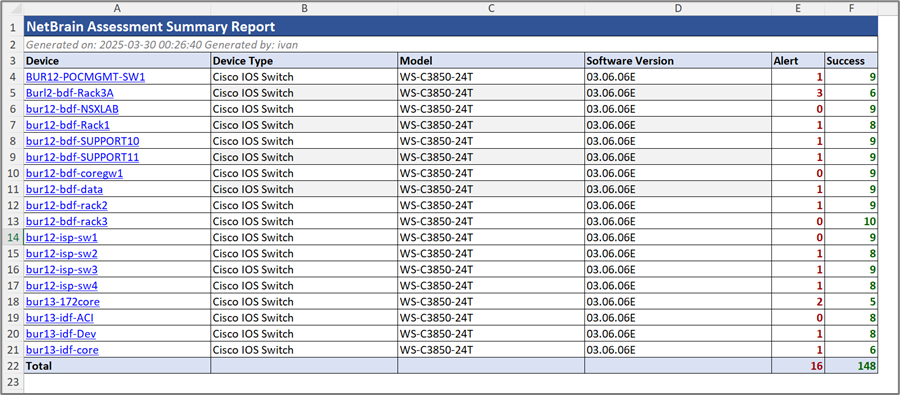
-
-
Export all diagnosis messages into a single Excel sheet
- The report is exported into one main sheet and includes an additional summary sheet.
- The summary sheet displays standard columns (with consistent header formatting) along with Alert and Success counts.
- The main table retains the original structure, with improved styling (consistent message coloring and status code indicators, Red for Alert, Green for Success).
Example Spreadsheet:
- (Optional) Click Preview Data to preview the diagnosis results to be exported.
- Choose an Export destination.
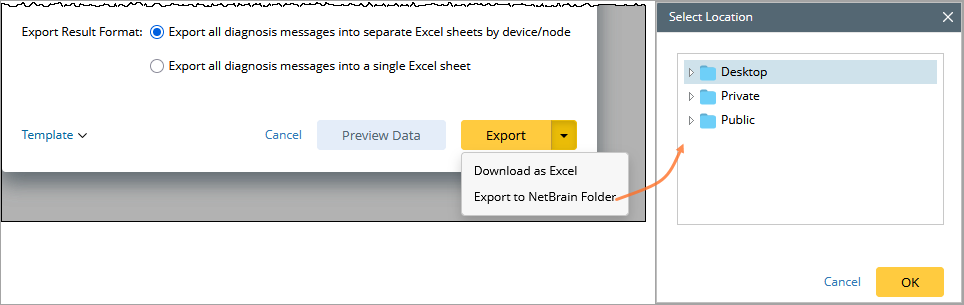
Download as Excel to save the file to your local machine.
-
Export to NetBrain Folder, then select a destination folder.
(Optional) Use a Template
To reuse or save column and export settings, click Template, then select one of the following options:
Export as Template: Select a folder, enter a template name, and click OK.
OR
Load Template: Select an existing template to apply its saved configuration to the export.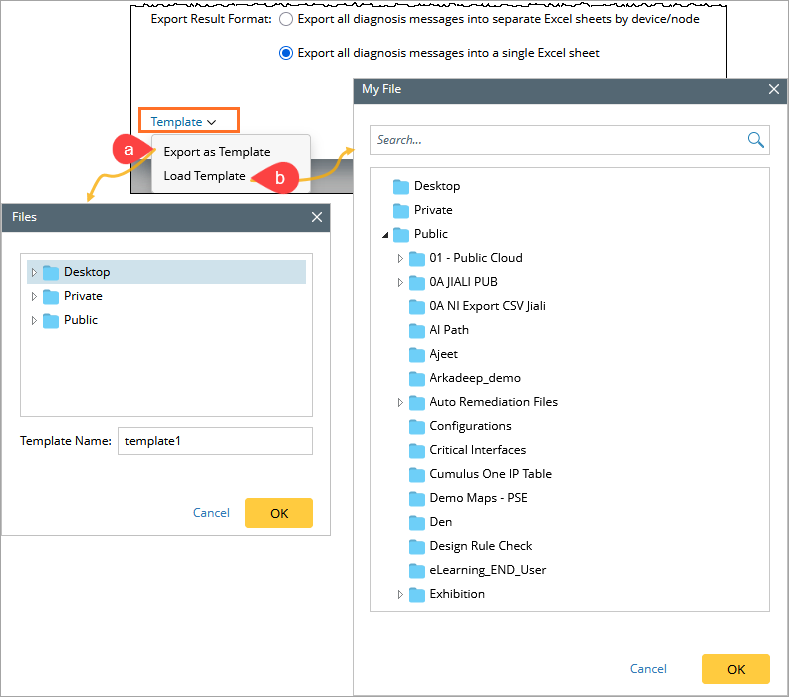
See also:
Export Diagnosis Result from ADT Column.