R12.3-2026Apr21
Manage Triggered Automation
All the configured Triggered Automations are displayed and managed in Triggered Automation Manager, including the intents, intent clusters, intent templates and ADTs installed for triggered automation. The system allows to perform operations on the triggered automations in Triggered Automation Manager.

|
Note: Bots for Microsoft Teams is a deprecated integration. The entry point in the Triggered Automation Manager UI is hidden by default to simplify the user interface. Administrators can enable it from System Management > Advanced Settings, if required. |
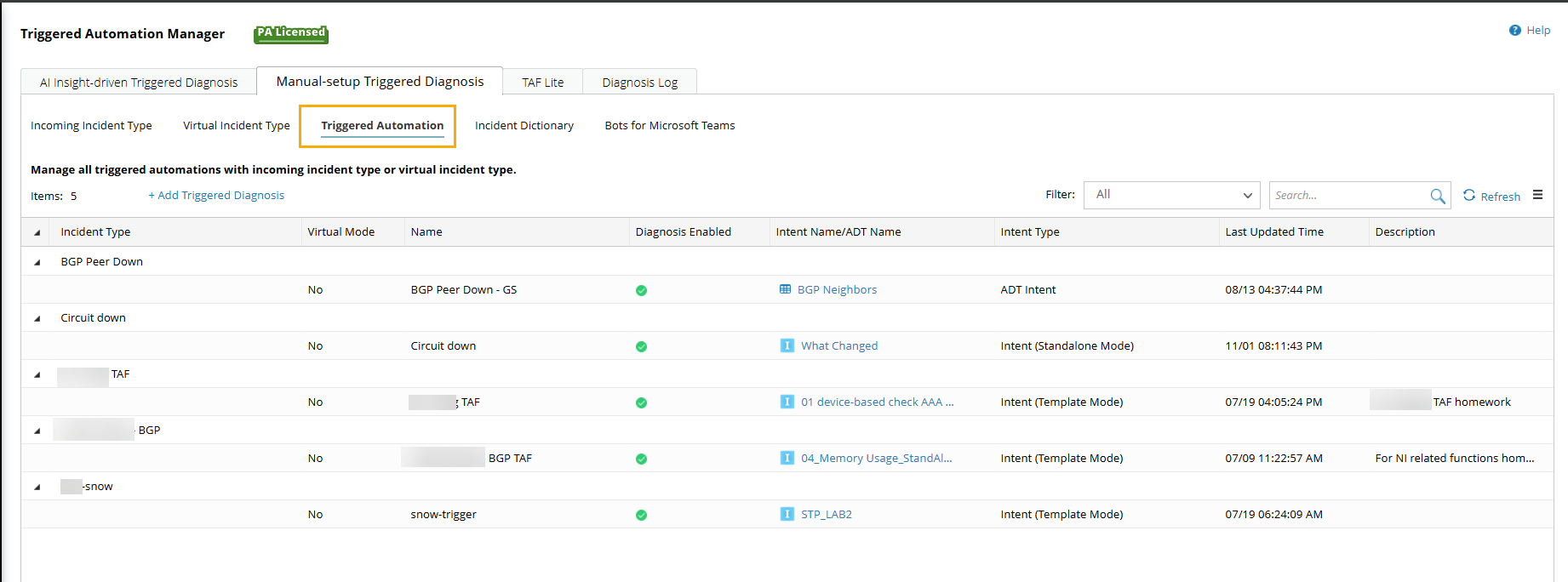
- Click the start menu and select Triggered Automation Manager.
- Click the Manual-setup Triggered Diagnosis > Triggered Automation tab to view all diagnoses.
- The Triggered Automation information is displayed in the form of a table.
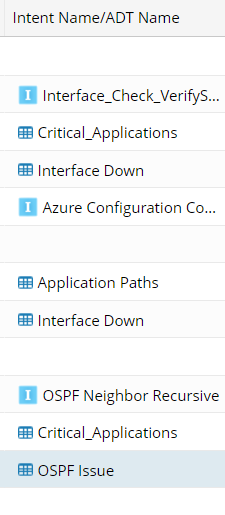
- In the Intent Name/ADT Name column, the intents, Intent Templates for triggered automation are designated by the icon
 ; intent Clusters for triggered automation are designated by the icon
  ; the ADTs for triggered automation are designated by the icon
  .
.
- Select a diagnosis, click
 , then you can perform operations from the drop-down menu: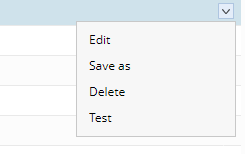
- Edit, Delete, and Test the diagnosis.
- Save as the diagnosis, which will create an identical new diagnosis.