R12.3-2026Apr21
Parse the Lines Between Variables
Parse the lines in a range defined by two variables, or from a variable to the end of the paragraph (Pattern Sample: LineByVariable[$confg]: $var1-$var2, LineByVariable[$confg]: $var1-).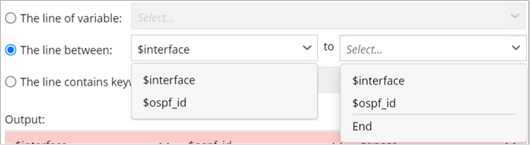
- This method can be applied in single pattern, paragraph pattern and collector pattern.
- The scope of selectable variables is all the variables defined in the current pattern.
Example 1: In this example, parse the lines between two variables, e.g., parse the basic metric of OSPF interface
- Create a new parser and name it OSPF_Interface.

- Define the settings for collecting CLI Command data. In this example, select CLI Command of show ip ospf interface as the retrieved data and select the device US-BOS-R1 to retrieve data on it.
- Double-click Loopback0 in line 2 to parse the variables $intf, then continue to double-click 1 in line 4 to continue to parser variable $ospf_id in Auto Parser mode.
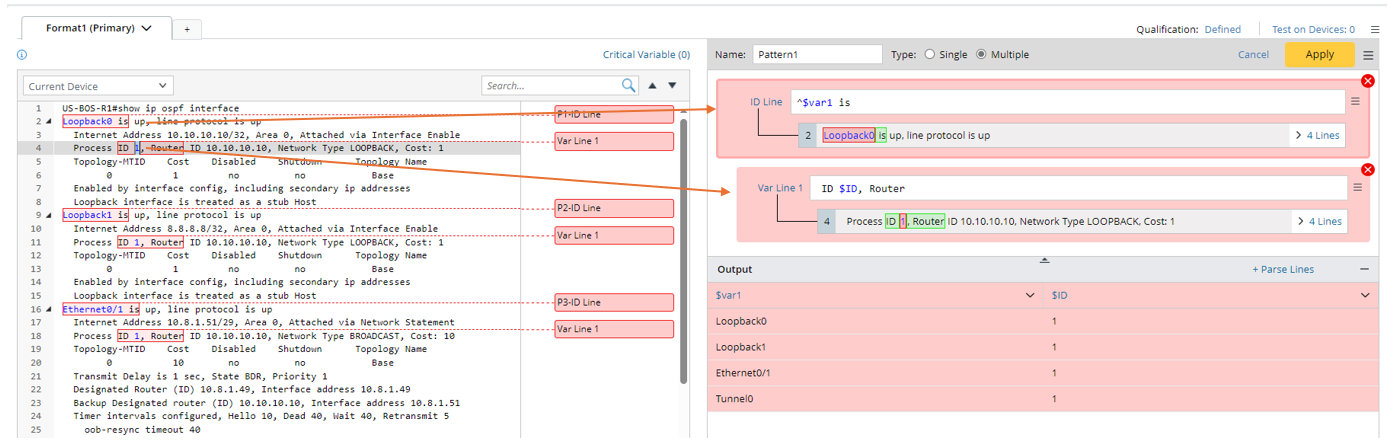
The system will automatically assign the variable name "var1" and "ID" for the two parsed variables, respectively. In this example, you can change the variable names to more meaningful ones in the Output area.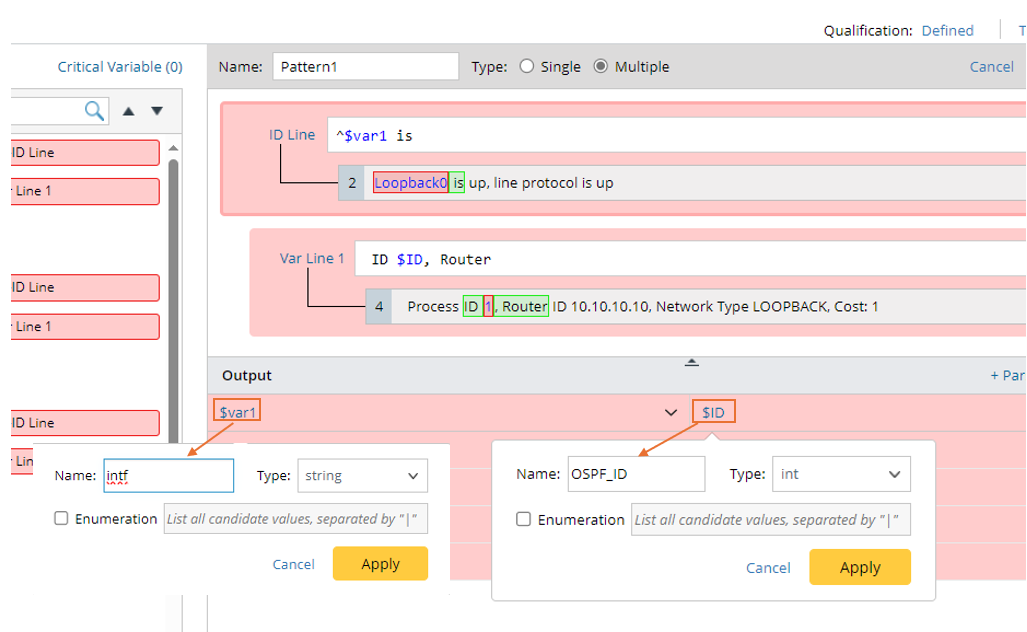
- Click the variable name "$var1", then change it to "$intf" in the pull-down window.
- Click the variable name "$ID", then change it to "$OSPF_ID" and change the variable type to int.
- Click +Parse Lines, then define Parse Lines settings in the pop-up dialog: Set the name to ospf_metric. Select The line between option, then select $intf and $ospf_id to define the scope of the matched original lines. Check the parsed lines between the two selected variables for each interface in the output.
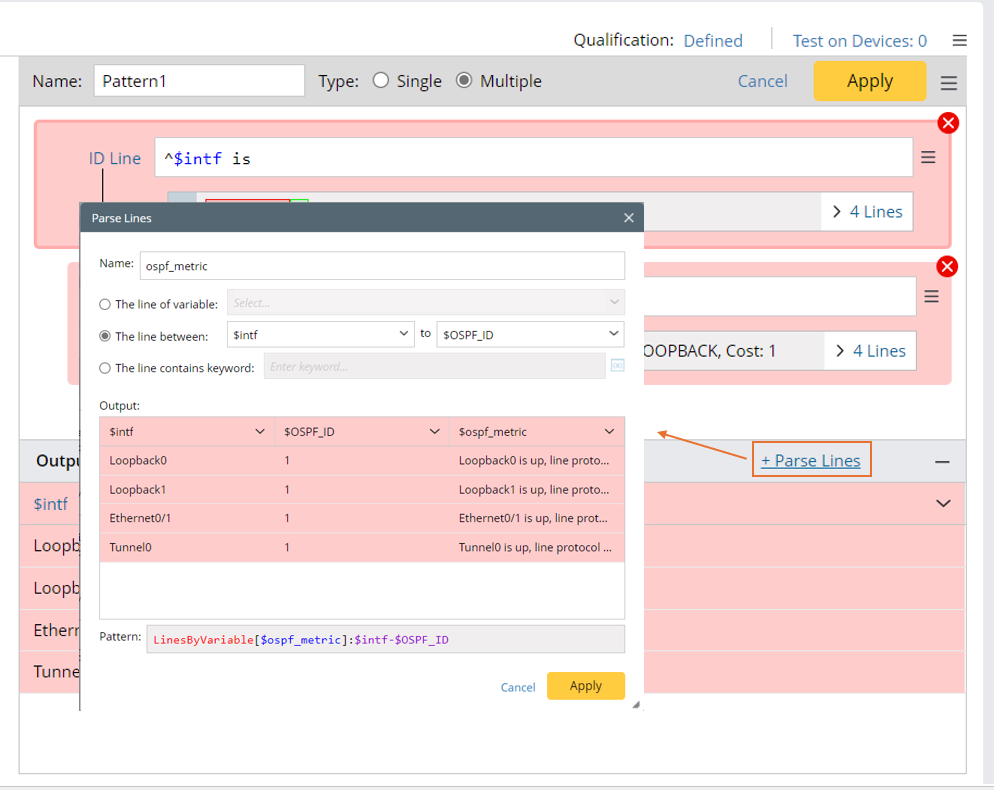
- Set the name to ospf_metric.
- Select The line between, then select $interface and $ospf_id to define the scope of the matched original lines. Check the parsed lines between the two selected variables for each interface in the output.
- Click Apply to save the Parse Lines settings, then you will notice that Var Line 2 is created.
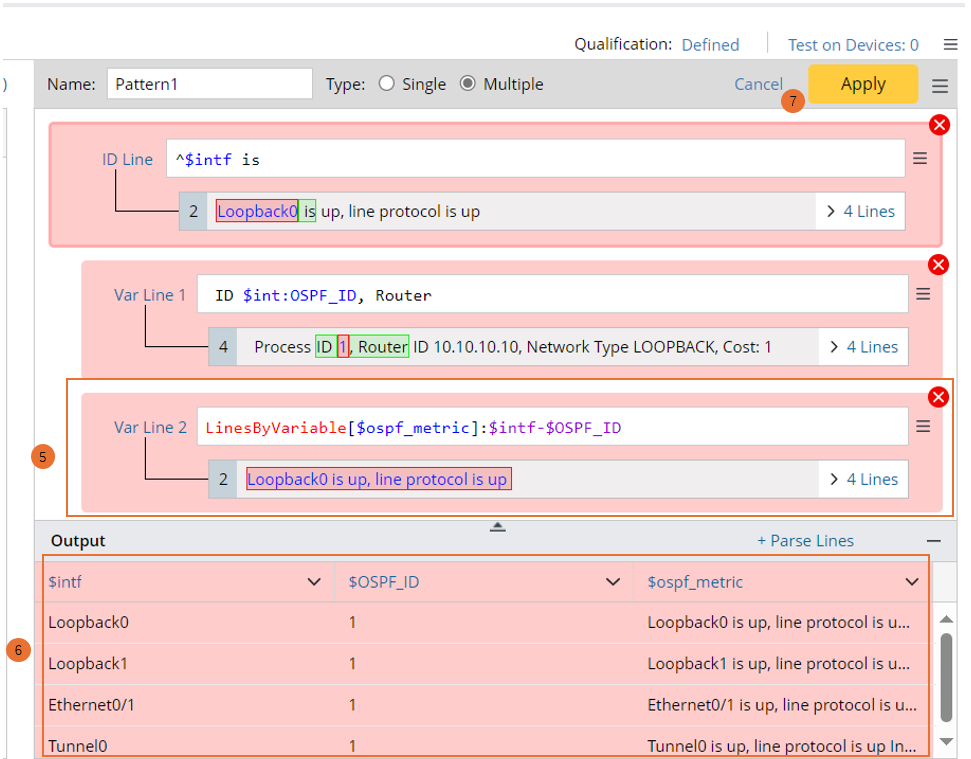
- Check the parsed lines between the two selected variables for each interface value in the output.
- Click Apply at the upper-right corner to confirm all the settings.
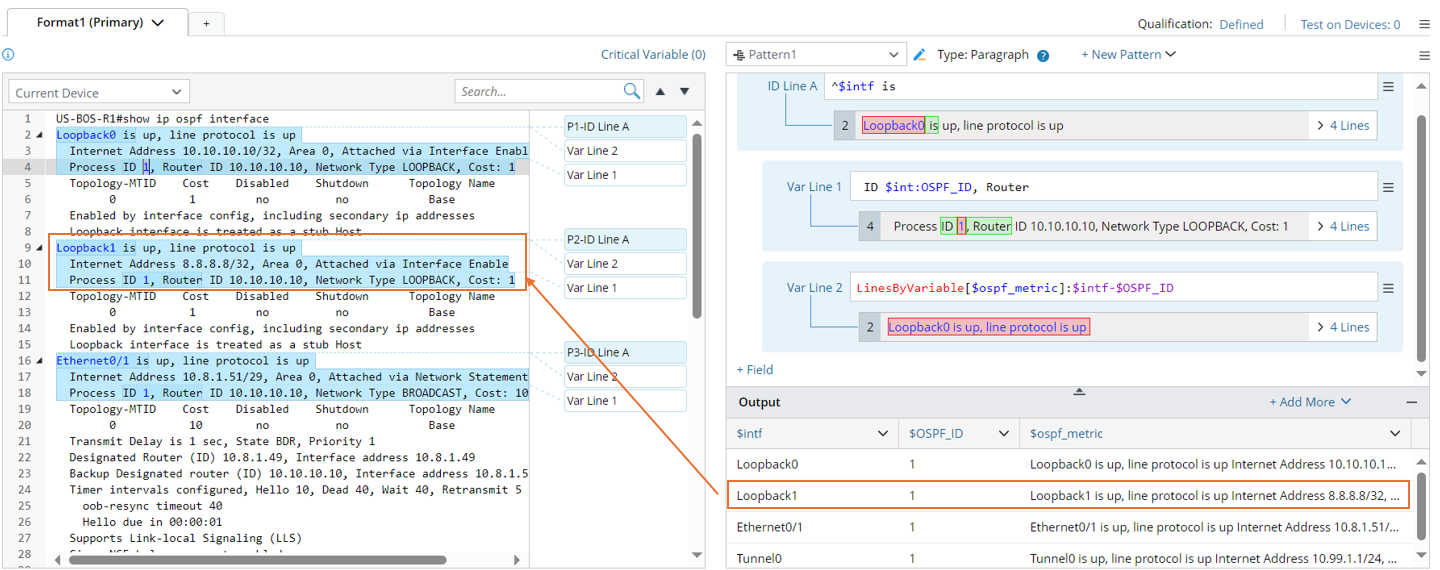
Example 2: You can select a variable and End to define the scope of the original text. In this example, we will parse the lines from a variable to the end, e.g., parse OSPF config.
- Create new parser and collect command show run data from the device NY_POPP.

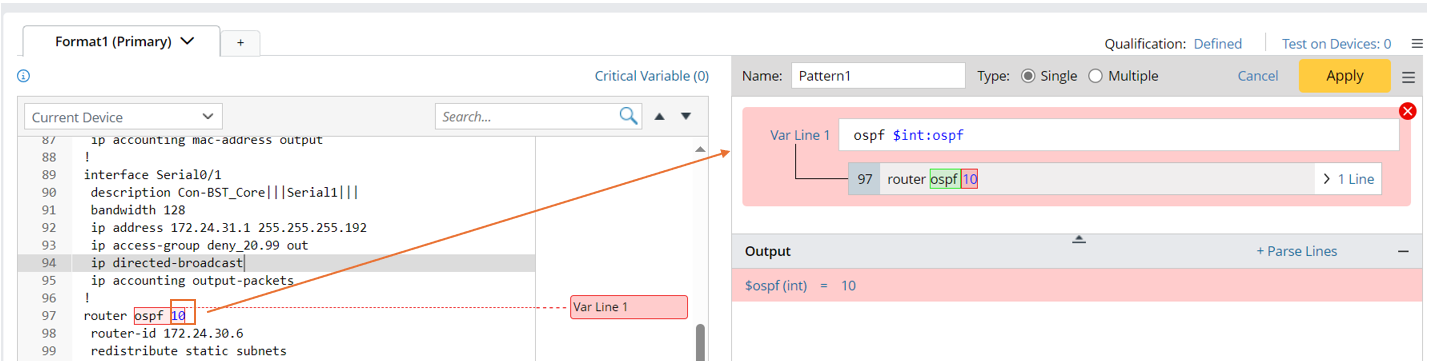
- Double-click 10 in line 97 to parse the variable $ospf (int).
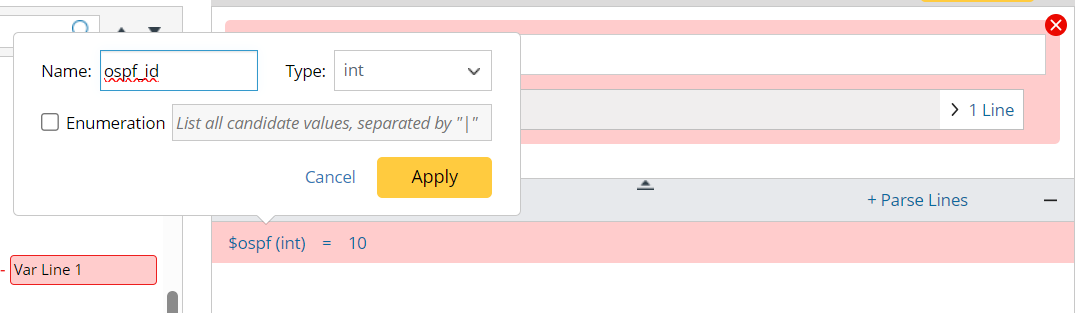
- Click the column header $ospf (int) in the output table, then change the variable column name to ospf_id.
- Click + Parse Lines, then defined the Parse Line Settings in the Parse Lines window:
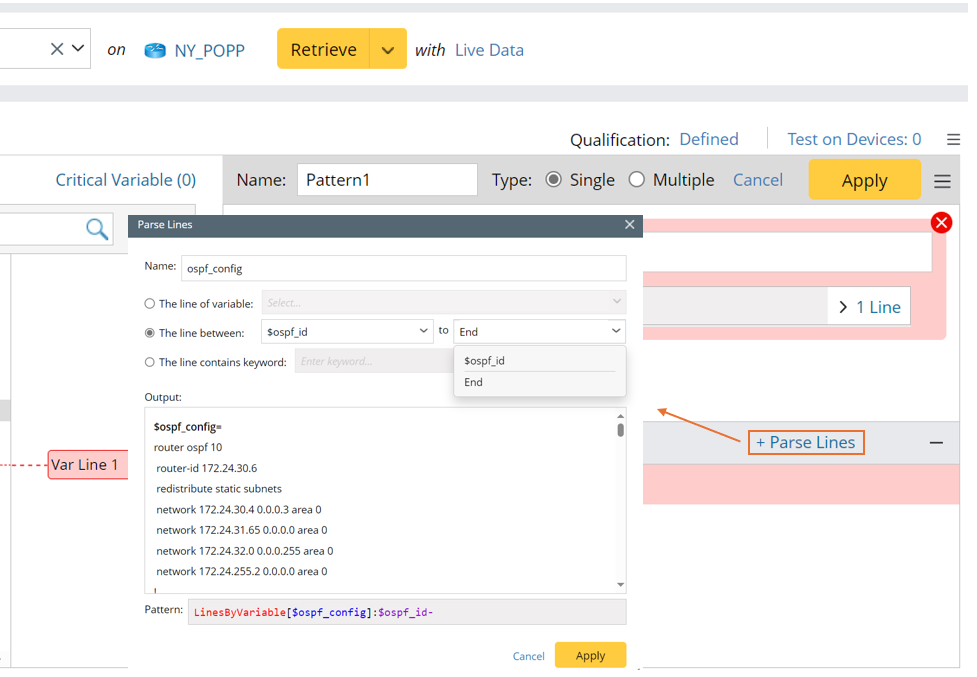
- Set name as ospf_config.
- Select The line between, then select “$ospf_id” and End.
- Click Apply to close this window, then the line pattern will be added.
- Select Add End Line from the pattern menu, then input ip nat to match the last line of the parsing scope. In this example, the last parsed line is line 105.
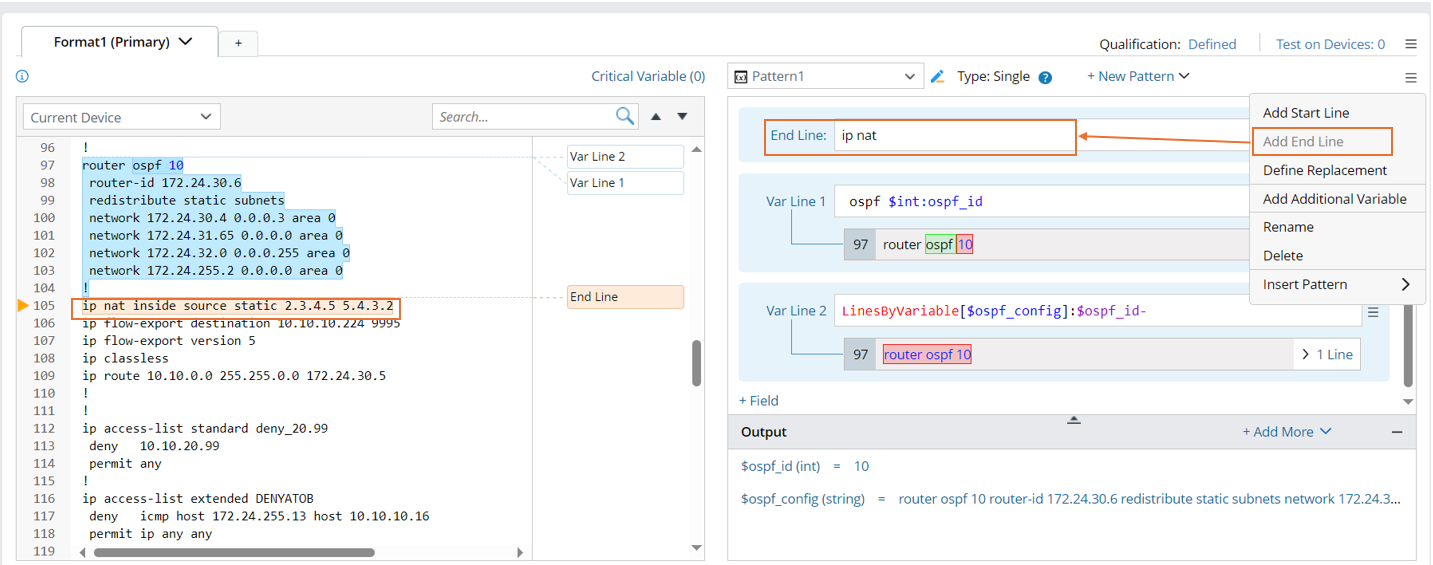

Note: To correct the parsed results, the End Line needs to be included. 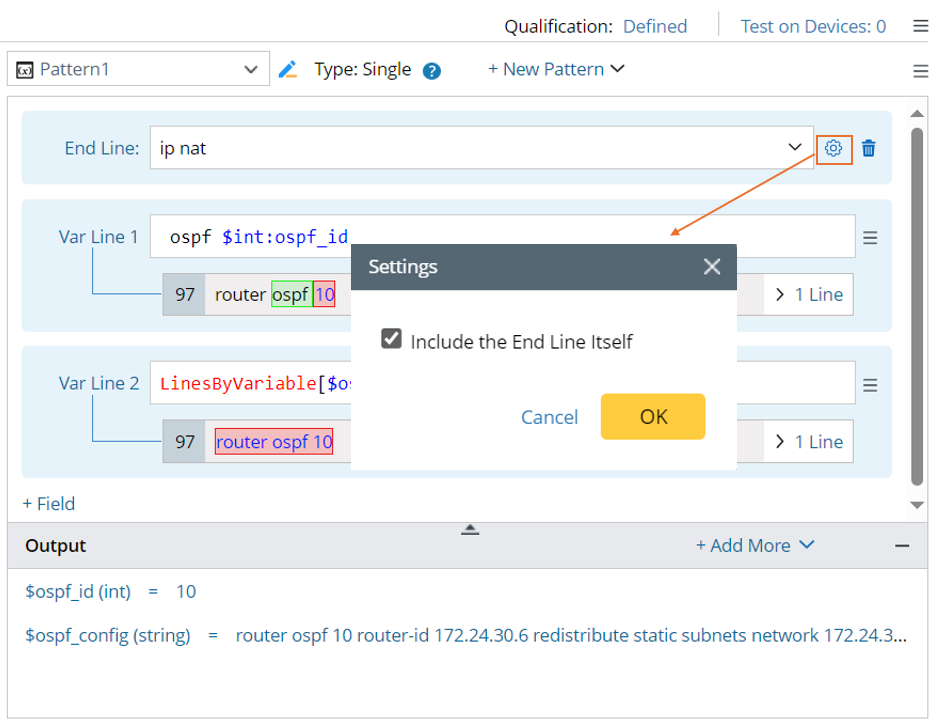
- Check the output for ospf_config.
