R12.3-2026Apr21
Set Up API Server

|
Note: Before setting up your API server, read NetBrain Requirements for API Server Setup first. |
Follow these steps to set up a NetBrain API server:
- Open the Domain Management page of the NetBrain system, select Operations > Discover Settings > API Server Manager from the quick access tab, and click Add API server.
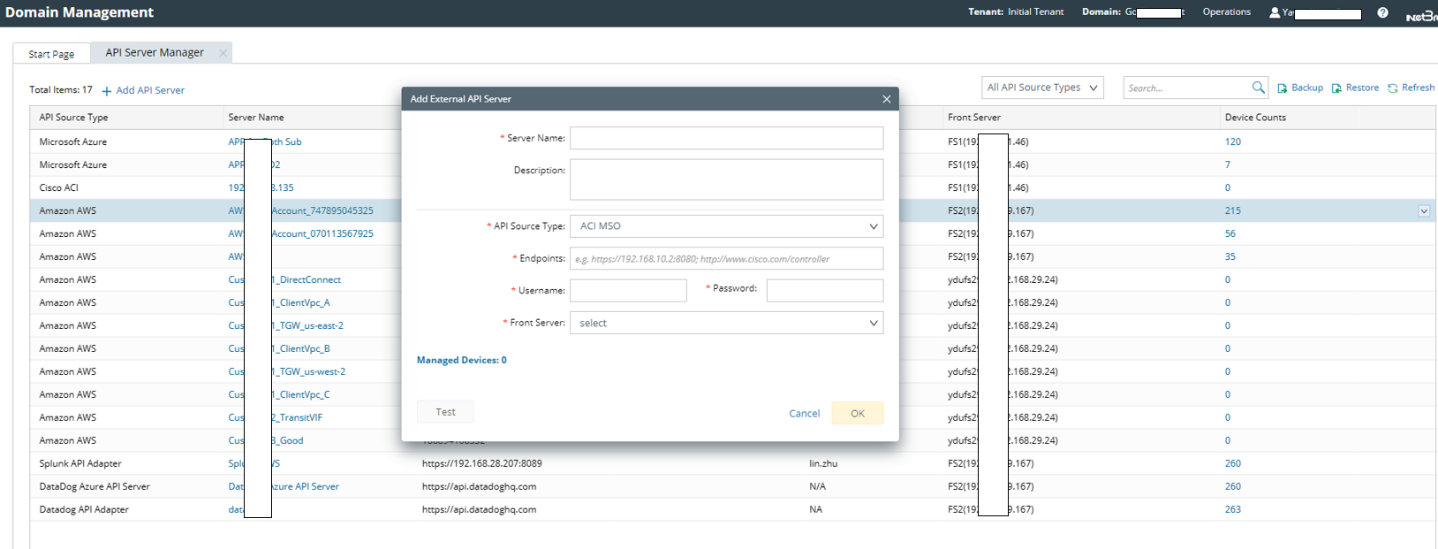
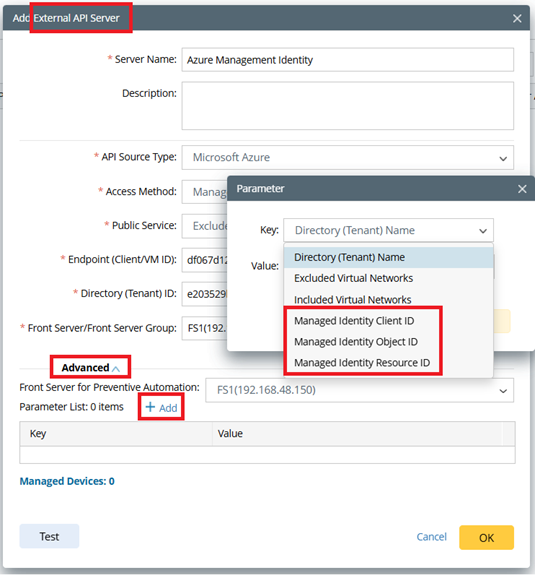
- Add a new external API Server for Azure access.
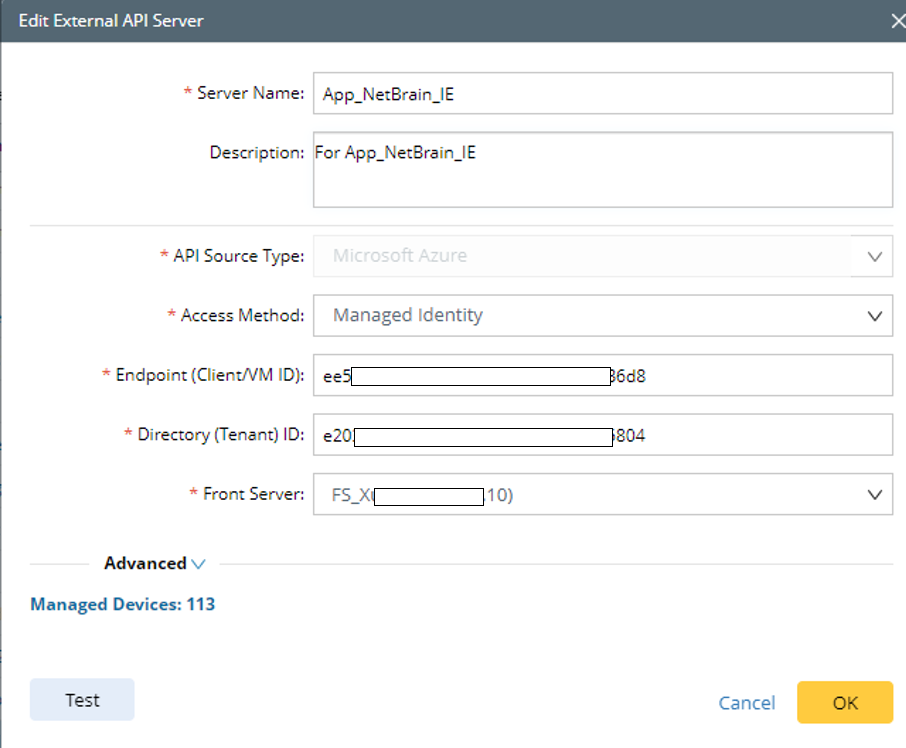
- Server Name: a unique name.
- Description: an optional field to describe this server.
- API Source Type: select Microsoft Azure.
- Access Method: select Managed Identity.
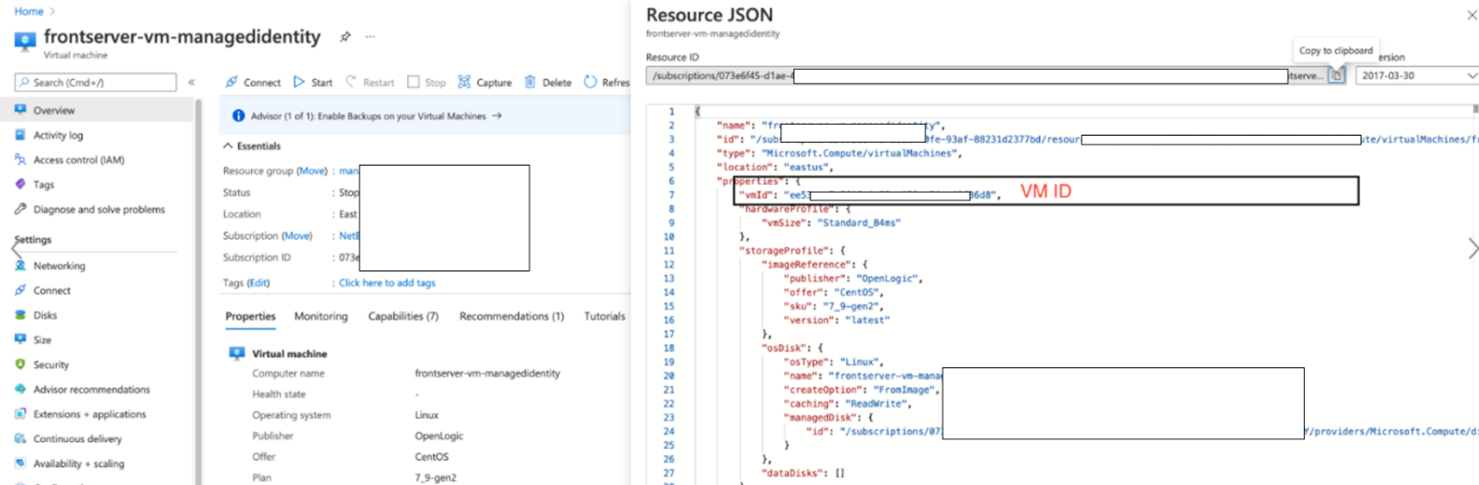
- Endpoint (Client/VM ID): copy/paste the VM ID value from the JSON format data in Azure Virtual Machine (VM) portal.
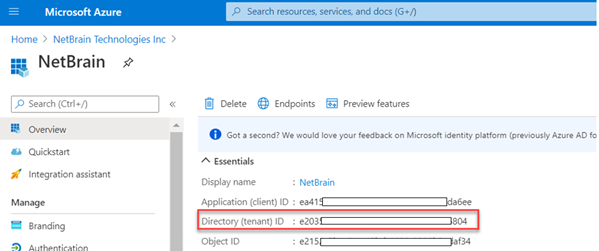
- Directory (Tenant) ID: copy/paste the Tenant ID.
- Front Server/Front Server Group: select one front server VM with managed identity to access Azure.
- Management Identity Client ID/Object ID/Resource ID: In the Advanced settings, you can specify which VM management identity will be used for the system's discovery.
- If you only have system-assigned identity setup for the management-identity associated VM, or you only have one user-assigned identity setup, you can skip following setup.
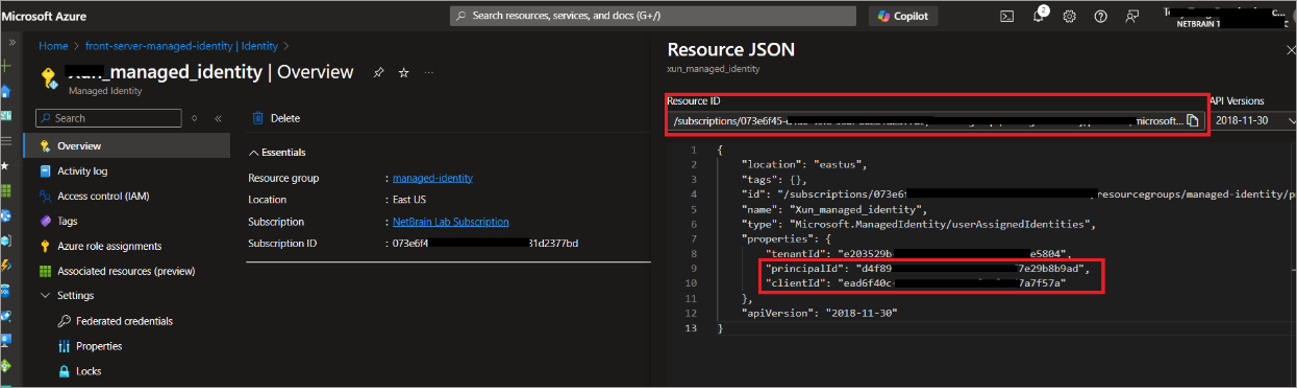
- If you have system-assigned identity and user-assigned identity setup both but want to use user-assigned identity (Azure prefer system-assigned by default), you need to specify the VM management identity. You can choose one of the parameters from management identify Client ID, Object ID and Resource ID.
- Find the management Client ID, Object ID(PrincipalId) or Resource ID from Json view of Azure Portal.
- Click Test to verify that this API server works.
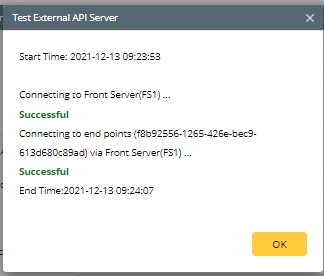
Once the API server is successfully verified and saved, you can proceed to Discover Azure Resources.