10.1.9 JA Publication
Configuring EC2 Role for NetworkBrain Front Server in AWS Gateway Account
This section illustrates how to create a role for an EC2 instance in the gateway account using the AWS console. This will allow the EC2 instance that hosts NetworkBrain system to access the monitored accounts.
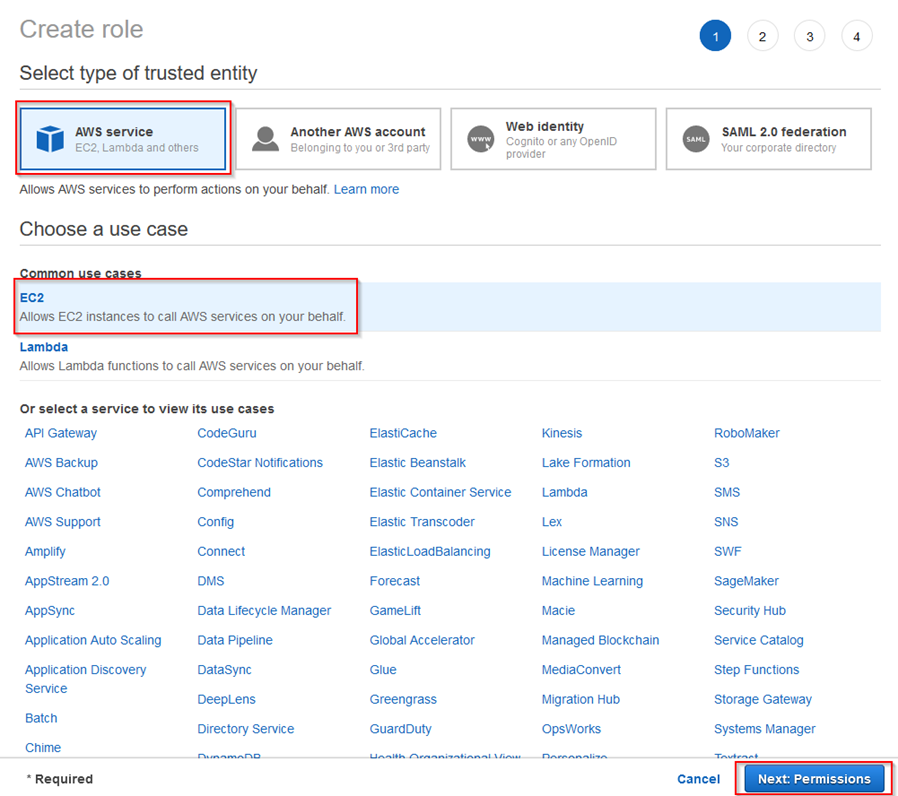
- Go to Roles in Identity and Access Management (IAM) and create a new role.
- Select AWS service and EC2 for this role.
- Enter the role name (NetbrainAccessRoleForEC2).

Note: The role name shall match the one you previously picked when configuring the trusted relation in the monitored account.
Skip the Permissions (policy) section in the wizards. The policy will be added later.
- After the role is successfully created, open the role and attach an inline policy to allow the EC2 instance to assume NetworkbrainAccessRole in monitored accounts.
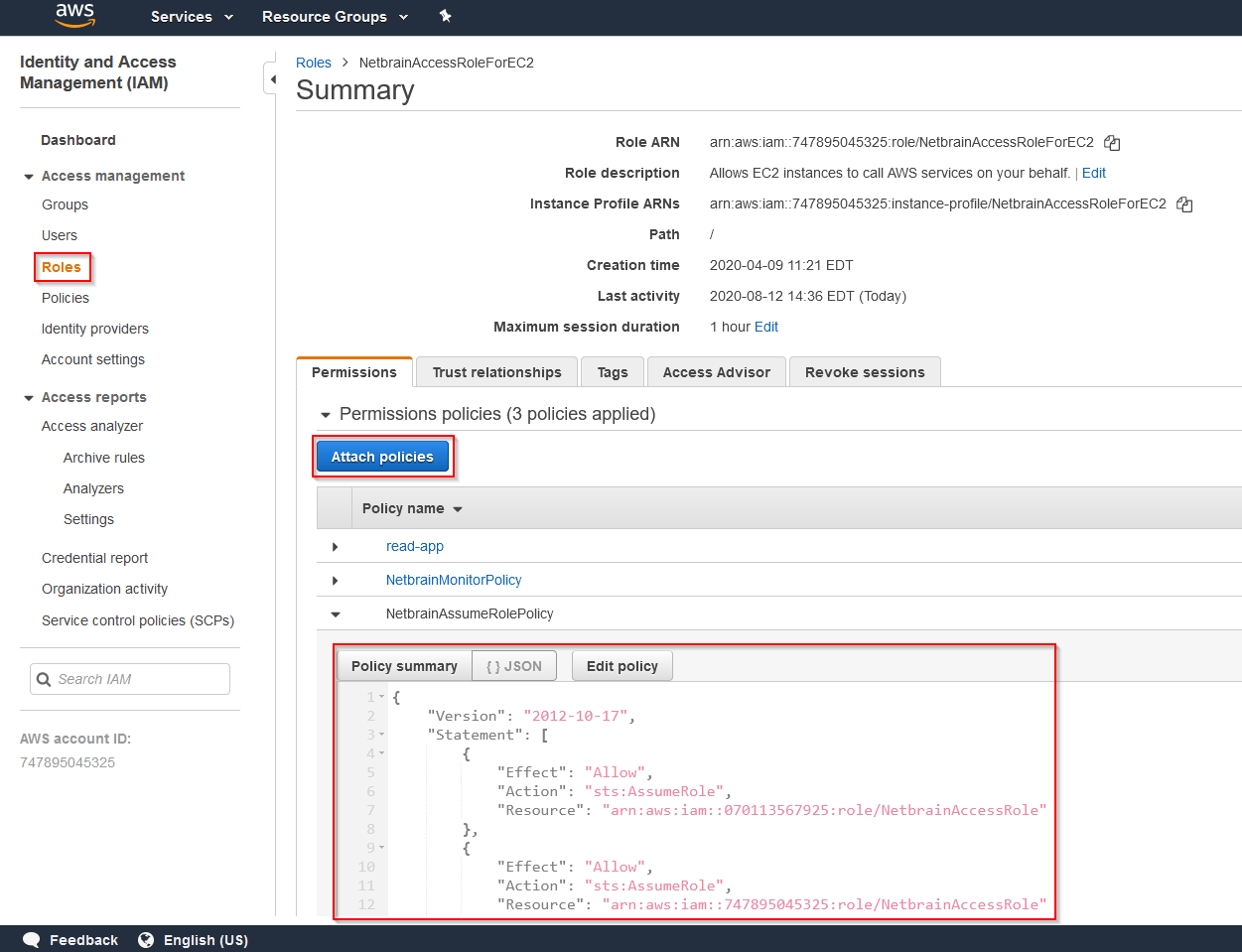
A sample policy JSON is as follows.
Note: Use the account ID to monitor your environment. Code{
"Statement": [
{
"Resource": [
"arn:aws:iam::<12-digit monitored account number>:role/<role created in previous step (NetbrainAccessRole)>"
],
"Action": [
"sts:AssumeRole"
],
"Effect": "Allow"
}
],
"Version": "2012-10-17"
}
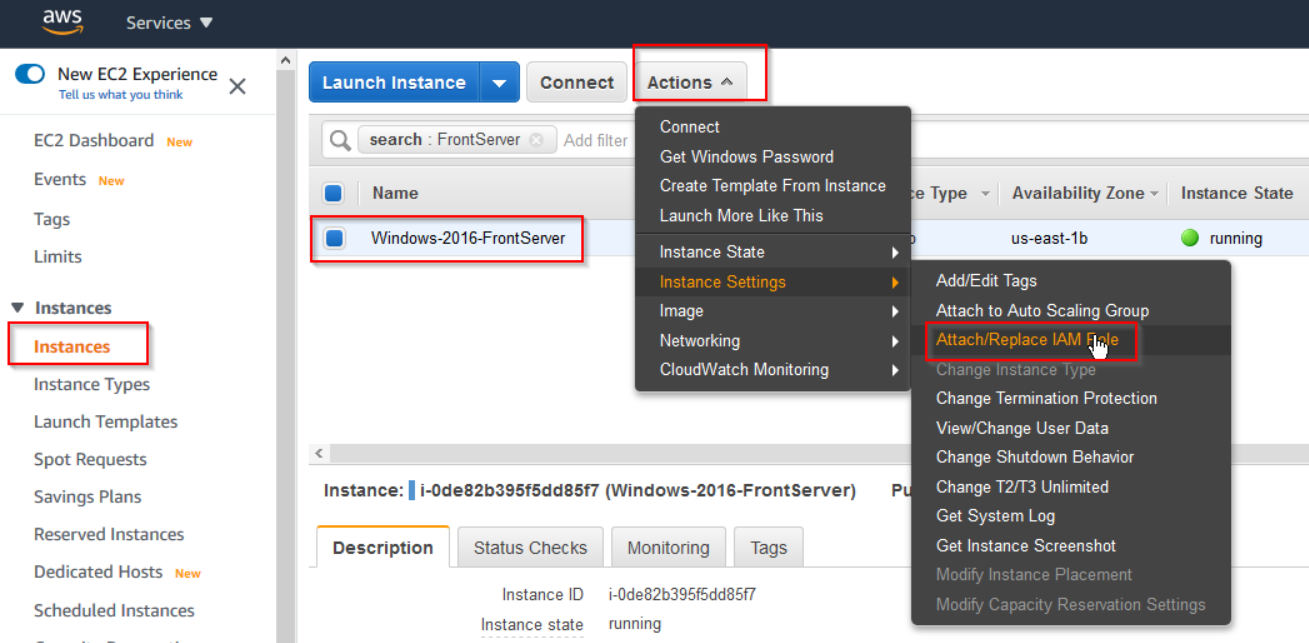
6. Find the EC2 instance where you run NetworkBrain Front Server, and attach the role to it. You can also specify the role when first launching an EC2 instance.