10.1.9 JA Publication
Create a Custom IAM Role
By default, the NetworkBrain IE system sets the cloud-platform access scope to access most Cloud APIs and then grants the user/service account to only the relevant IAM (Identity and Access Management) roles. The user/service accounts can execute API methods only if the access scope and IAM roles are allowed.
Follow these steps to create a role for the NetworkBrain IE system to access GCP APIs:

|
Note: To add the organization-related permissions, you need to create the role at the organizational level. All the project-level permissions added in this role will be inherited by all the projects created under the selected organization. |
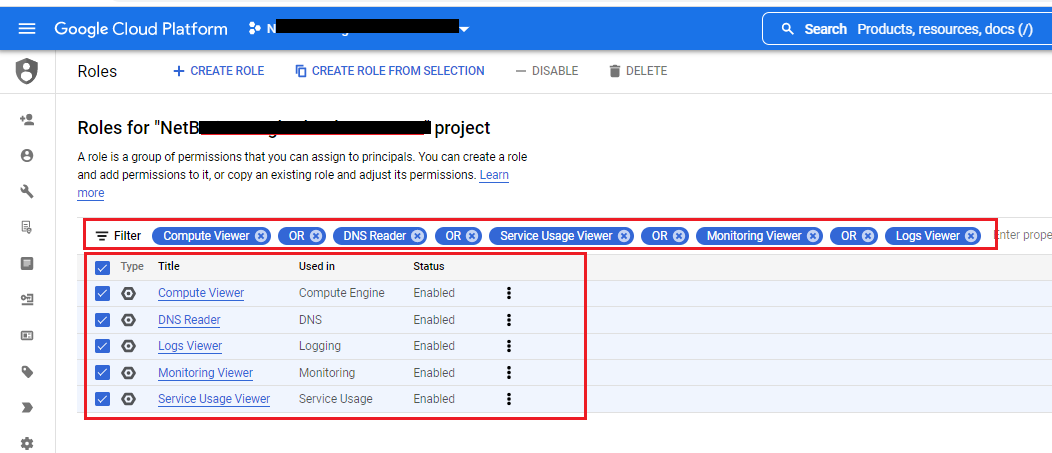
- In the GCP Console, go to IAM & Admin Roles page, select GCP Organization from the drop-down menu, filter the system roles as per the screenshot below, and click CREATE ROLE FROM SELECTION.
- Enter a title, description, and ID, and click CREATE.
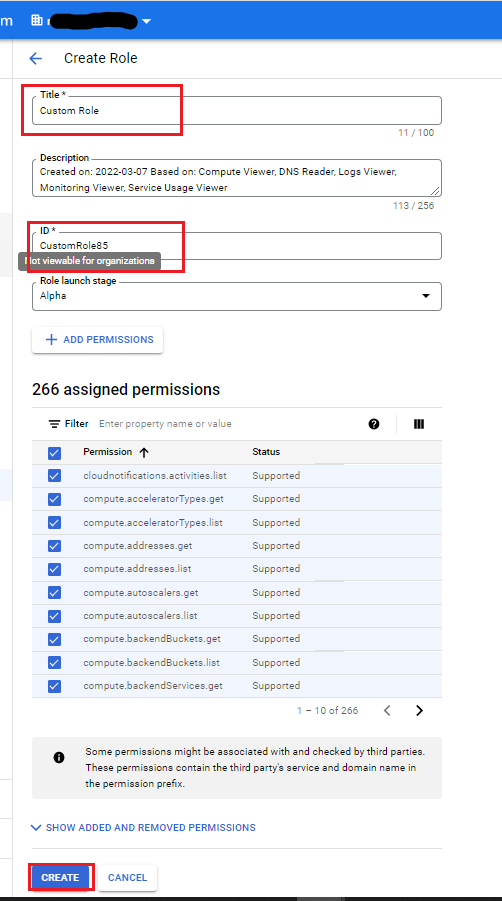
Note: The above method adds the permissions over the minimum permissions needed for the discovery in the NetworkBrain IE system.
If you want to add only the specific permissions required for the successful discovery of devices, you need to add a list of individual permissions as follows.
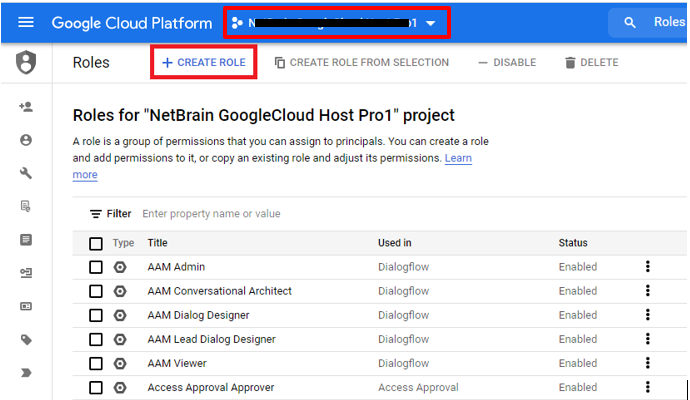
- In the GCP Console, go to IAM & Admin Roles page, select GCP Organization from the drop-down menu and click CREATE ROLE.
- Enter a title and description, and click ADD PERMISSIONS to add the permission. Then click + CREATE to continue.
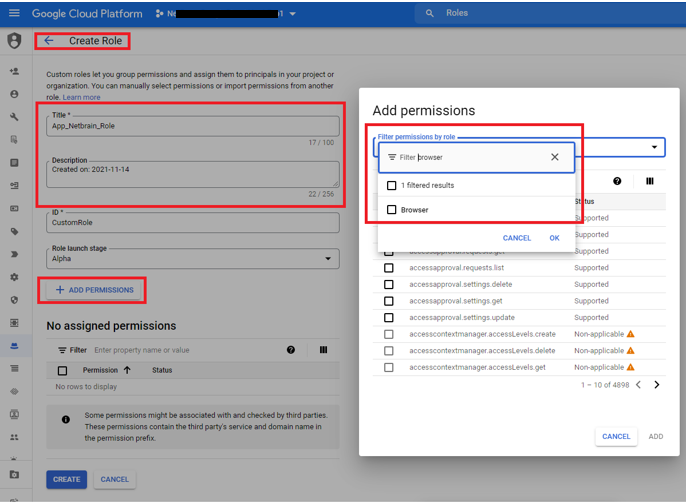
- In the Add permissions page, search and add the required minimum IAM permissions following Online Help: NetworkBrain Required GCP Minimum IAM Permissions.