2023-Nov-03-R11.1a
Auto Intent Profile
In the Auto Intent Profile tab in IBA center, power user can build profile structure (in the left pane of the Auto Intent Profile tab) for the intents enabled for auto intent, enabling end users to filter intents by profile. One intent can be added to different profiles to be reorganized based on different intent characteristics (such as the function of the intent and use scenario of intent). 

|
Tip: You can group intent template to Auto Intent Profile in the Auto Intent tab in Intent Replication Wizard. |
Build Profile Structure: You can build a profile structure by adding profile nodes, then add intents to the profile.
Add and define a parent profile node: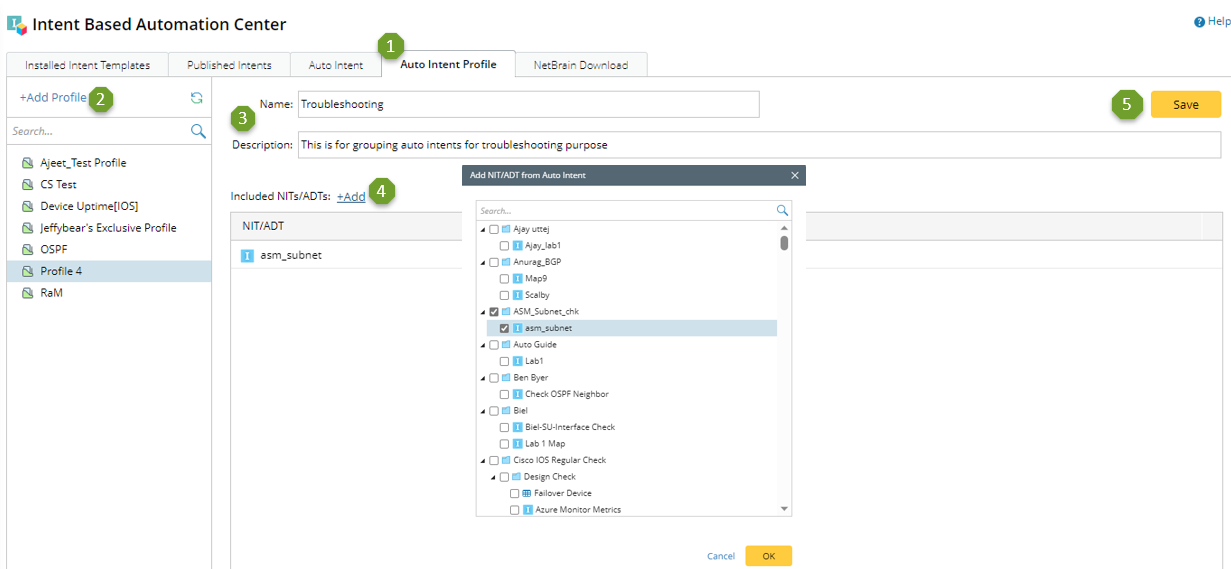
- Go to Intent Based Automation Center > Auto Intent Profile.
- Click + Add Profile in the left pane, a parent profile node with a temporary name will be added to the profile structure in the left pane.
- Define the parent profile basic information in the right pane.
- Name: Input the profile name, for example "Troubleshooting".
- Description: Input description for the profile.
- Click + Add in the Included NITs/ADTs block, then select an intent to be added to the profile in the pop-up dialog. Click OK in the dialog. The selected intent will be added as an entry to the Included NITs/ADTs block.
- Click Save to complete the settings and add a parent profile node.
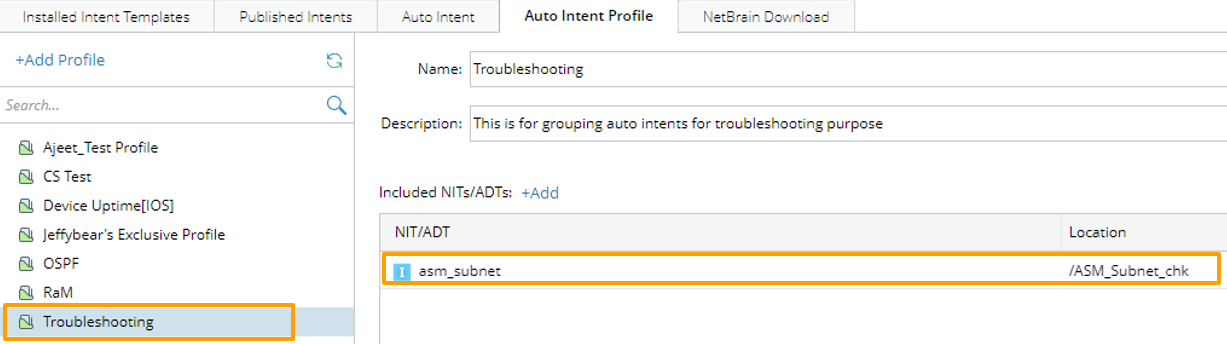
Add and define a child profile node:
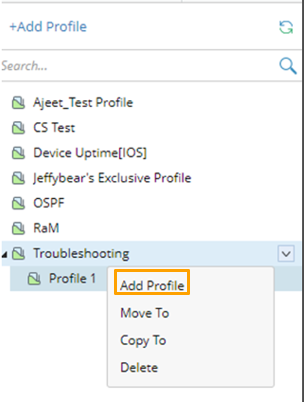
- Click Add Profile from a drop-down menu of the parent profile node in the left pane. a child profile node with a temporary name will be added under this parent profile node.
- Define the child profile basic information in the right pane.
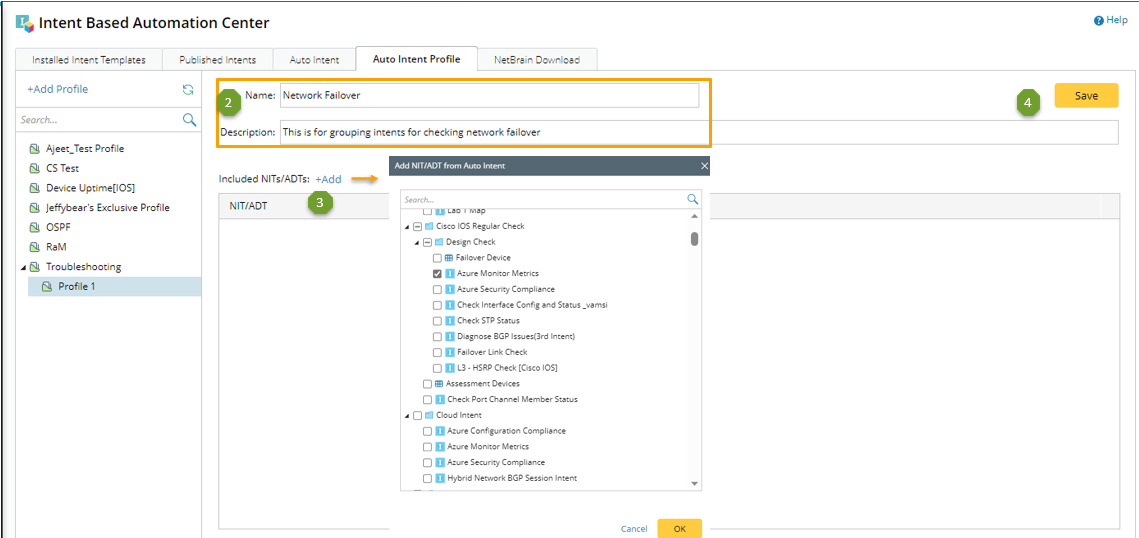
- Name: Input the profile name, for example "Network Failover".
- Description: Input description for the profile.
- Click + Add in the Included NITs/ADTs block, then select an intent to be added to the profile in the pop-up dialog. Click OK in the dialog. The selected intent will be added as an entry to the Included NITs/ADTs block.
- Click Save to complete the settings and add a child profile node.
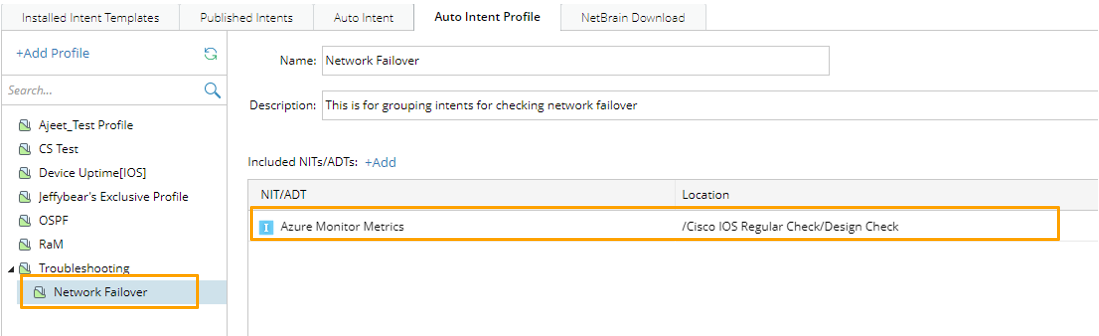
|
|
Note: After a profile is selected in the left pane, all the intents included in the profile are listed in the NITs/ADTs block in the right pane. You can click  to remove an entry from the table. to remove an entry from the table.  |