2023-Nov-03-R11.1a
Configuring EC2 Role for NetBrain Front Server in AWS Gateway Account
This section illustrates how to create a role for an EC2 instance in the gateway account using the AWS console. This will allow the EC2 instance that hosts NetBrain system to access the monitored accounts.
- Go to Roles in Identity and Access Management (IAM) and create a new role.
- Select AWS service and EC2 for this role.
- Enter the role name (NetbrainAccessRoleForEC2).

Note: The role name shall match the one you previously picked when configuring the trusted relation in the monitored account.
- Skip the Permissions (policy) section in the wizards. The policy will be added later.

- After the role is successfully created, open the role and attach an inline policy to allow the EC2 instance to assume NetbrainAccessRole in monitored accounts.

A sample policy JSON is as follows.
Note: Use the account ID to monitor your environment. Code{
"Statement": [
{
"Resource": [
"arn:aws:iam::<12-digit monitored account number>:role/<role created in previous step (NetbrainAccessRole)>"
],
"Action": [
"sts:AssumeRole"
],
"Effect": "Allow"
}
],
"Version": "2012-10-17"
}
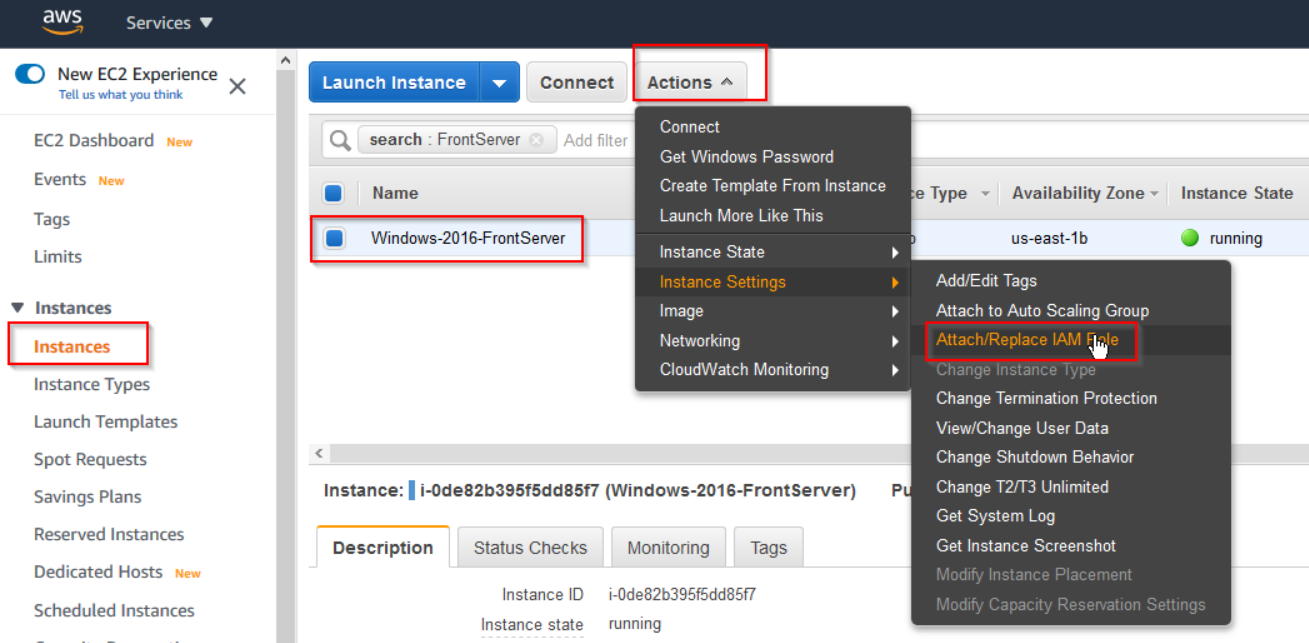
6. Find the EC2 instance where you run NetBrain Front Server, and attach the role to it. You can also specify the role when first launching an EC2 instance.