2023-Nov-03-R11.1a
Define Basic Table Data via Application Path
Path properties can be used as the input data for filling the table rows. Multiple paths can be used in one ADT with Path details serving as the built-in data for the ADT. If the selected paths are associated with intents, the path intents details can also be displayed in the ADT.
To build the base table via Application Path method, follow the steps below:
Prerequisites: Create suitable paths.
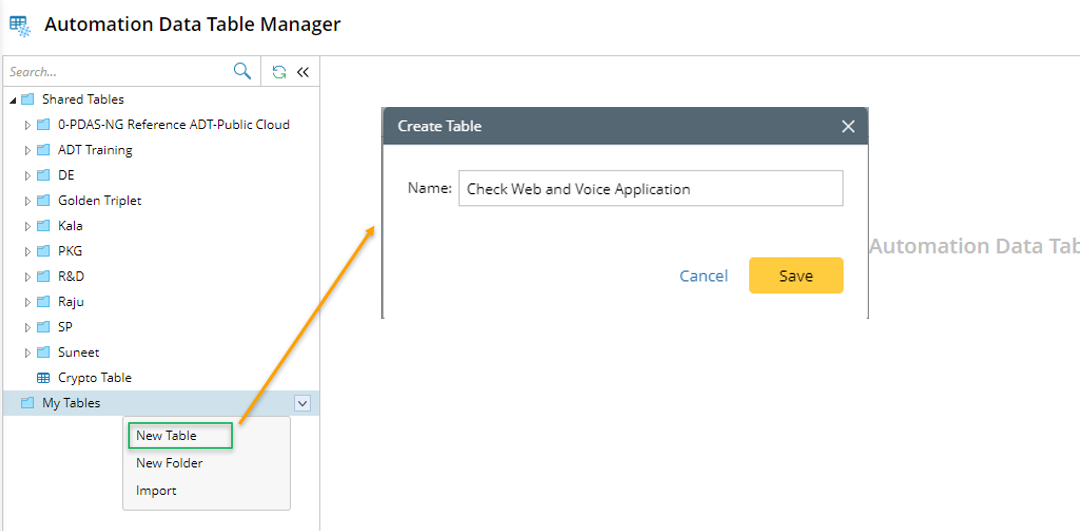
- Open Automation Data Table, then create a new table and name it (for example, "Check Web and Voice Application").
- Go to Automation Data Table Builder > Base of the created ADT.
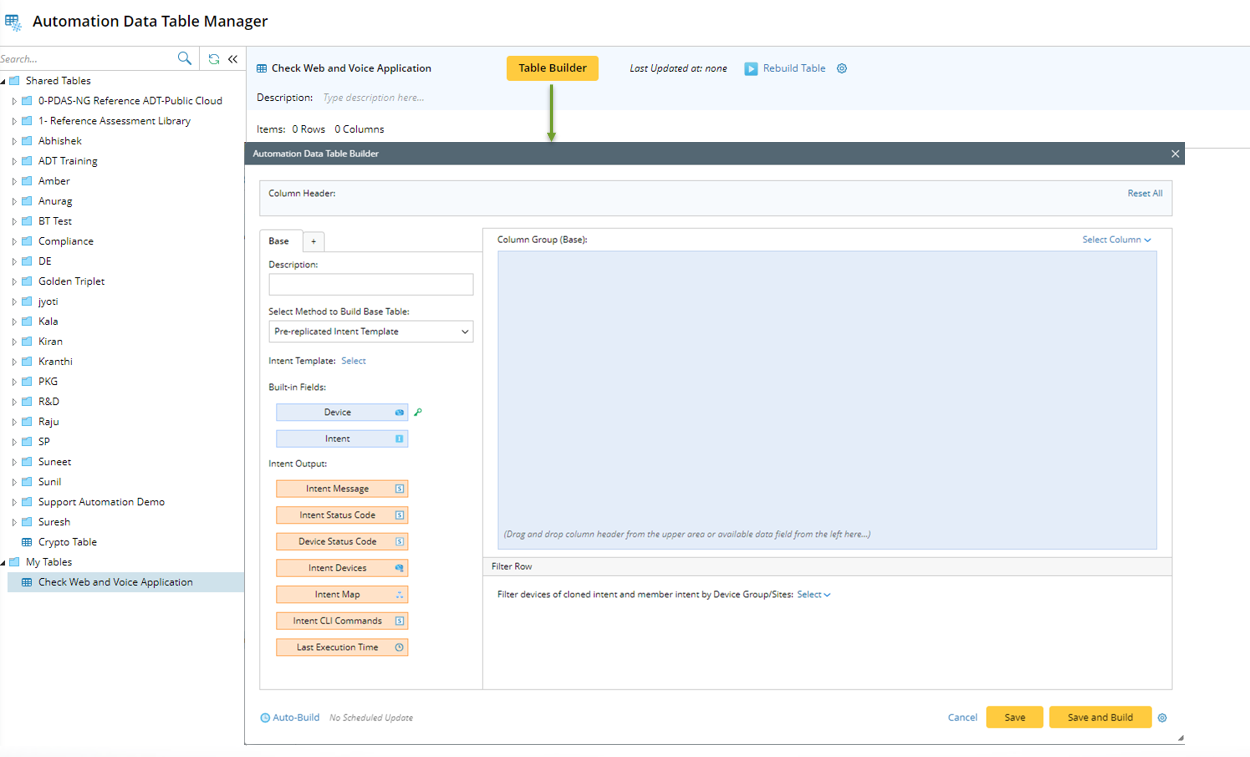
- In the Base tab, define the following settings:

- Description: Input descriptions for the base table to describe its use and function, e.g., "Use intent template to check critical route".
- Select Method to Build Base Table: Select Application Path.
- All Applications except "Untitled Application": If you select this option, all applications are automatically selected for building base table except the untitled ones, which saves the trouble of manually selecting applications one-by-one by application name.
- Specified Applications: Select this option, then click Select to manually select specified applications from the pop-up dialog, then click OK in this dialog.
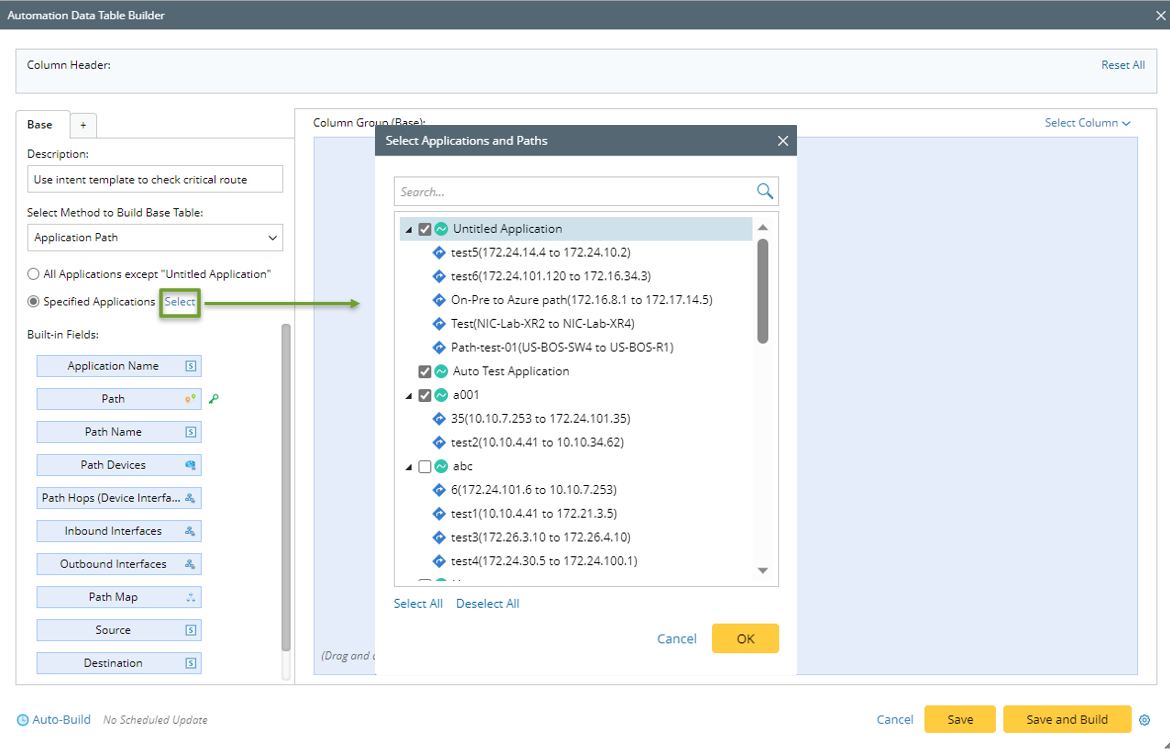
After the selection, the number of selected Applications/paths is displayed. Click the number to view the selected Applications/paths.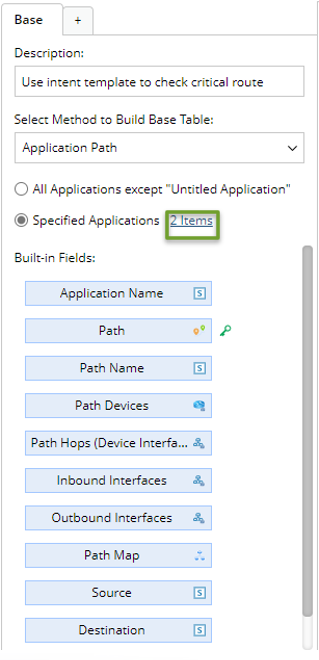
- Mapping Available Fields to Column Group: Drag and drop the available fields to the column group definition area to create ADT columns automatically.
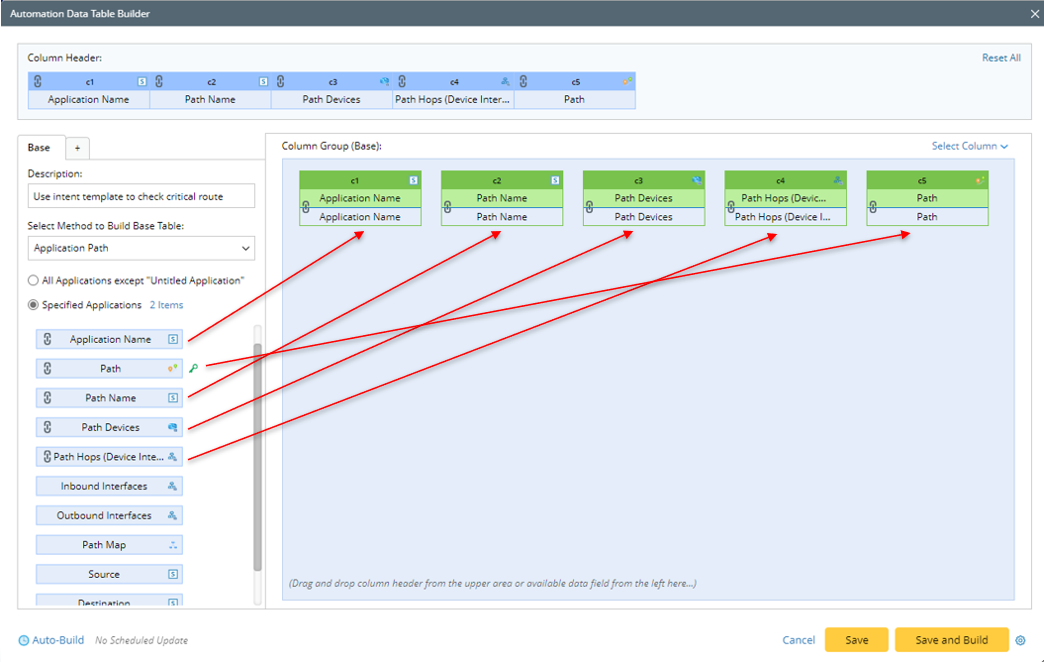
Select fields from the following field categories in this area:
- Built-in Fields: The built-in fields available for base table created via Application Path are listed in this area. Applicable fields include application, path (the link to this path), path name, path intent and other path properties (see the table below for details).
The data field with theField TypeFieldsDescriptionBuilt-in FieldApplication Name
Path
Path Name
Path Devices
Path hops (device interfaces)
Inbound InterfacesOutbound InterfacesPath Map
Source
Destination
Path Status
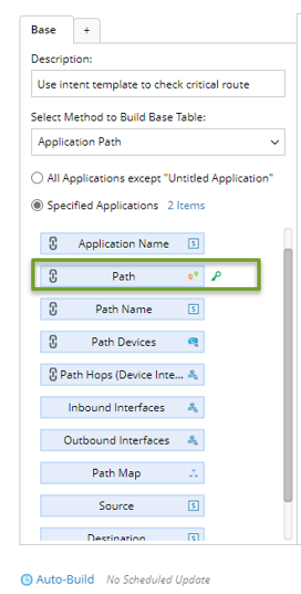
The built-in fields are created from path properties. icon will be used as the default table key and must be added as a column.
- Intent Outputs fields: Intent information of path intent can be displayed in the intent output columns of the ADT, such as intent message, intent status code, intent devices, intent map, intent CLI commands, and last execution time.

Note: To perform common operations on a column, click corresponding items from the drop-down menu. For example, you can edit, delete the column and bind (Select Available Data Field)/unbind data field to the column. 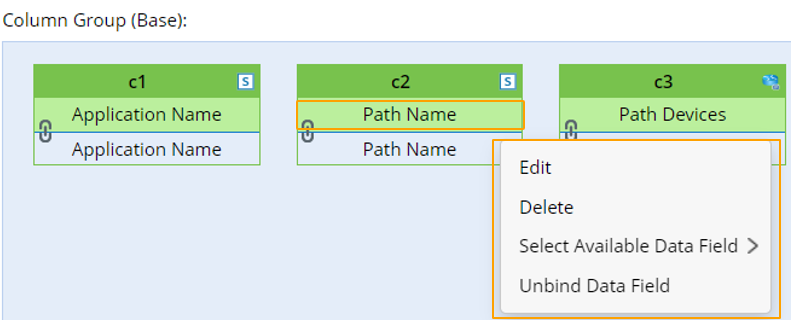
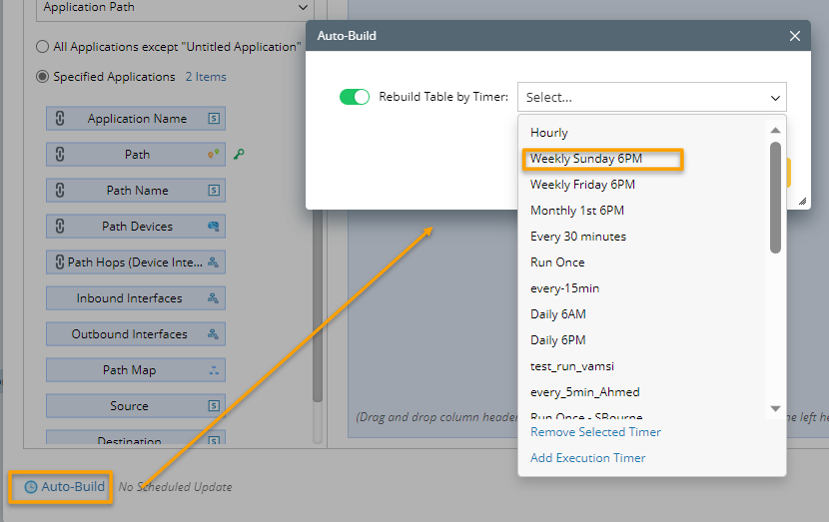
- (Optional) Click Auto-Build to schedule to update table data. In the Auto-build dialog, enable Rebuild Table by Timer, then select a timer (e.g., Weekly Sunday 6PM) from the drop list. For more details, see Auto-Build ADT Data.
- Click Save and Build to save all the settings.
Tip: If you click Save, the system will save the settings without building the base table data, and the Automation Data Table Builder will remain open.