2023-Nov-03-R11.1a
Defining Network Intent Template
Network Intent Template (NIT) allows you to create an Intent template from a Network Intent. The Intent template can help to clone the Network Intent to apply the logic to other devices.
Define a new Network Intent Template by completing the following steps:
-
In the NI editing window, select Intent Template Settings from the
 menu to open the Intent Template window.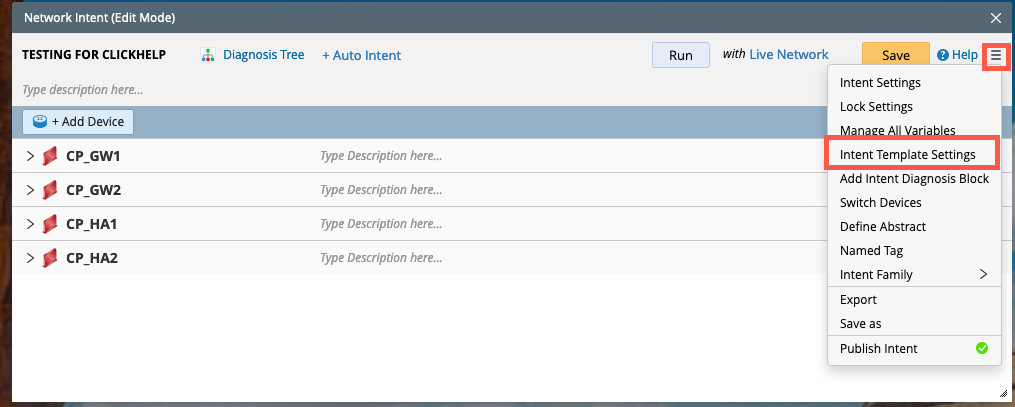
-
In the Intent Template window, fill in the Description field as per your use case.
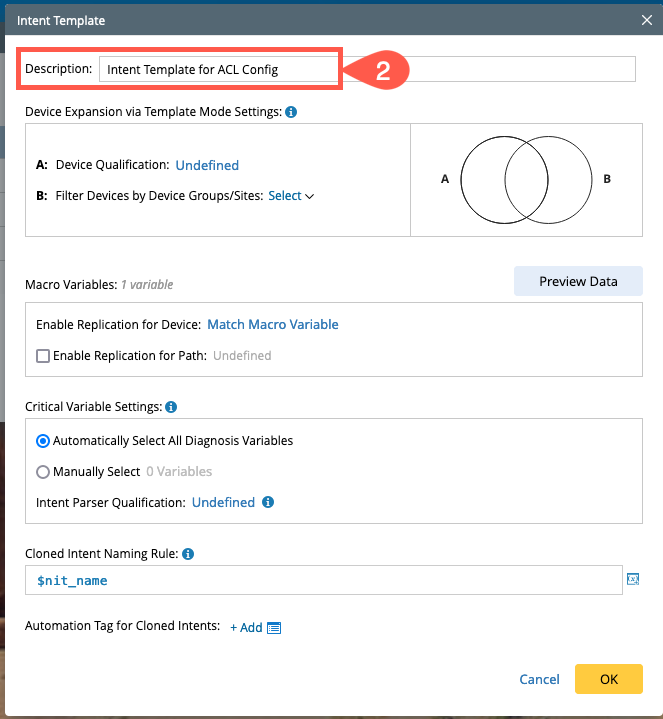
-
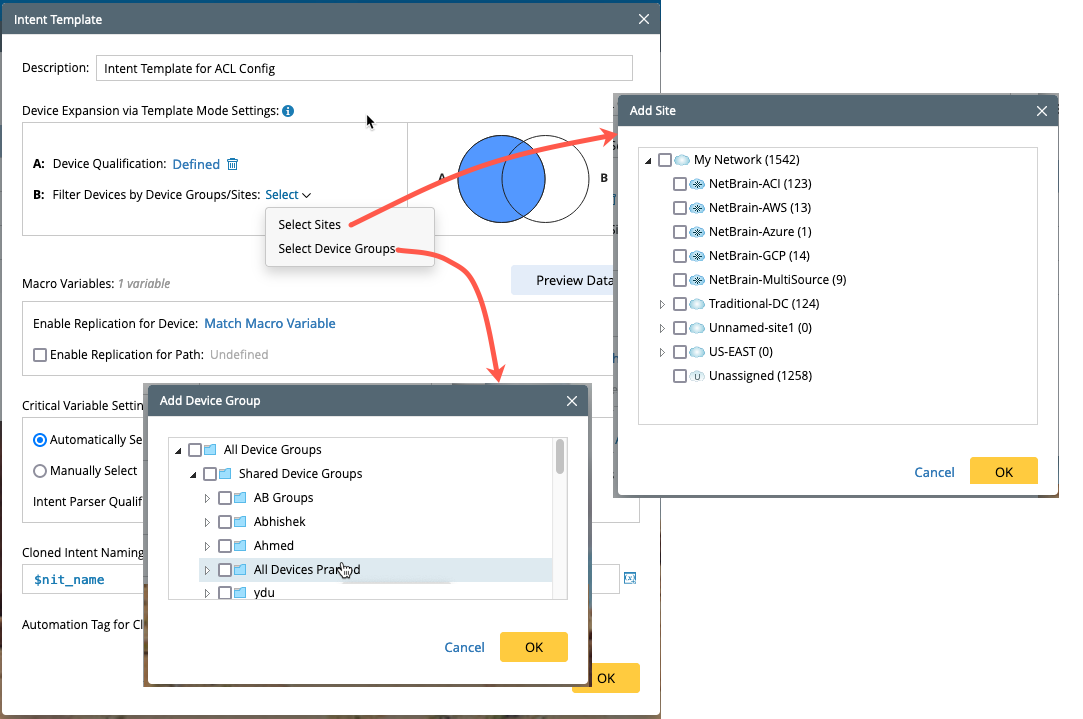
Define the device scope for NIT. The device scope can be defined by two methods, the qualified devices must satisfy the qualification criteria and/or belong to the selected Device Groups/Sites and is represented pictorially in Venn diagram to the right.
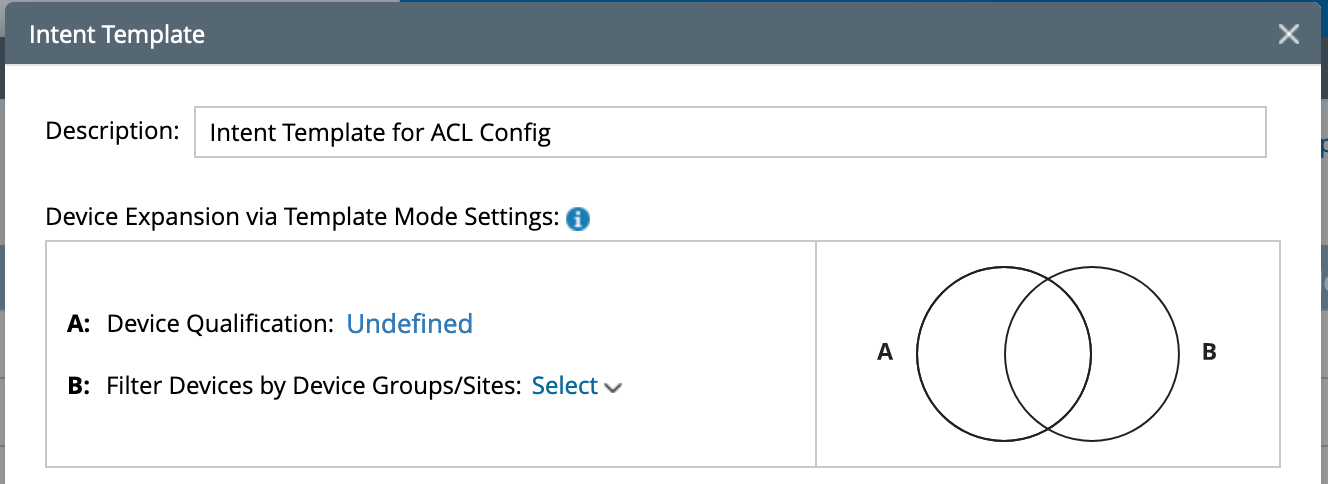
-
A: Device Qualification - Click Undefined, then the Qualified Device window will pop out.
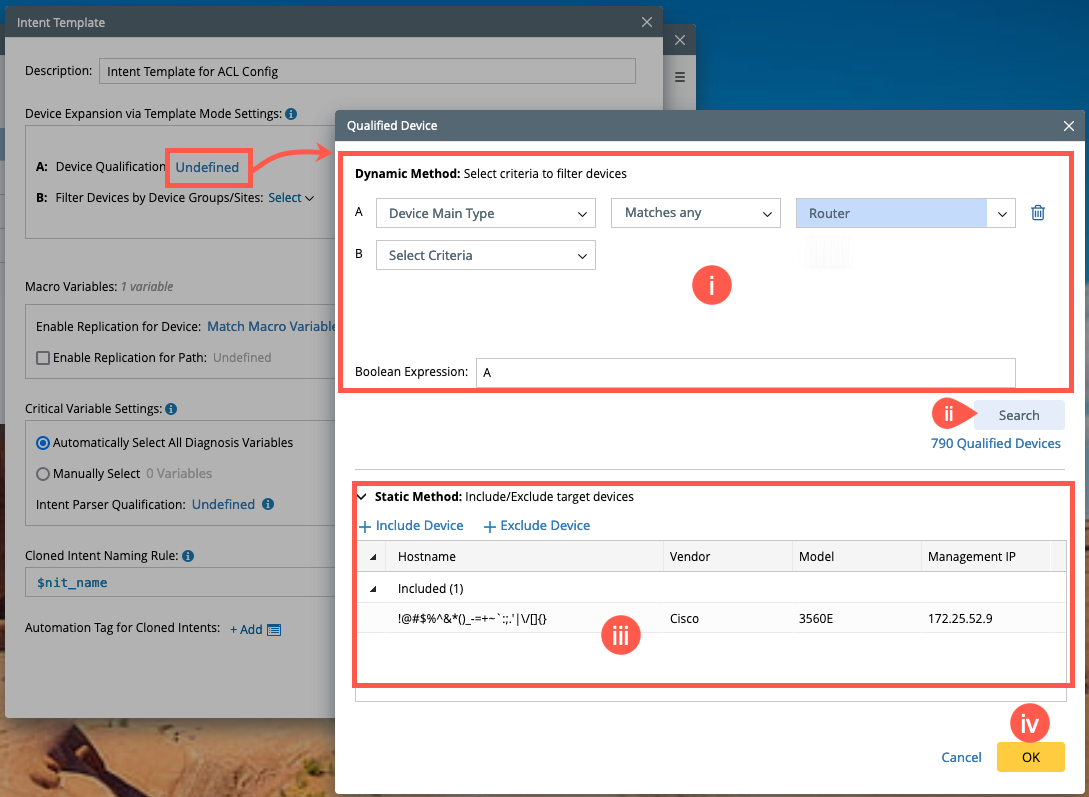
- B: Filter Devices by Device Groups/Sites: Define the qualified devices by selecting device groups or sites. If no device groups or sites are defined, the qualified devices will only be filtered via the criteria defined in Qualification on all devices.
- Define the qualified devices using filtering criteria and modify the Boolean Expression as per need.
- Click Search to see the total count of qualified devices.
-
Using the Static Method, Include or Exclude any of the target devices.
- Finally, click OK to save the selected qualified devices.
-
Define the values for Macro Variables: The method to set macro variable is done through ADT:
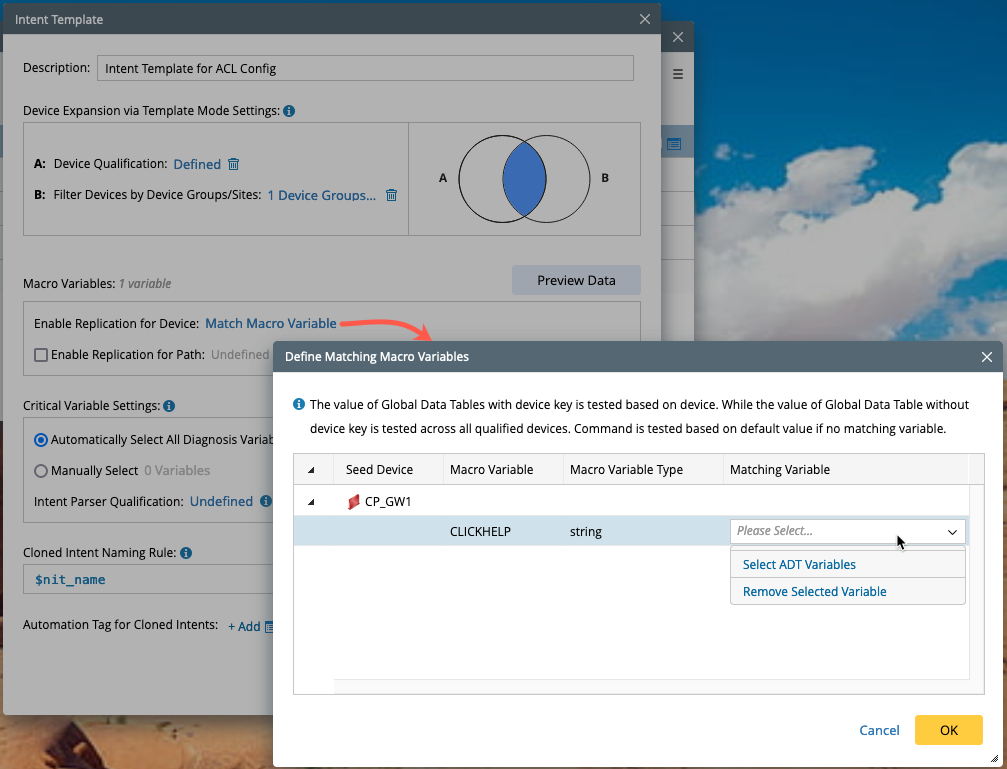
- Define Matching Macro Variable: The value of ADT with device key is tested based on device. The value of ADT without device key is tested across all qualified devices. If there is no matching variable, then the command is tested based on default value.
- Replication for Path: When an Intent Template is used for a Path, it can be used as input and passed to the Macro Variable for replication.
- Click and open the Match Macro Variable.
- In the column Matching Variable, open the drop down list and choose Select ADT Variables to pop up a window with the list of ADT and its variables.
-
Select the variable and the options Device Key Settings and Decode Filter will appear at the bottom of the Define Matching Macro Variables window.
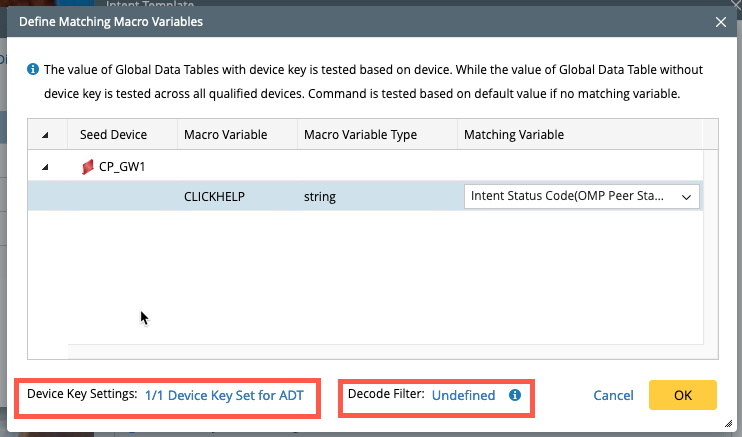
-
Open the Device Key Settings and choose the device key and select OK. If None is selected, the ADT column value will be used for all devices.
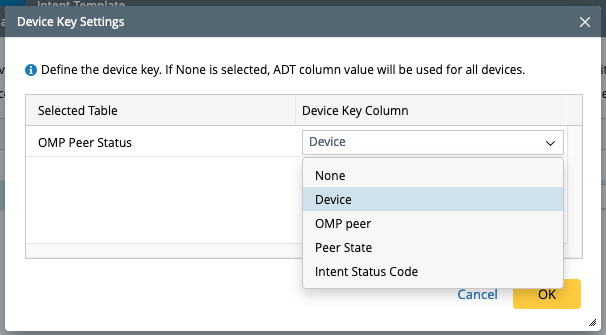
-
Define decode filter if you want the system to decode part of the defined value in ADT column. The ADT row with value of False on selected column will not participate intent decode process.
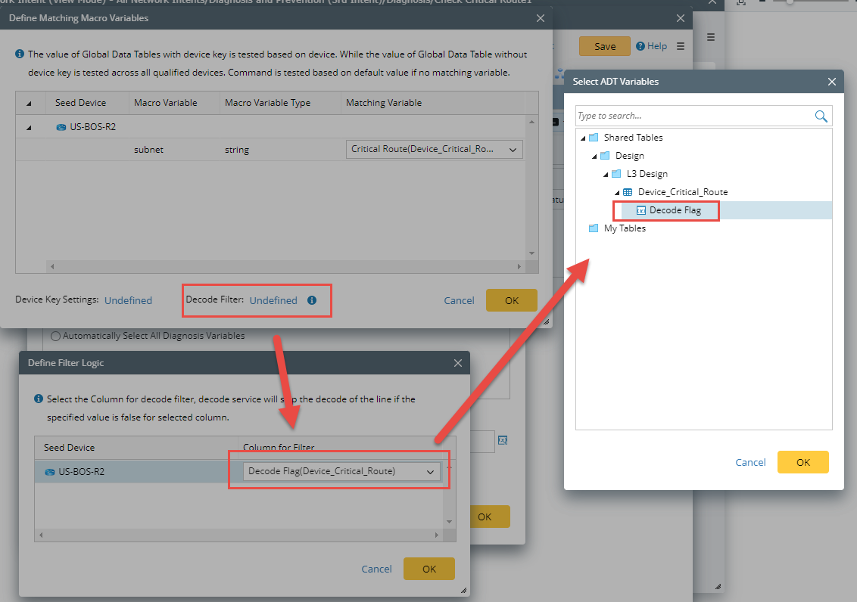
-
Enable the replication for Path, and a window Enable Replication for Path will pop-up to select the Path Variable used for the Seed Device Macro Variable.
-
Select either the Path Variable, Path Device Variable or an existing ADT Table Variable.
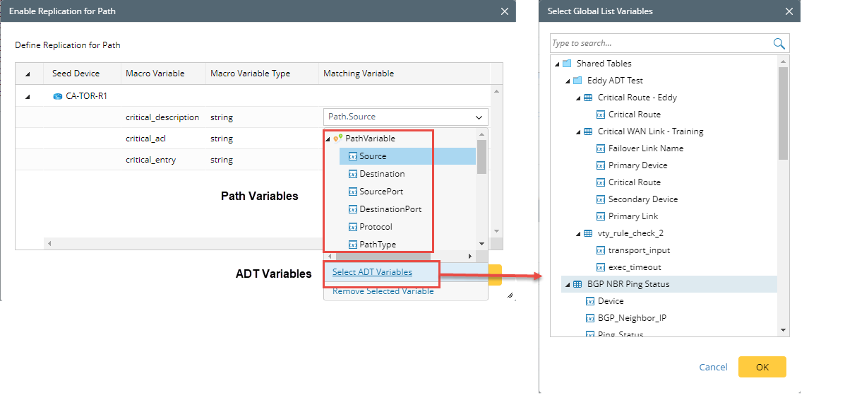
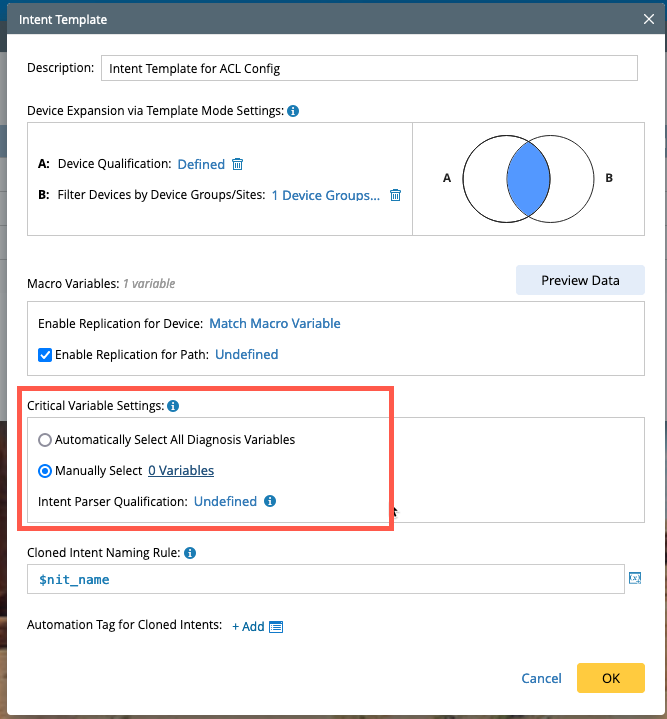
- Define the Critical Variable Settings. The critical variables are tested in Auto Test so qualified devices can be matched with seed device parsers. There are two options:
- Automatically Select all Diagnosis Variables: All variables used in NI diagnosis and NI note will be selected as Critical Variable. In the majority of cases, you can use this option to define the critical variables.
- Manually Select: Manually select the critical variables.
-
Intent Parser Qualification: Define parser qualification, so that the devices matching the parser qualification are only included in decode process.
-
Cloned Intent Naming Rule: Using the following variables, name the cloned intent for easy reference.
- nit_name
- Macro Variable
- Path Variables (application_name and path_name)
device_nameall_device_namesintent macro variables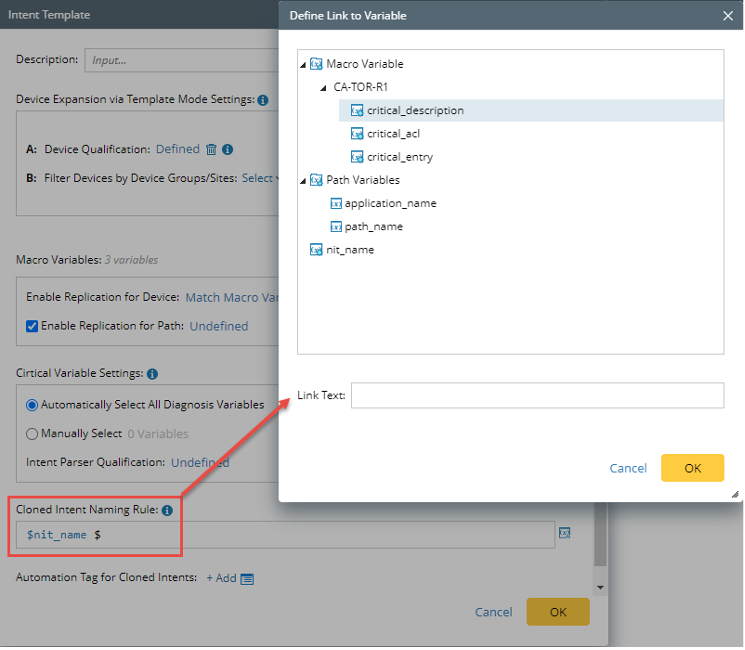
-
Automation Tag for Cloned Intents: You can set multiple tags to the cloned intent using +Add / + available next to the field.