2023-Nov-03-R11.1a
View Decode Results
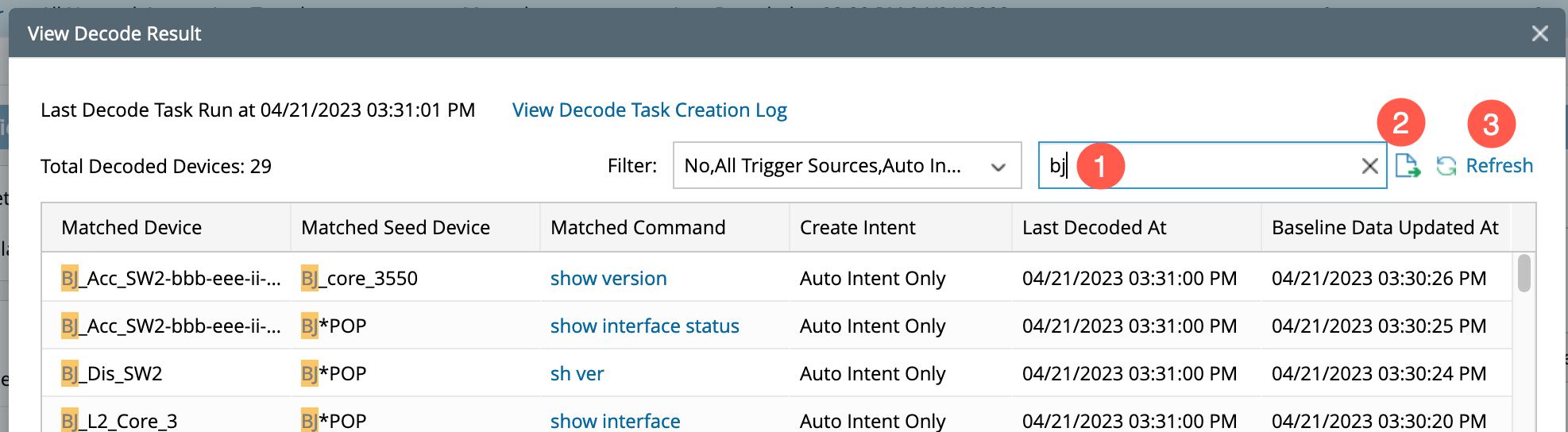
The decoding results are presented in a tabular layout in the window View Decode Result. To view the data, click on X Devices Decoded link to pop-up the window View Decode Result.

|
Note: The number in the hyperlink represents the total number of matched qualified devices. |

The data presented in the table columns is:
- Matched Device: The qualified devices that are successfully decoded.
- Matched Seed Device: The seed devices that are matched.
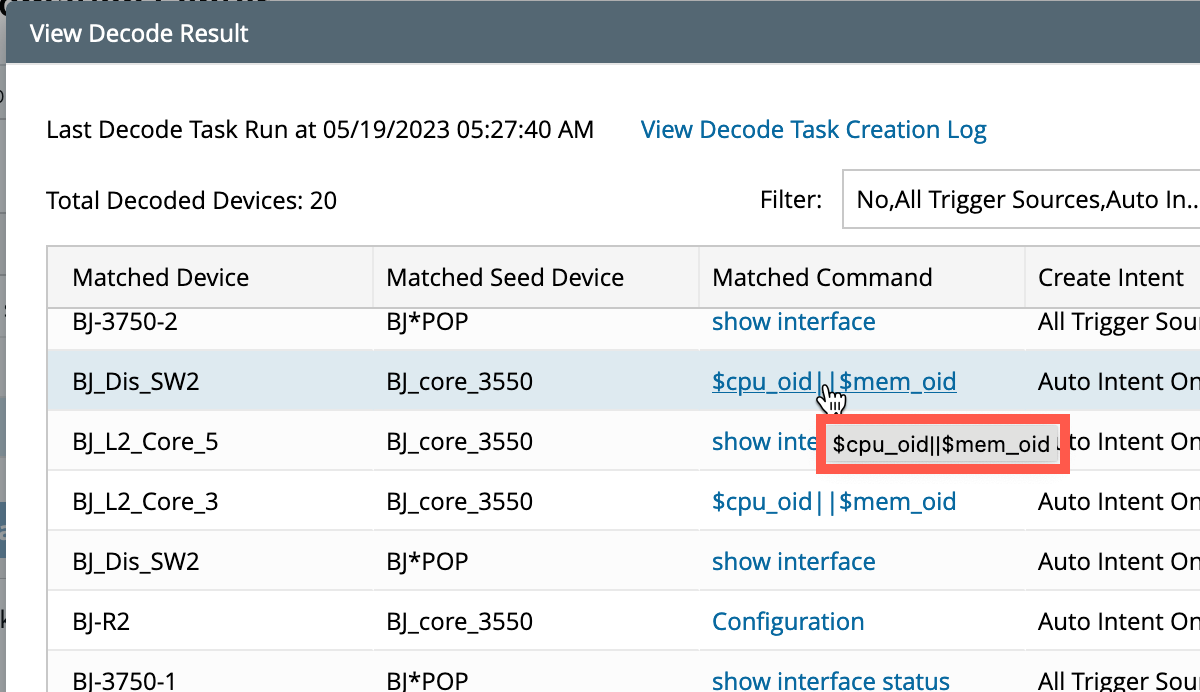
- Matched Command: The commands that are decoded. And if you hover the cursor, the parameters of the API parser will be displayed.
-
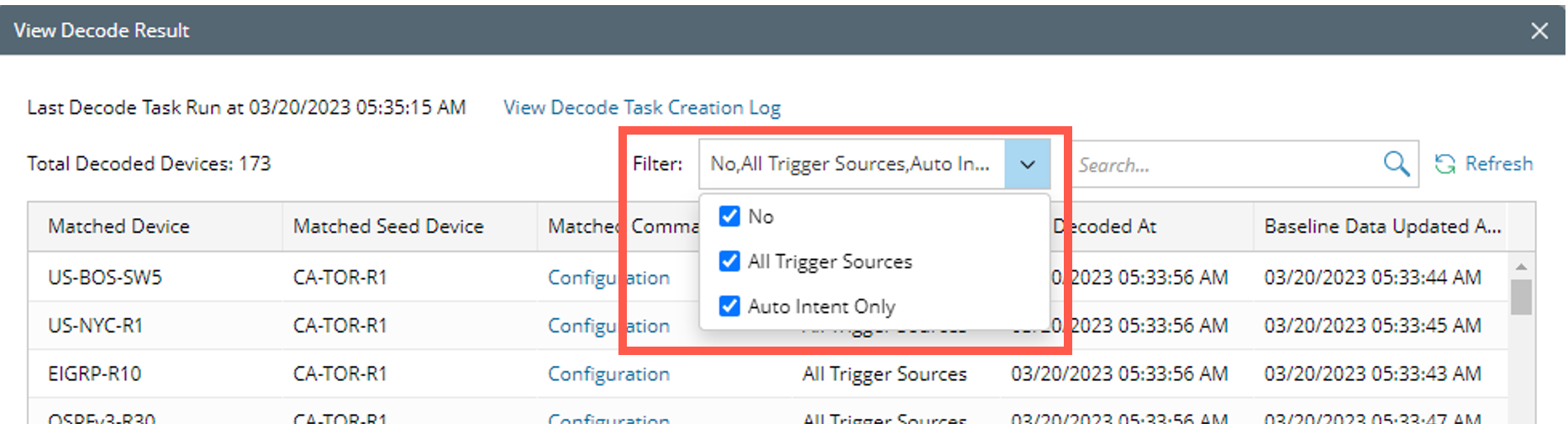
Create Intent: It provides the information on whether a NI is created and under which criteria. The information under this column would be:
-
No: If a command test is successful, but failed critical variable test.
- All Trigger sources
- Auto Intent Only.
-
No: If a command test is successful, but failed critical variable test.
An option is provided to filter the Create Intent column and view the results as needed:
- Last Decoded At: The last time when the intent decoding is completed.
- Baseline Data Updated At: The last time when the baseline data of the NIT is decoded.
|
|
Tip: You can click Refresh to refresh the table to get the latest decoding results. |
The system supports the user to:
- Search: The system supports searching the results with keywords (search keywords are the information in the columns Matched Devices, Matched Seed Device, and Matched Command).
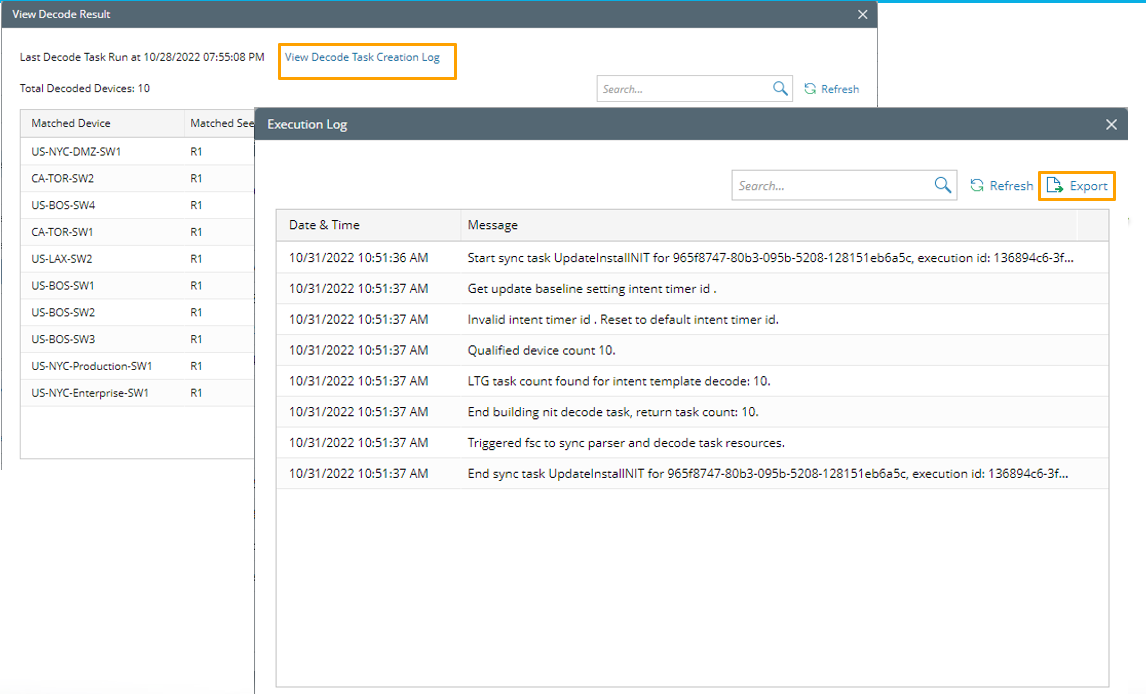
- Export: To export the results, click Export at the top right of the window next to Search.
-
Refresh: Click Refresh to refresh the table and get latest decoding results.
- You can click View Decode Task Creation Log to view the execution log for the last device decoding.