2023-Nov-03-R11.1a
Work on Map Stencil
- On a map page, select Stencils on the Map Toolbar to open the toolbox.

- View the Map Stencils pane, and it has two types of map stencils:
- Shape — a variety of geometries including text, links, and tables.
- Node — device icons for each device type.
- Built-in — the built-in icons provided by NetBrain.
- Customized — you can upload icons based on your needs. By default, there is no icon in this category.
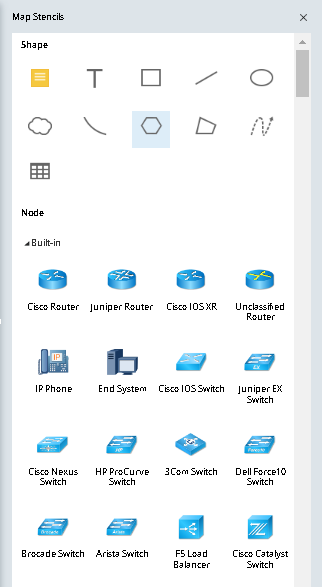
- Select a shape and draw it on the Map, or drag a device icon to your Map.
Example: draw a rectangular shape on the Map.
- Select the rectangular shape from the Map Stencils pane.
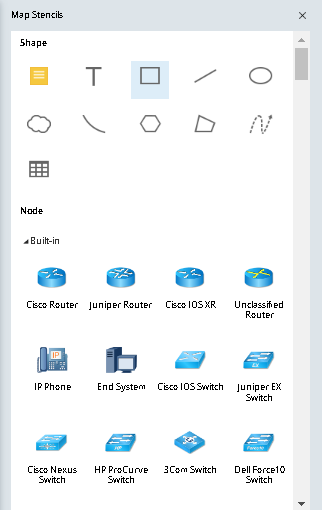
- Hold and drag your mouse on the Map to draw the rectangular shape, and then release your mouse when the rectangular shape of desired size is drawn.
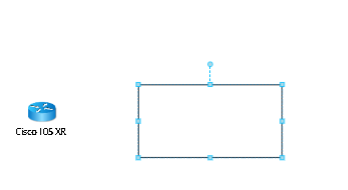
- Click the rectangular shape to enter texts in the rectangular area.
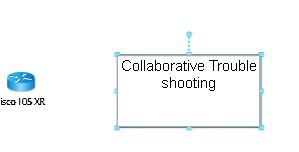
- Adjust the map stencil.
- For a shape, you can click to change its size or double-click it to input texts.
- For device icons, point to the device type (for example, Cisco Router0) and then click the icon to edit the device name.