R11.0a-March2023
Map Page Settings
The Map Page Settings dialog box is a central place where you can set various options for map pages. You can go to Map > Map Page Settings from the Map Toolbar to set the map page options.

|
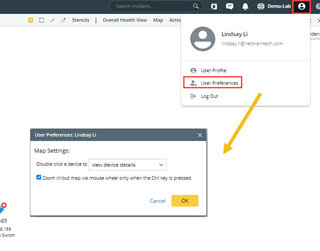
Tip: In User Preference, you can define the behavior of double-clicking a device and whether scrolling the mouse wheel to zoom in/out a map requires pressing the Ctrl key.
|
The attributes of map settings are described as follows:
| Area | Content | Explanation | |
| View Options for Data Unit | Data Unit | Includes device hostname, interface name, Device Note and the following:
| |
| Display Ratio | Indicates the threshold of zoom controls for displaying a corresponding data unit on a map. | ||
| Zoom Step | Indicates the zoom controls changed by each zoom-in or zoom-out action. See Browse Device Data on Map for more details. | ||
| Hide media connected with two topology links only | Hides the media connected with only two links.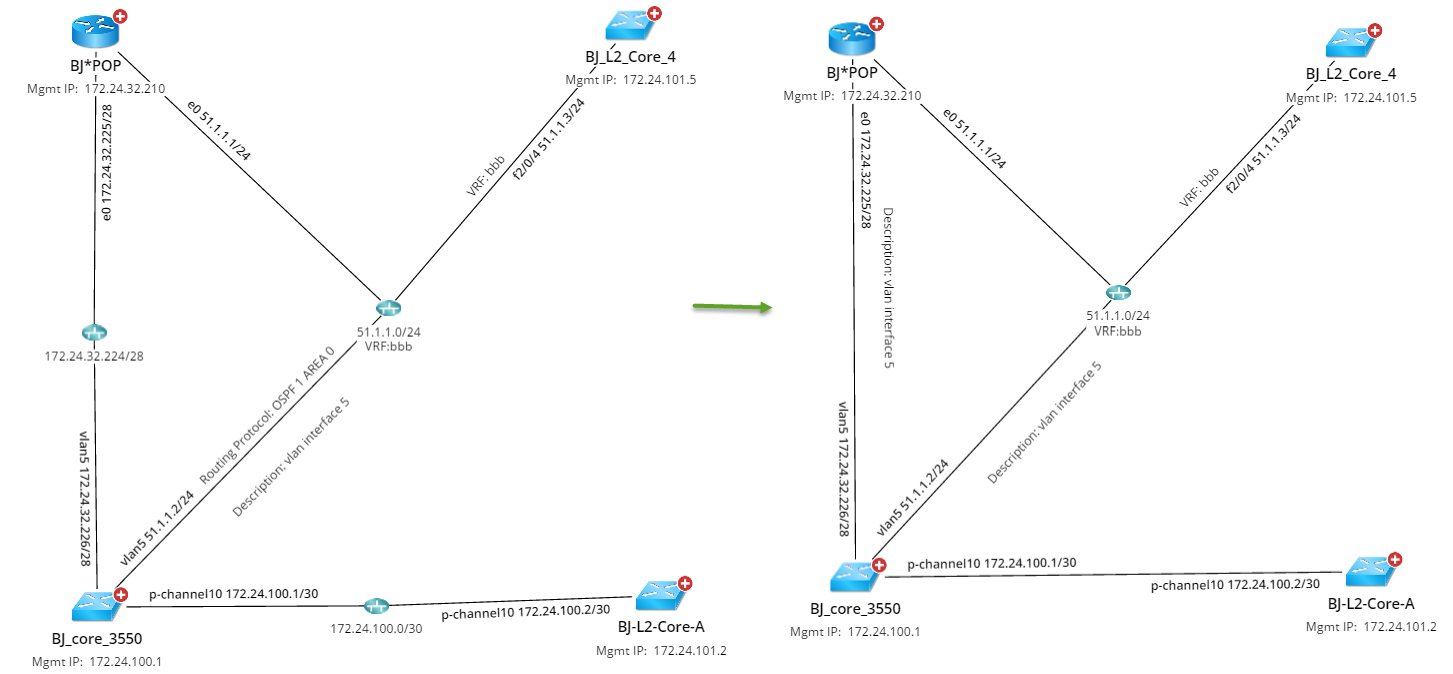 | ||
| Interactive & Backend Auto Link Settings | Default Auto Link:
| See Topology Type for details. | |
Link Option Between Two Devices:
| Excludes management links from map while using the auto-link function.
| ||
Extend Links
| Defines how many links are automatically drawn between devices. | ||
Auto Link after Update Map
| Auto link all devices after the map is updated | ||
| Apply to Other Maps | Enables applying the auto link setting to existing maps/map pages | ||
| Device View on Expanded Style | 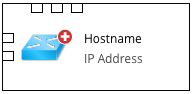 | One device type that is suitable for Layer 2 topology. You can point to a port or click a link to view its detailed information. | |
| Interface Highlight Mode | Highlight Link & Port | Highlight both link and port.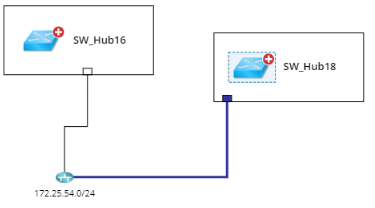 | |
| Only Highlight Link | Highlight link.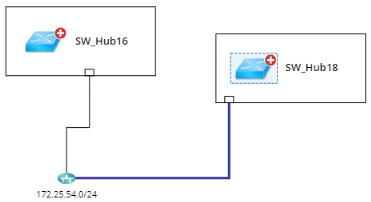 | ||
| Only Highlight Port | Highlight port.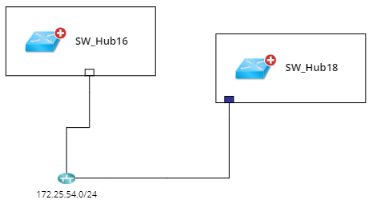 | ||
| Enable Tip Window of Switch Port | Enable Tip Window of Switch Port | Set to give tips for switch port. | |
| Map Background Color |
| Set the background color for a map. |
 under a device icon on a map.