R11.0a-March2023
Search for Devices
In NetBrain system, your entire network becomes a searchable database, and you can search for a device by using one of the following search terms:
- IP address
- hostname
- Text string in Configuration File
- Vendor/Model information
- Device/interface/module property
 |
Note: Whether a property can be used as a search term is configured in the GDR (global data repository). |
|
Tip: You can search for a specific device exactly by Semantic Search, or search for multiple devices with common characteristics by Advanced Search. |
- Enter an IP address in the search bar.
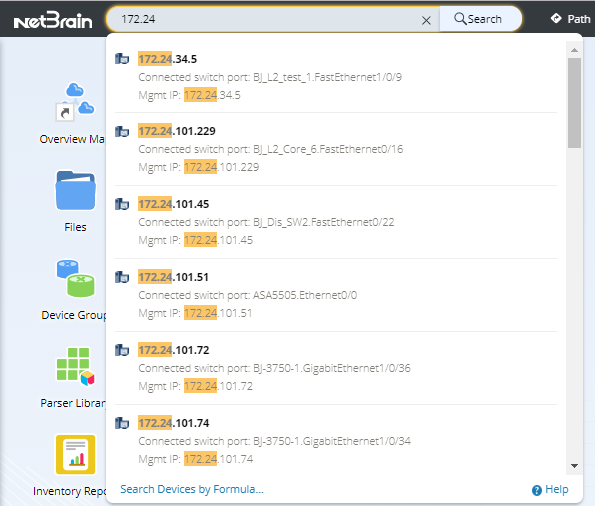
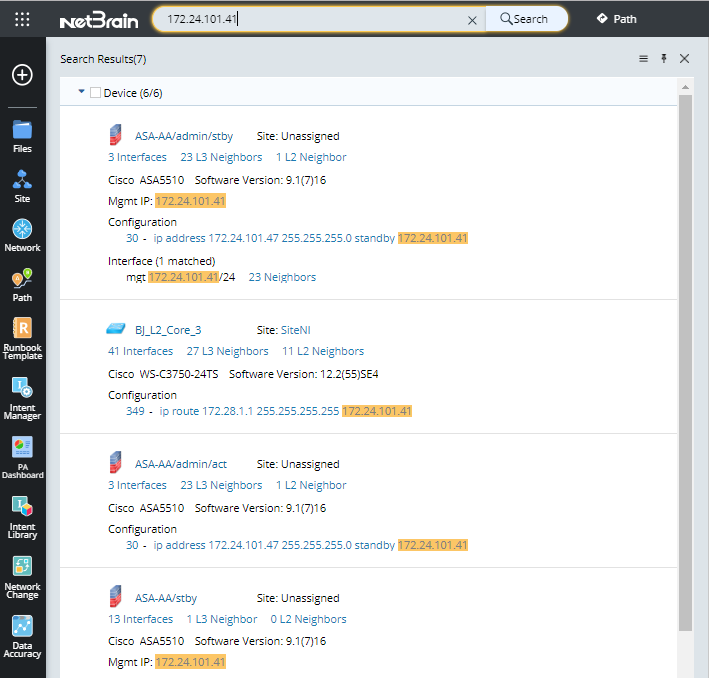
- Press the Enter key to start searching. The search results are displayed with the matched keyword highlighted.
|
Tip: When searching for devices by using text string in the configuration file, you can select the Configuration tab to narrow down the search results to those which match the keyword combination exactly in their configuration files. |
- Click the X L3 Neighbors hyperlink (for instance, 27 L3 Neighbors). A preview map containing the searched device (for instance, BJ_L2_Core_3) and its neighbors is displayed.
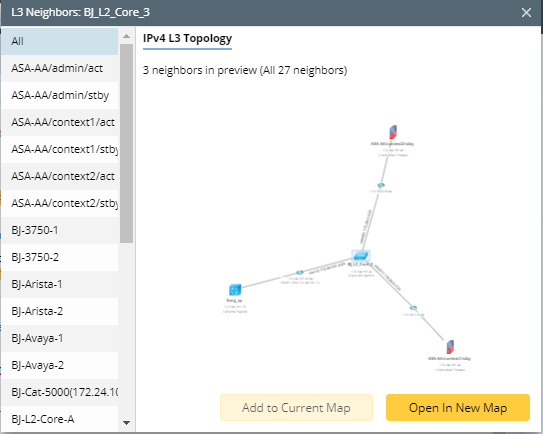
- To display the preview map on the existing map, click Add to Current Map; To display the preview map on a new map, click Open in New Map.
Further operations:
- Viewing device details in a dashboard
Click the device name in the search result. A Device Details dashboard matching its device type opens, showing the detailed information about the device. See Semantic Search for further operations.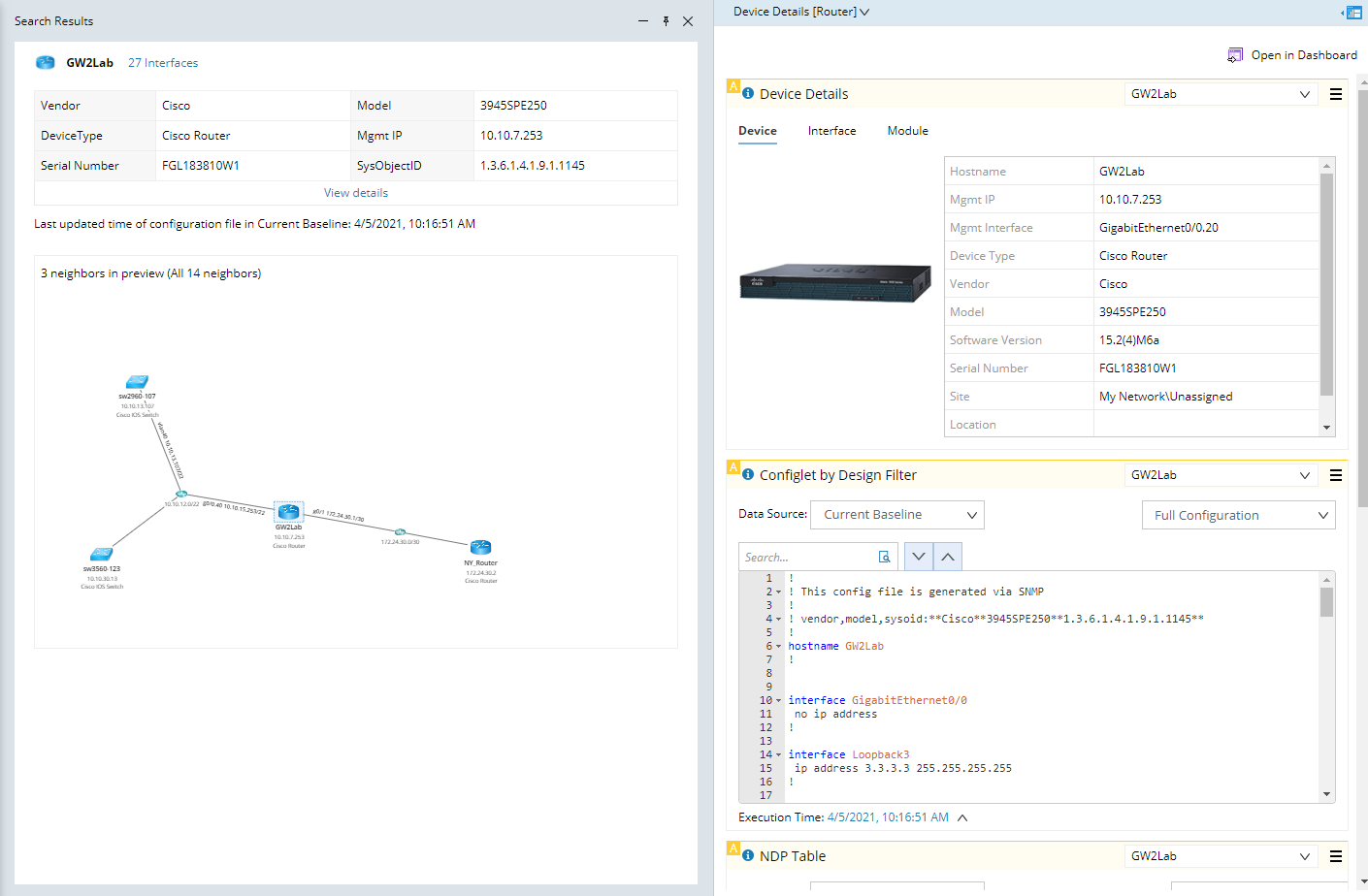
- Browsing device details in the device details pane
- Point to the target device in the search result pane.
- Click the
 icon and select View Device Details from the drop-down menu. See Device Details for more details.
- Viewing neighbor devices
- Click the X L2 Neighbors hyperlink (for instance, 2 L2 Neighbors) to open the corresponding neighbor list as well as the preview map of the neighbor topology.
- To open the preview map, click Open in New Map.
- Searching for an interface of the device
- Click the X Interface hyperlink (for instance, 15 Interfaces) to open the interface list of the device.
- Click the IP address of the target interface. The system automatically starts a new search using the IP address as the keyword.
See also: