Advanced Search

Contents
Advanced search allows you to build complex search queries to search for devices by using multiple search criteria and a boolean expression.
The advanced search consists of the following parts:
▪Search Scope — the scope to search for devices.
oAll Devices — all devices in the current domain.
oSite — devices in one or more sites.
oDevice Group — devices in one or more device groups.
▪Search Criteria — the properties and match operator that can be used to filter devices.
oProperties
✓Front Server — use a Front Server or Front Server Group to find their managed devices.
Tip: The information of all registered Front Servers can be browsed in Shared Network Settings.
✓Device Property — use one or more device properties to find devices.
Tip: Whether a property can be used as a condition for advanced search is configured in the GDR (global data repository).
✓Interface Property — use one or more interface properties to find devices.
✓Module Property — use one or more module properties to find devices.
✓Config File — use texts in the configuration file to find devices.
oMatch Operator — the search pattern to be executed.
✓Match — exactly equals to the specified value. The full-text search pattern will be executed.
✓Does Not Match — does not equal the specified value. The full-text search pattern will be executed.
✓Contain — contains the specified value. You can specify multiple values by separating them with a semicolon (;).
Note: The * and ? characters are treated as either separators or wildcards.
✓Does Not Contain — does not contain the specified value. You can specify multiple values by separating them with a semicolon.
▪Boolean Expression — the logic relationships among the search criteria. It can have the following parts:
oCapitalized letters to represent the search criteria (A, B, C ....).
oBoolean operator (and/or), which is used to define the logic relationships among the search criteria. By default, the and operator is used.
oParentheses, which is used to combine some search criteria.
Example: Use advanced search to search for devices matching a search criteria
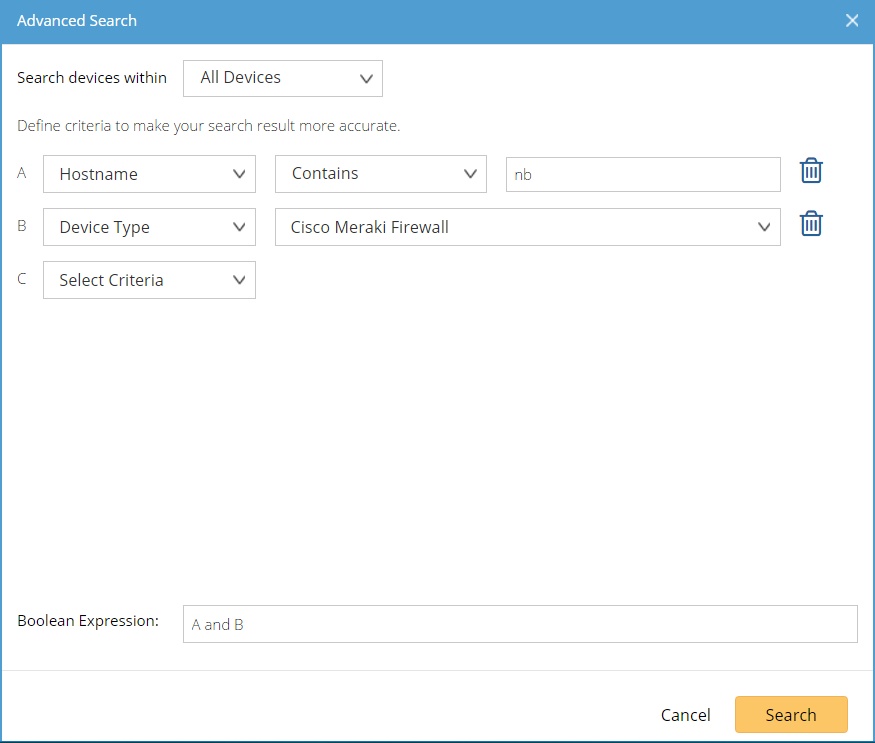
1.Click the search bar and then select Advanced Search from the drop-down list.
2.Specify the scope to search for devices.
3.Set search criteria A based on your needs:
1)Select a data source and a property from the first drop-down menu.
2)Select a keyword from the second drop-down menu.
3)Specify the value of the property that you selected.
4.Repeat step 3 to set more conditions if required.
5.Define the condition combination in the Boolean Expression field. For example, (A and B) or E.
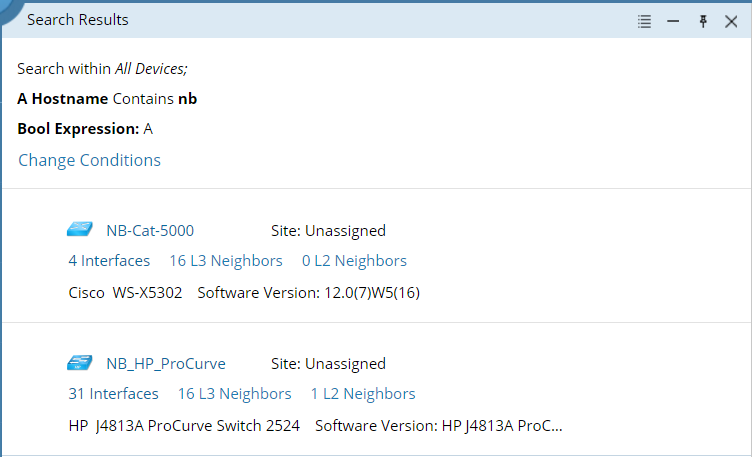
6.Click Search. The searched result is displayed as follows: