Input Variables

Contents
The Input Variables node defines the parameters that require manual input when you run the Qapp. It will automatically generate a GUI for parameter input when you run the Qapp.
The variable definition in the Input Variable editor conforms to the following JSON format:
▪Begins with the character [ and ends with ], which contains all variables to be defined.
▪The definition of a variable begins with { and ends with }, which contains the following properties of a variable:
Property Name |
Description |
name*required |
The name of the variable. The name should conform to the definition rules of a variable. |
type*required |
The value type of the variable. The supported type includes string, int, bool and double. The variable in the bool type shows as a checkbox at the GUI. |
label*required |
The display name of the variable in the Input GUI. |
value |
The default value of the variable. This property is optional. The value of a variable in the bool type is false or true. |
items |
Used to define the candidate values of the variable. This property shows as a drop-down list with candidate values contained. The candidate values can be manually specified or call the device properties in GDR. |
style |
This property is optional and used to receive a file or folder input. The value of the style is folder or file. It will generate a Select control when you run the Qapp. |
desc |
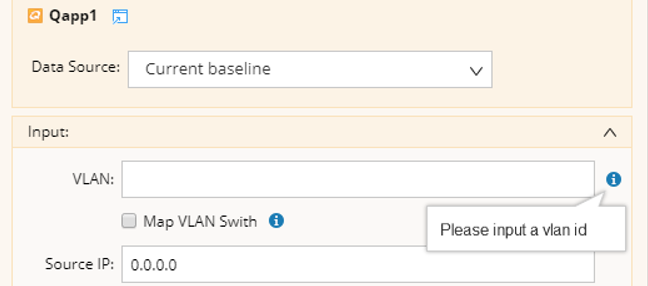
The description of the variable. This property is optional. The description will appear when you point to the |
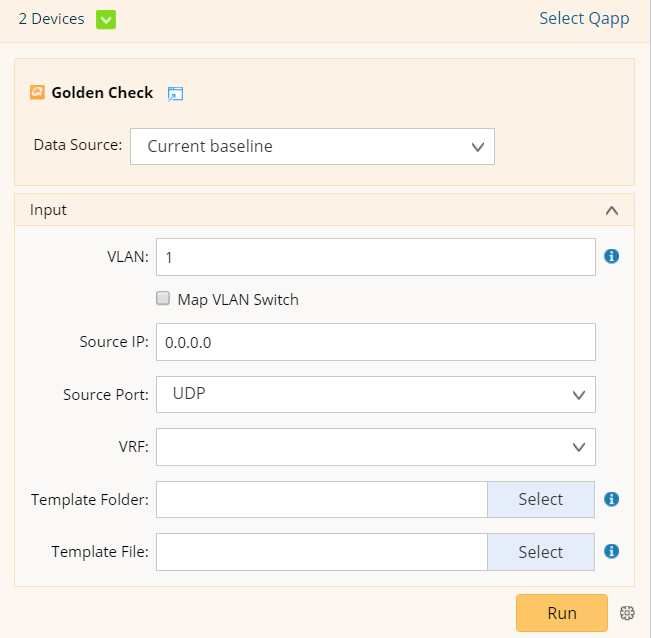

The following is a sample code of defining input variables:
[
{ "name": "vlan", "type": "int", "label": "VLAN", "value": 1, "desc": "Please input a VLAN ID"},
{ "name": "map_vlan", "type": "bool", "label": "Map VLAN Swith", "value": false },
{ "name": "source_ip", "type": "string", "label": "Source IP", "value": "0.0.0.0" },
{ "name": "source_port", "type": "string", "label": "Source Port", "value": "UDP", "items": [ "TCP", "UDP", "IP" ] },
{ "name": "vrf", "type": "string", "label": "VRF", "value": "", "items": "$vrf" },
{ "name": "template_folder", "type": "string", "label": "Template Folder","style": "folder","desc":"Please select a folder" },
{ "name": "template_file", "type": "string", "label": "Template File","style": "file","desc":"Please select a file" }
]
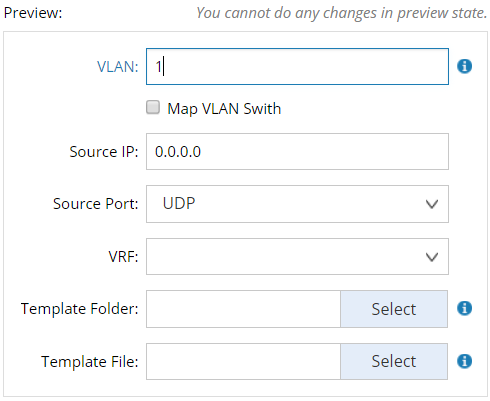
The GUI to be generated for the above sample shows as the figure below:
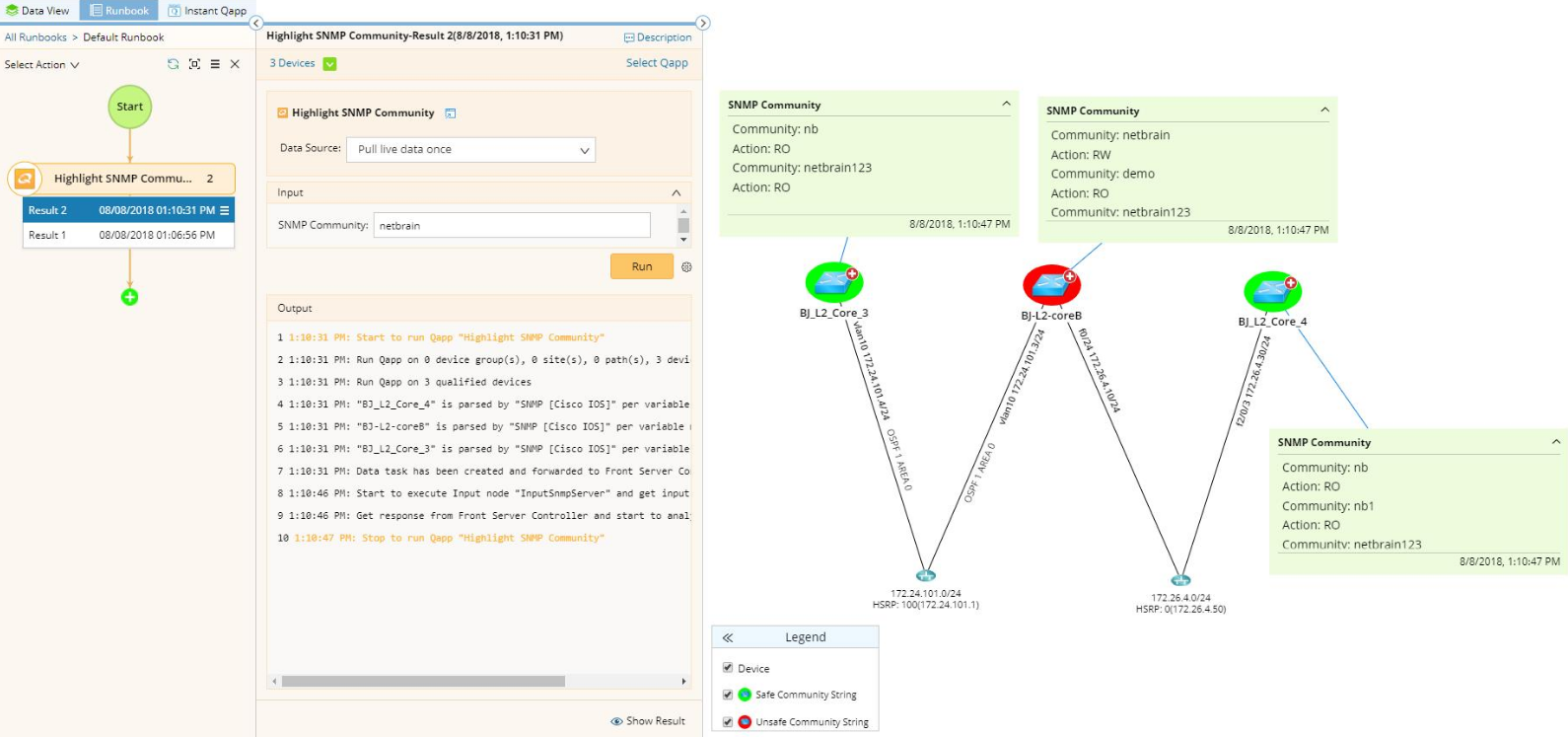
Example: Check SNMP community string security by running a Qapp with input variables configured.
1.Click the  icon from the taskbar and select New Qapp from the drop-down menu to open the Qapp Editor.
2.Click the  icon on the Start node, select Input Variables and click Extend.
3.Rename the Node Name as inputSNMPString and define the input variable as follow:
[
{ "name": "snmp_community", "type": "string", "label": "SNMP Community", "value": "private, public"}
]
4.Double-click the Canvas node.
5.In the Device Queue node, keep the default settings.
6.Extend a Device(this) node from the Device Queue node, and keep the default options.
7.Extend a Configuration command node from the Device(this) node.
8.At the Configuration node, click Select Parser and select the SNMP [Cisco IOS] parser.
9.Click the  icon and export snmp_community to the table node.
10.Extend a Basic Output node from the Table node, and add a condition at the Basic Output node.
If $snmp_community != inputSNMPString.snmp_community
11.Extend an Alert node from the output node.
12.Check the Device Alert option, select $_devices as the target device and rename the alert name as SNMP String Not Matched. In the Alert field, enter alert content, such as SNMP community $inputSNMPString.snmp_community not found in configuration.
13.Save and run the Qapp.