Understanding Host and Cluster Deployment

Contents
In the Host and Cluster View, the Network pane hierarchically displays the data centers, ESXi hosts, resource pools and virtual machines under a vCenter.
1.Click Network on the taskbar, select ESXi from the Category list and then select Hosts and Clusters from the View list.
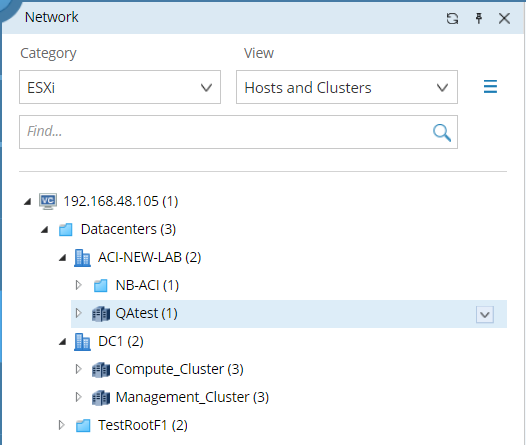
2.View the details of a node. Click a node and select the Node Details tab. The node details will be displayed. The node details vary based on different nodes.
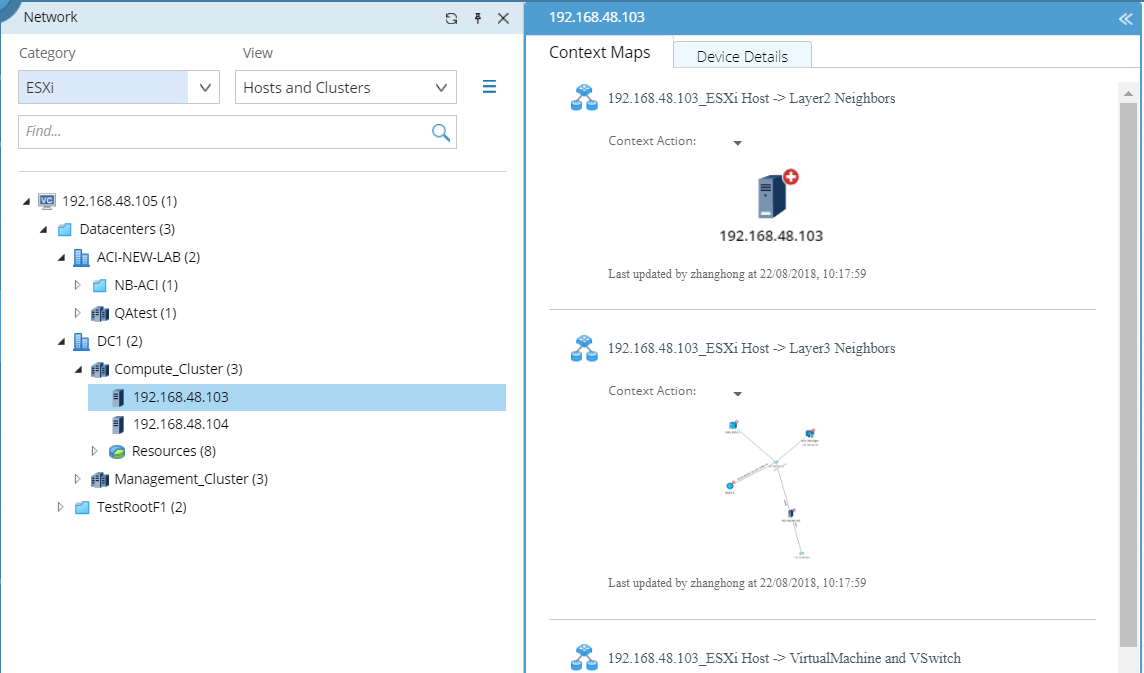
3.View the context maps of a node. The context map shows the topology or child/parent relationship between the selected node and its related nodes.
Example: Context Maps for the ESXi Host node.
▪Host to Layer 3 Neighbors — displays the Layer 3 topology of a host and its gateway devices.
▪Host to Layer 2 Neighbors — displays the Layer 2 topology between a host and its connected physical switches.
▪VM to Layer 2 Neighbors — displays the Layer 2 connection between all VM and its connected vSwitch as well as the connection between vSwitches and physical switches under an ESXi node.
▪Host to VM and vSwitch — displays all VMs and vSwitch/VMs running in an ESXi host.
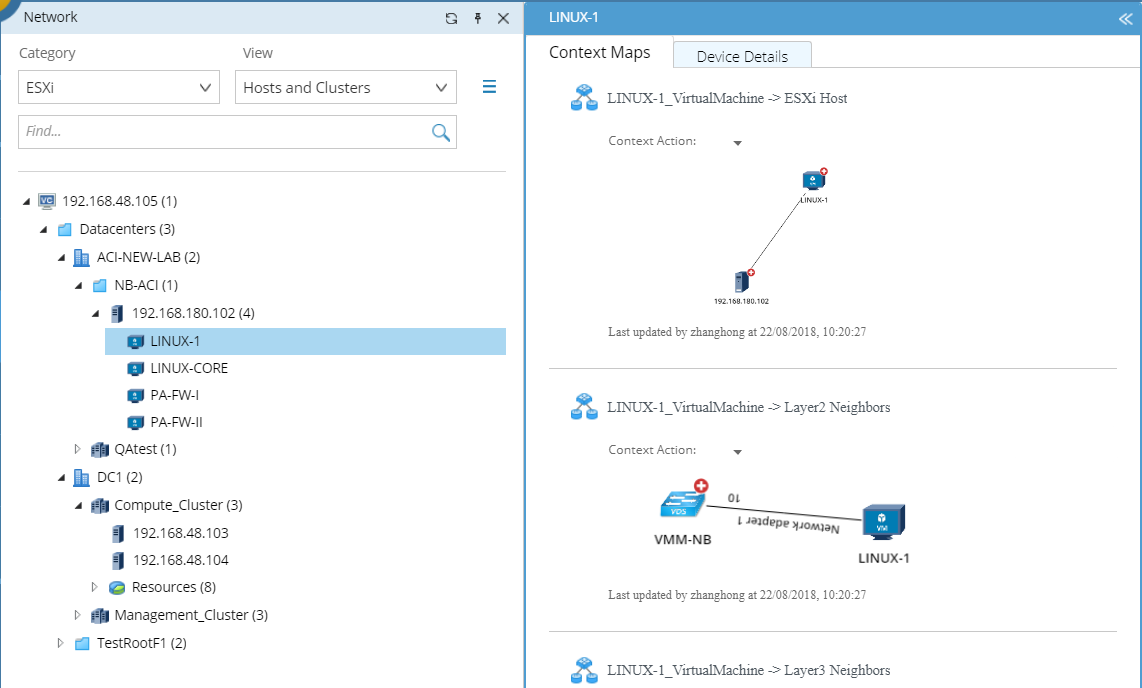
Example: Context Maps for the VM node.
▪VM to Network L3 — displays the connection between a VM and its gateway device.
▪VM to Network L2 — displays the Layer 2 connection between each VM and its connected vSwitches as well as the connection between vSwitches and physical switches.
▪VM to Host — displays the dependency between a VM and its ESXi hosts.
For more context maps of a node, see Context Maps of vCenter Nodes for details.