Assessment Library
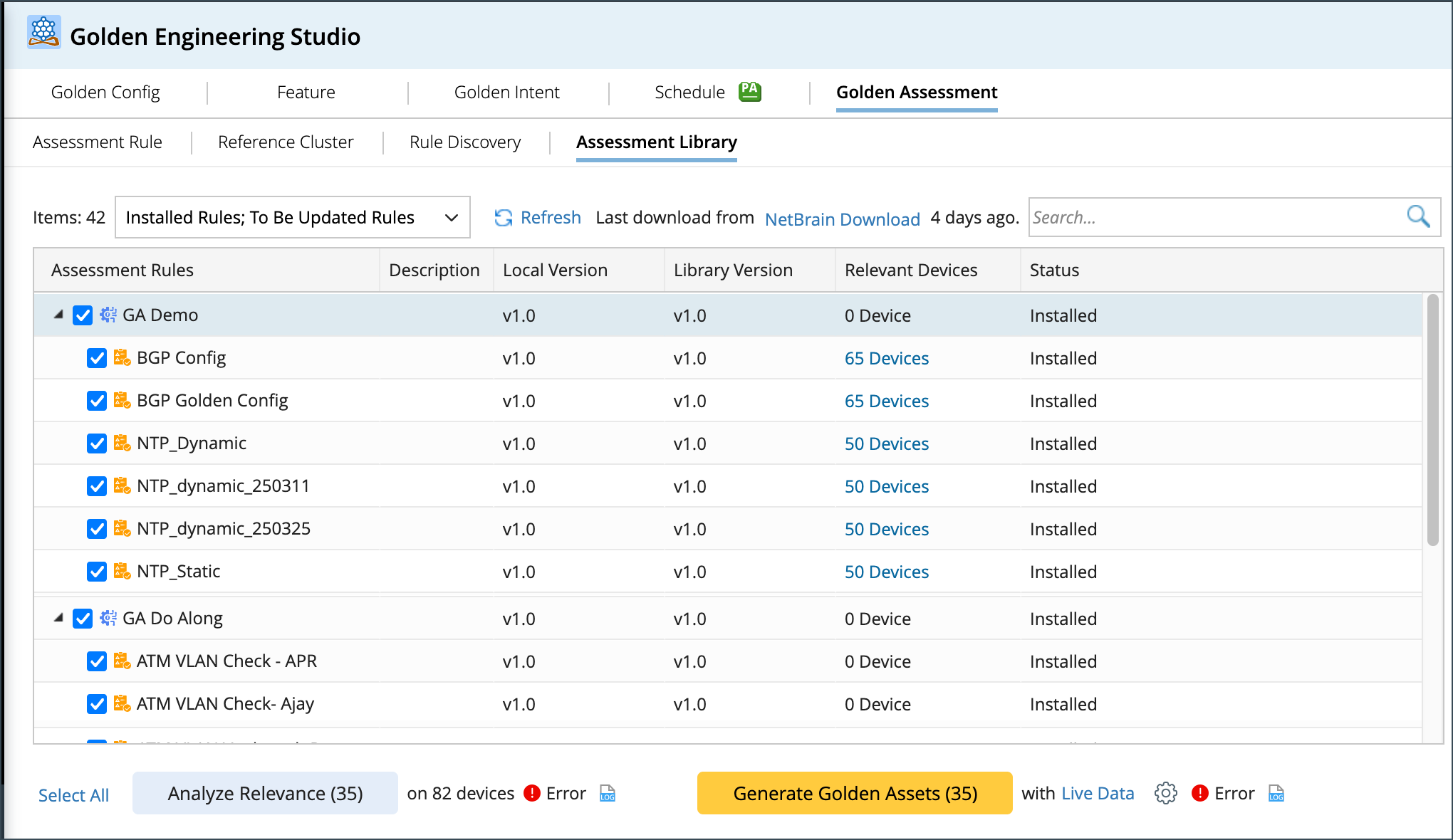
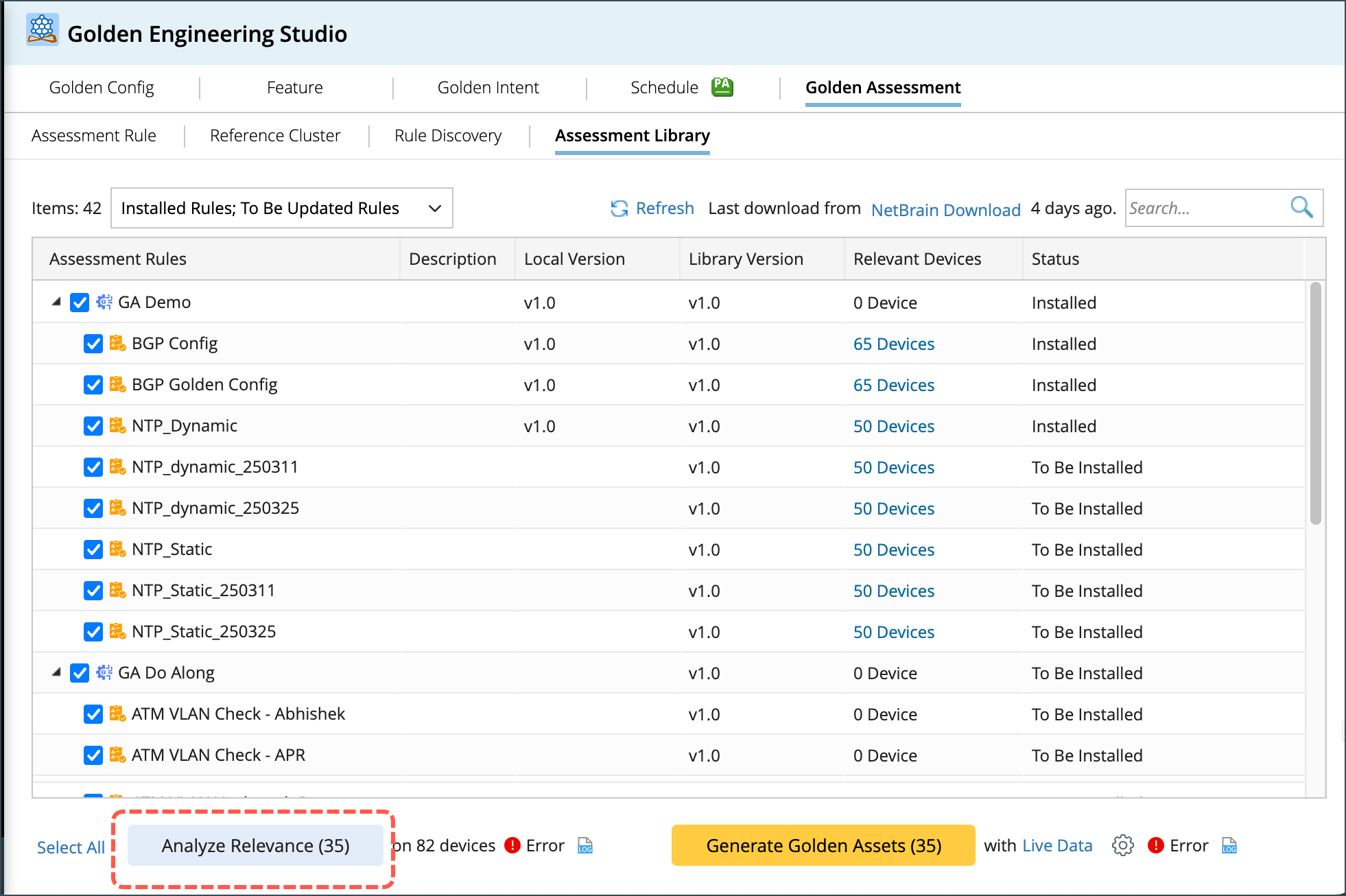
The Assessment Feature and Assessment Rule will be synchronized to the Assessment Library. You can download the NetworkBrain Assessment Library via the NetworkBrain Download function. These resources include Reference Cluster, Assessment Feature, and Assessment Rule Definition which are used for Golden Assessment. Power users can manage the downloaded resources and install resources in this Assessment Library. In this topic, we will go over the details presented in the table and:
- Analyze Relevance : This function is provided to analyze device relevance for assessment rules.
-
Generate Assets: This function is Provided to directly generate the selected assets from the Library.
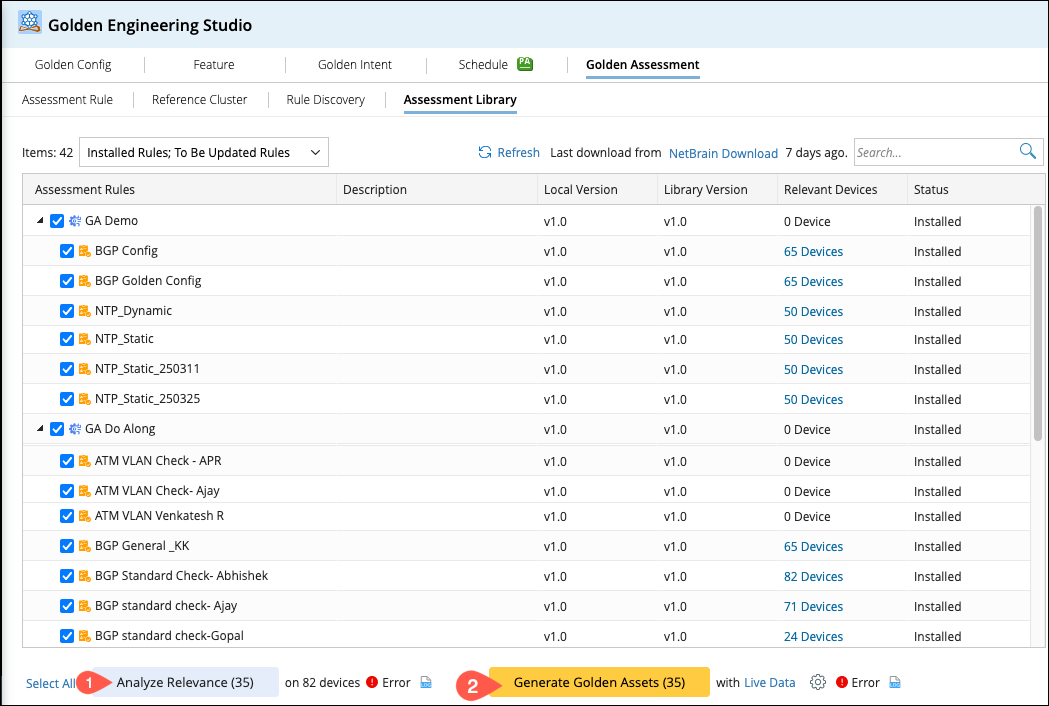
The following options have been provided at the top of the table:
- Filter: The default display shows "Installed Rules, To Be Updated Rules". You can filter the content in the table according to the following statuses:
- Refresh link: Refreshes the data in the table and the status of each column.
- Last download from NetworkBrain Download 7 days ago: Displays the timestamp of the last data synchronization from NetworkBrain Download. The NetworkBrain Download link will open the following page in a new browser tab:
-
Search Scope: Assessment Rule column, Description column, Local Version column, Library Version column.
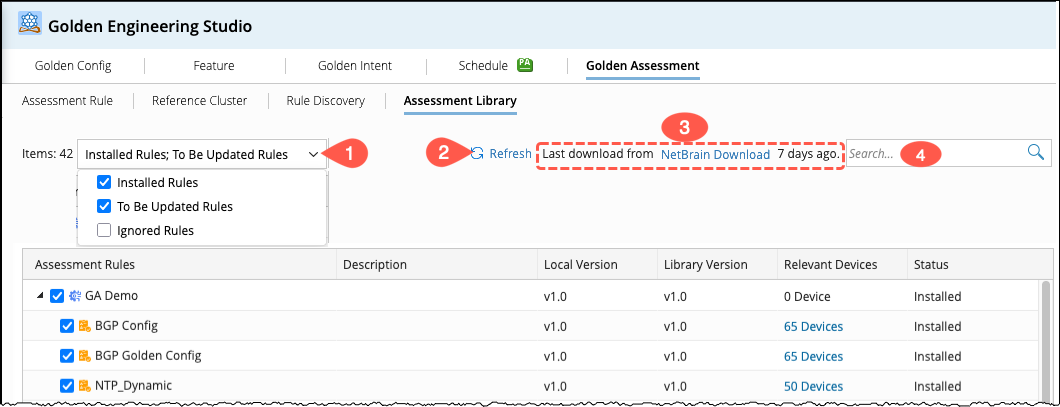
The following details pertain to the table column:
- Assessment Rule: Lists the Assessment Feature and Assessment Rule resources that were synchronized after being downloaded from NetworkBrain Download using the Feature and Assessment Rule structure.
-
Description: Displays the Description information defined in the Assessment Rule definition.
- Local Version: The version information of this resource in the user's local system. The local version can be in several scenarios:
-
Empty: Indicates that the resource has never been installed, or it was installed but later deleted by the user.
-
Not Empty: There are two possibilities:
- Same as Library Version: Indicates that there are no new resources (e.g., both are v1.0).
- Different from Library Version, usually Local Version less than Library Version: Indicates that the local resource is outdated, and a newer version is available in NetworkBrain Download.
- Library Version: The version number of the new resource downloaded by NetworkBrain Download.
- Relevant Devices: Information about the related devices obtained through the Analyze Relevance button calculation. The next chapter introduces the specific Analyze logic.
-
Status: Displays the specific status of the resource.

|
Note: The Description in the Feature definition was later removed, so the Feature Description is empty. |
Analyze Relevance
Relevance indicates the number of devices in the user's domain that meet the criteria defined in the Assessment Feature, Assessment Rules, and Apply-to-Devices (within the reference cluster referenced by the Assessment Rule). The Analyze Relevance function analyzes device relevance for selected Assessment Rules based on the following logic:
- Assessment Feature: The number of devices matching the criteria defined in the Assessment Feature.
-
Assessment Rule: The calculation of matched devices varies depending on the Assessment Rule configuration:
- Reference Cluster: If the Assessment Rule references a Reference Cluster, the calculation uses the device scope defined in that Reference Cluster.
- No Reference Cluster: If the Assessment Rule does not reference a Reference Cluster, the calculation defaults to the Assessment Feature's device scope.
- Feature Referenced: If the Assessment Rule references another Feature, the calculation uses the device scope of that referenced Feature.
Generate Assets
Click Generate Golden Assets to start the asset generation process. The generated assets include the Assessment Feature, Assessment Rule, and any associated Reference Clusters, following this structure:
- Assessment Feature: Include the selected Assessment Features in the generation process.
-
Assessment Rule: Generate Assessment Rules under Assessment Feature, and:
- Execute Golden Config to generate in Golden Config Manager.
- Execute Golden Intent to generate in Golden Intent Manager.
- To verify Golden Config after generation, to execute,
- To execute Run after Golden Intent is generated.
|
|
Note: The following Settings are provided to users: 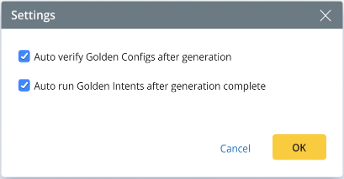
|
By default, both the options are selected, to execute the golden config and golden intent when Generation is completed. And the results will be available in the Results tab of the Assessment Rule.
The asset generation process may take a long time. User can stop the process while it is in progress. Real-time logs are displayed in the Log tab, click  to view the log for start and end times for each asset’s generation.
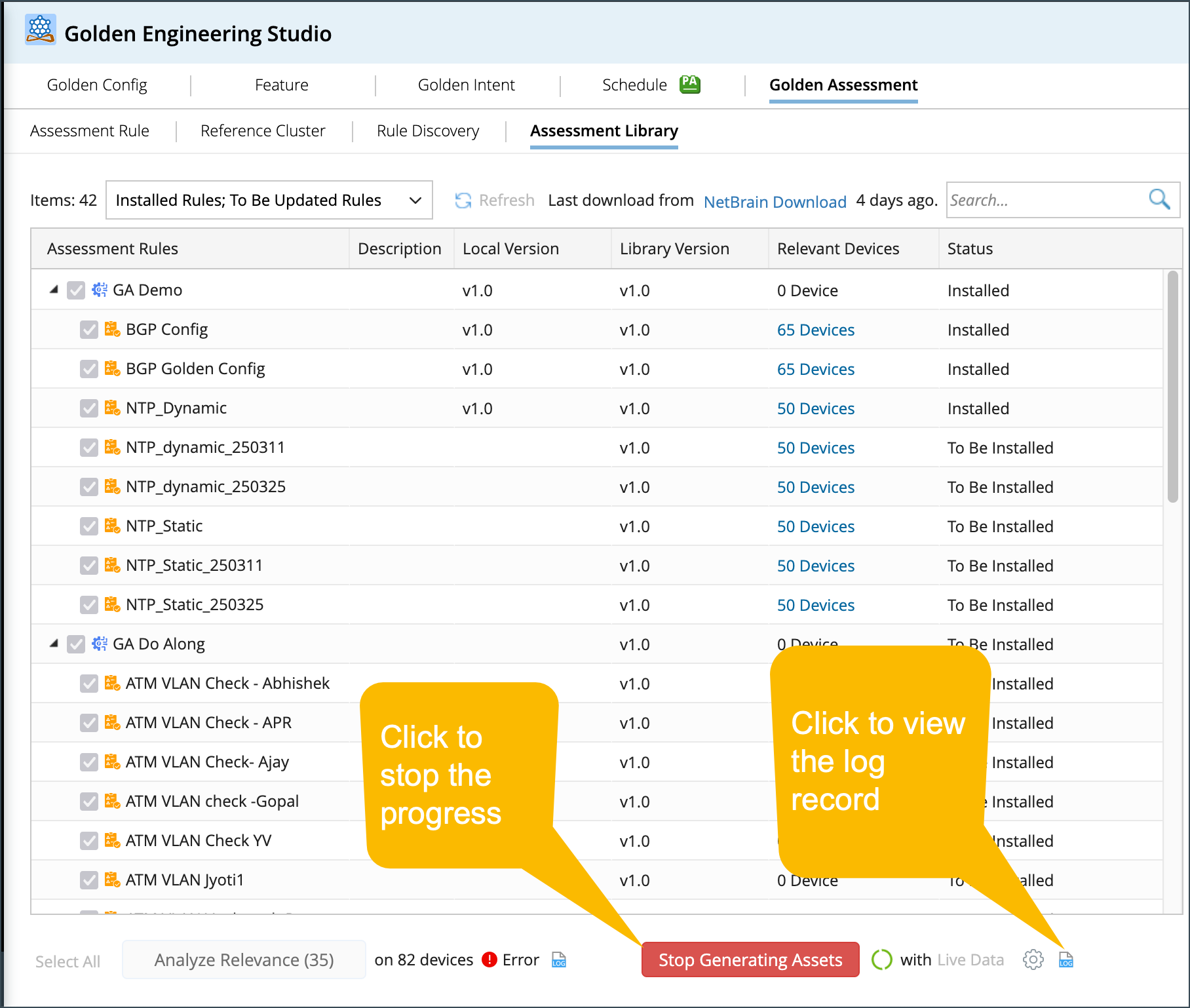
Upon completion, the Local Version and Status columns will be updated accordingly.
- Local Version column: will be consistent with Library Version.
-
Status column: will be Installed.