R12.1 JA-2025July15
Compare Data on the Same Device
- On a map page, select Compare from the right-click menu .
- In the Compare pane, all devices on the map are selected as target devices by default. To customize the devices, click the device link in Target Device area.

Note: The number of devices for comparison is recommended to be less than 100 for good performance. - In the Dataset fields, specify two data sources to pull data for comparison. The system uses Dataset 1 as the main schema to compare with Dataset 2.
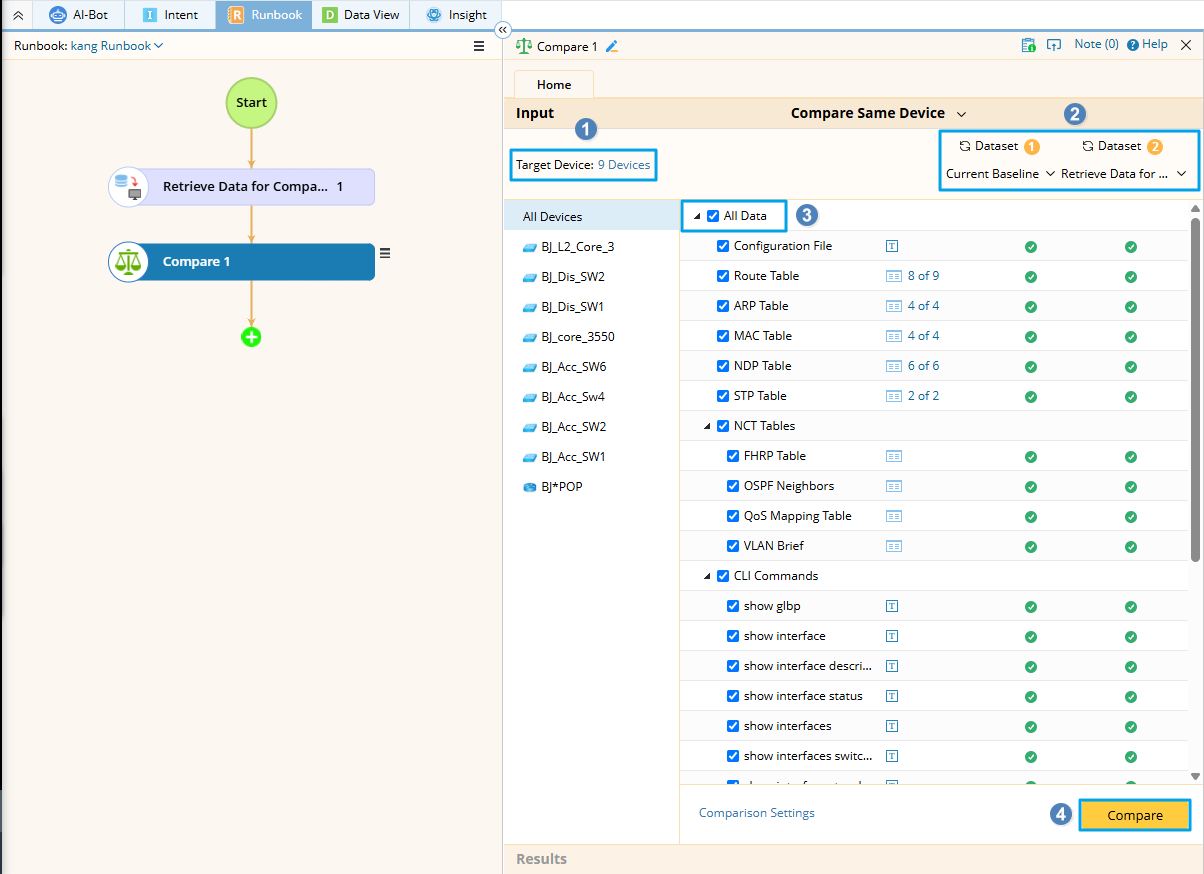
Note: You can select a fixed Latest option as a comparison dataset. When the Latest is selected, the most recent result data will be displayed for you to select. If a new result is generated later, the previously selected data will remain automatically checked.

Tip: The
 icon means there is no data in the selected dataset.
- Select the data types you want to compare, including configuration file, data table, NCT and CLI commands.
TIp: You can select sub-items under each data type for comparison. For example, select parser variables of configuration files or CLI commands, columns of data tables, or subtables of data tables and NCTs.
Tip: To configure the maximum size for each data type that can be compared, click Comparison Settings. If the size of a file exceeds the threshold, it will not be compared. - Click Compare.
- After the comparison is finished, select a device and a changed data type to view the detailed changes. See Comparison Results for more reference.
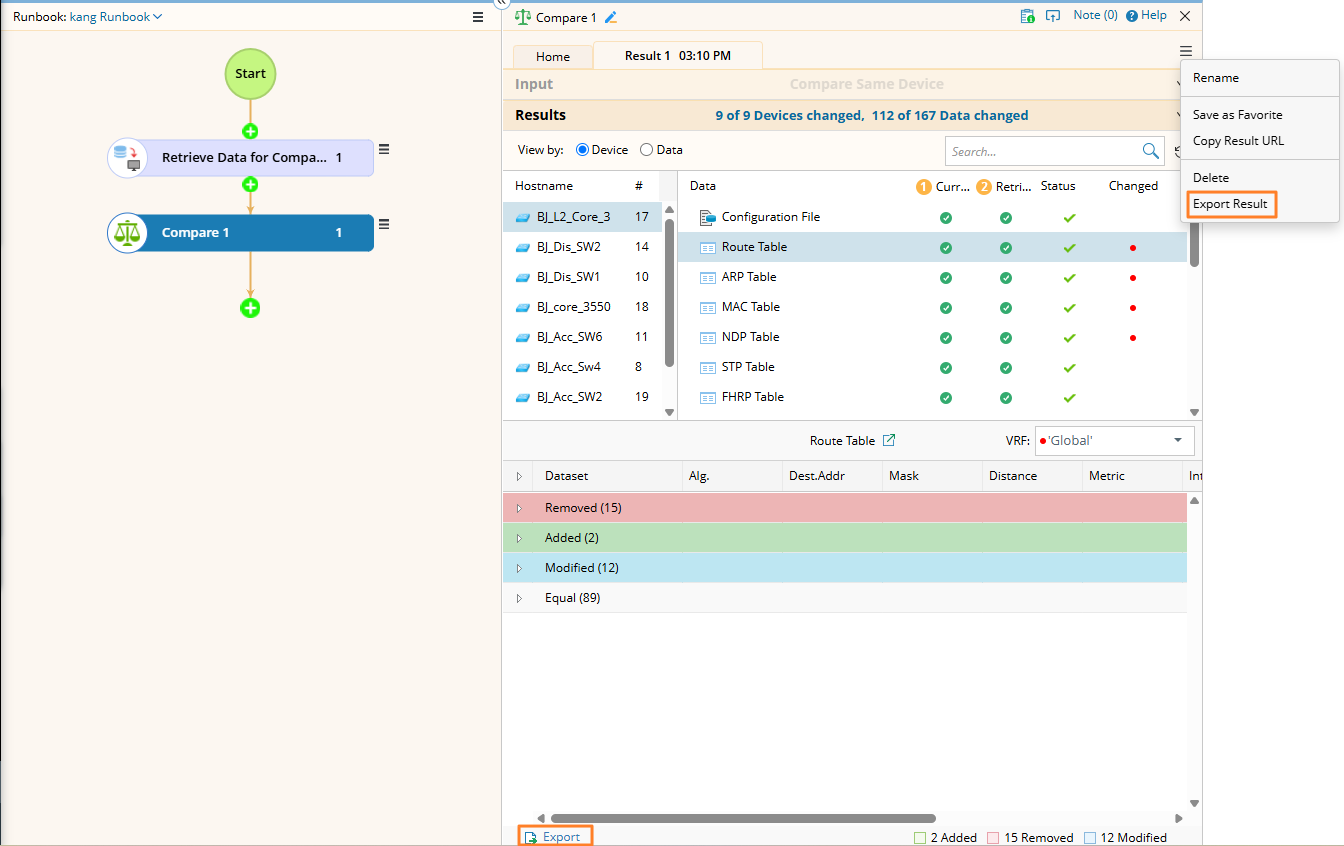
Tip: The displayed comparison results can be exported to HTML files. To export the comparison result of a single data type, click Export at the bottom. To export the whole result, click the  icon in the top right corner and select Export Result.
Tip: You can also click the hyperlink in the Results area to view the result summary. 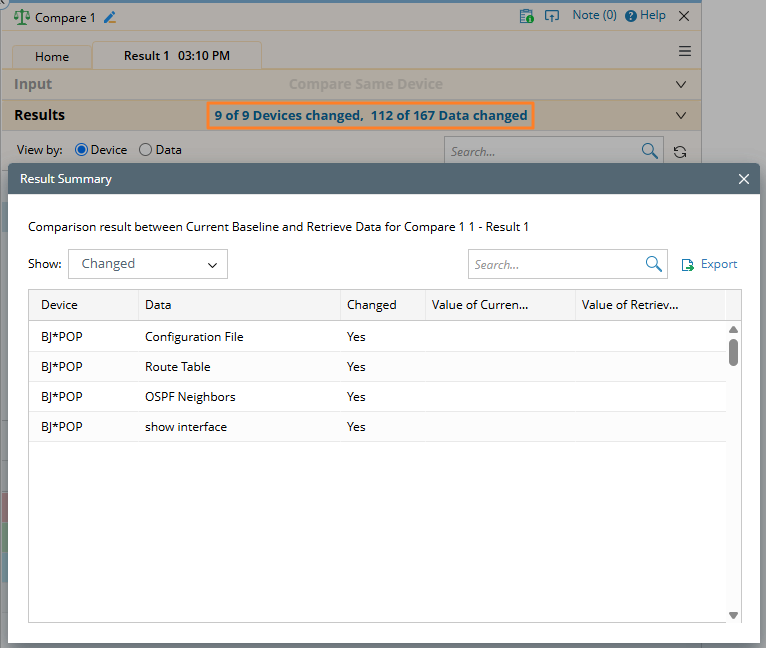
See also: