R12.1 JA-2025July15
Install Intent and Pre-Decode the Installed Intent
Intent will be installed and decoded in the Pre-Decode tab. An installed intent can only be used after it is decoded in this step to proceed to the "Auto Intent" step. This is because in order to enable the intent for auto intent, the intent needs to be installed in IBA center first.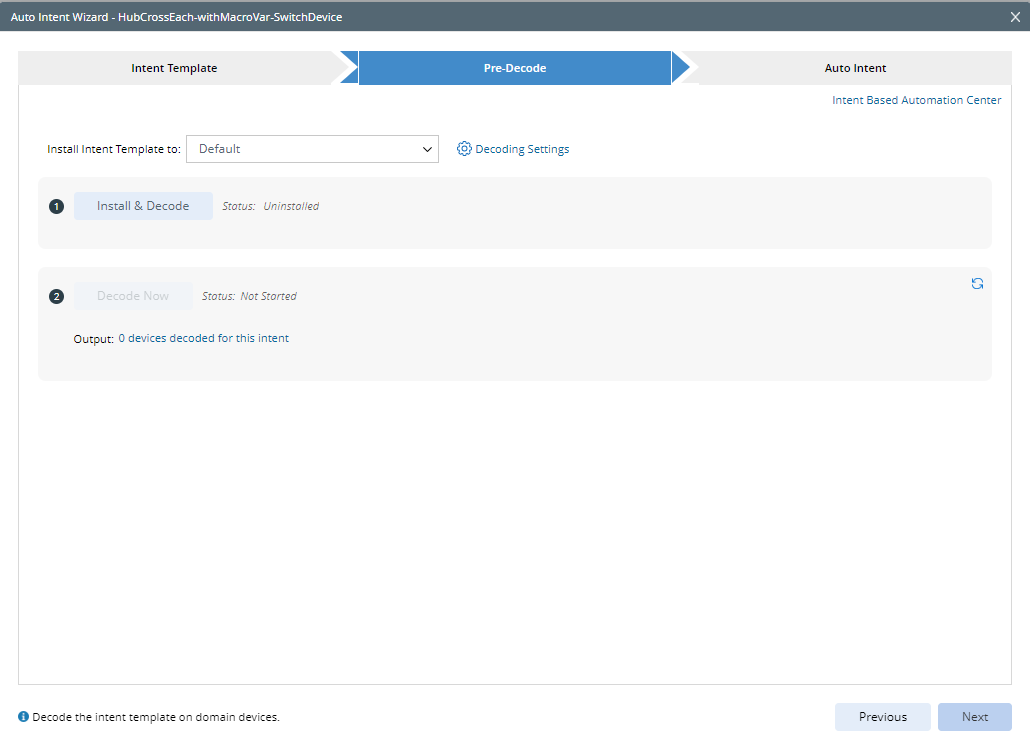
 |
Note: If the selected intent is already installed, the Install Intent area will be dimmed. |
- Install Intent Template to: Select a group and install the intent in template mode.
- If the current intent has not been installed and the status is “uninstalled”, you can select a group then install it to that group. The intent cannot be decoded before it is installed.
a. Click the Install Intent Template to field, then select a folder (the folder structure in the Installed Intent Template tab in IBA Center) from the drop-down list for storing the intent template.
b. You can also add a new folder for storing the intent template. Click Edit Group, then click + Add Group in the Edit Group dialog box and input the folder name. Click OK to save the settings and close this dialog box.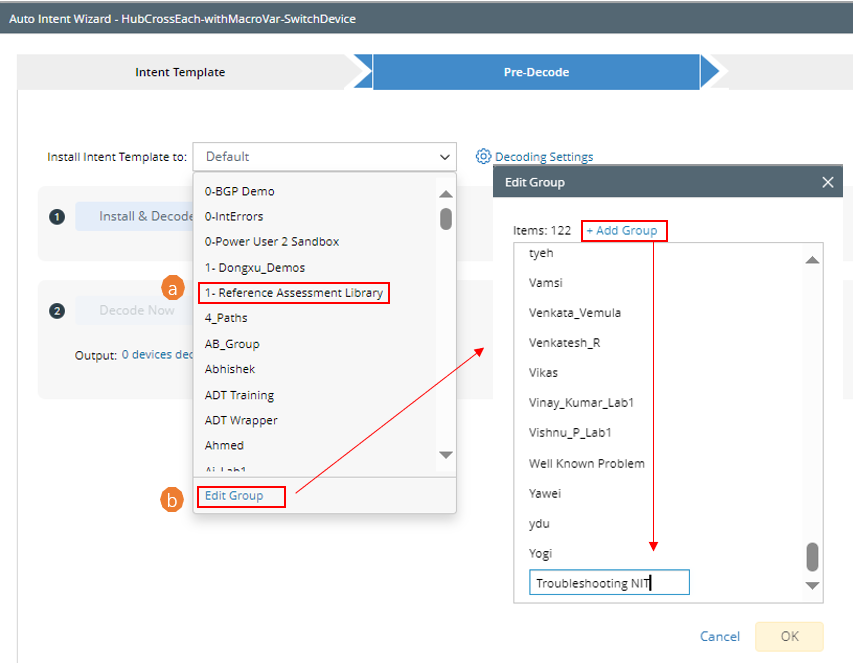
The created group will be added to the drop-down list. In this example, we select the created group "Troubleshooting NIT".
c. Select data source for intent decoding: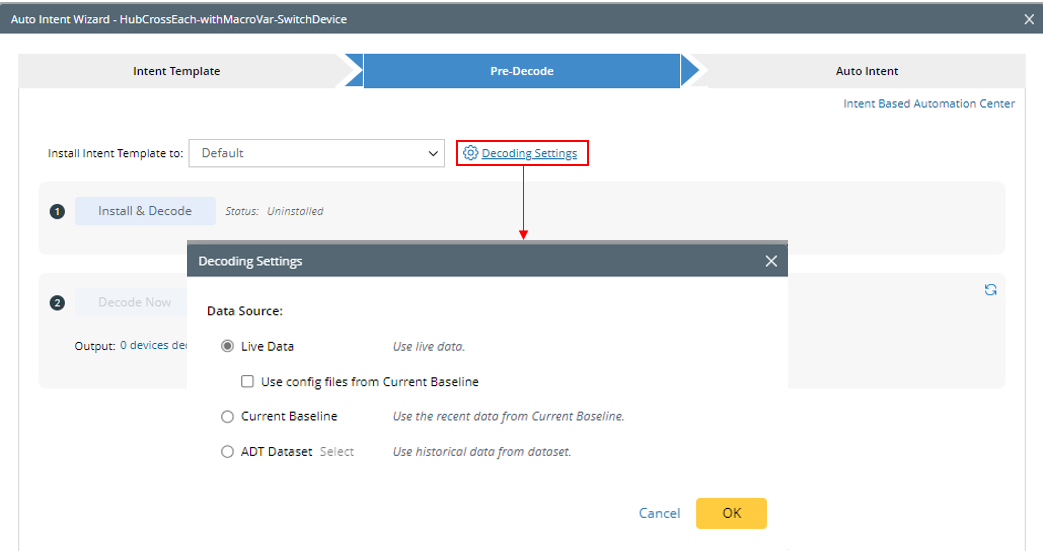
Live Data: Use retrieved live data for intent decoding.
Use config files from current baseline: Use config files from the current baseline as the data source for intent decoding.
Current Baseline: Use the most recent cached current baseline data as the data source for intent decoding.
ADT Dataset: Use historical data from dataset for intent decoding.
d. Click Install to install the intent template. After intent template installation, the status will change to "installed".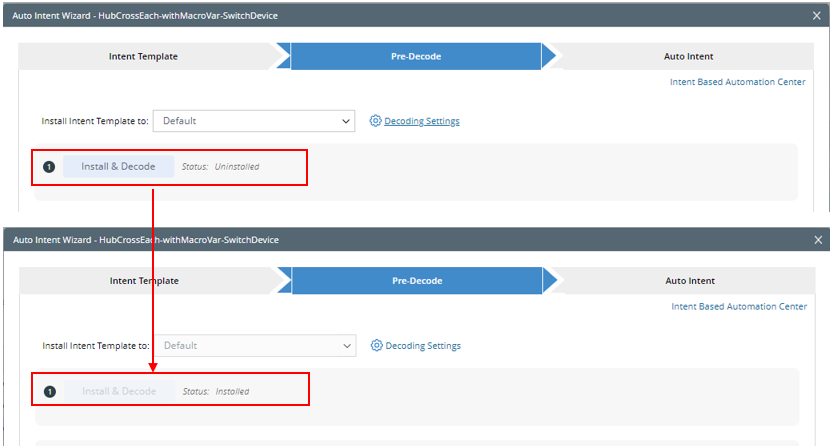
- If the current intent has been installed, the group to which it is installed and the status will be loaded and the Install button is dimmed. The group to which it is installed cannot be changed under this tab.
- If the current intent has not been installed and the status is “uninstalled”, you can select a group then install it to that group. The intent cannot be decoded before it is installed.
- Decode the installed intent: An intent cannot be enabled for auto intent if it is not decoded.
Click the Decode Now button to decode the intent. A message box will appear to ask you to confirm this operation.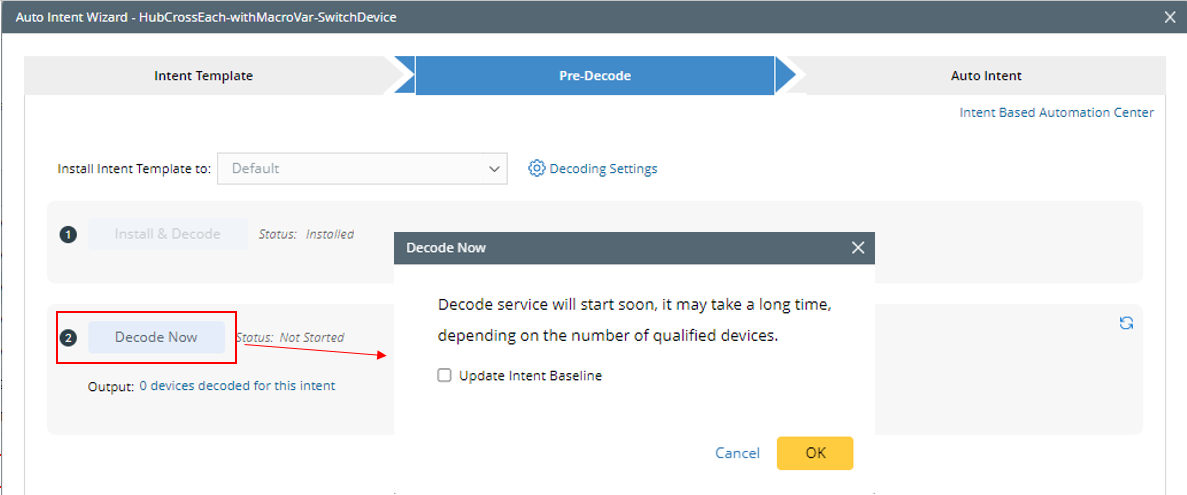
|
Note: Check the Update Intent Baseline checkbox to update intent baseline data during the decoding process. |
- Status: Display the progress of the decoding process, for example, "Not Started", "Decode Now task scheduled at ***".
- Output: Click the "n devices decoded for this intent" link in this area to view the details of decoding. Click the Refresh icon
 to get the latest decoded result.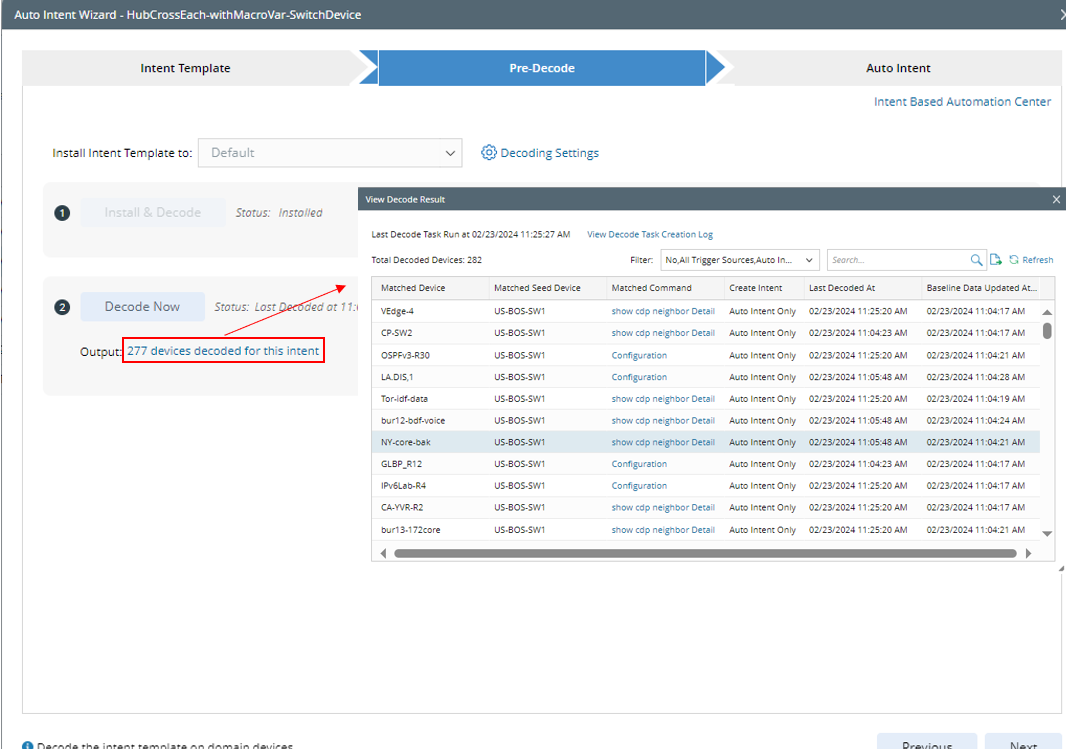
After the intent template is installed, you can check it in Intent Based Automation Center:
Click the “Intent Based Automation Center” link to open the IBA Center, you will be guided to the Installed Intent tab and the current intent is highlighted. 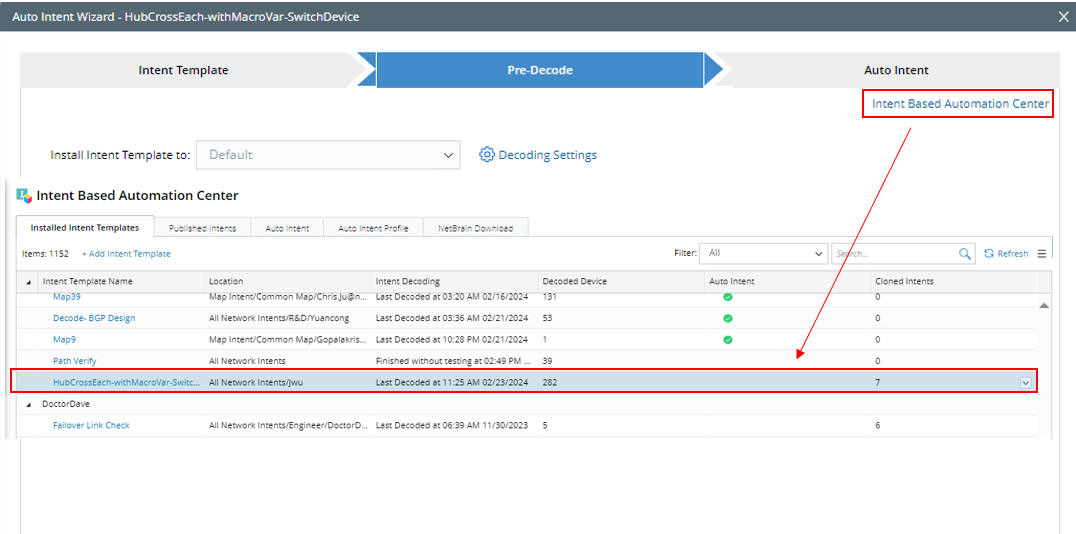
Click Next to switch to the “Auto Intent” step