Other Functions in the Intent Template Tab
This section will describe some other functions performed in the Intent Template Tab.
Replication Settings
After completing the settings in Intent Template tab, only the main parameters are set. If there are other advanced settings to be made, click Replication Settings for Template link to view and configure the full settings for Intent Template, for example, critical variables, and advanced replication settings like the replication naming rule. The settings you have configured in the Intent Template tab will be automatically added here.
The main settings in the Replication Settings tab are:
Intent Replication Logic Settings
- Click Replication Settings at the upper-right corner of the Intent Template tab.
- Click the Intent Replication Logic Settings tab in the Replication Settings window, then define the following settings in this tab:
- Intent Template for: After the settings for intent template are completed, the current intent will be automatically enabled for the Intent Template for function (see Define Intent Template and Device Qualification).
- Replicate Intent Name: The intent produced by intent replication will be name after the variable values of some variables.
- In the To Replicate Intent Name field, input variables to use their value for the cloned intent name. The default form is $seed_intent_name$device_name. You can add variables (click the
 icon) to change the intent name form.
- In the To Replicate Intent Name field, input variables to use their value for the cloned intent name. The default form is $seed_intent_name$device_name. You can add variables (click the
- Replicate Command: If the settings in this section have been configured under the Intent Template tab, the settings will be shown here. You can change the settings as needed (see Define Intent Template and Device Qualification and for details).
- Define Command Macro Variable for: If the settings in this section have been configured under the Intent Template tab, the settings will be shown here. You can change the settings as needed (see Define Macro Variables for Seed Command in Auto Intent Wizard for details).
 |
Note: An alert message will prompt you to save the settings for the intent when you click Replication Settings to open the dialog box.  |
Advanced Settings
Advanced Settings provides the function of configuring four types of variables: Critical Variables, Device Macro Variables, Signature Variables. In addition, you can define the rules of matching target devices with seed devices during intent replication and assign tags to the cloned intents.
- Go to Replication Settings > Advanced Settings
- Select the Automatically Select All Diagnosis Variables.
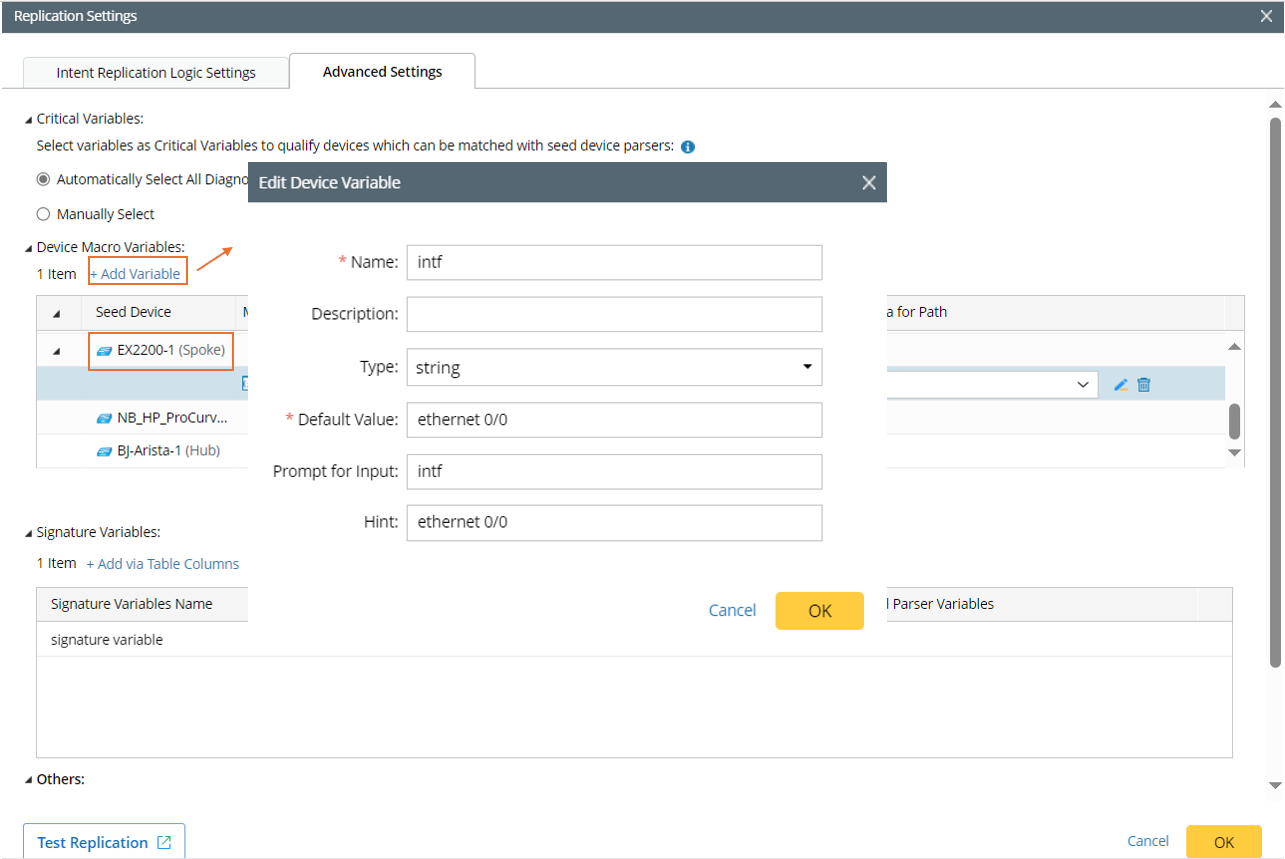
- In the Device Macro Variables section, select a device in the table below, then click +Add Variable. In the pop-up window, define the device macro variable.
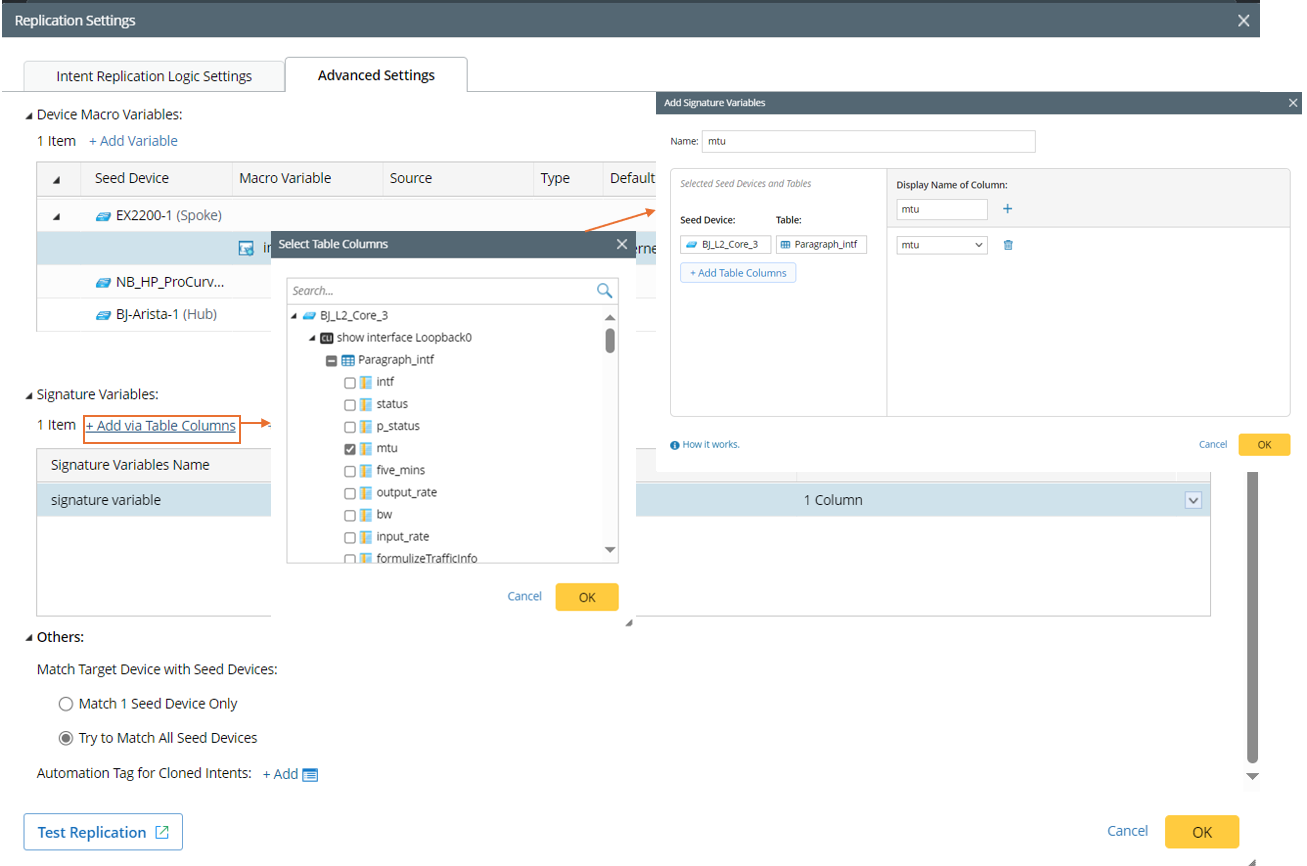
- In the Signature Variable section, click +Add via Table Columns or +Add Via Single Variables to add signature variables. In decode process, signature var will be calculated and saved.
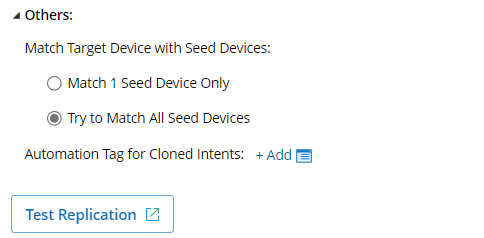
- In Others section, select how to match target device with seed device (Match 1 Seed Device Only/Try to Mach All Seed Devices). Also, you can define tags for cloned intents.
- In the Device Macro Variables section, select a device in the table below, then click +Add Variable. In the pop-up window, define the device macro variable.
- Select Manually Select in the Critical Variables section. In this section, the devices for intent replication are listed, with the corresponding device commands and critical variables placed under each device.
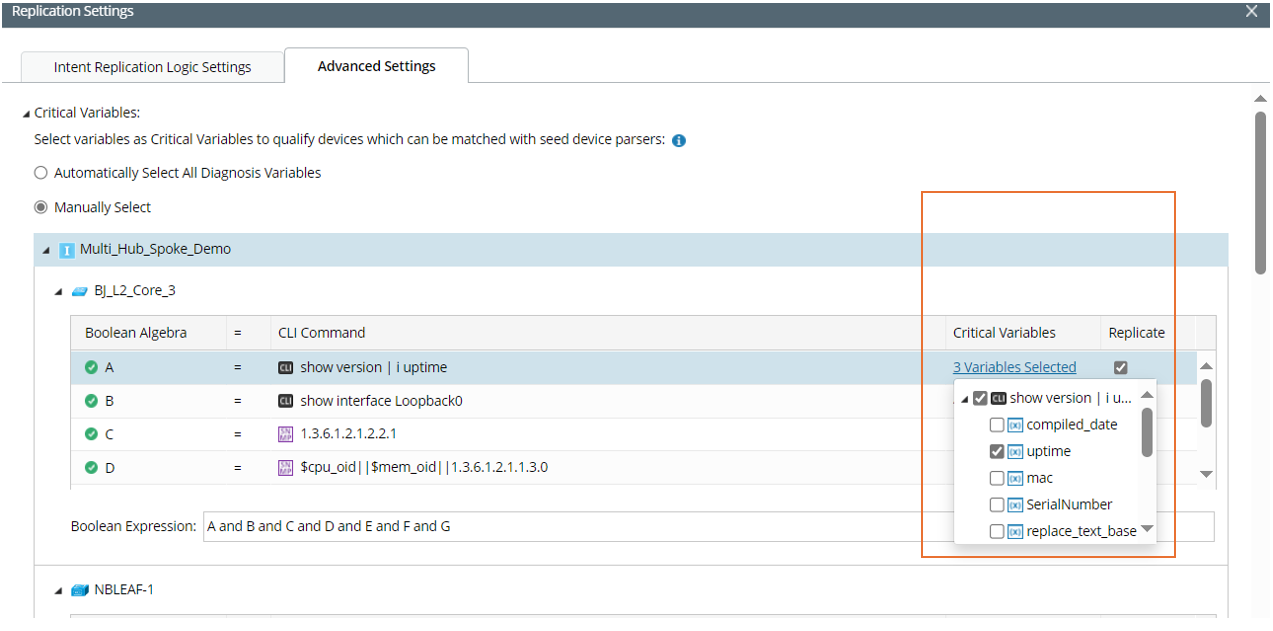
- Click n Variables Selected from the Critical Variables column, then select the critical variables.
- In the Boolean Expression section, Boolean Expression is automatically added, and you can edit the Boolean Expression.
- In the Replication column, check the checkbox to enable intent replication with this the selected CLI command.
- Click OK in this window to return to the Intent Template tab.
Test Replication
- Click Test Replication in the Intent Template tab, the Test Device-based Replication dialog (or Test Path-based Replication) opens. if the current replication is device-based replication, you can define the devices to be tested at the top area of the dialog. The device scope is the device scope of the intent qualified devices.
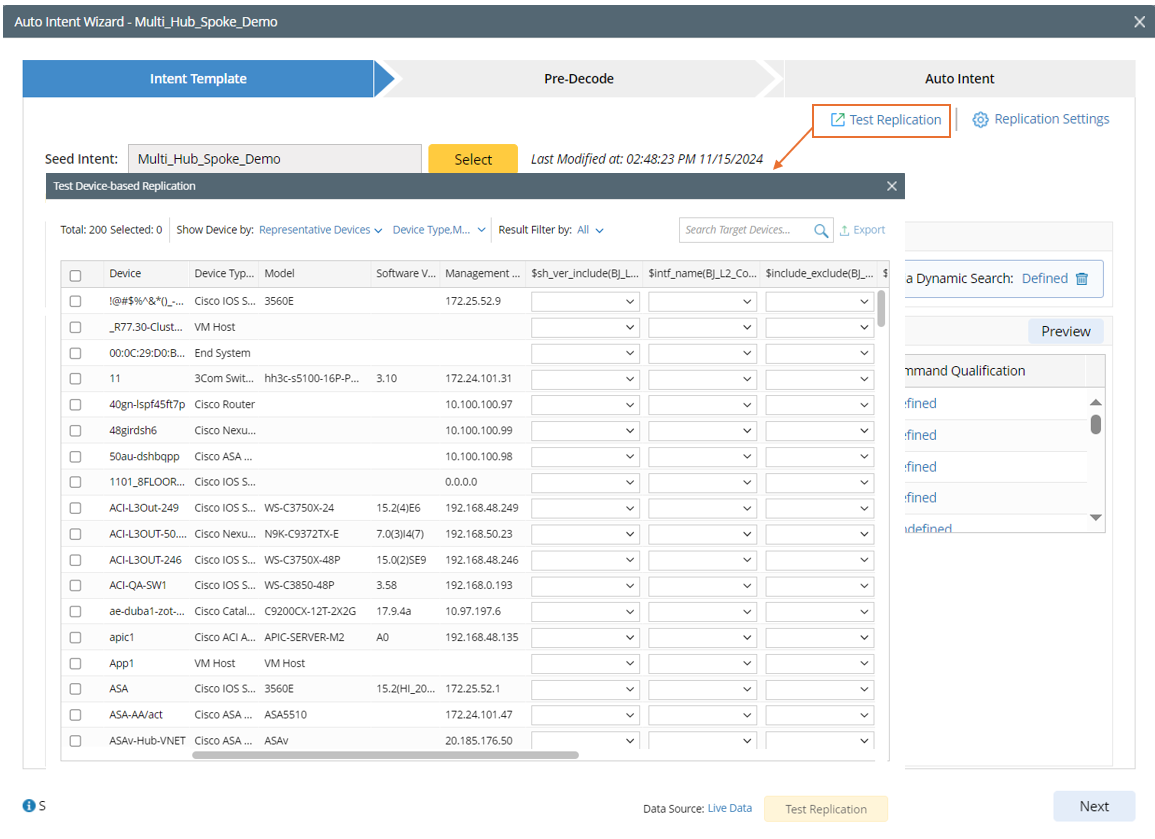
- In the window, define the variable values for testing the defined replication settings.
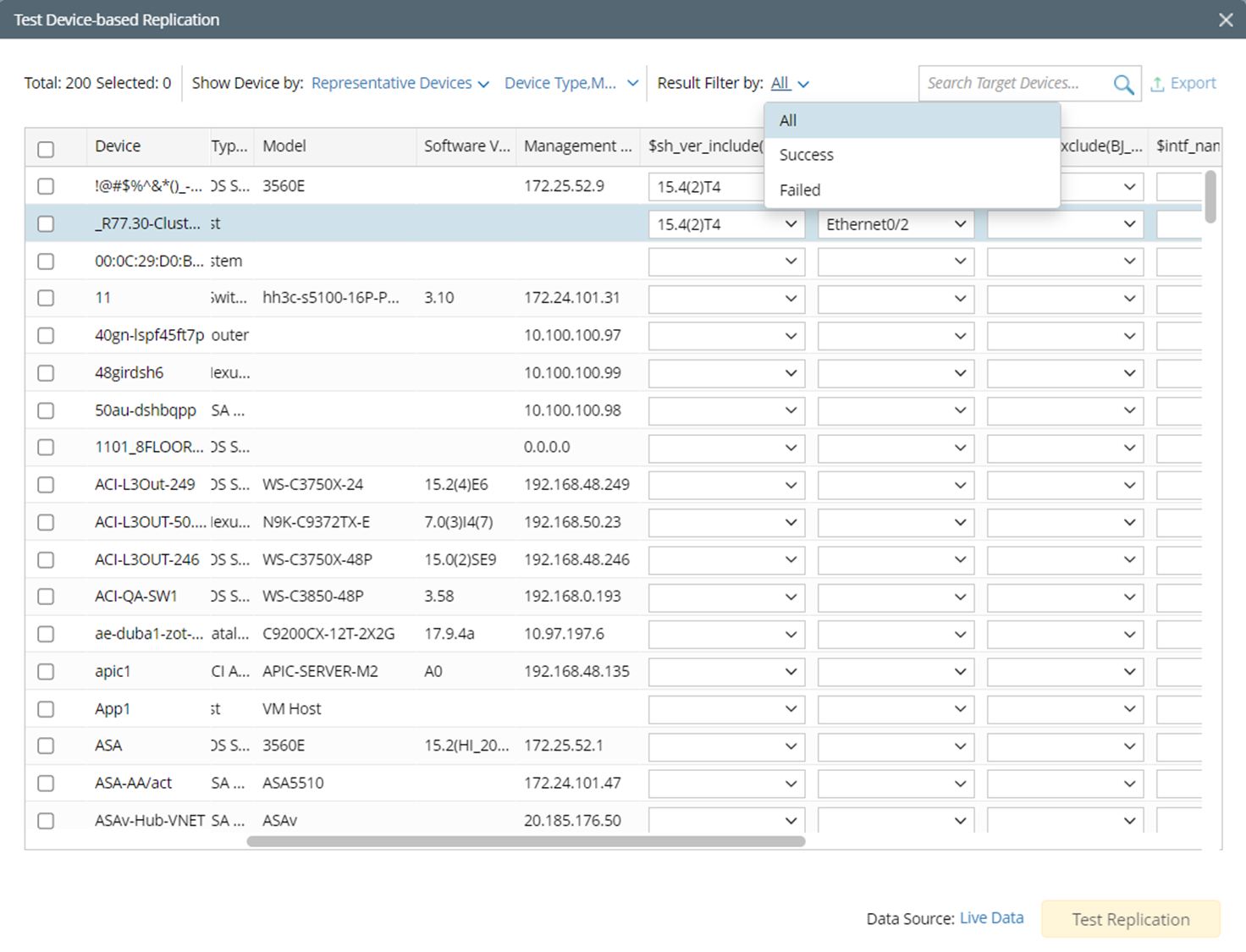
Note: The data source for test is defined in the Data Source field. The default data source is "Live Data". - Click Test Replication to start testing.
- Click the icon in the Result Filter by field, then choose from the options. The results can be filtered using Choose All/ Succeed/ Failed at Result Filter by. Test results will display whether the intents are successfully replicated to target devices as follows:
If Success: Test Result column will display the corresponding Cloned Intent.
If Failed: The reason for Test failure will be displayed (clicking on the failure reason will Pop-up a window with detailed information).
Note: Searching test results is supported. Also, test results can be exported by clicking Export next to the search box.
Click Next to switch to the “Pre-Decode” step.