Access CLI Configs for APIC Server and Switches
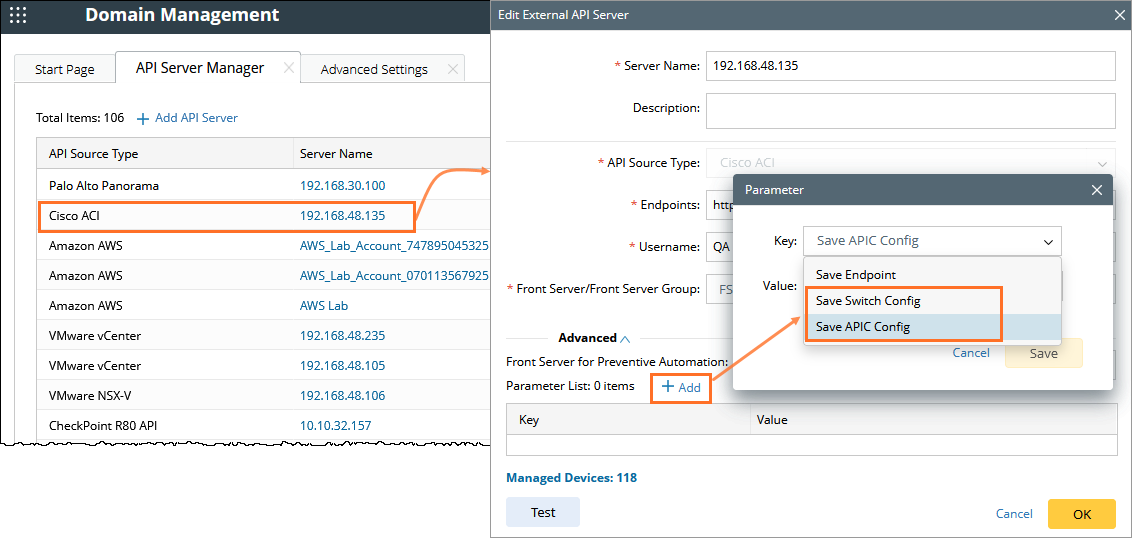
You can control whether the system retrieves CLI configuration files for your APIC Server and Spine/Leaf Switches using two parameter in the Advanced settings of the API Server Manager.
Following are the two parameters:
-
Save APIC Config
- Default value is false - APIC Server CLI config is not retrieved.
- When the value changes to true, the system retrieves the CLI configuration for the APIC Server.

Note: Retrieving the APIC CLI configuration can take longer and may affect performance. Turn this on only if needed.Your information text here.
- Save Switch Config
- Default values is true - The system retrieves the CLI configuration for the Spine/Leaf Switches.
- When the value changes to false, the Spine/Leaf Switches CLI config is not retrieved.
How to Configure the Parameters
Prerequisite: For these two options to work, the CLI access credentials for all APIC devices must be configured correctly.
-
In the Domain Management page, go to the API Server Manager settings.
-
Click the API Server (for example you external API server is: 192.168.48.135) to be configure for parameters.
- In the Edit External API Server dialog, click Advanced and then Click + Add.
-
In the parameter dialog, locate the options in the Key drop-down:
-
Save APIC Config
-
Save Switch Config
-
-
Set the value of either parameter to true or false according to your requirements.
-
Click Save to view the Key Value pair in the parameter list.
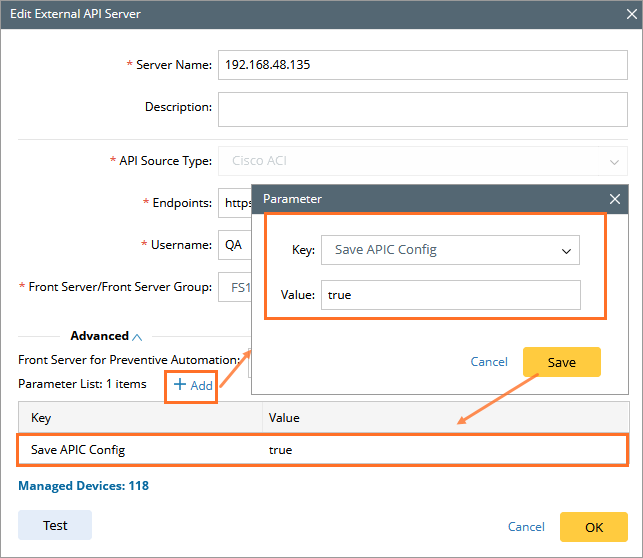
Example:
When to Configure these Parameters
-
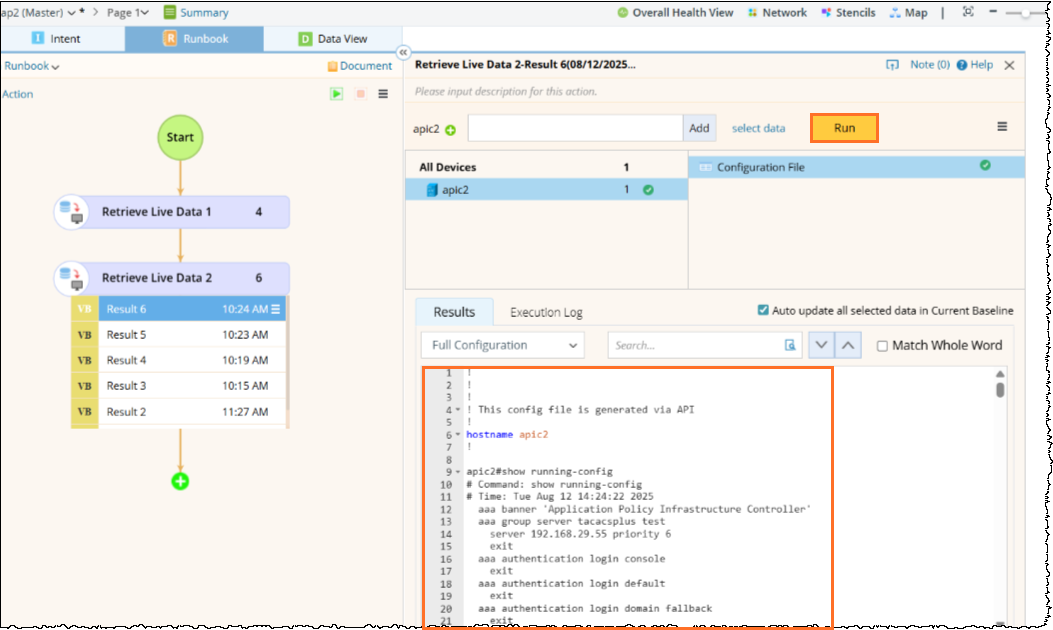
Set the Save APIC Config parameter to true if you need to view or troubleshoot the APIC Server configuration at the CLI level.
-
Set the Save Switch Config parameter to true if you need to retrieve the CLI configuration during server benchmark and change analysis as well.
|
| Tip: For best performance, keep these options off unless you specifically need the CLI configuration. |