R12.1 Project Publication-2025Dec23
Export Intent Diagnosis Result from Dashboard
- Navigate to an intent dashboard and click Export Diagnosis Result to CSV.
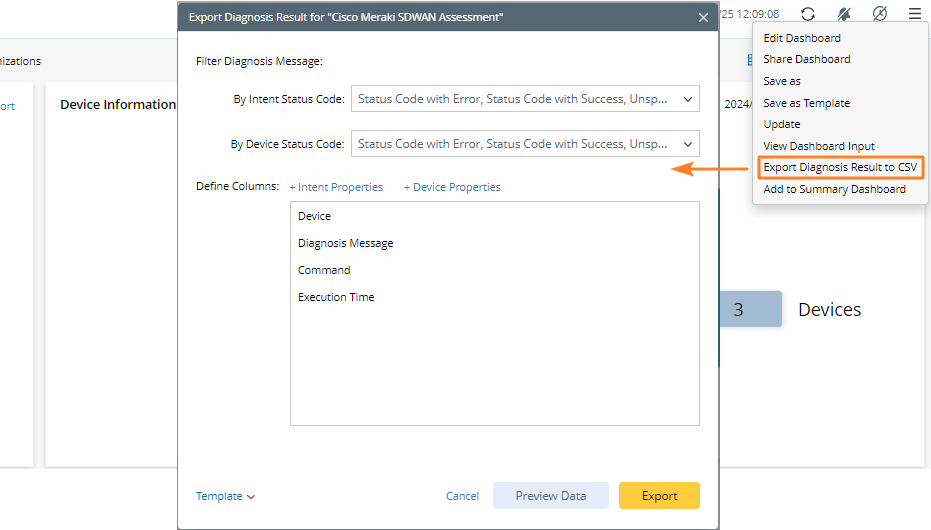
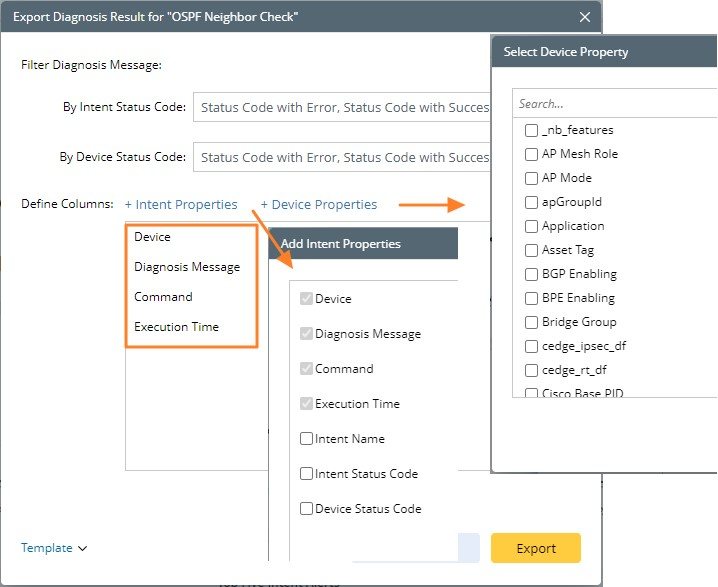
- Define the following settings:
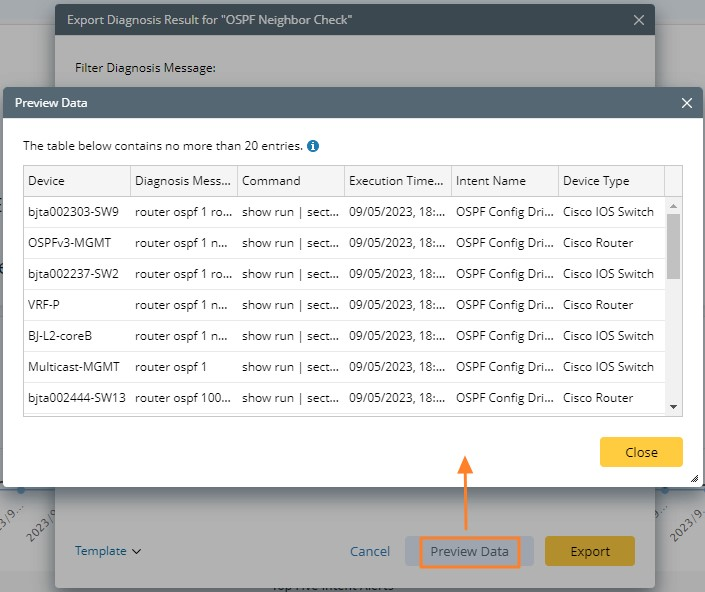
- After completing the above definitions, click Preview Data to preview the defined data.
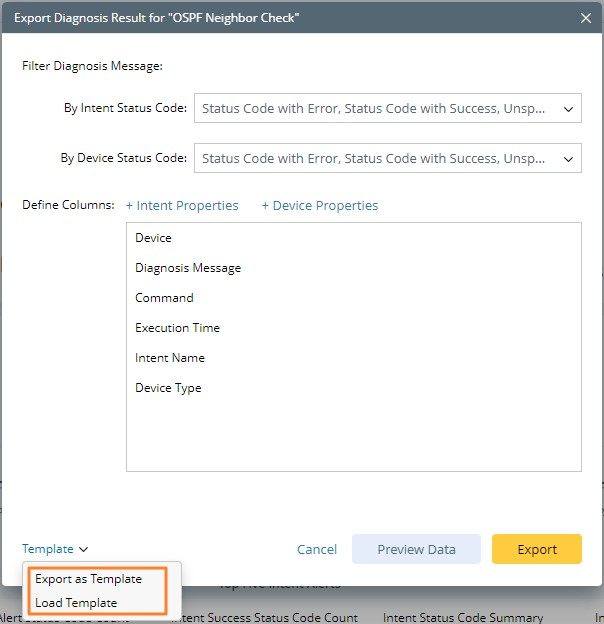
- (Optional) You can also export all defined settings as a template to NetBrain Files by clicking Export as Template and can also quickly reuse the previous settings by clicking Load Template.
- Click Export to export the CSV to local disk.
Example: Example of the Exported CSV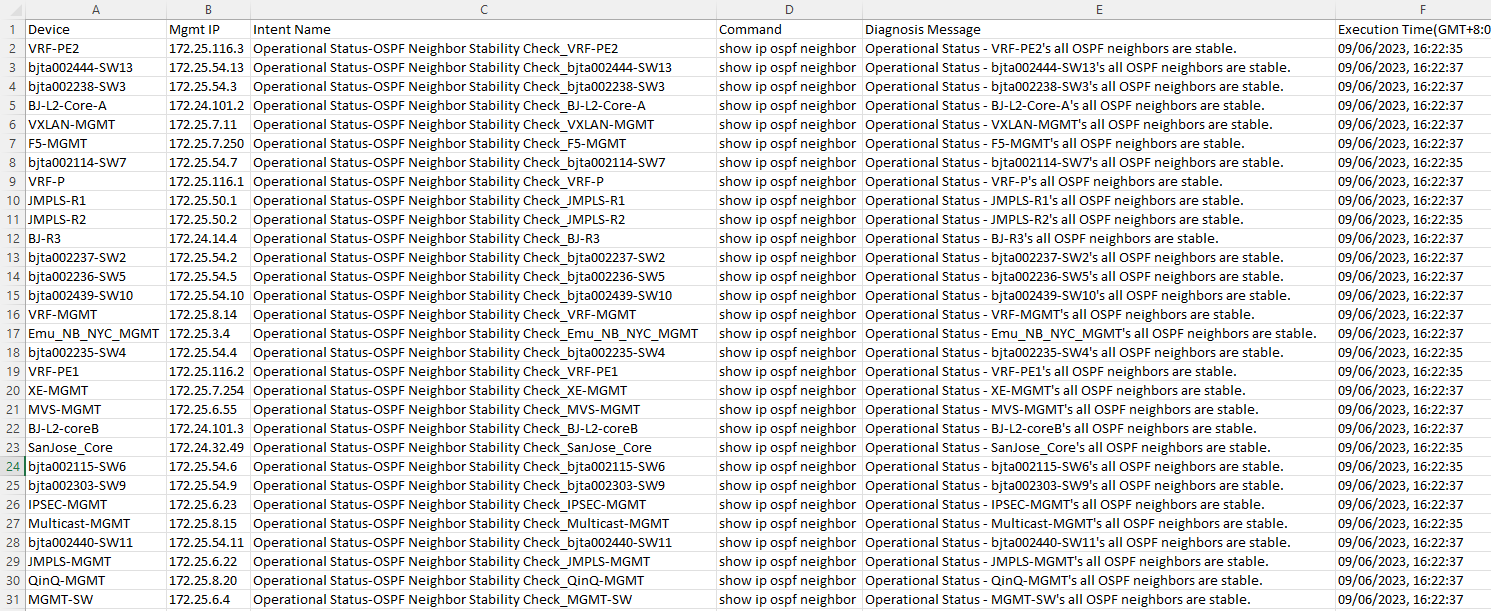
Filter Diagnosis Message by Intent/Device Status Code
- Filter Diagnosis Message by Intent Status Code: Filter the diagnosis message based on intent status code, and the following three checkboxes are selected by default.
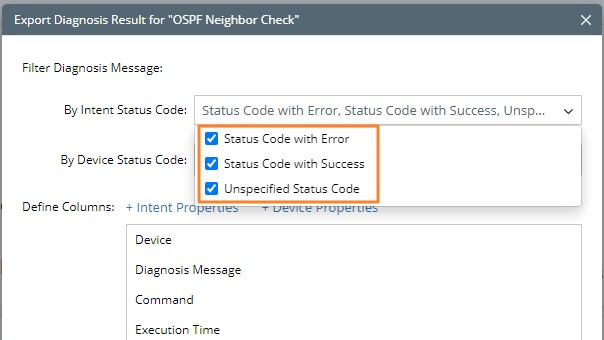
- Status Code with Error — the diagnosis message with any errors in the intent status code.
- Status Code with Success — the diagnosis message with the success status code in the intent status code.
- Unspecified Status Code — the diagnosis message containing neither error nor success status code in the intent status code.
- Filter Diagnosis Message by Device Status Code: Filter the diagnosis message based on the device status code, and the following three check boxes are selected by default.
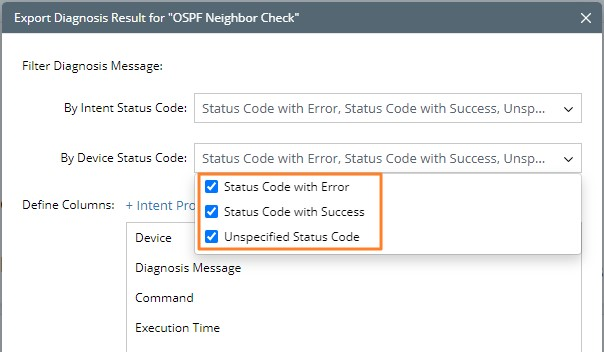
- Status Code with Error — the diagnosis message with any errors in the device status code.
- Status Code with Success — the diagnosis message with the success status code in the device status code.
- Unspecified Status Code — the diagnosis message containing neither error nor success status code in the device status code.
Define Columns
This area specifies which columns can be exported to the CSV file. You can add more intent properties and device properties as data columns to CSV reports. By default, Device, Diagnosis Message, Command/Configuration, and Execution Time are mandatory and cannot be unselected and removed.