GC Browser
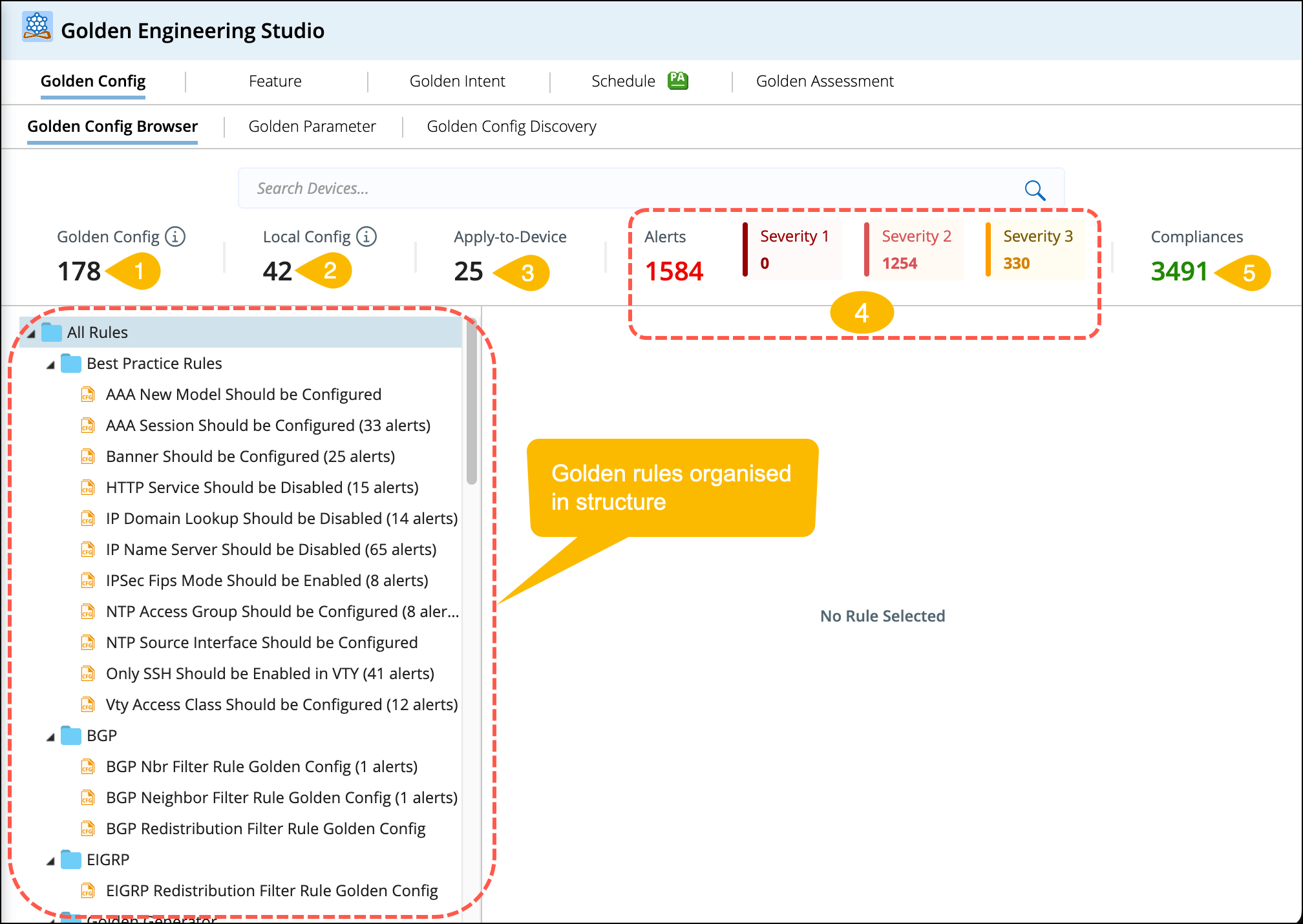
Golden Config (GC) Browser provides a summary of the golden rules in an organised folder tree structure and a dashboard with the total number of golden configs, Local Configs, Apply-to-Devices, Alerts (with severe alert numbers at each level), and the number of compliances.
- Golden Config: Total number of golden config templates defined via method 1: Forward engineering from template.
- Local Config: Total number of golden config templates discovered via method 2: Reverse engineering from group of devices.
- Apply-to-Device: The total number of applicable devices calculated from all the Golden Config Templates is calculated and displayed.
- Alerts: Total number of generated alerts from all the golden config templates. And the number of alerts at each severity level is displayed.
- Compliance: Number of golden rules that comply with the Golden Config Template after verification.
Verify Golden Config
You can verify and see the details of each golden config from the individual rule from the golden tree structure as follows:
- Go to the Golden Rules tree structure located on the left side of the GC Browser.
-
Select a template from the Golden Rules tree structure, and the details will appear at the bottom displaying:
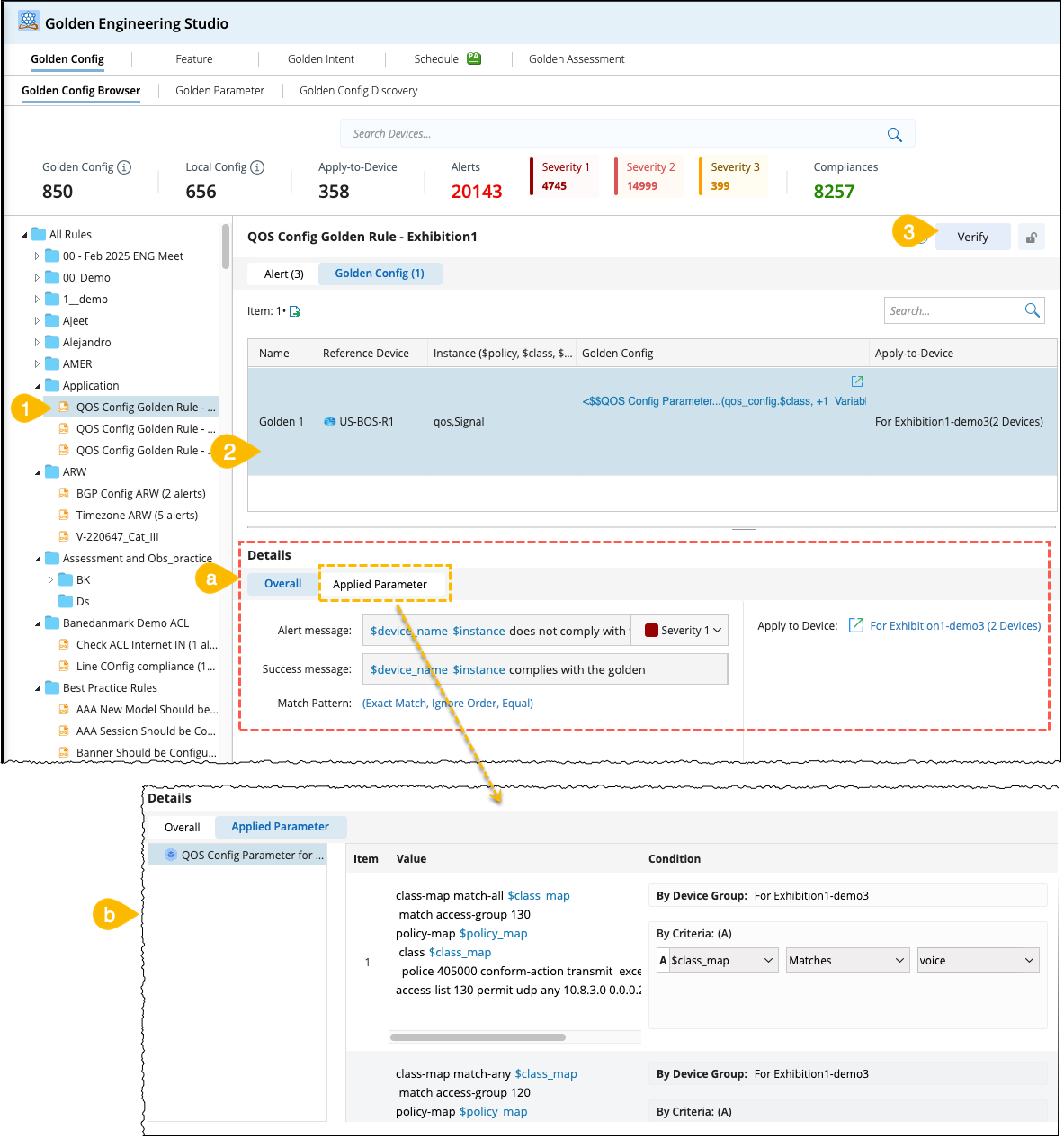
- Template config settings with a defined message and Apply-to-Device.
- Parameters used to define the golden configuration.
- Click Verify, and the calculations will be performed based on the baseline configuration files.
- Navigate to the Alert tab to view alert results.
Alert Tab Features
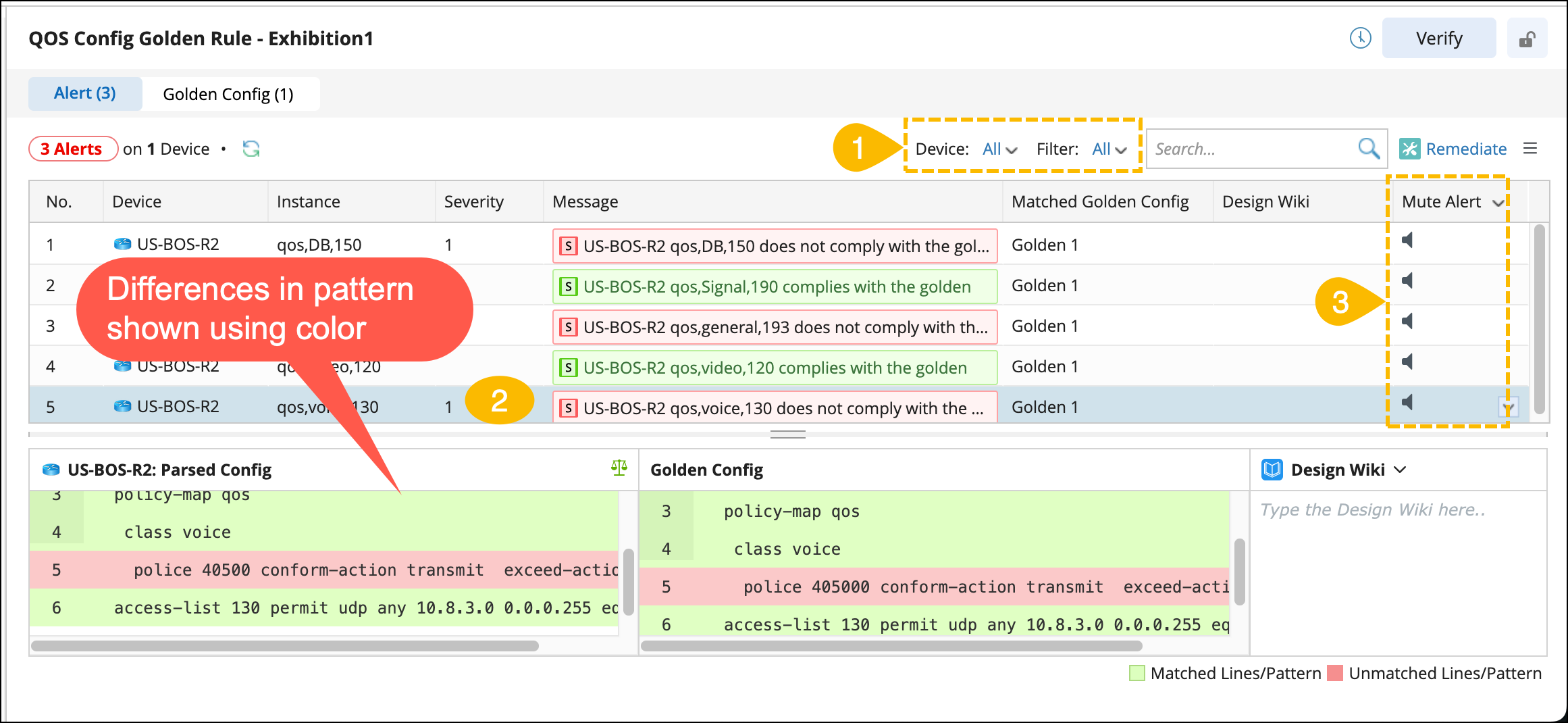
For each alert, you can view the differences between the device’s actual config and the expected golden config as follows:
- Device and Filter options: Narrow down the results based on devices, severity or other criteria.
- Select an Alert, and the differences can be viewed in the bottom section.
- Mute Alert: Turn off the alert notifications using the Mute option.
-
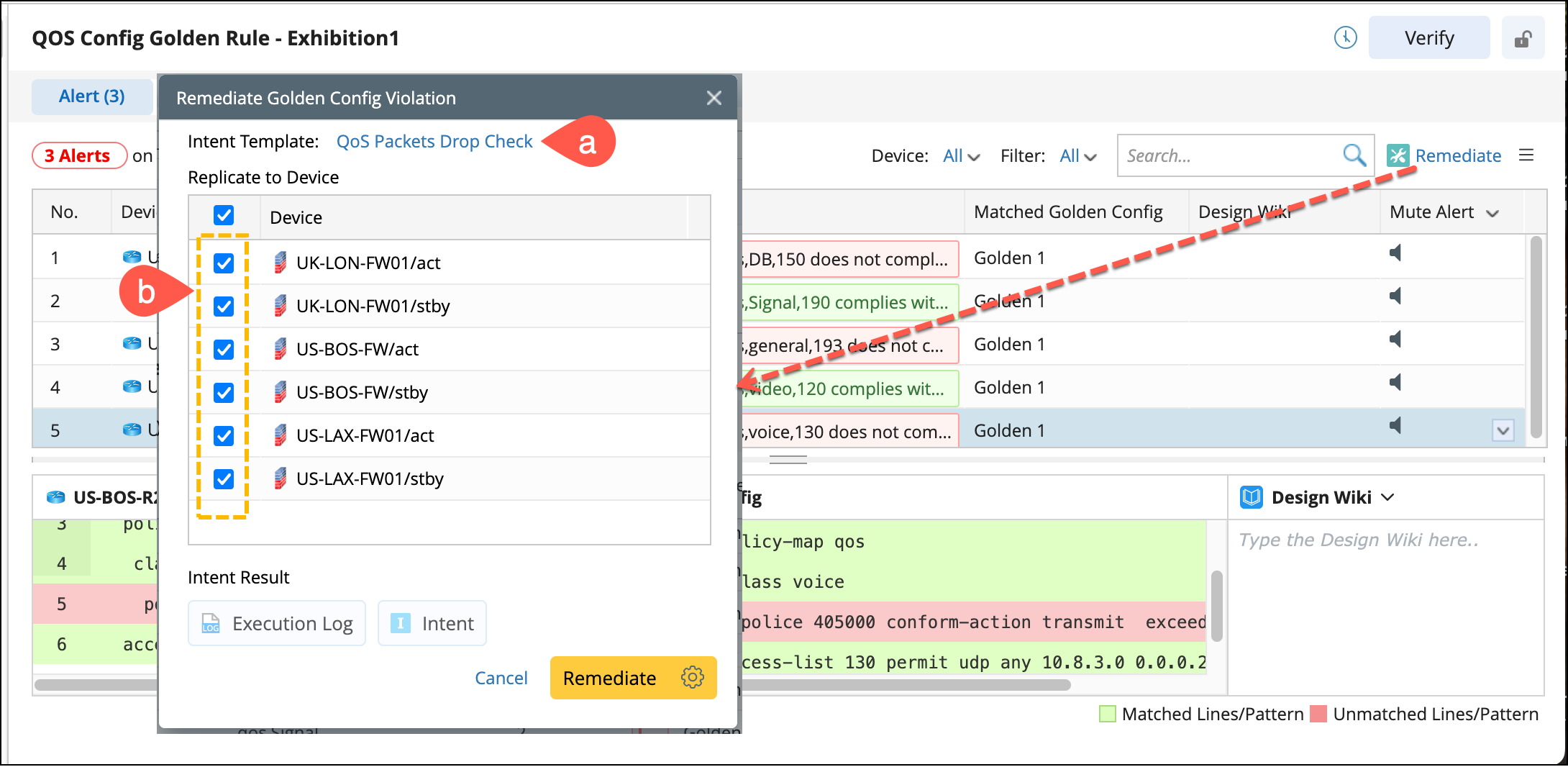
Remediate: This function executes an intent to identify the golden config and configuration type on a device. After evaluating the differences, create a configlet to resolve detected issues. To remediate the devices, follow these steps:
- Choose an Intent Template.
- Select all the devices to be remediated and click Remediate.
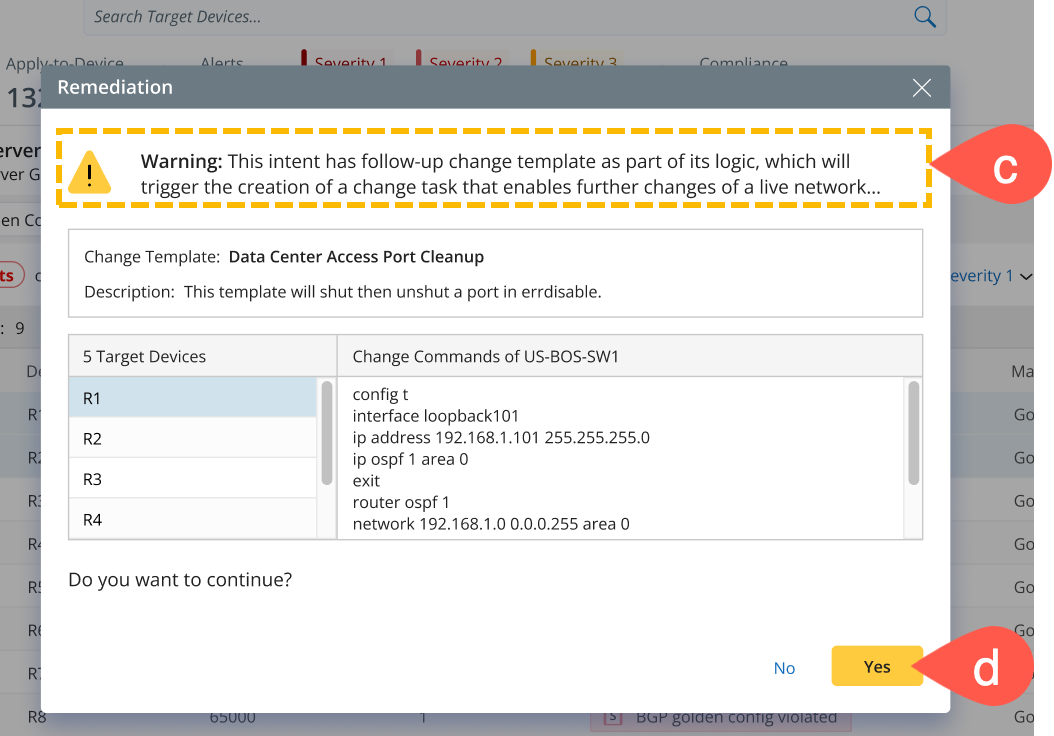
- If configuration files are detected in the device, a warning will be displayed.
- Click Yes to create a change entry, and the information will be populated based on the predefined template.
-
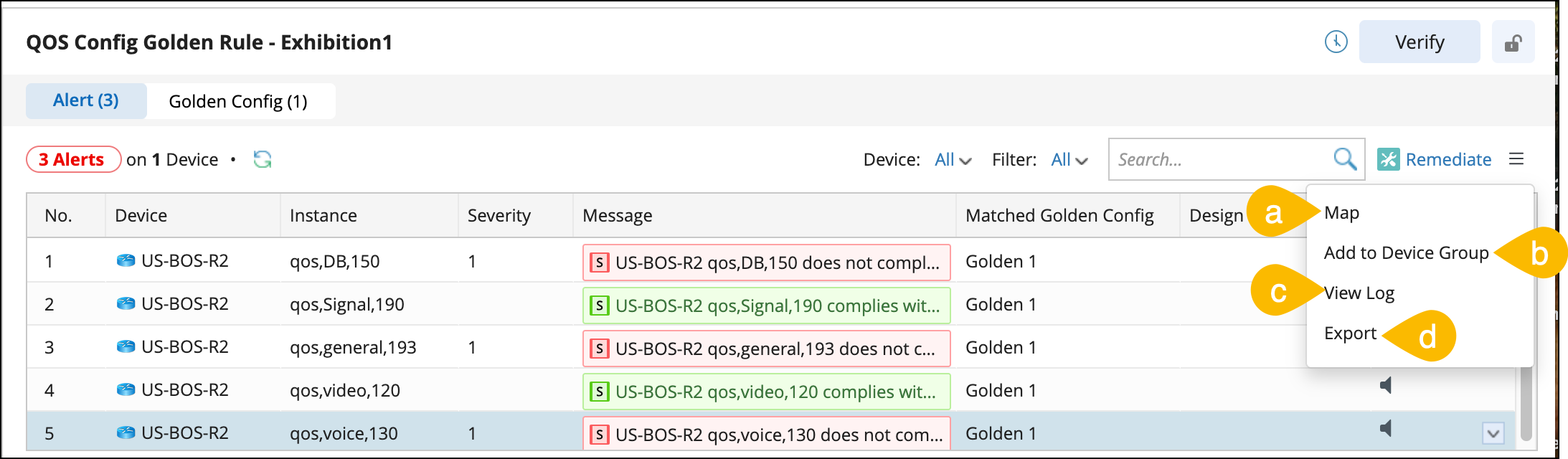
Additional functions under
 (burger) menu:
- Map: You can draw the devices from the results pane onto the map to visualize the device information. It will display the devices with alerts and other device information to look into.
- Add to Device Group: This function will add the devices listed in the results to a group. You can filter the results by alerts or severity and then add them to a device group.
- Execution Log: It includes the instances that did not match the filter conditions, and a corresponding message to facilitate troubleshooting will be printed.
- Export Alert results: The required results can be filtered using Device / Filter functions and exported as a CSV file.

|
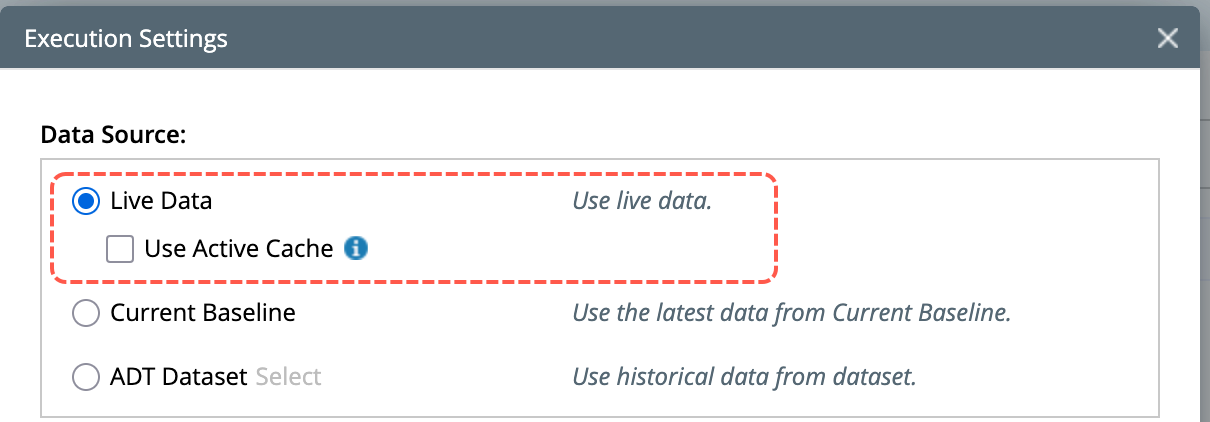
Note: For data accuracy, use the data source Live Data for verification and disable the Use Active Cache option.
|
Export Golden Configurations to a CSV
You can select a Golden Rule and export all associated Golden configurations to a CSV file using the option .
.
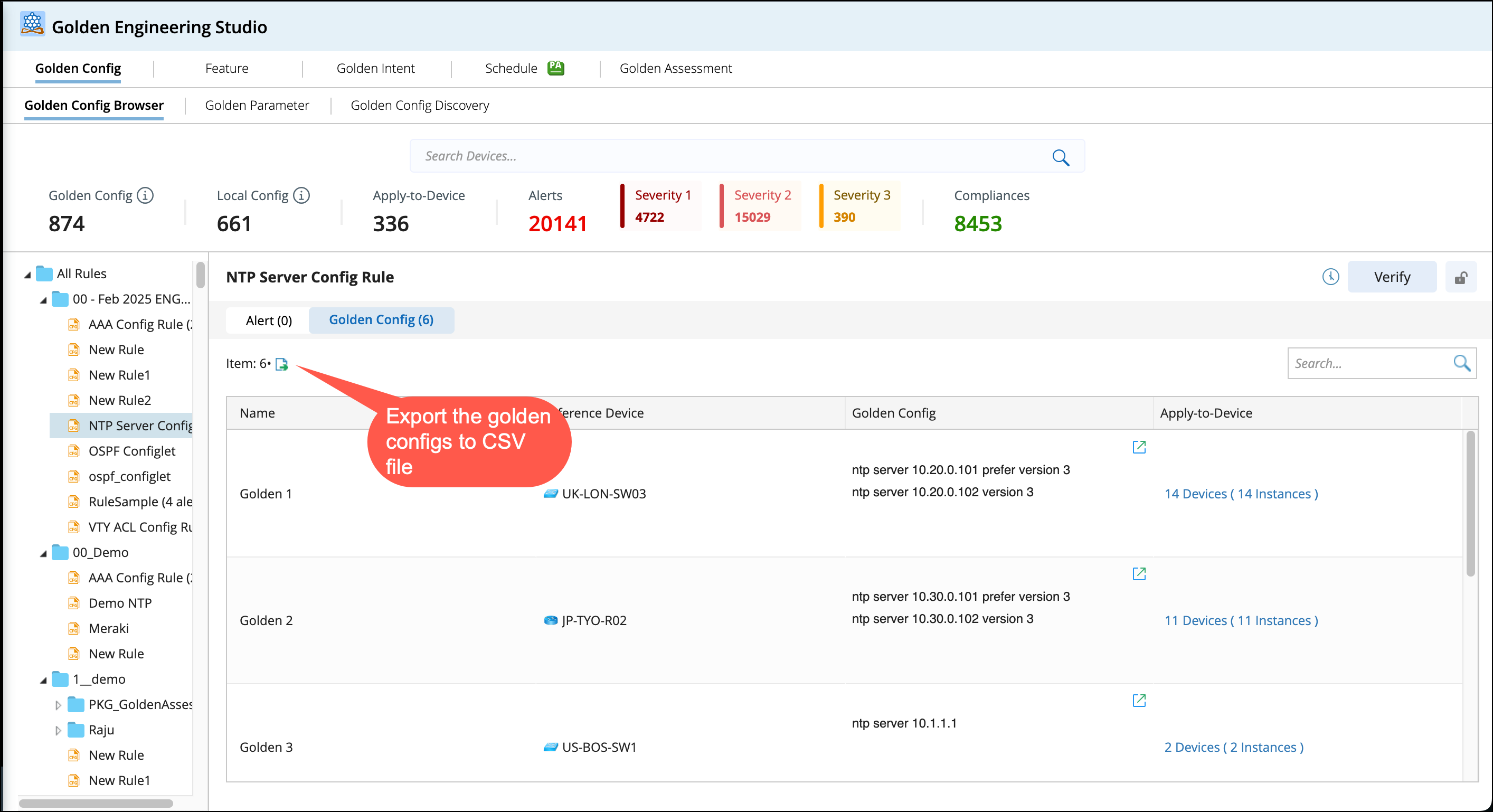
The CSV export file contains the following columns for data analysis:
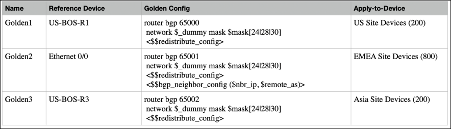
Example 1 :

Example 2: