Test Replication
The Test Replication functionality in the replication settings allows you to select a batch of devices and perform test operations. It can be used to evaluate the matching probability of devices, including Device-Based Tests and Path-Based Tests, as follows:
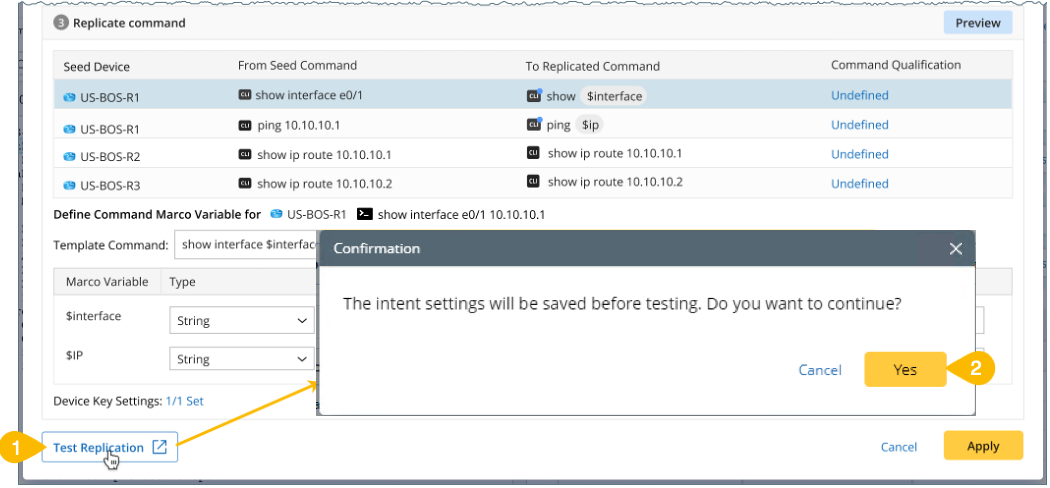
- Click Test Replication to open the corresponding window. The system will first check for any unsaved changes in the current intent and template settings.
- In the confirmation prompt, click Yes to save the replication settings.

|
Note: The test operation will proceed only after you confirm and save the replication settings. |
Test Device Based Replication
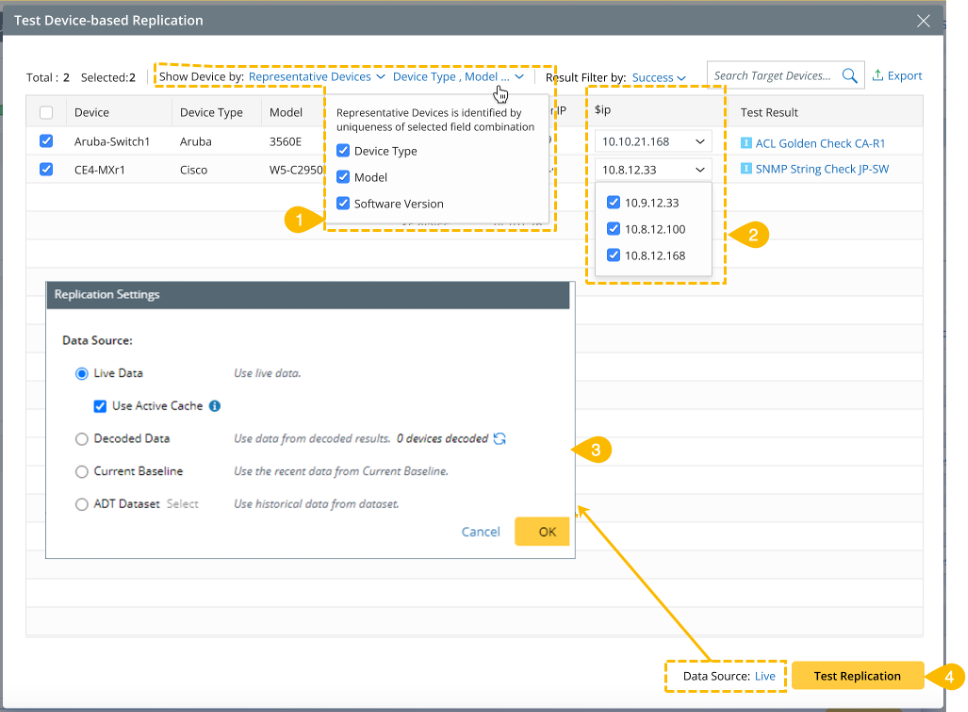
The device scope range for the test will be the set of devices that qualify under the current intent. You can further filter this range using the following options:
- Show Device by: Select one of the two options.
- All Devices
- Representative Devices: Choose a device from each combination of Device Type, Model, Software Version. By default, all three options are selected and can be adjusted manually.
- Macro variable column: The name of the Macro variable is displayed along side the corresponding device name. The value of each macro variable is shown based on its assigned data source.
- Choose the Data Source for replication, the default option is Live and it can be manually changed to any of the options shown in the image.
- Click Test Replication to run the test replication process based on your selected filters and settings.
-
To analyse the results, refer to Test Replication Results.
Path Based Replication Test
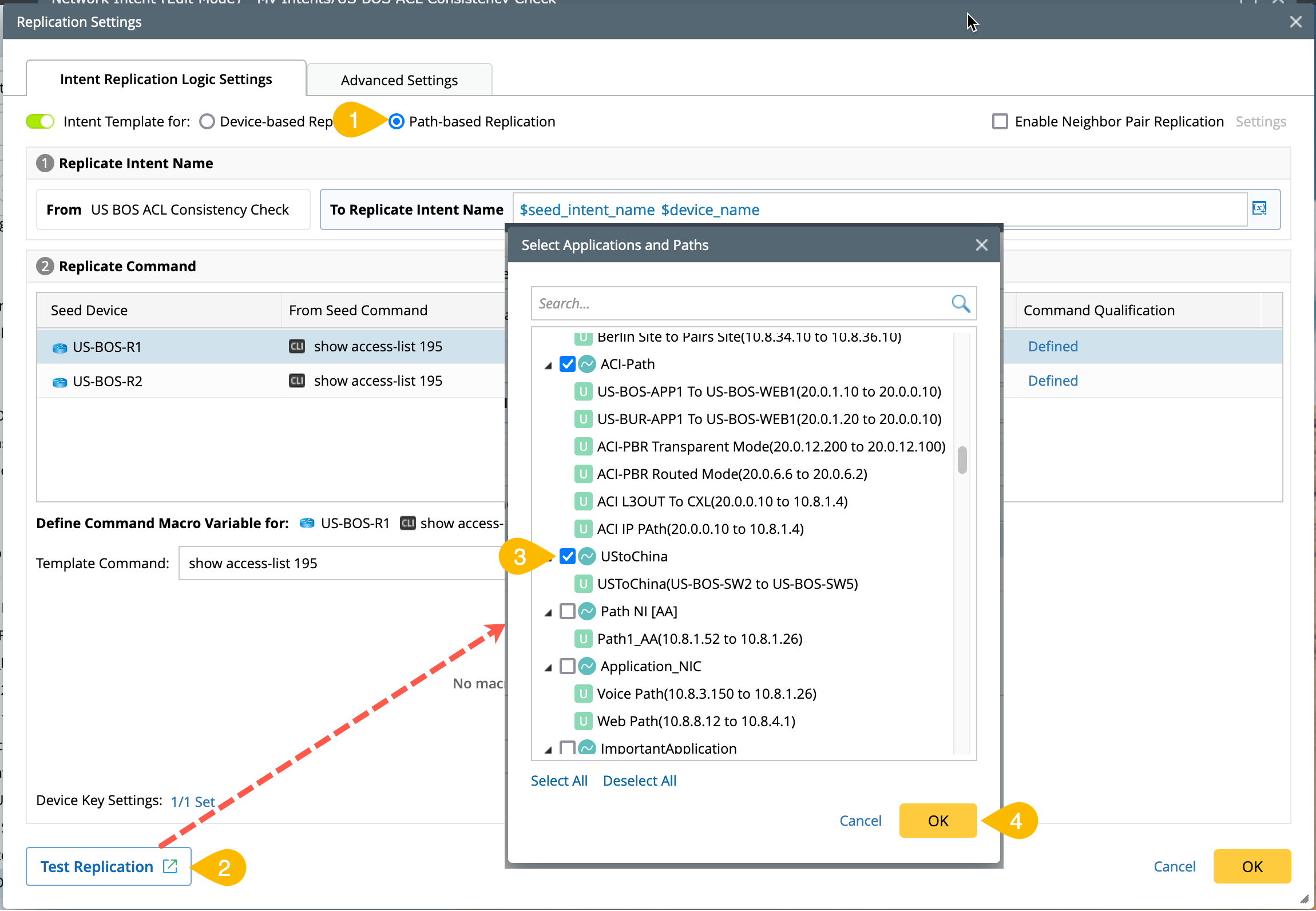
Intents can be replicated based on paths instead of individual devices, as follows:
- Enable Path-based Replication.
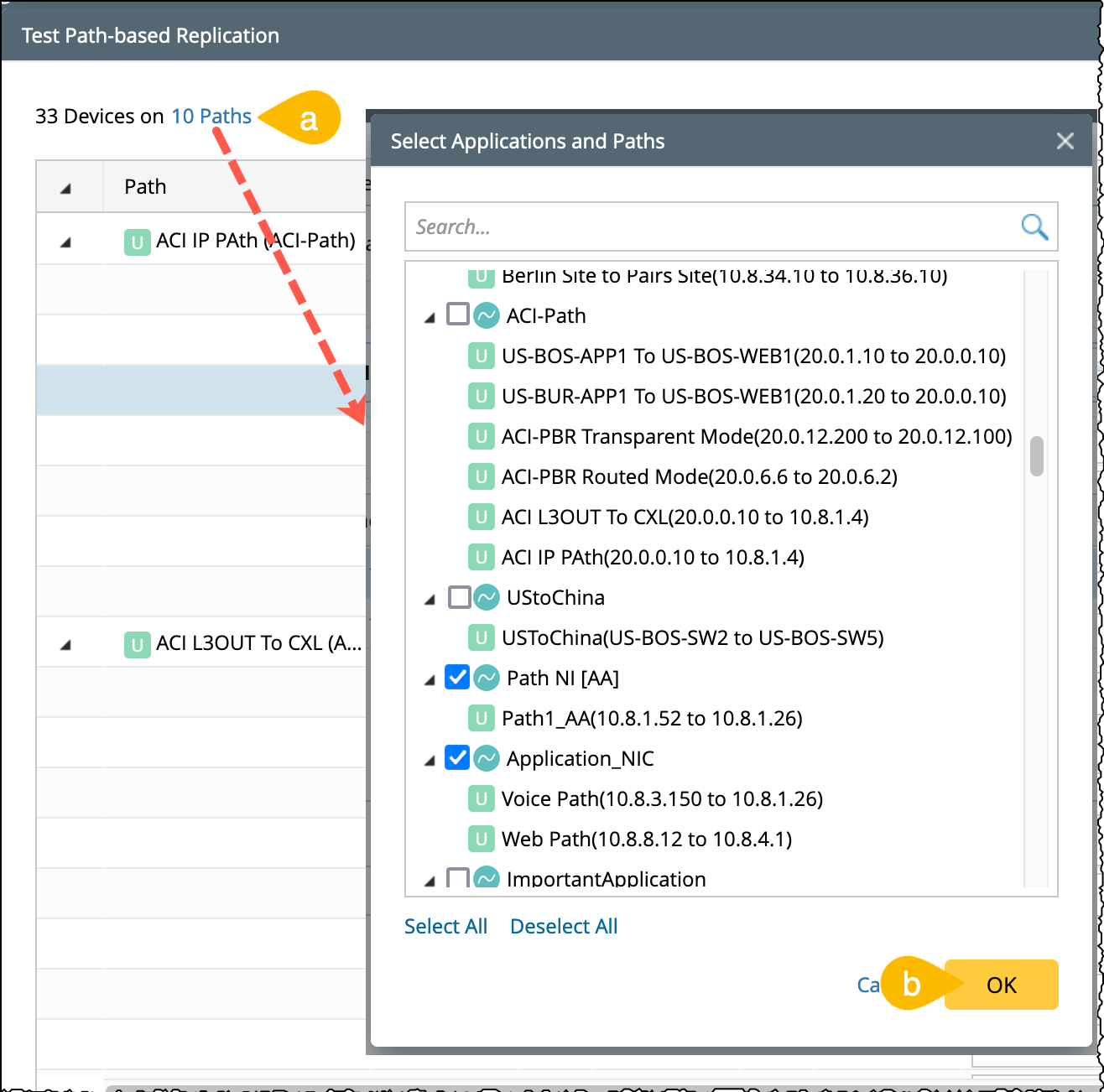
- Click Test Replication. The Select Applications and Paths window will appear.
- Select the relevant Applications and Paths.
-
Click OK to proceed.
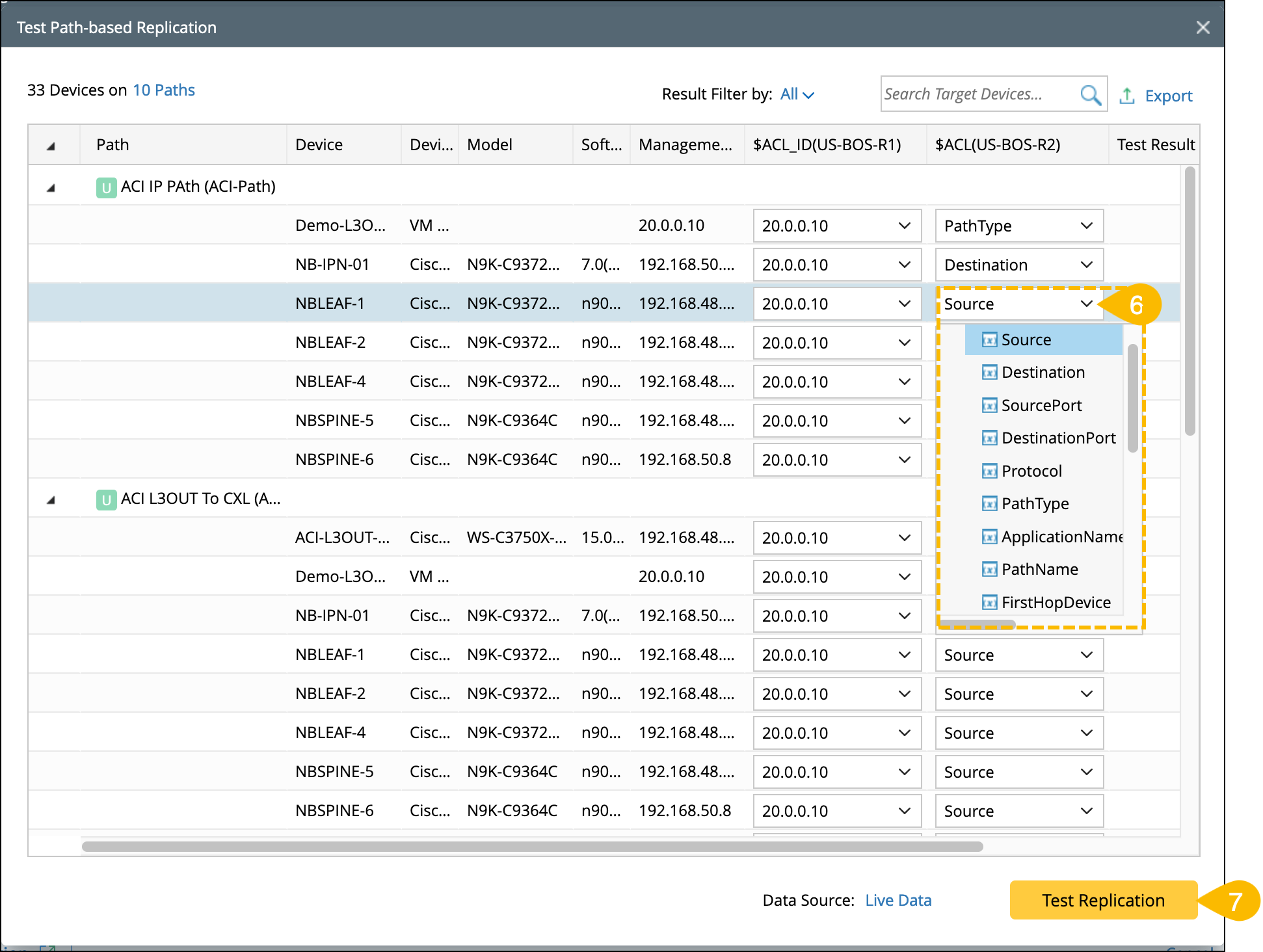
- The Test Path-based Replication window will appear with the selected paths.
- If a macro variable is configured, it will be listed. You can select the specific path variable from the drop-down menu.
-
Click Test Replication to execute the replication process.
After executing the test replication with selected applications, you can switch to another application and execute the test as follows:
- Click the Selected Applications and Paths hyperlink located at the top-left corner of the Test Path-based Replication window.
- Select the desired Applications and Paths, then click OK.
-
Click Test Replication to execute the replication for the newly selected application.
Viewing Test Replication Results
The test results column will indicate whether the intents have been successfully replicated to target devices:
- If replication is successful: It will display the corresponding Cloned Intent.
- If replication is Failed: The reason for the failure will be shown. Clicking the failure reason will open a window with detailed information.
-
Result Filter: You can filter the test results by selecting one of the following options:
- All
- Success
-
Failed
-
Cache Functionality: You can reopen the Test Replication window during the replication process (within the same Replication Settings wizard session) to view cached results.
Note: The cache is cleared once the Replication Settings wizard is closed and reopened. - Automatic Cleanup: Generated cloned intents are automatically cleared once a week.
- Export: Test results can be exported as a CSV file.
|
|
Note: A test can be executed for each individual device, and the result will be displayed in the Test Results column. |
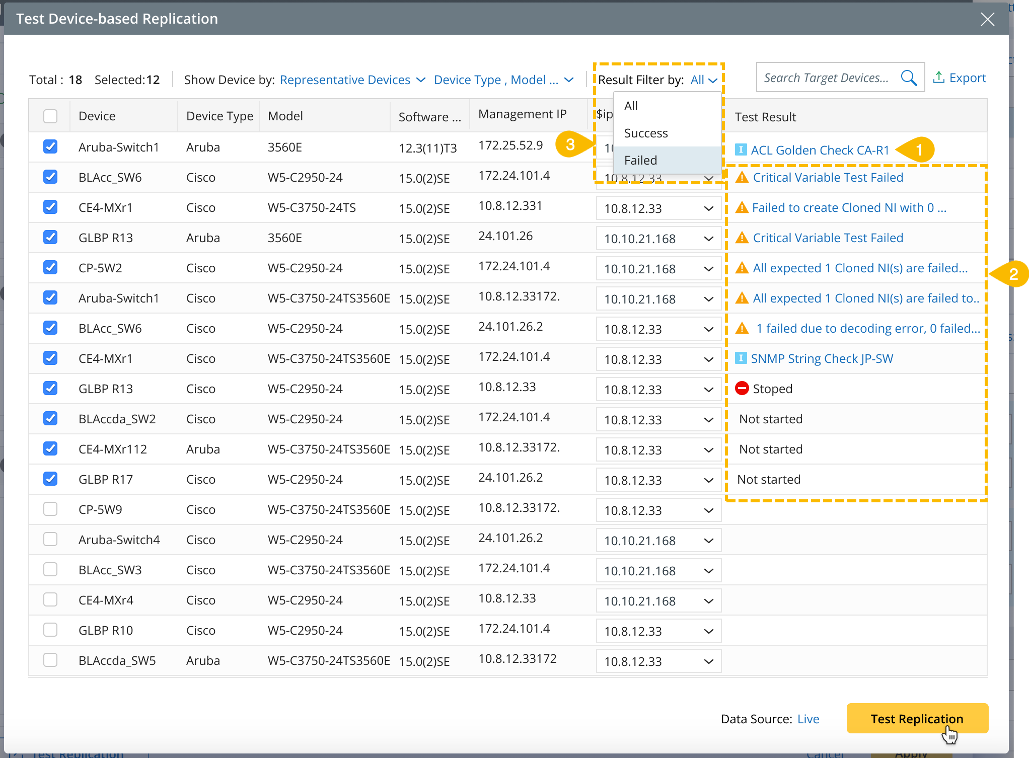
The Test Results window has the following capabilities: