Two-Factor Authentication for SSH Device Login
To ensure device login security, another layer of authentication (Challenge-response model) is provided to work together with user/passwords authentication when users attempt to log in to device via SSH. Also, two-factor authentication for device login via SSH can mitigate Brute-Force and Dictionary Attacks. SSH device login can be performed using challenge–response authentication alone, or with both username/password and challenge–response authentication, depending on the device configuration.
The challenge–response authentication process operates as follows:
- Challenge Generation: The device generates a random string, known as the challenge, which includes encrypted text. This challenge is sent to the user.
Note: The encrypted text is dynamically generated by the server, ensuring that a different encrypted string is produced for each authentication attempt. - Response Generation: The user’s system processes the received challenge by decrypting the encrypted text and combining it with the user’s password to generate a response. The response is then returned to the device.
- Verification: The device verifies the response received. If the response is valid, authentication succeeds and the user is granted access to the device.
Application of Challenge-Response Authentication for SSH Device Login
Challenge-Response authentication for SSH device login is applied to multiple scenarios.
Challenge-Response Authentication in “Network Settings” and “Private Network Settings”
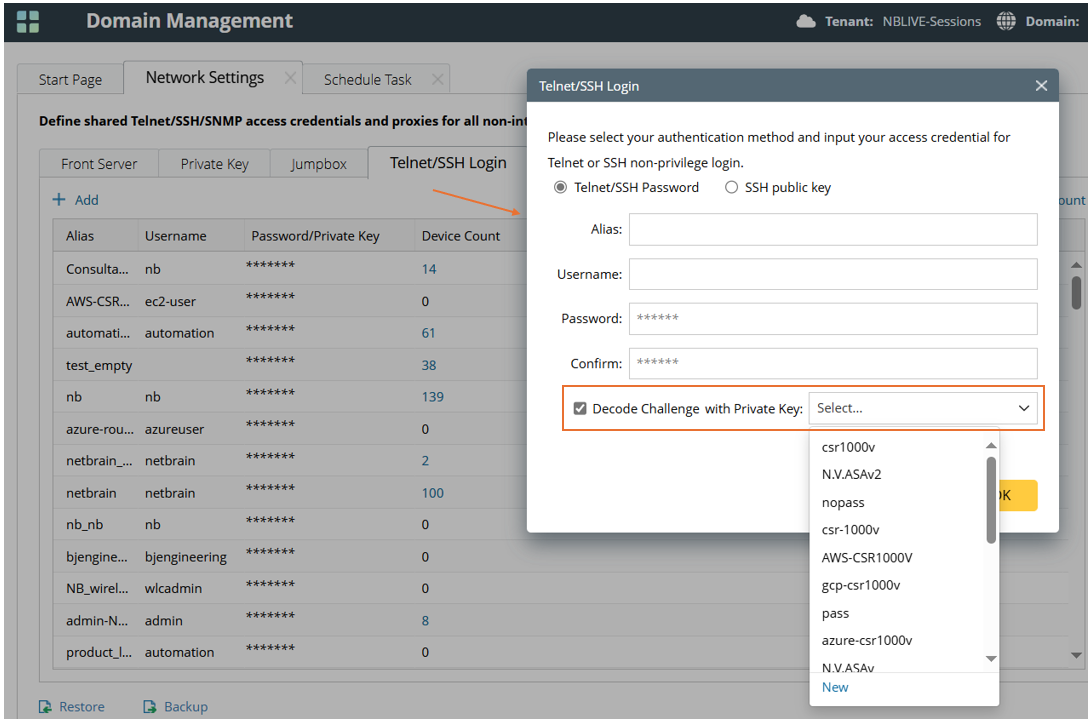
In Network Settings, when the Telnet/SSH Password authentication method is selected, the “Decode Challenge with Private Key” option can be configured by selecting a private key from those defined in Network Settings. Alternatively, users can create a new private key for decoding the challenge. The “Decode Challenge with Private Key” option is disabled by default.
The “Decode Challenge with Private Key” authentication method in Private Network Settings can be configured using the same procedure as in Network Settings.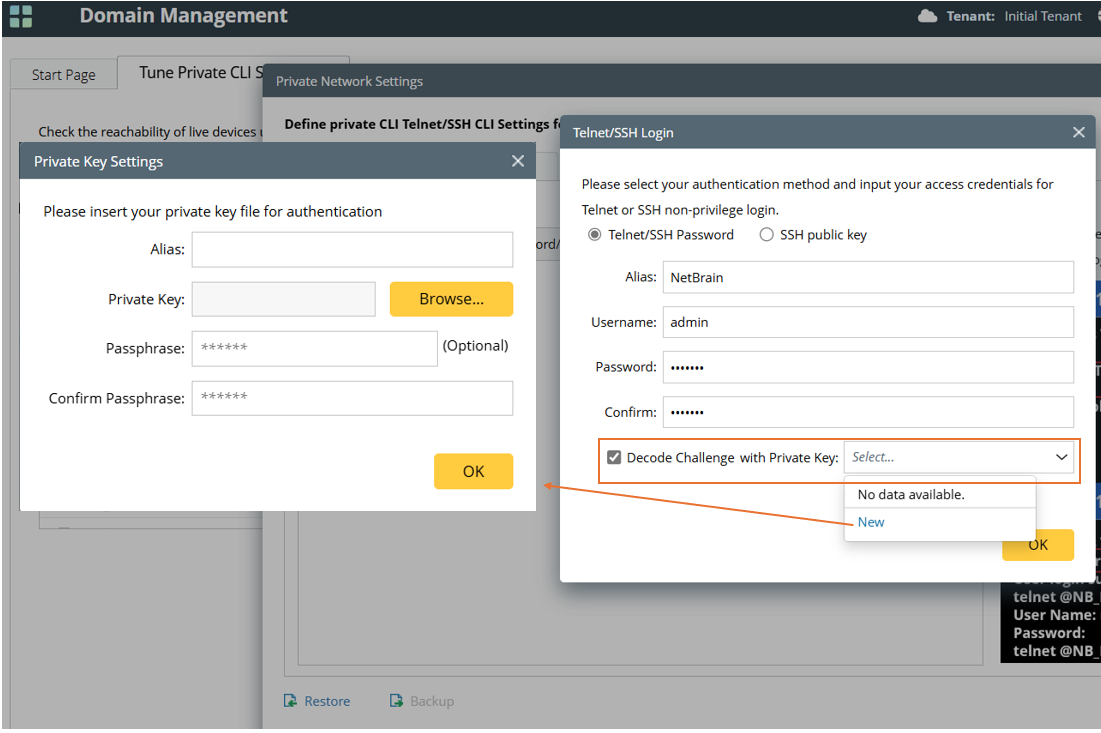

|
Note: During backup (export) of the configured “Network Settings” or “Private Network Settings,” the private key specified for “Decode Challenge with Private Key” is also exported. |
Challenge-Response Authentication in “Shared Device Settings”
When users configure “Shared Device Settings” for a map device, challenge-response authentication can be applied if the “CLI” access method is selected.
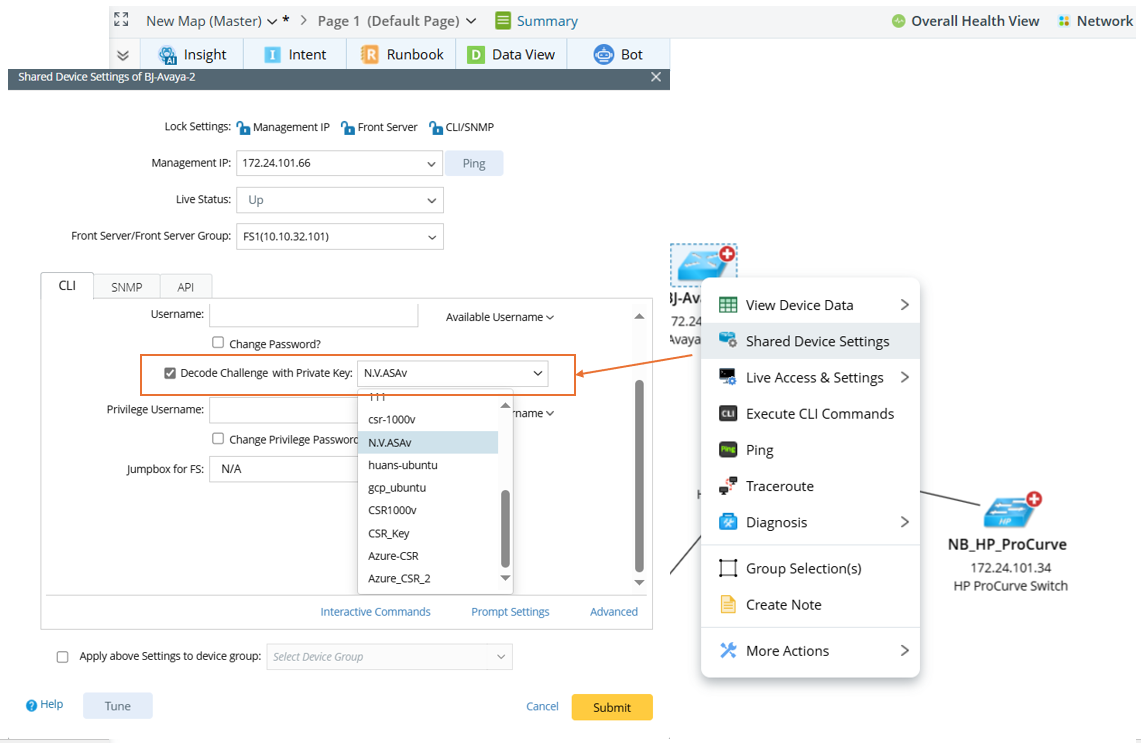
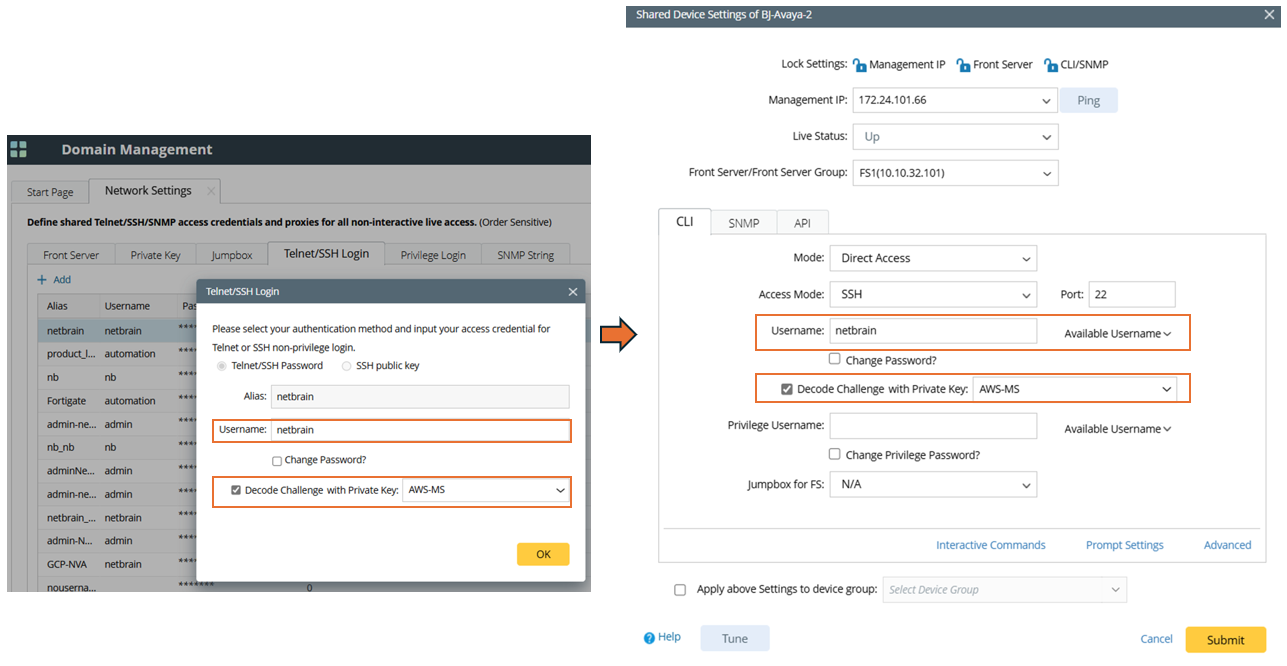
If “Decode Challenge with Private Key” authentication is already configured in “Network Settings” it can be loaded into the map device’s “Shared Device Settings”, provided that the same username is selected in the “Shared Device Settings”.
|
|
Note: If the “Apply above setting to device group” option is enabled, the decode challenge setting will also be applied to the device group. |
Challenge-Response Authentication in “Change Management Login”
In the device’s “Change Management Login”, “Decode Challenge with Private Key” can be configured and applied to the map device when “SSH” access mode is used. The private keys used are those defined in the “Private Network Settings”.
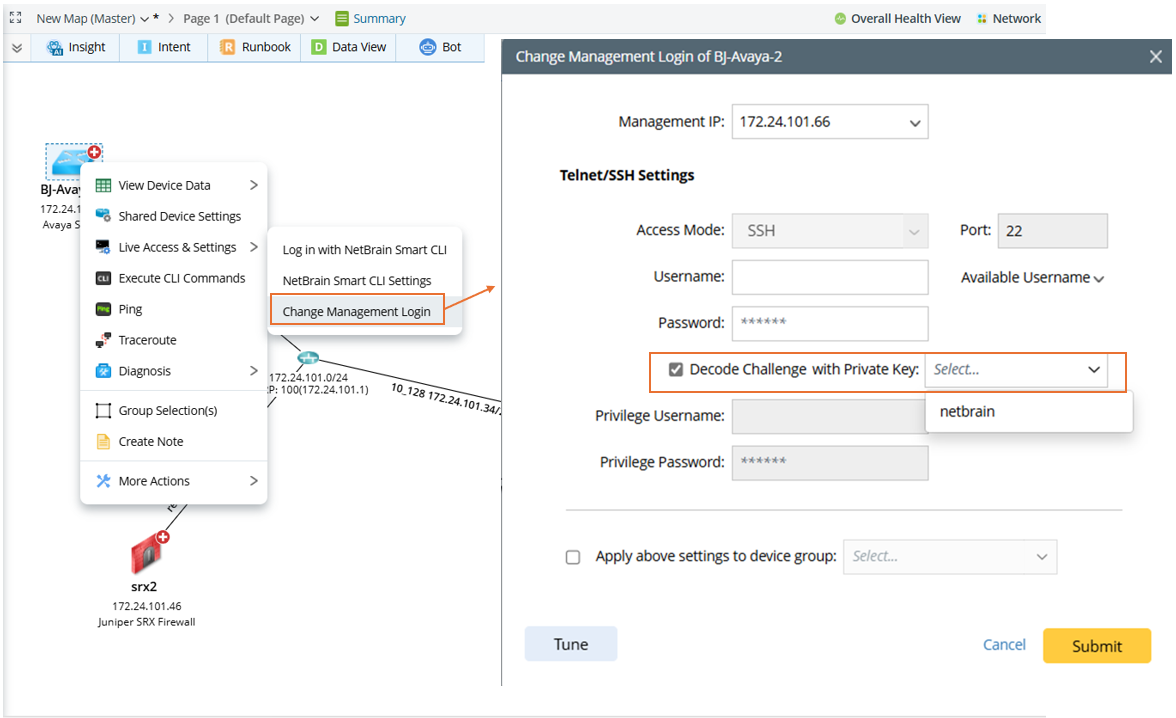
If “Decode Challenge with Private Key” authentication is already configured in “Private Network Settings”, it can be loaded into the map device’s “Change Management Login” settings, provided that the same username is selected in the “Change Management Login”.
Challenge-Response Authentication for Smart CLI
When logging in to a device through Smart CLI, challenge-response authentication is supported for the “SSH” access mode.
In the “Smart CLI Settings” for a map device, the challenge-response authentication method can be configured. The private keys available for selection are those created in the map device’s “Smart CLI Settings” or within the Smart CLI application.
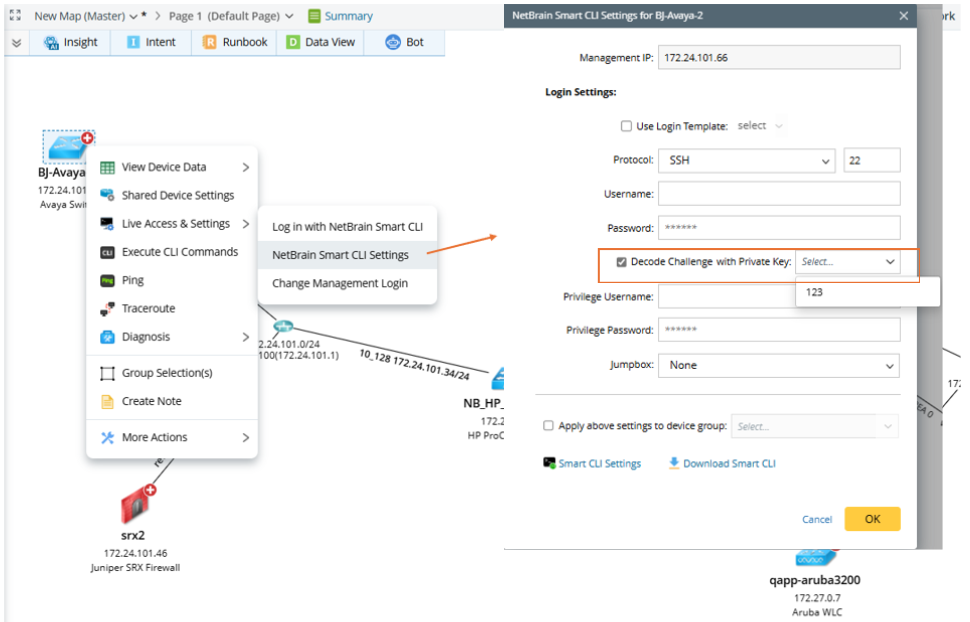
When defining a Smart CLI login template in the “Smart CLI Settings” of a map device, challenge-response authentication can be added if “SSH” access mode is used.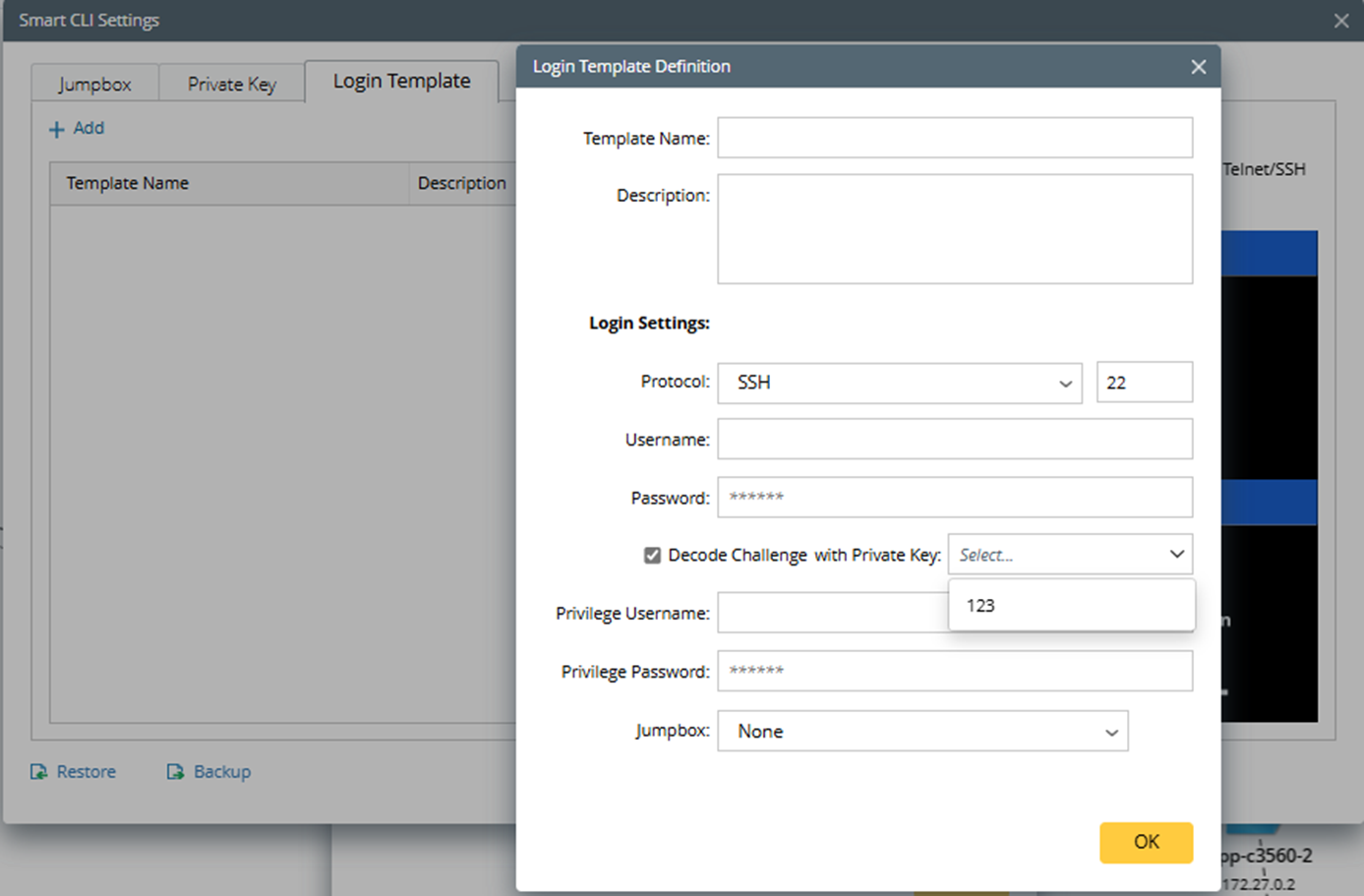
When creating a new Smart CLI login template within the Smart CLI application, challenge-response authentication can be added.
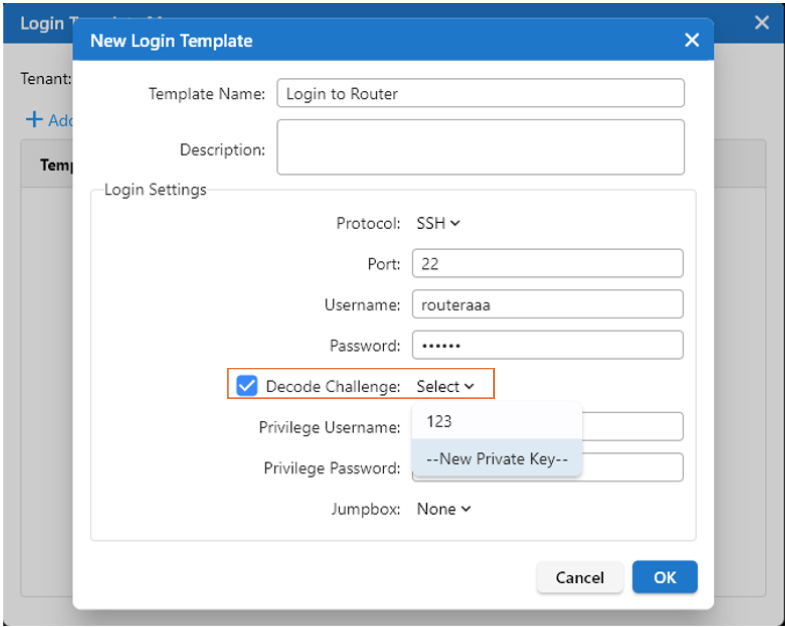
In Smart CLI, users can establish new connections, and challenge-response authentication can be added during this process if “SSH” access mode is used.
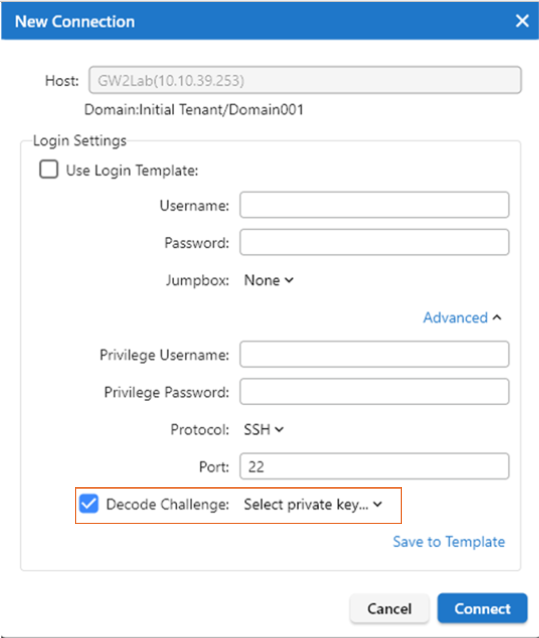
|
|
Note: The challenge-response authentication method is not supported for “Direct Connect” in Smart CLI. |