R12.3-2026Apr21
Define Diagnosis
Diagnosis is the most critical component of NI. You can define the logic of validating and verifying the network design in Diagnosis and create diagnosis notes. A common diagnosis is as simple as: if the variable is not equal to a specific value (the baseline value) and then creates a diagnosis note. Status code describes NI execution results (Alert or Success). You can also directly add a diagnosis with template.
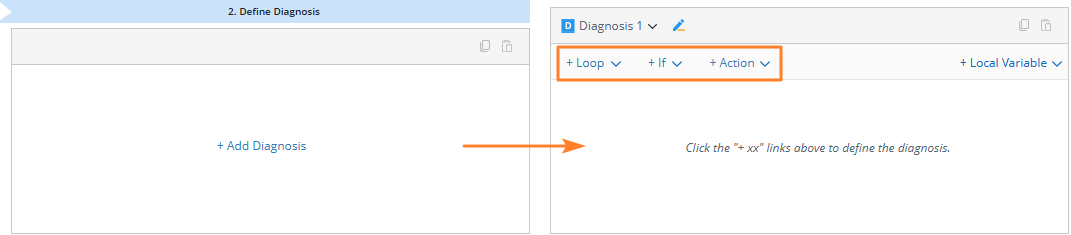
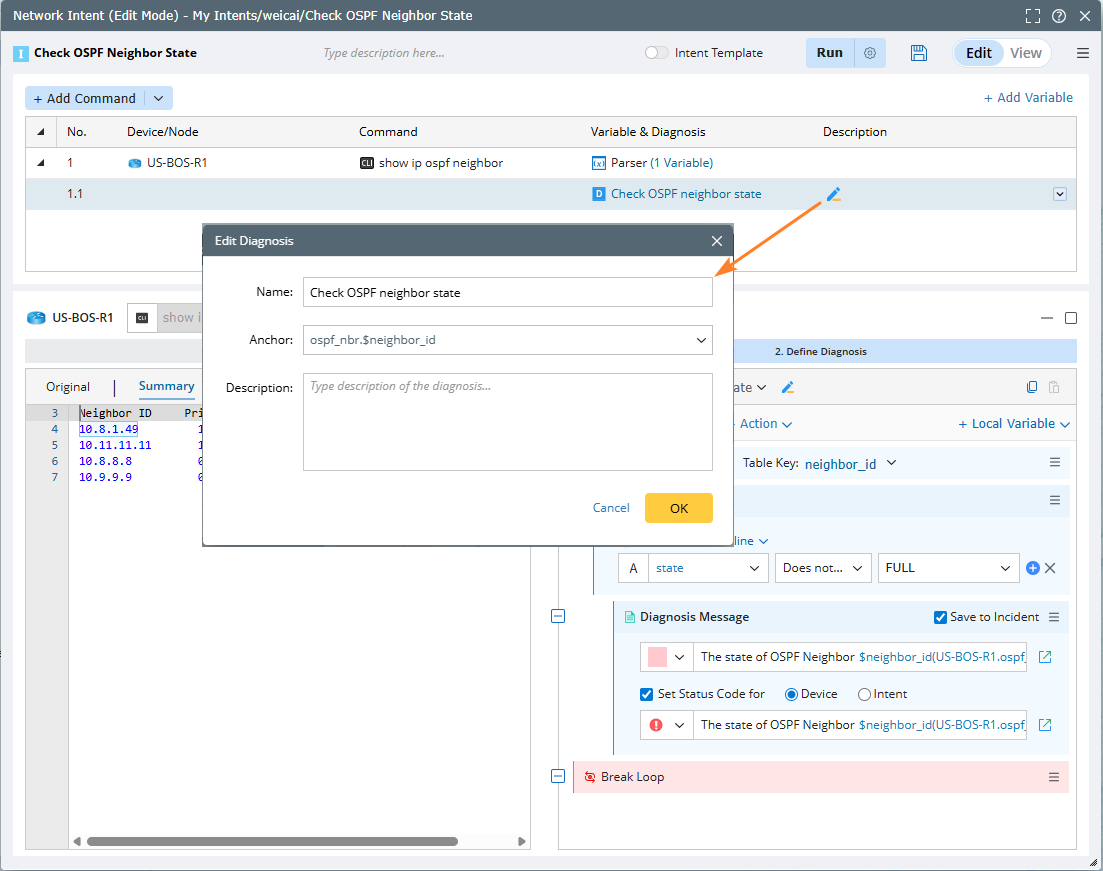
- On the Define Diagnosis tab, click Add Diagnosis. Then enter a diagnosis name and click the top links to define the diagnosis.
- Select a relevant variable as an anchor. Anchor defines where the diagnosis is displayed on the input text.
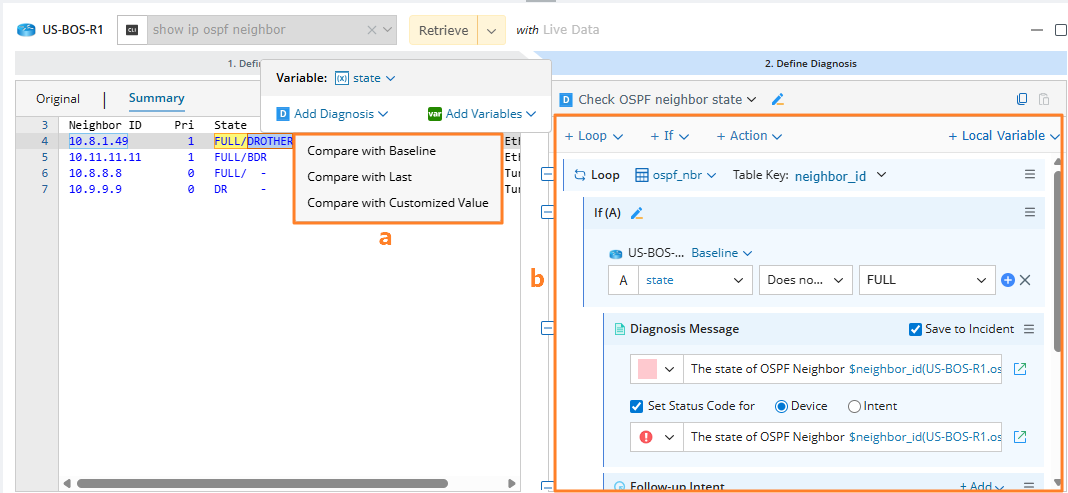

Note: On the Define Diagnosis tab, you can resize the editing areas via drag-and-drop. - You can directly add a diagnosis with template.
- You can also define flexible actions based on your needs.
- Or directly use the built-in logic blocks. Navigate to step 3 to continue.
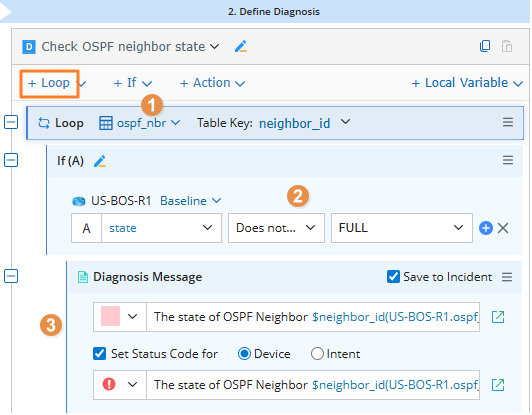
- Click Loop to add a Loop-If-Message block.
Note: When adding a new action, If-Else block, or Loop block, the newly created content is automatically scrolled into view and highlighted with three blinks. 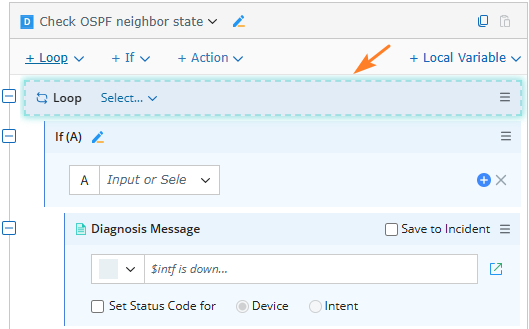
- Select a table to loop.
Note: You can define the table key by selecting table columns. Columns set as table keys will be displayed on the interface and synchronized to the table definition
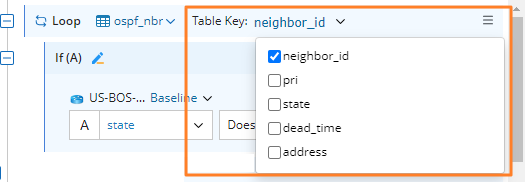
Note: You can also define the whole table-based diagnosis, inline expression, and sub table here.
- Set the If condition as state Does not contain FULL.
- Define the diagnosis message color and text. And select the Set Status Code for Device check box to add a status code at the device level or Set Status Code for Intent check box to add a status code at the NI level.
Note: You can view these two levels of status codes and their summaries in execution result. See View Intent Status Code for more details. 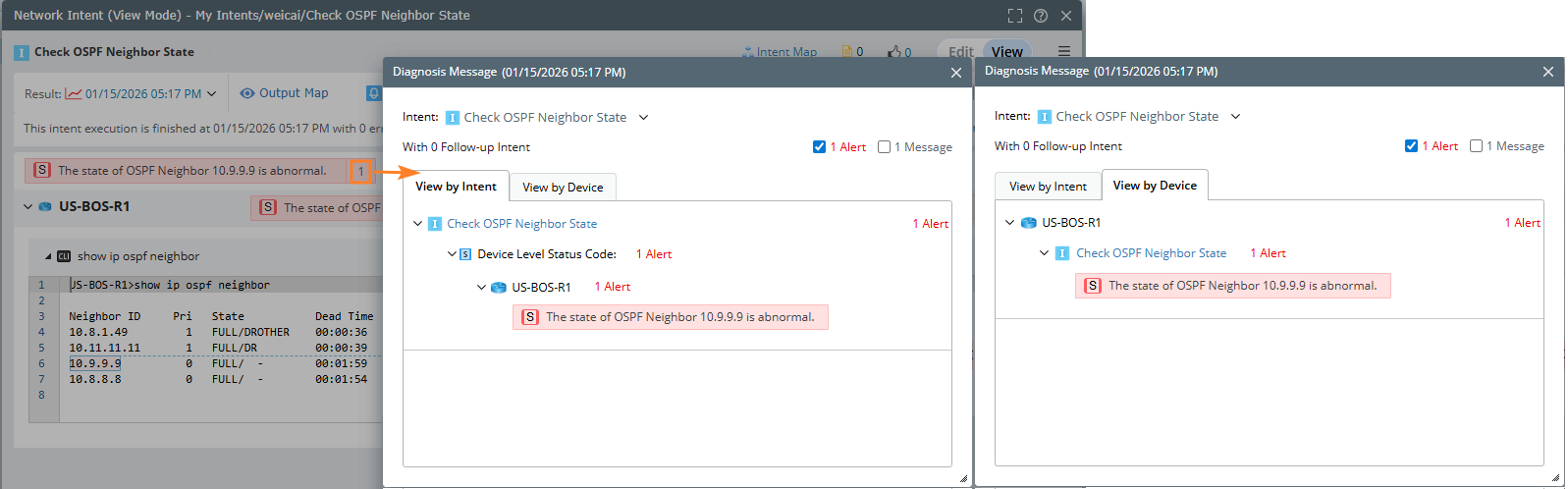
Note: You can click Action to add more logics. See Main Components of Diagnosis for more details about the logic set.
- Select a table to loop.
- (Optional) You can also add the Elseif branch under the If branch to specify more conditions.
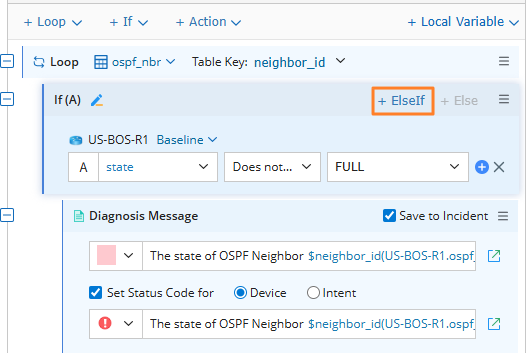
Note: Elseif branches can only be added after the If and Elseif branches, and Else branches can only be added to the end. - You can click Action > Advanced > Break Loop to add the Break Loop node to control the flow of the loop table row. When the table row loops, as long as the condition is satisfied, the current loop table will be terminated to reduce the calculation of the redundant loop.
See Add Diagnosis Actions for more details.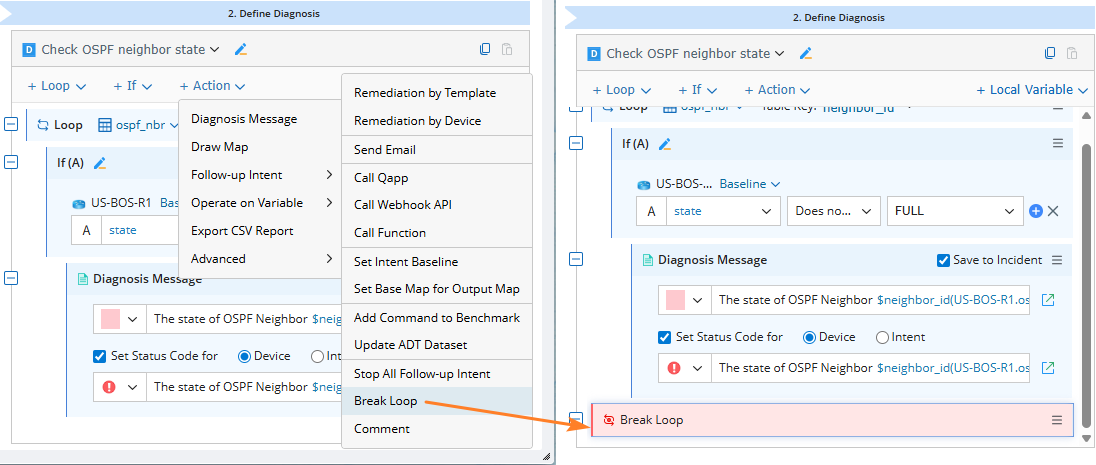
- After defining the diagnosis, add description for it. You can select an anchor and enter the description for this anchor.
|
|
Note: You can duplicate a diagnosis within a device command to copy and reuse its logic, making it easier to customize while reducing configuration time.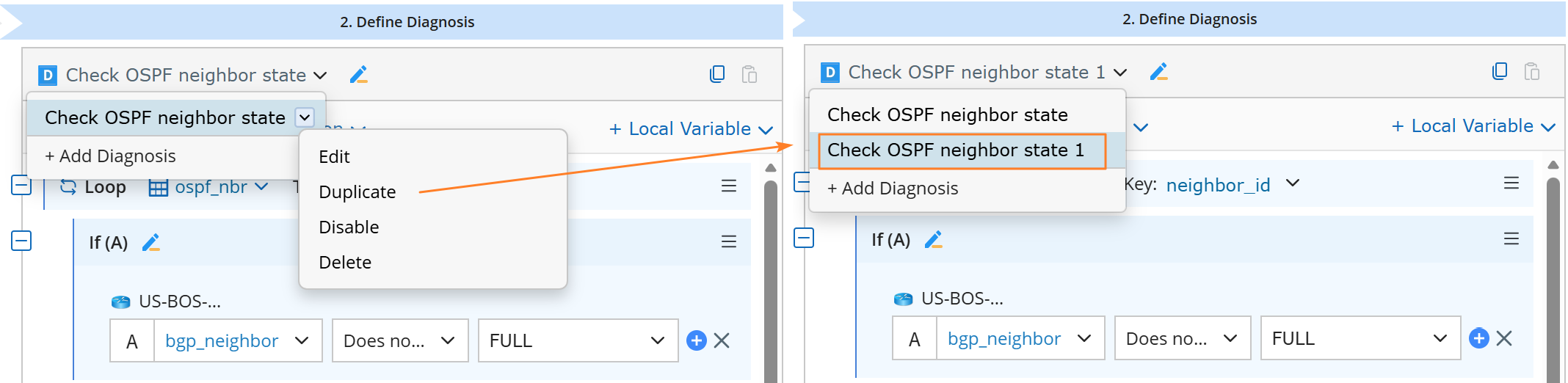 |