R12.3-2026Apr21
Generate Golden Config
Golden Configs can be generated by comparing the device configuration either against a Reference Device or a predefined Golden Template. The following steps guide you through the process using the Define Golden Config wizard.
Define Golden Config
-
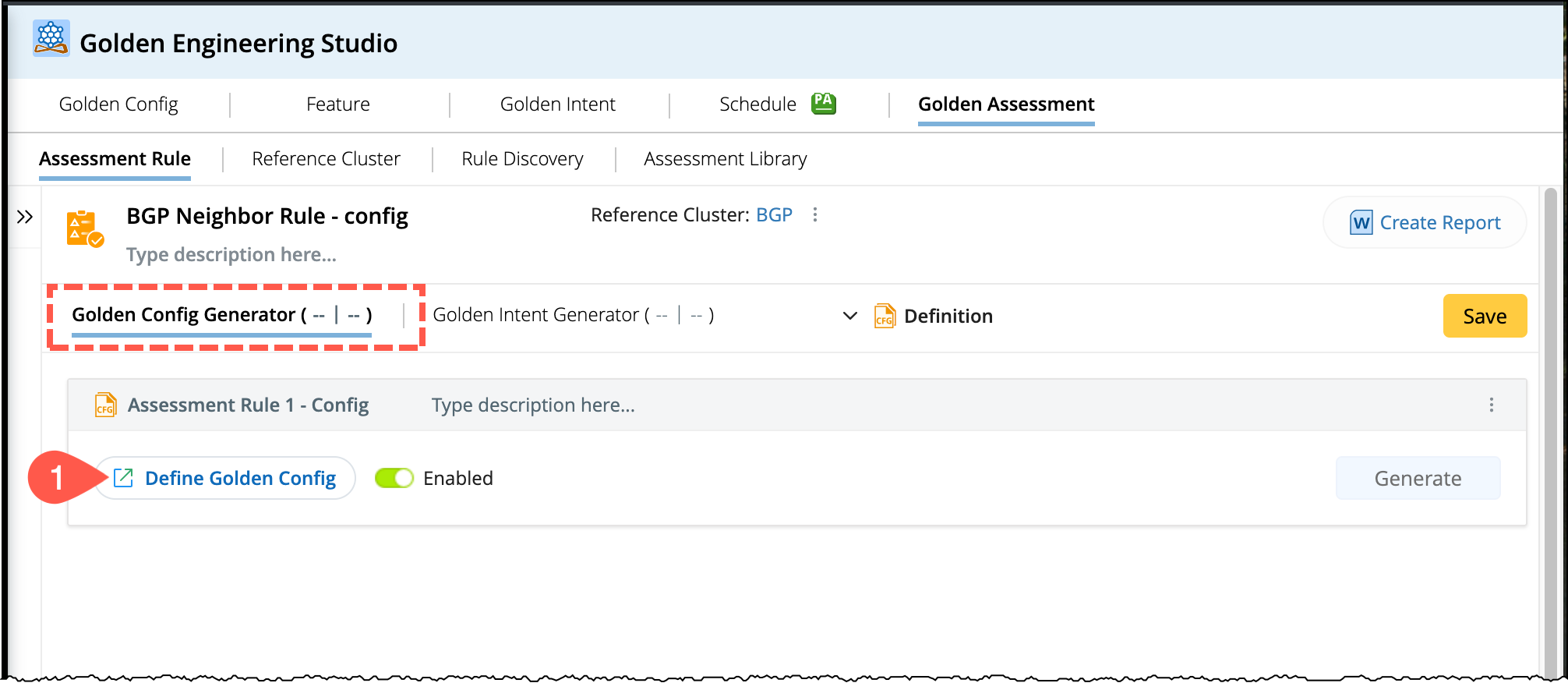
Navigate to the Golden Config Generator and click Define Golden Config to open the wizard:
-
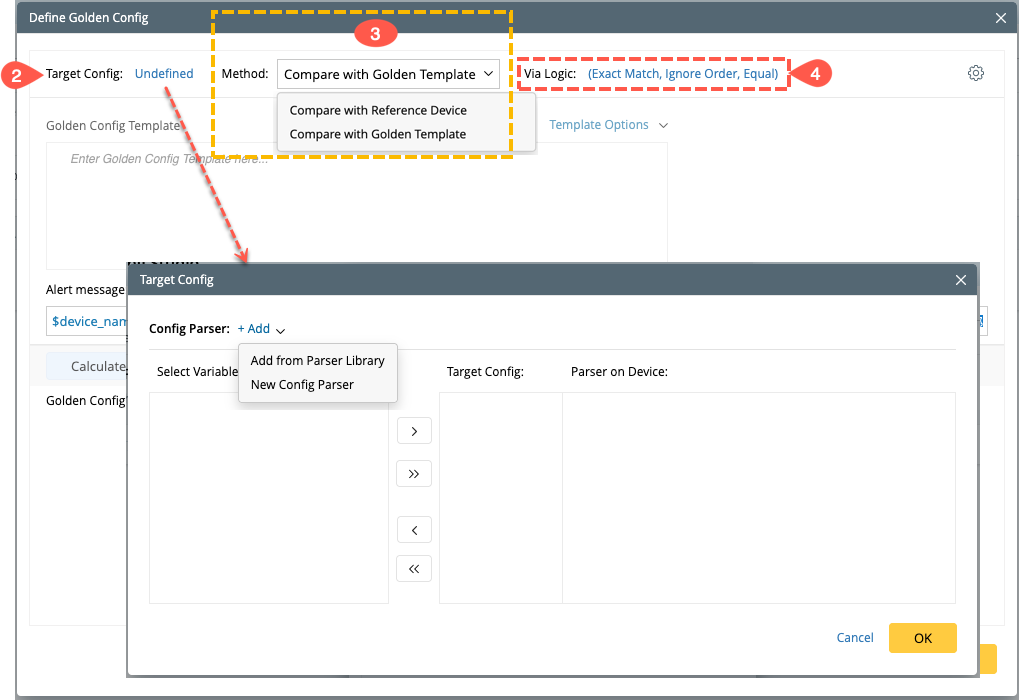
Define the Target config: Select a Config Parser to define the Target Config. You may choose a parser either from the Parser Library or create a new one. The parser will function same as those used in Golden Config Discovery.
-
Choose one of the following methods for the comparing the configurations either with the Reference Device or the Golden Template:
-
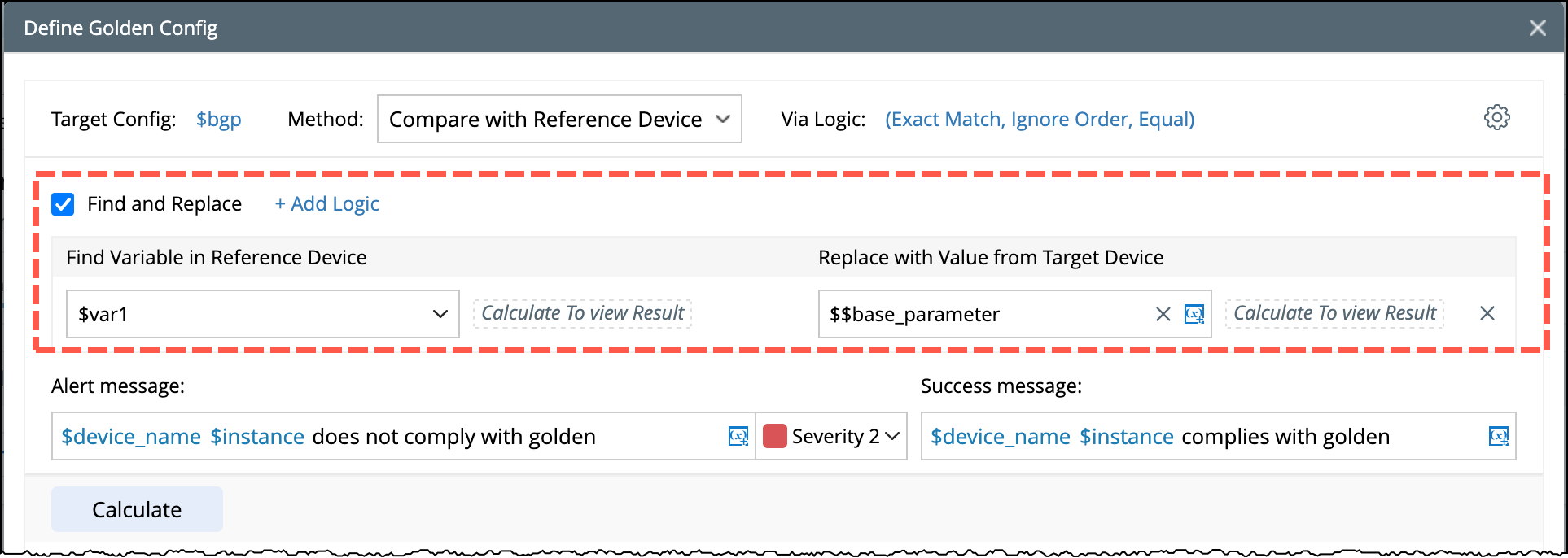
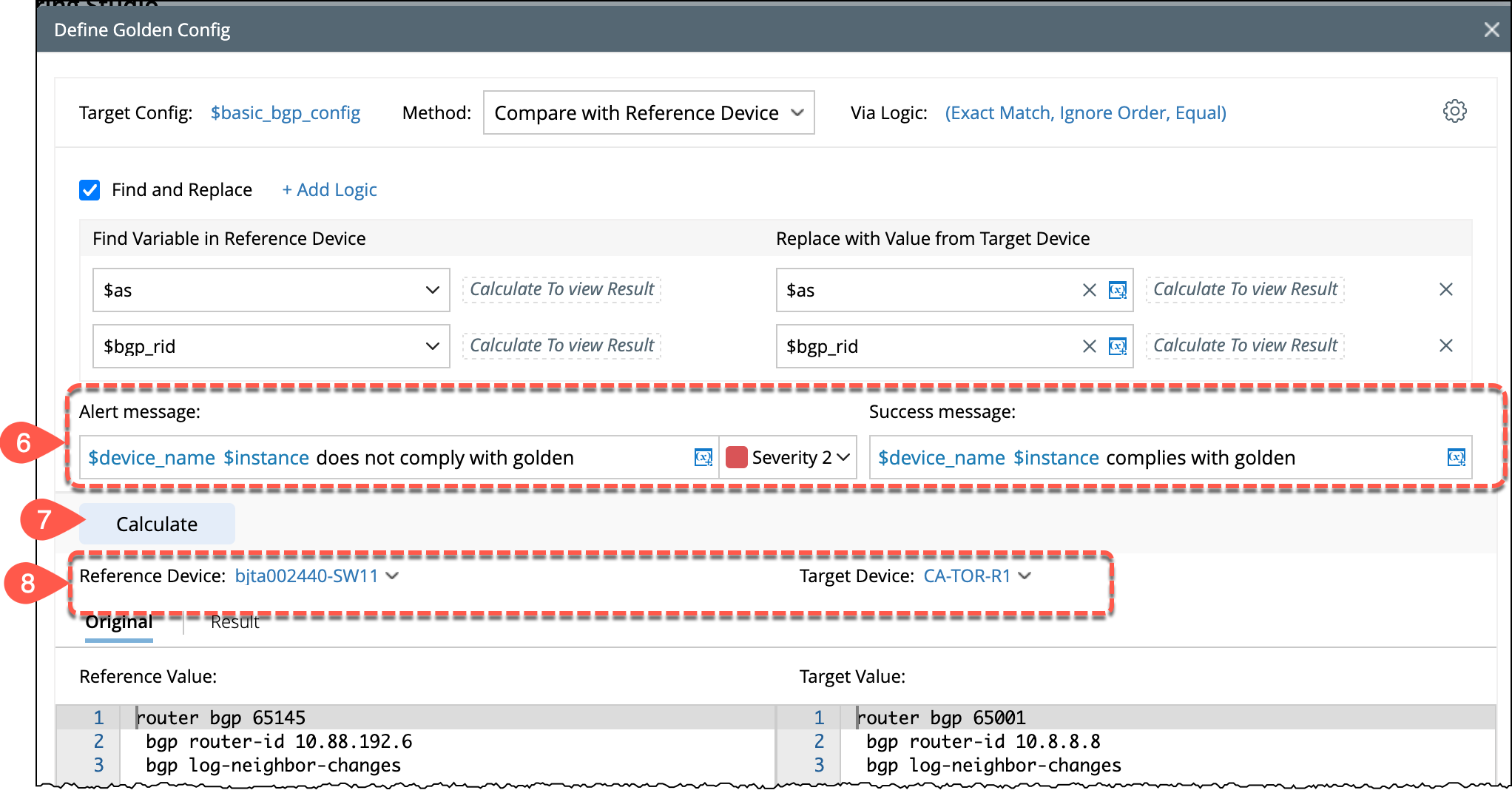
Compare with Reference Device: Use the Find and Replace function to replace the variables in the reference device configuration with the values based on the target device's configuration.
-
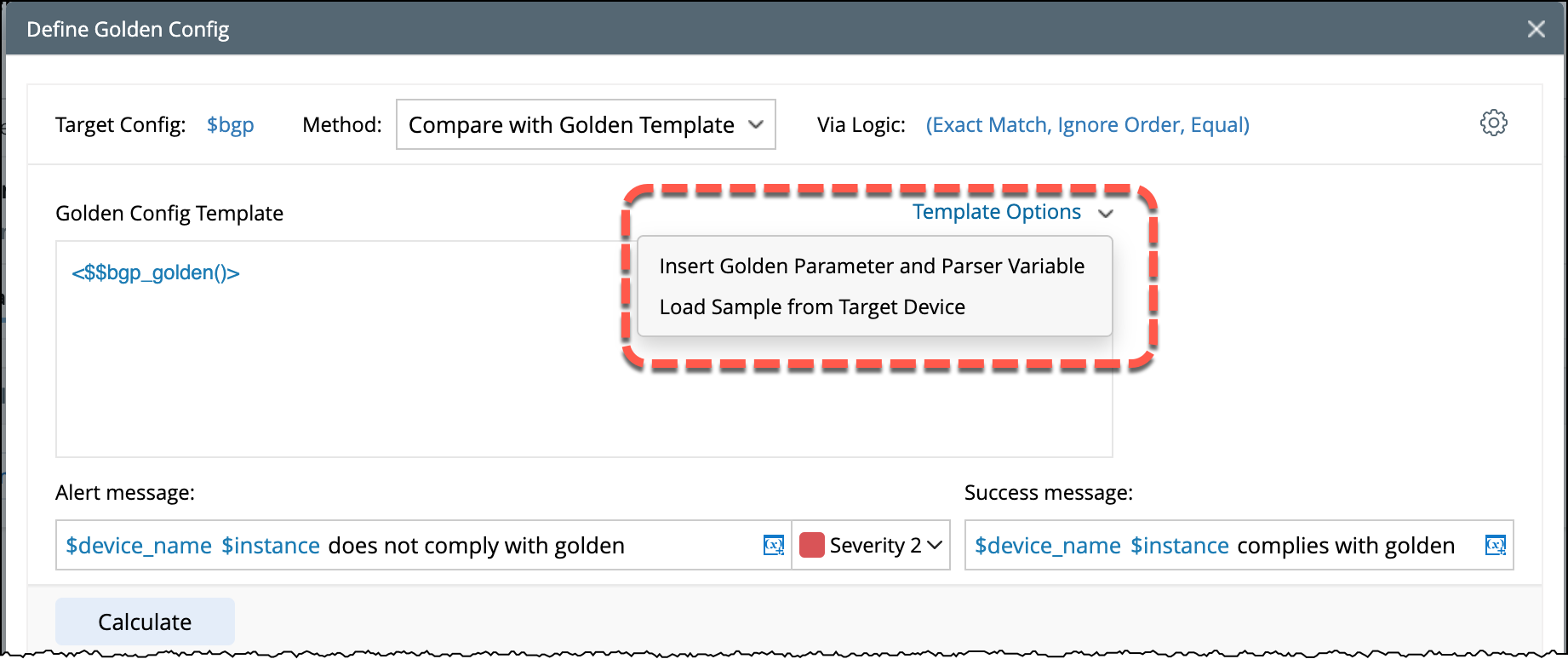
Compare with Golden Template: Insert the Golden Parameter and Parser Variable in the Golden Config Template to compare with the target Device config. Refer to Define and Test for more details.

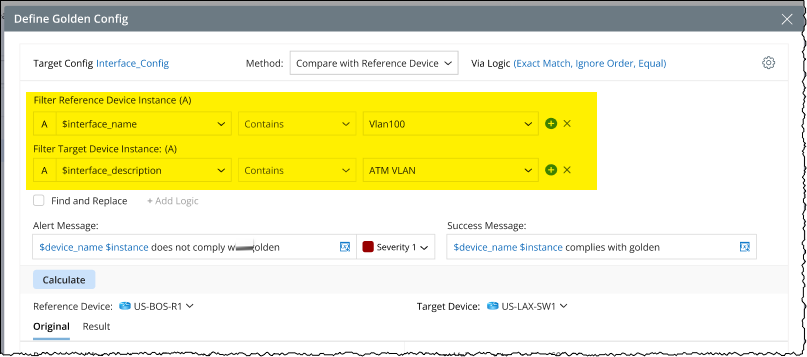
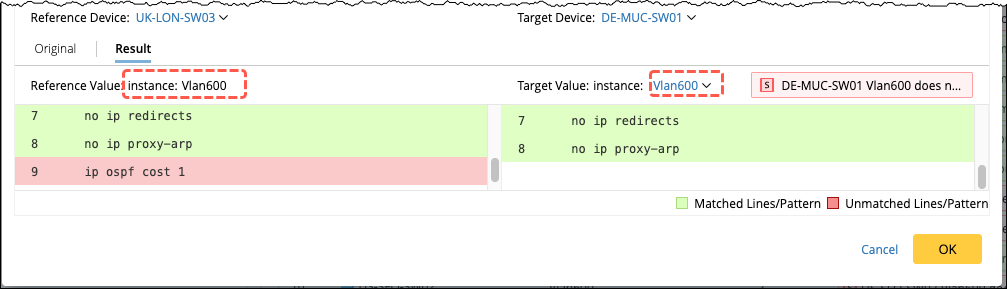
Note: For comparisons at the interface level, instance information must be specified for both the reference and target instances.
-
Compare with Reference Device: Use the Find and Replace function to replace the variables in the reference device configuration with the values based on the target device's configuration.
-
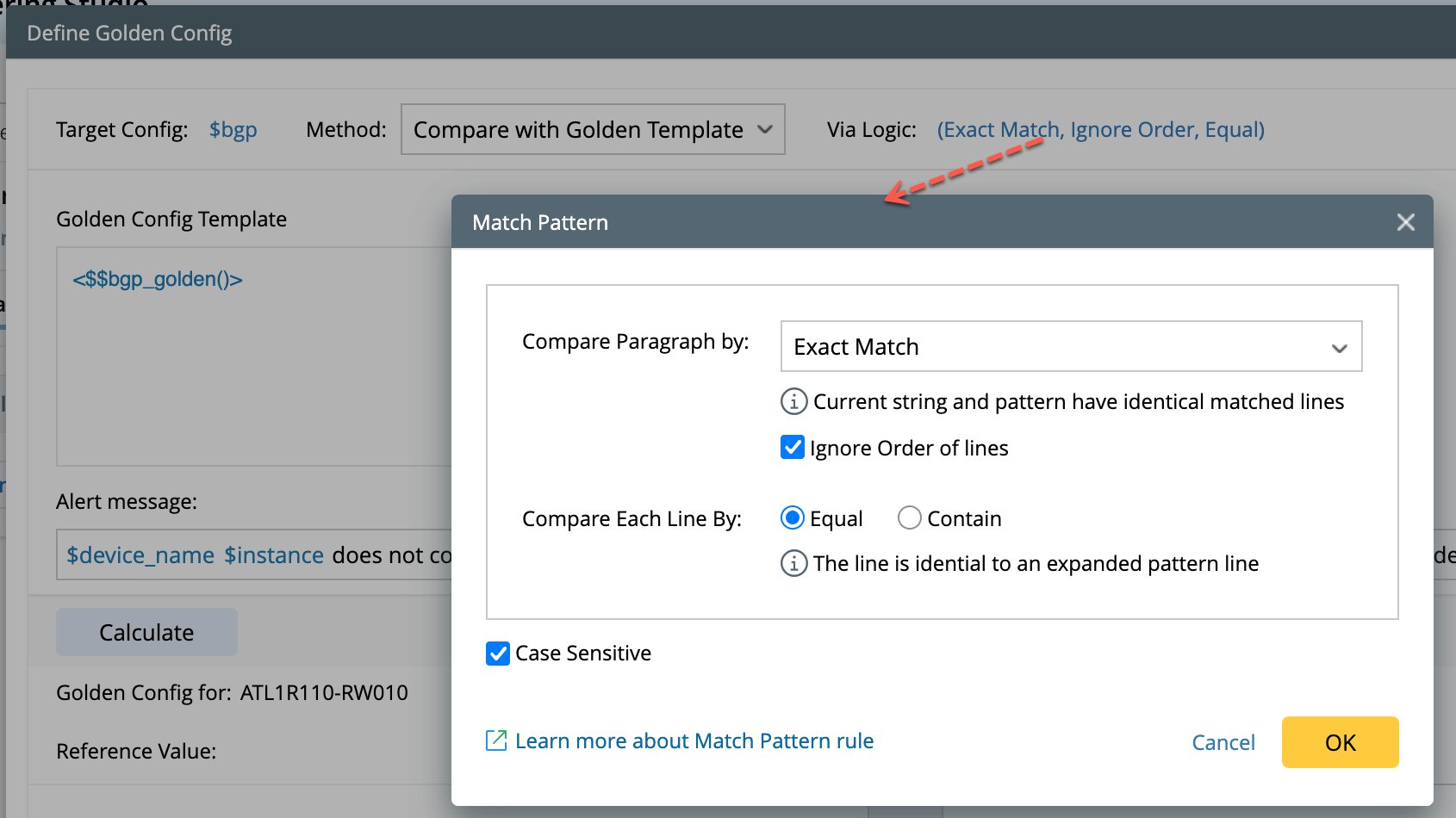
Use the Via Logic option to define match pattern logic to determine compliance based on specific configuration patterns. Refer to topic Define Match Pattern for more details.
-
You can configure the following function in the settings:
- Default Intent Template for Remediation: Set the default intent template, which can be used to create configlets to resolve detected issues.
-
Verify Golden Config automatically when device config changes in Change Analysis.

-
Define the result messages: Specify the messages that will be displayed based on the result:
- Alert Message – Define the alert to be triggered upon mismatch and the severity level. It includes different levels of severity.
- Success Message – Define the message to appear on successful config match.
-
Execute the comparison: Click Calculate to initiate the execution. The system will display the details of matched and unmatched lines and patterns.
-
Select Devices: Select the Reference Device and Target Device from the available drop-down menus to view the comparison results.
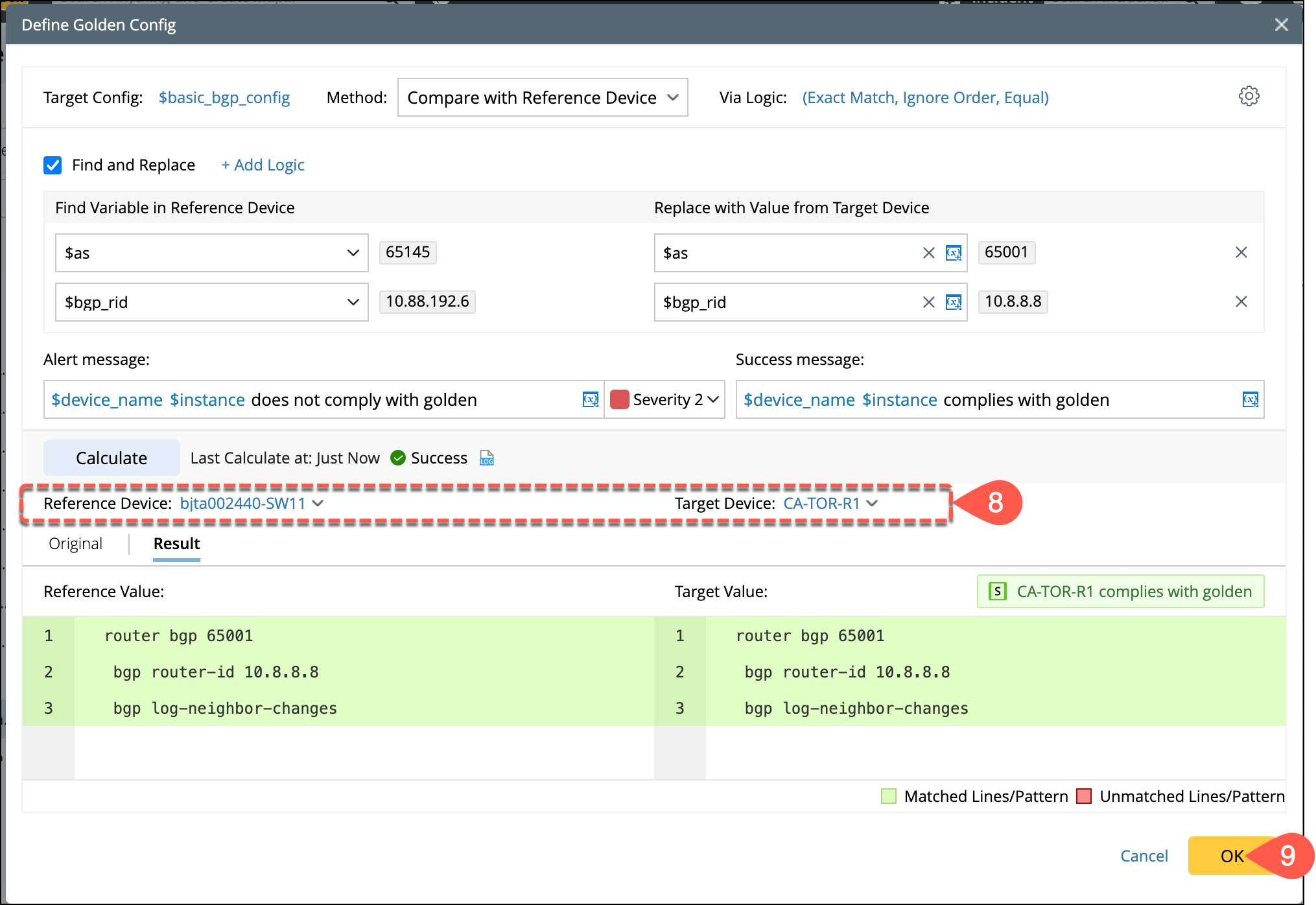
- After reviewing the result, click OK to save the configuration and close the wizard.
Result at Device Instance Level:
Generate the Golden Config
In the Assessment Rule window:
-
Click Generate to execute the rule.
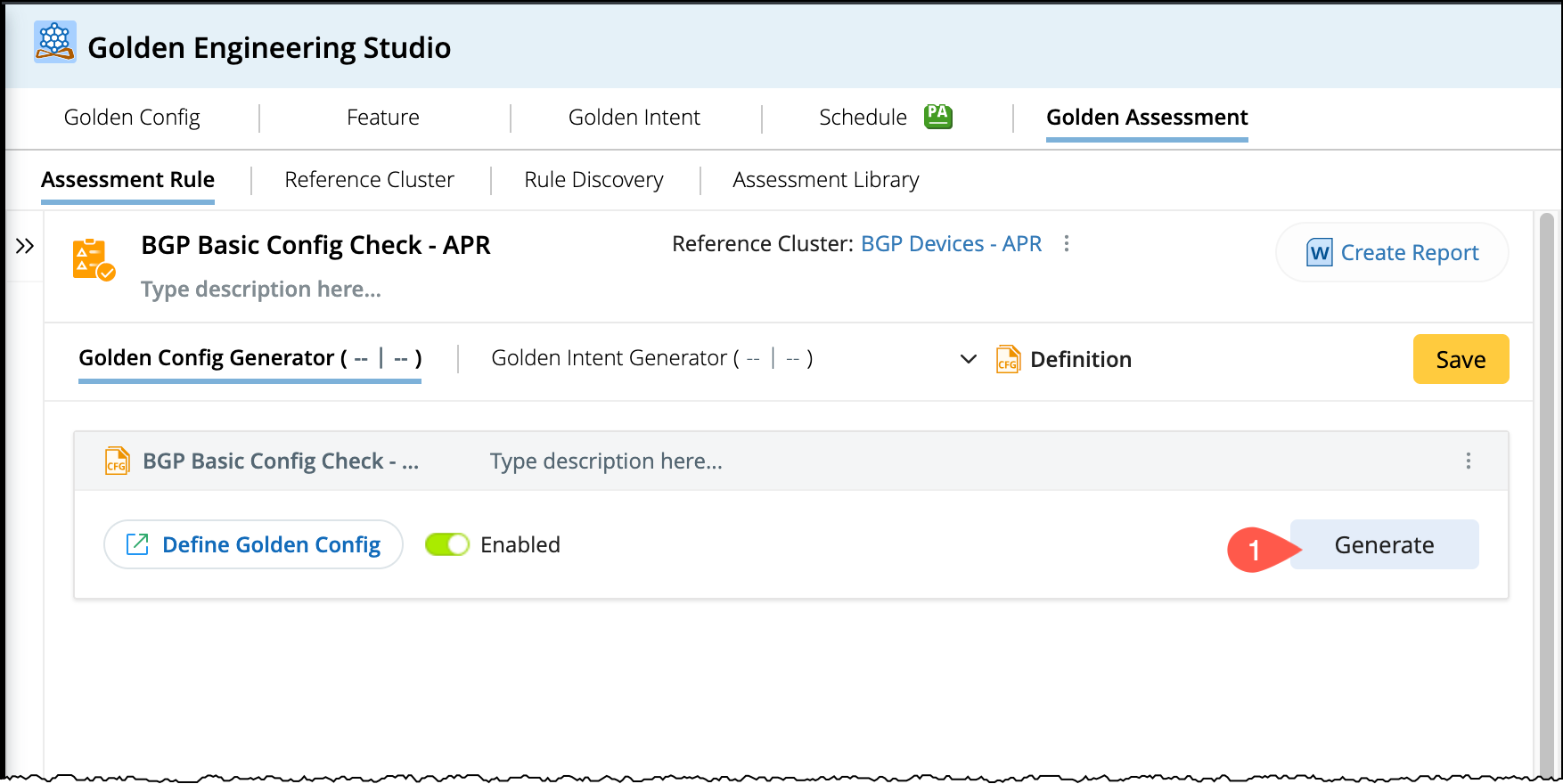
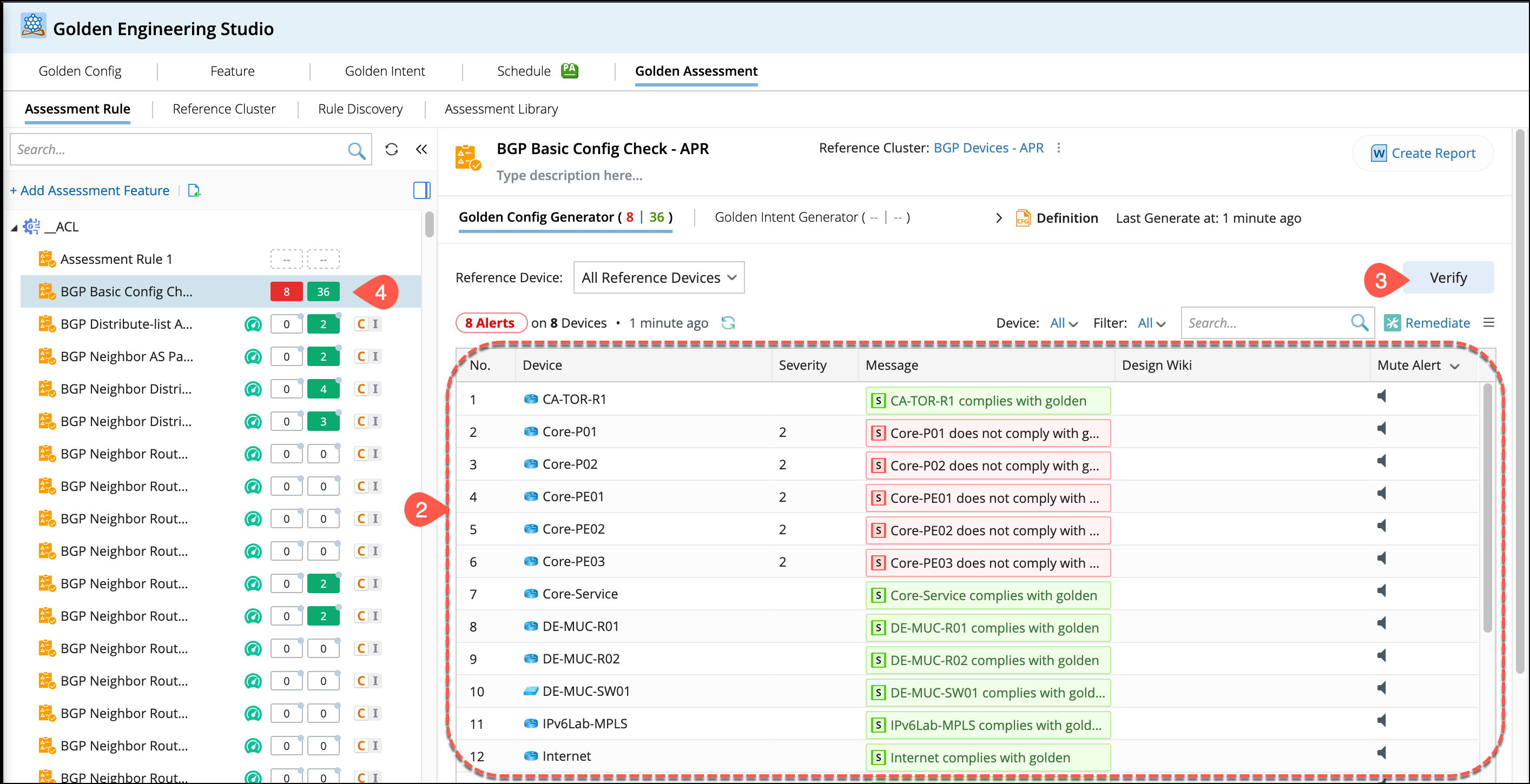
- After generating Golden Intents and Member Intents, the execution results and functions are displayed in the table as shown below. Refer to the topic Golden Config Execution results for more details.
- Use the Verify option to periodically check the configuration.
- The rule manager pane will display the status using as Red/Green indicators to represent alerts or compliance.