R12.3-2026Apr21
Get Started to Chat with Bot
End users search and install bot App from Teams App store. Start chatting with bot, and follow the automation conversation to let the system execute automation diagnosis after successfully logging in.
Troubleshooting with teammates collaboratively based on the automation findings via the map and portal.
Install Bot APP in Teams
- Sign into Teams with your account, e.g., [email protected]
-
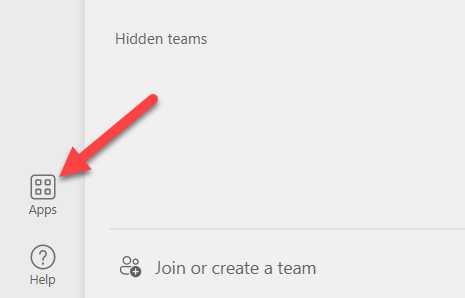
Go to the Apps Store by clicking Apps on the lower left corner.
-
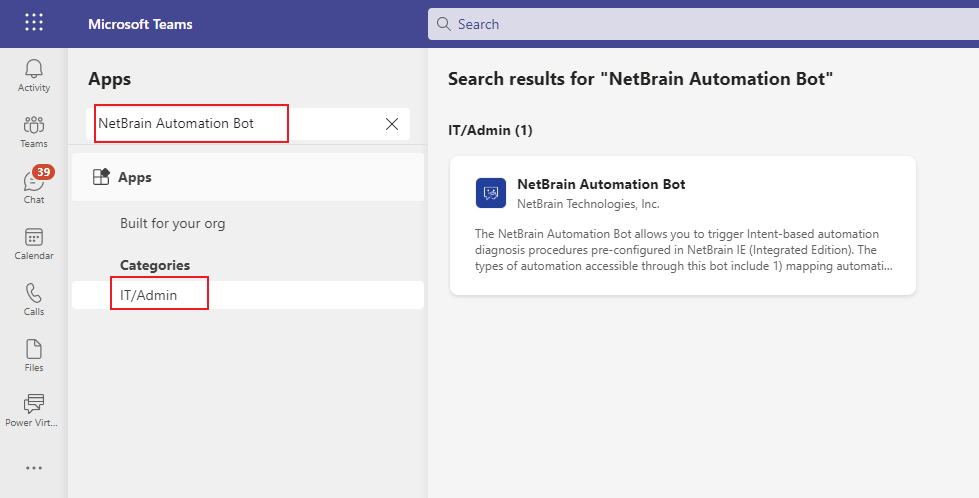
In the Apps Store, search for NetBrain Automation Bot.
-
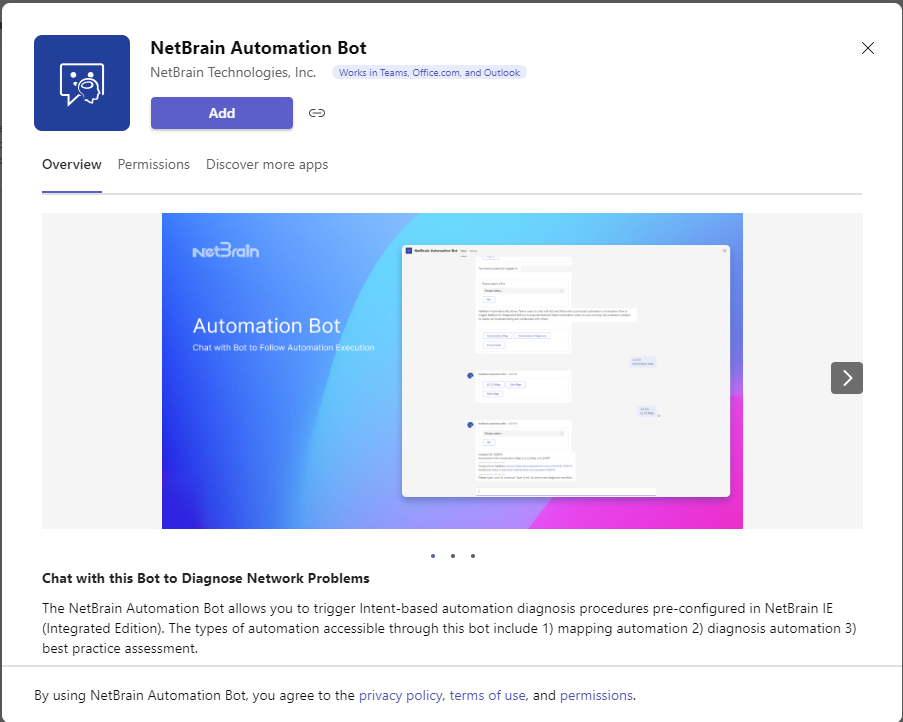
Click Add.
-
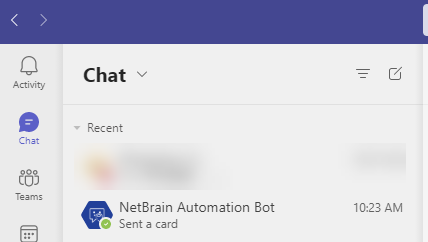
The NetBrain Automation Bot is listed under Chat and you can start to chat with the bot.
Get Started to Chat with Bot
-
To wake up the Bot, type" Hi NetBrain" or "hi nb".

Tip: The commands in the Bot are NOT case sensitive.
-
The Bot will prompt you to enter your system endpoint.
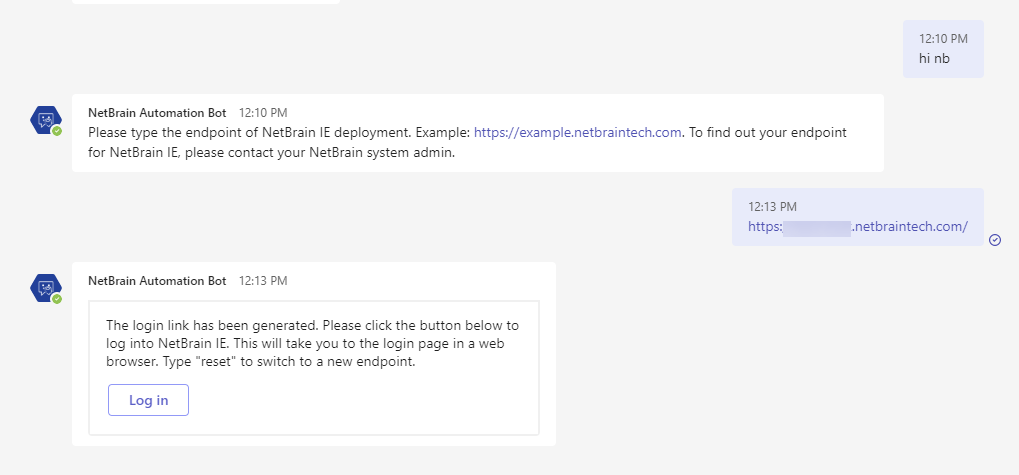
Tip: If you have difficulties finding the endpoint, please contact your system admin.
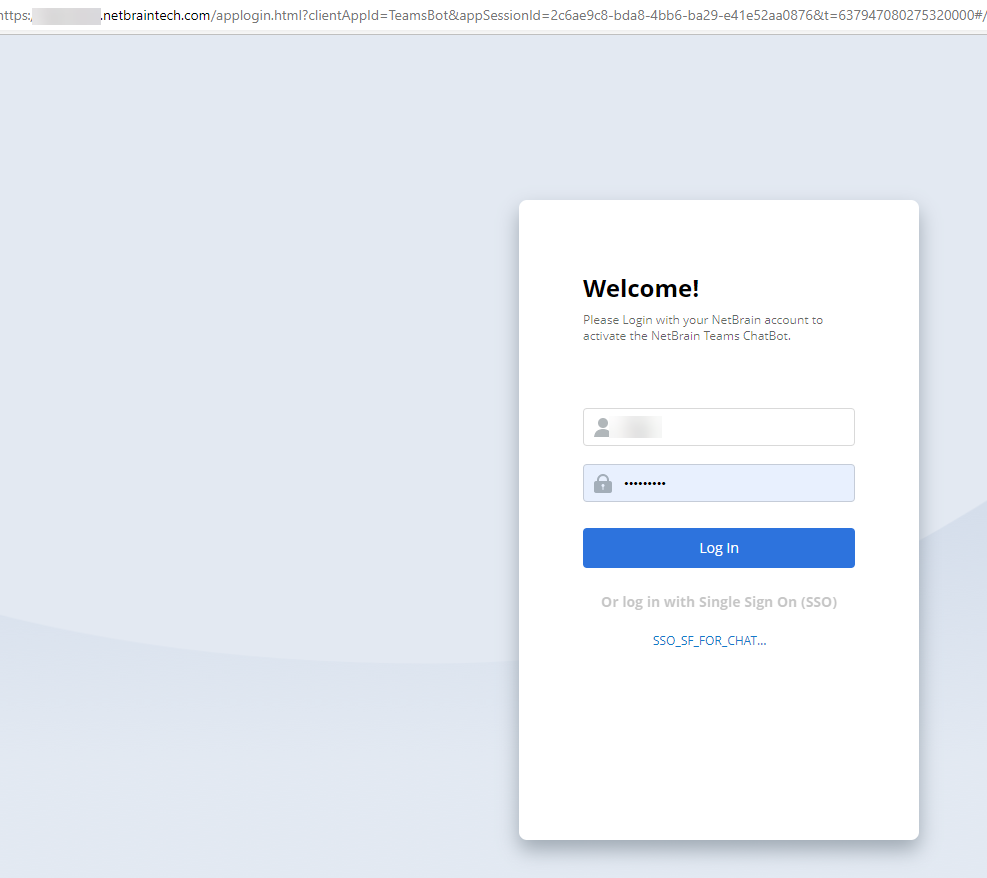
- Click Log in Button, and it will take you to the login page in a web browser.
-
Input your system account credentials and click Log in.
-
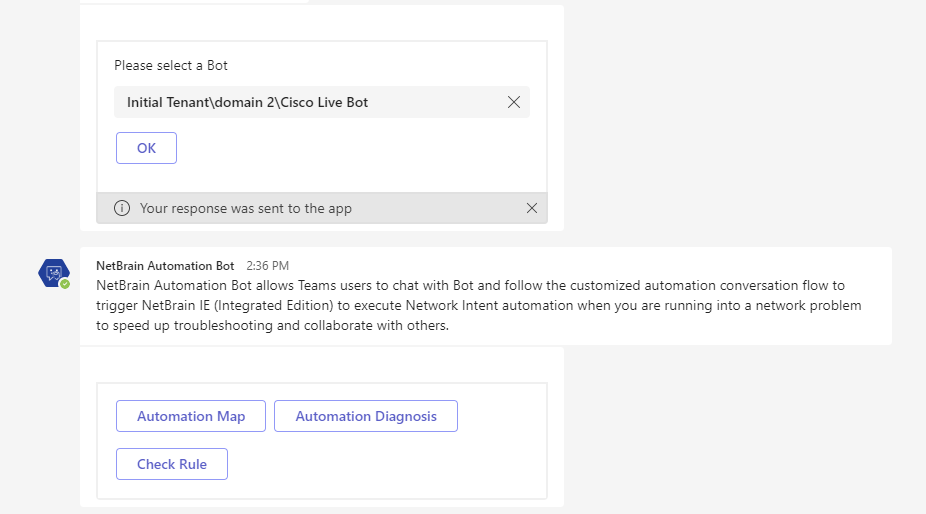
After logging in successfully, you can select a Bot that was pre-customized in NetBrain to trigger automation diagnosis.
-
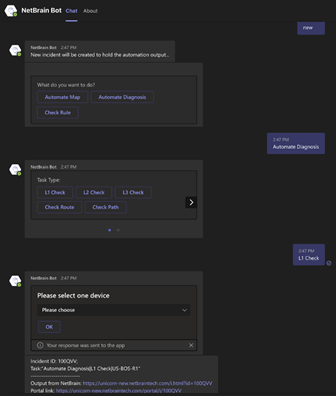
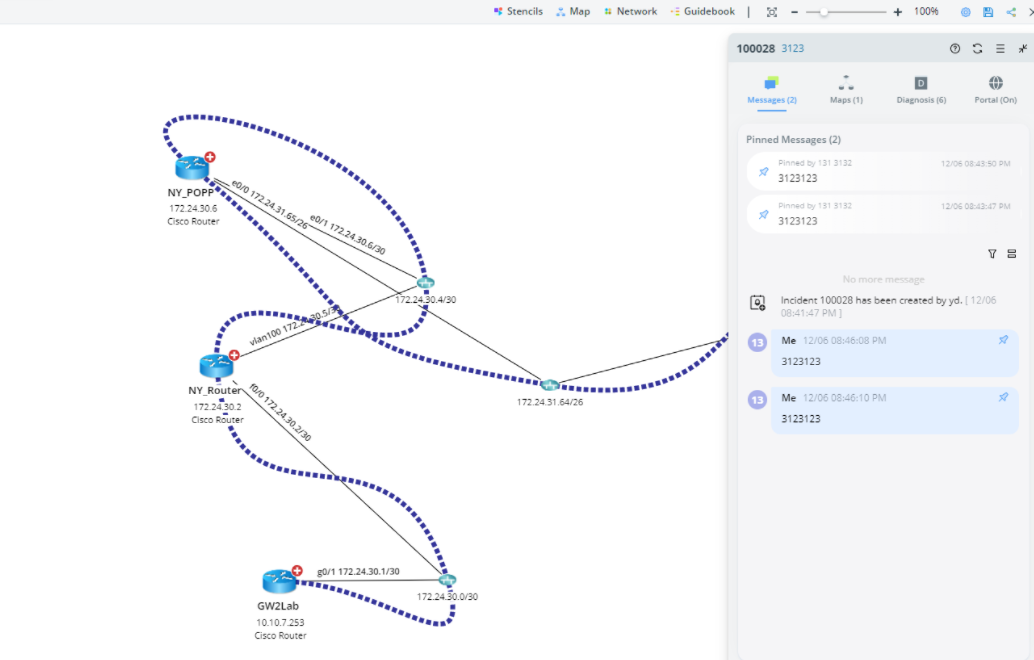
Follow the link to open the map or incident portal.
Commands to Chat with Bot
| Commands | |
|
Hi NetBrain (Abbr. Hi nb) |
Wake up the Bot to interact with it. |
| Login | Login to NetBrain. |
| Logout | Logout from NetBrain. |
| Change Bot | Change a Bot to start another triggered workflow. |
|
Continue (Abbr. cont) |
Reuse the latest NetBrain Incident to start the triggered workflow. |
| Reset | Restart this Bot. |
| Help | To load the Here to Help dialog and view commands. |