R12.3-2026Apr21
Set Up Benchmark Task to Auto-Update GCP Data
The discovery process only retrieves the basic data of your GCP network and builds L3 topology. After the discovery, you need to set up a benchmark task to retrieve all data, including visual spaces and data views. For more Information, see Setup a Benchmark Task.
To create a benchmark for GCP resources, complete the following steps.
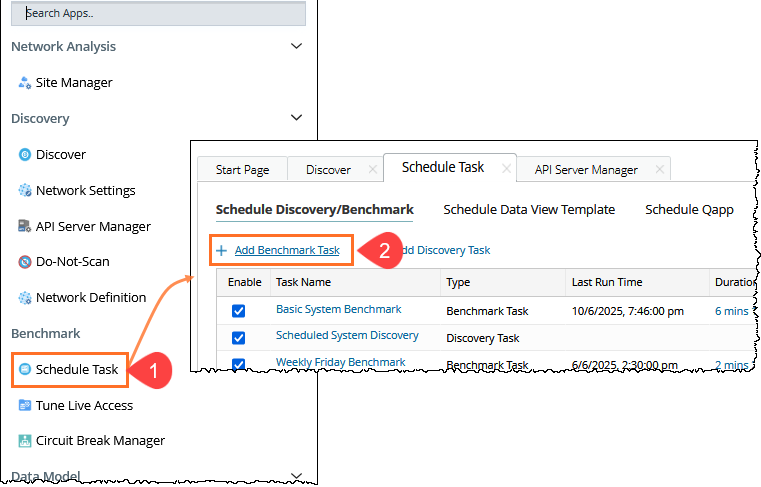
- Click the start menu on the Domain Management page and select Schedule Task.
- On the Schedule Discovery/Benchmark tab, click Add Benchmark Task.
- On the Frequency tab, define the task frequency.
- On the Device Scope tab, check the Select external API servers to retrieve data check box and select the API server for GCP.
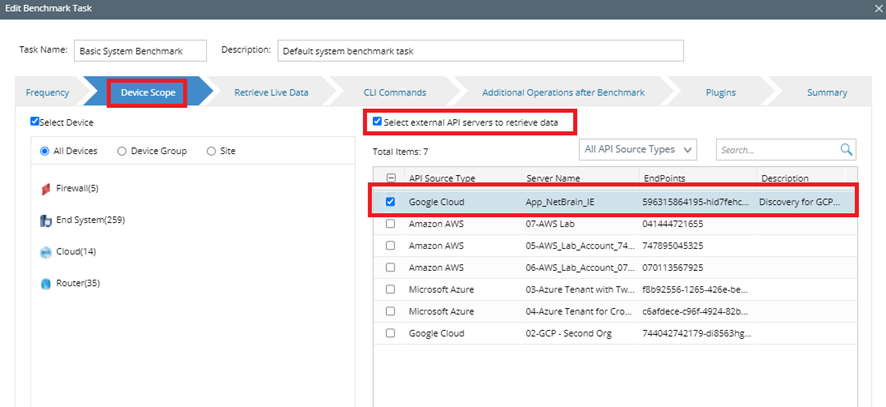

It is highly recommended to re-use the “Basic System Benchmark” with a full benchmark task to ensure all GCP-connected physical or virtual devices are selected within the device scope.
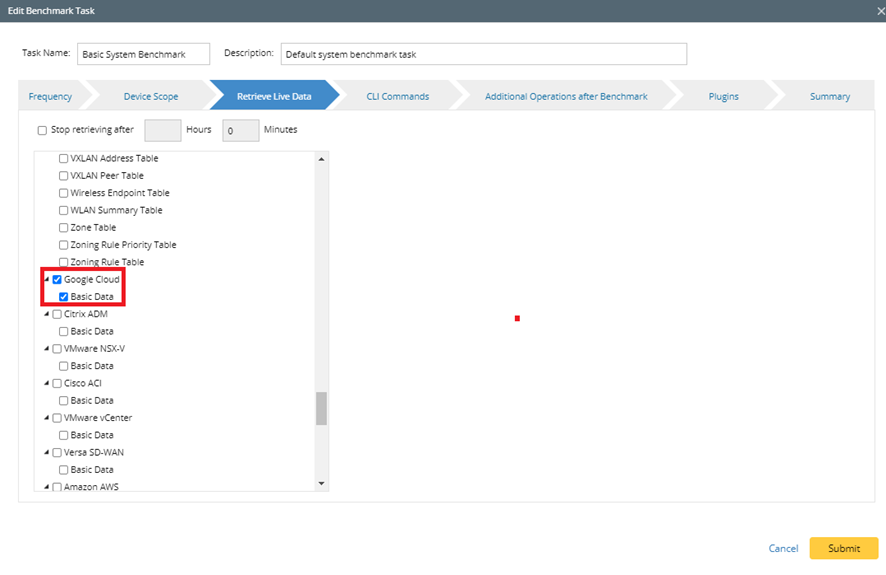
- On the Retrieve Live Data tab, select the Google Cloud Basic Data check box, keep the default selected GCP NCT tables as they are, and select BGP Advertised Route Table.
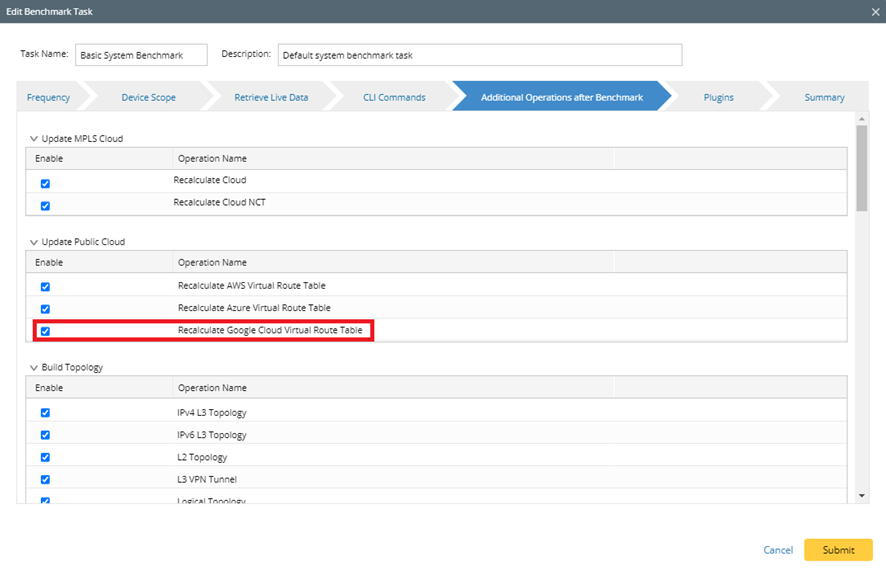
- On the Additional Operation After Benchmark tab, select all the checkboxes for:
- Update MPLS Cloud
- Update Public Cloud (Recalculate Google Cloud Virtual Route Table)
- Update Build Topology
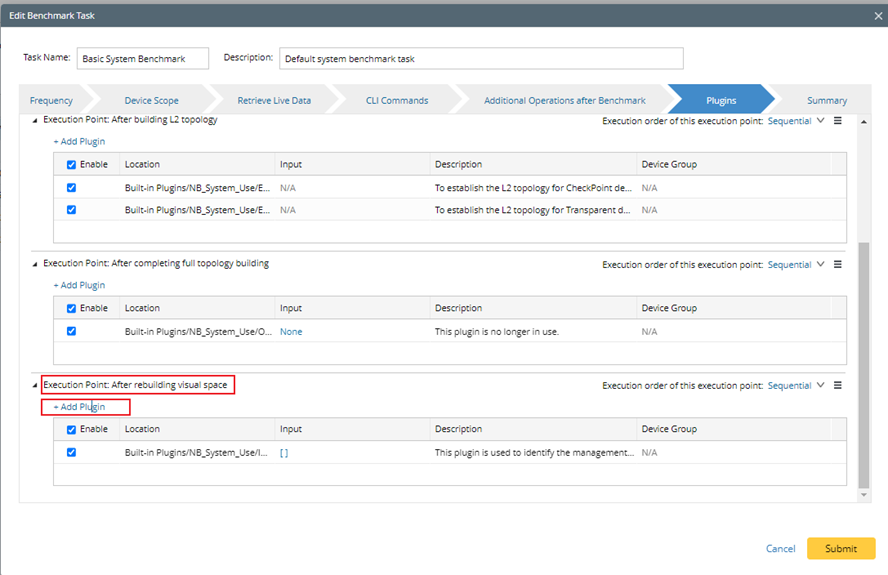
- On the Plugins tab, add the GCP_VRT plugin following the steps below:
- Scroll down to Execution Point: After rebuilding visual space and Click on Add Plugin
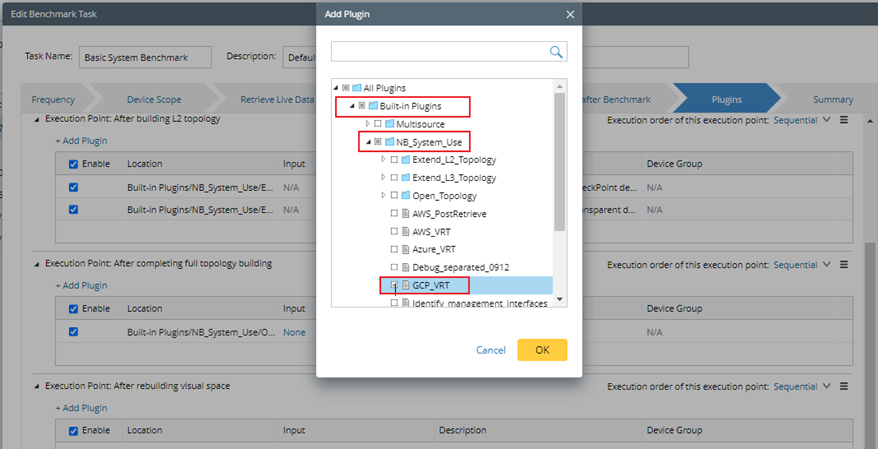
- Navigate to Built-in Plugins > NB_System_Use
- Select GCP_VRT and click “OK”
- Click Submit.