R12.3-2026Apr21
Set Up Benchmark Task to Auto-Update Meraki Device Data
After discovering Meraki devices, run a benchmark task to retrieve complete data and build topology, default visual spaces, and data views.
 | Note: When working with Meraki devices, you only need to build the Default Visual Space. |
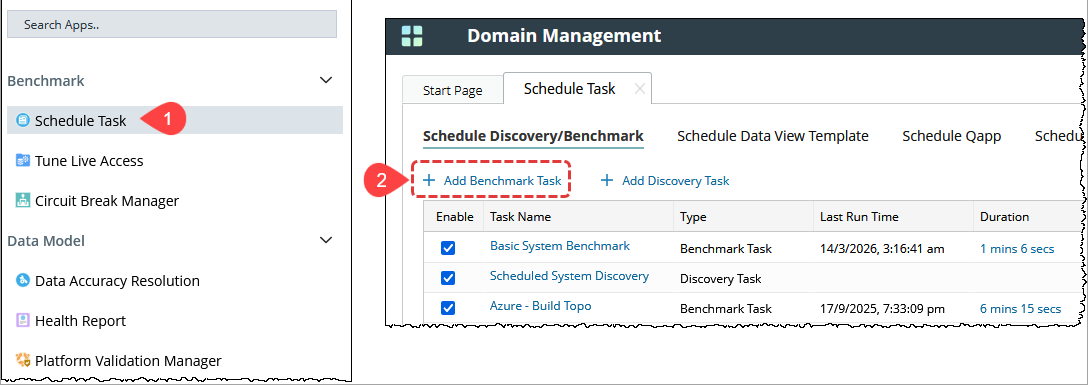
- In the Domain Management page, click the Start Menu, then select Schedule Task.
- In the Schedule Discovery/Benchmark tab, click + Add Benchmark Task.
- In the Time Settings tab:
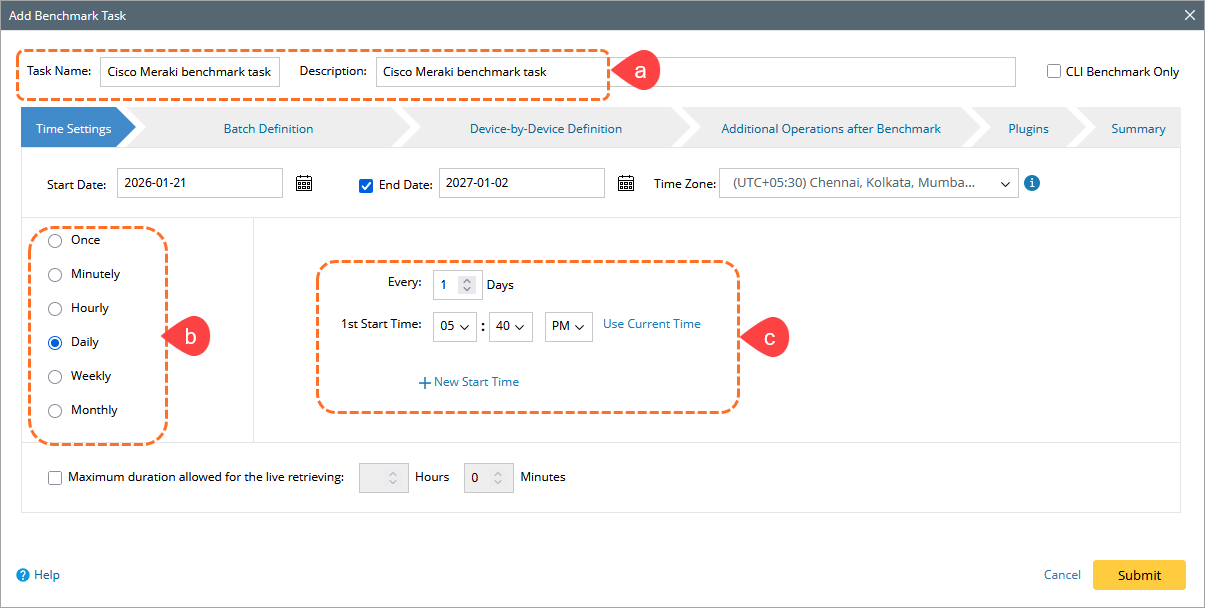
- Enter a Task Name and optional Description.
- Define the schedule (for example, Daily, Weekly, or as required).
- Configure the start time and time zone.
- Go to the Batch Definition tab, then complete the following:
- Device Scope tab:
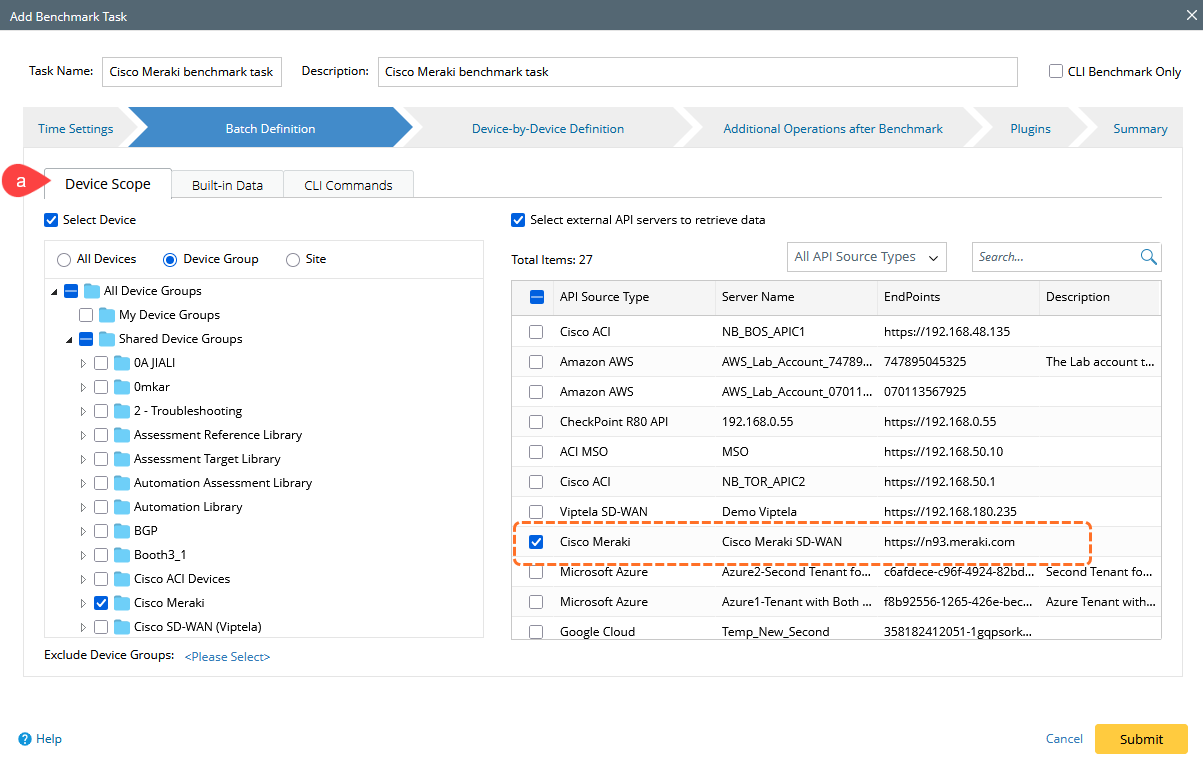
- Select the Select external API servers to retrieve data checkbox.
- From the list, select the configured Cisco Meraki API server.
- Built-in Data tab:
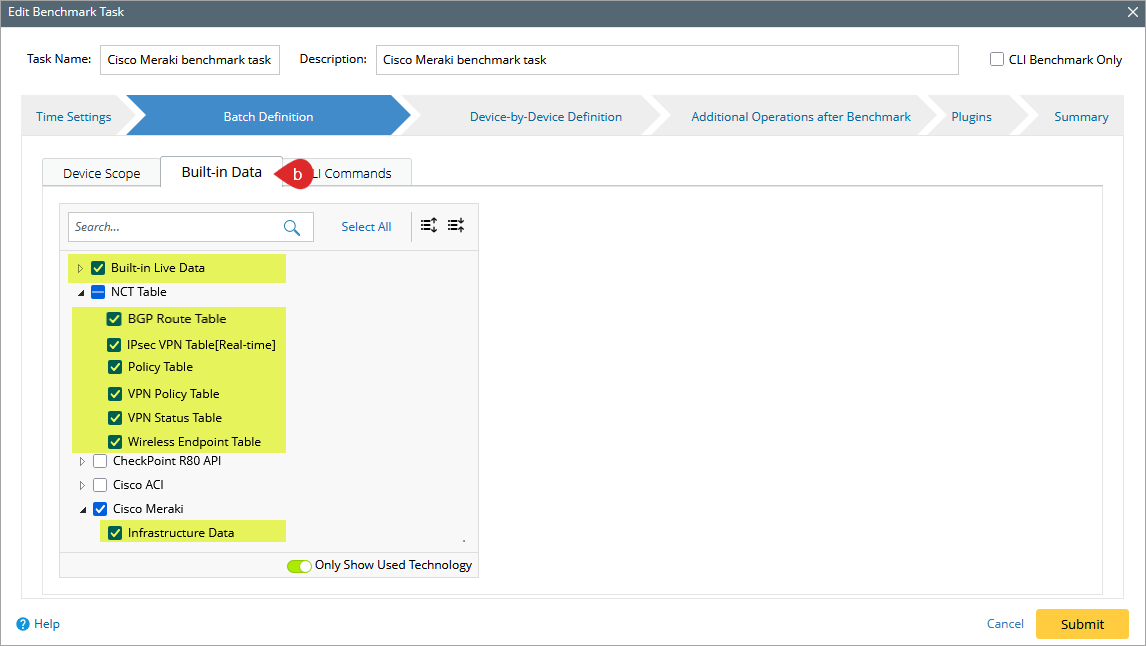
In the Built-in Data tab, configure the following options:- Select all options listed under the Built-in Live Data section.
Include the following Network Control Tables (NCTs) to ensure a complete benchmark:
BGP Route Table
IPsec VPN Table[Real-time]
Policy Table
VPN Status Table
VPN Policy Table
Wireless Endpoint Table
In the Cisco Meraki section, select either Basic Data or Infrastructure Data.
- Device Scope tab:
- Go to the Additional Operations after Benchmark tab:
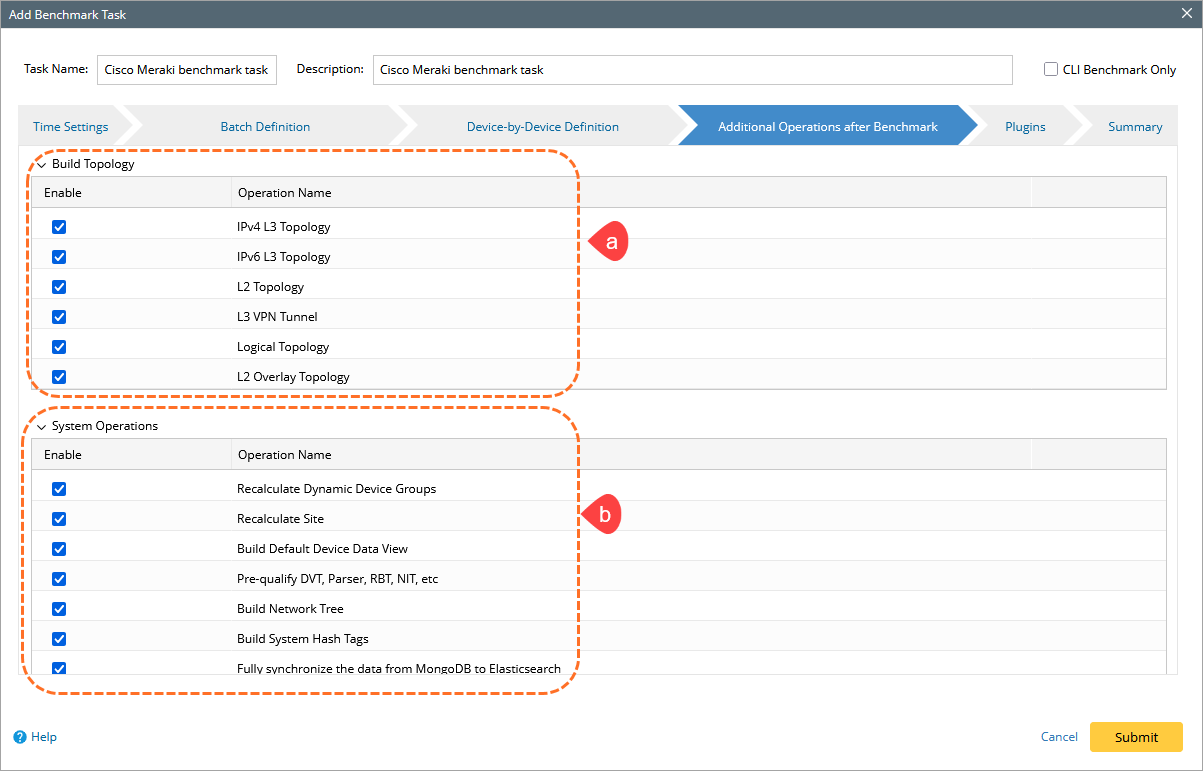
- Under Build Topology, select all required topology options (such as L2, L3, and logical topology).
- Under System Operations, select all required options to rebuild data and views.
- Click Submit to save and run the benchmark task.
|
|
Note: |