R12.3-2026Apr21
Update Existing Column Group
This section will introduce how to define the ADT and specify the ADT columns to update an existing column group in the domain.
Define an ADT using Existing Column Group with Path-based Intent as the Data Source
Prerequisites: You must configure the selected seed intent as a path-based intent template. For example, the path-based intent is: Discover Application via Config.
- Select from the following two options to decide which ADT will be updated.
- Create a New ADT: When there is no suitable ADT, you can choose to create one, which will be automatically added to the Automation Data Table area. For the steps of creating an ADT in the Intent Replication Wizard, see Create New ADT in Intent Replication Wizard.
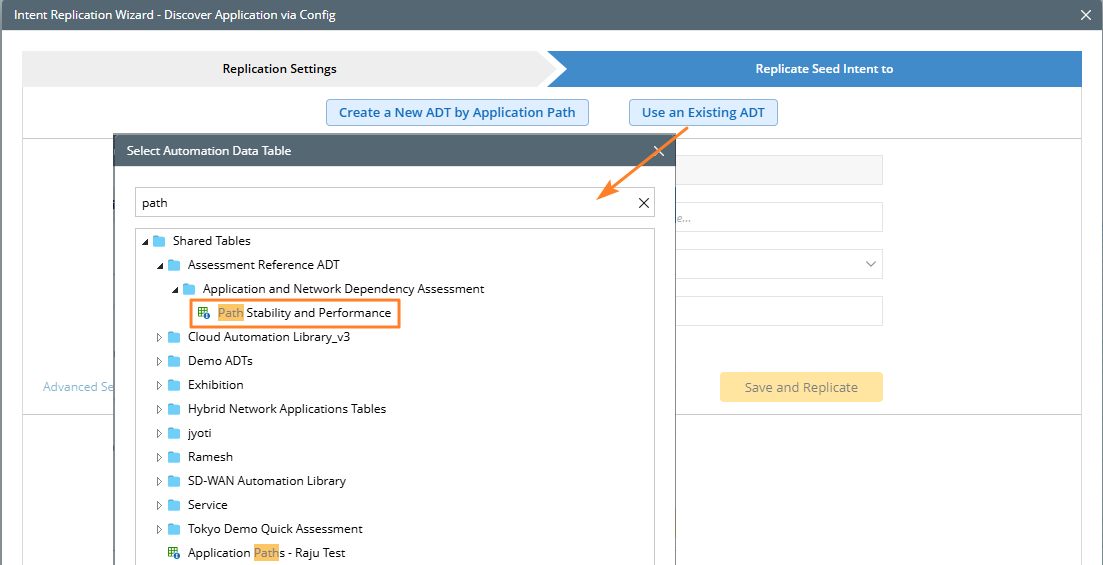
- Use an Existing ADT: In this example, you will learn how to Use an Existing ADT option to update an ADT in the domain.
- Select an ADT (for example, "Path Stability") from the pop-up Select Automation Data Table dialog, then click OK. Then the selected ADT will be added to the Automation Data Table area.

Note: When the seed intent in intended to do Path-based replication, it is required to select an existing ADT containing path column. Otherwise, an error message will appear. 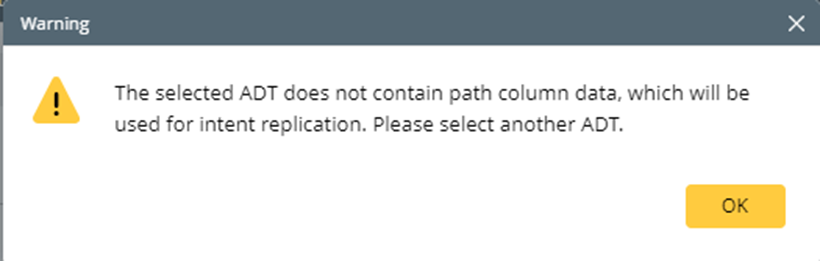
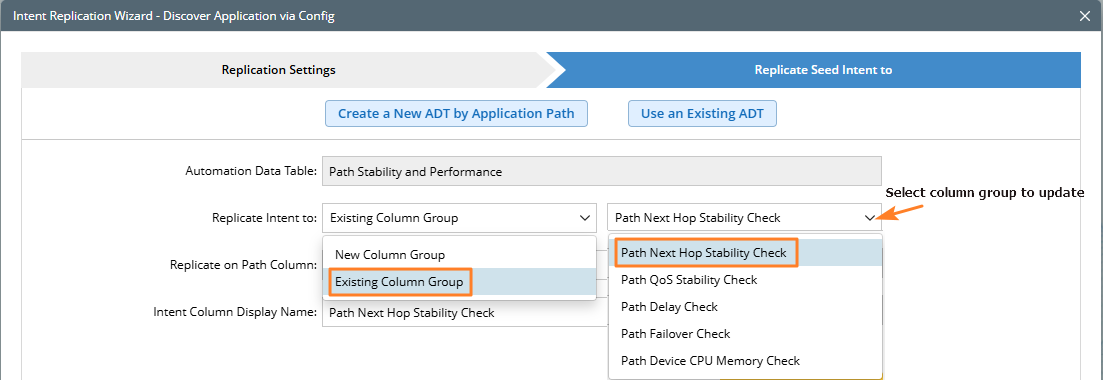
- In the Replicate Intent to area, select Existing Column Group, then select a column group (for example, "Path Next Hop Stability Check").
- In the Replicate on Path Column area, select the Path loaded from the column group or other path column to replicate intent using the path properties.
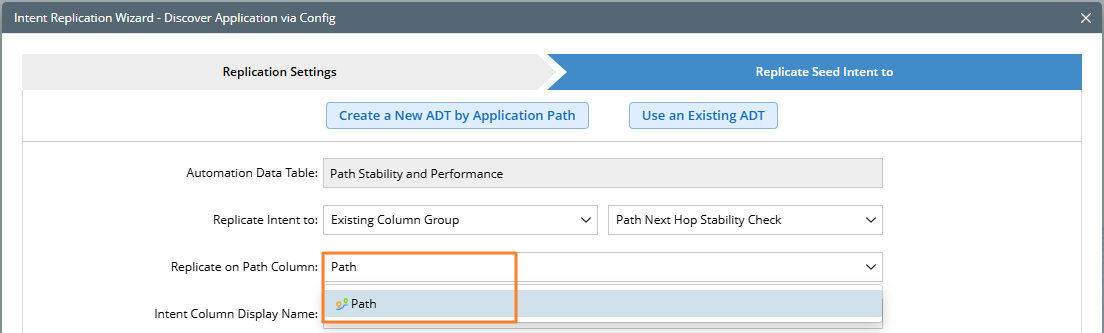
- In the Intent Column Display Name field, enter the intent column name displayed in the ADT.
Define an ADT using an Existing Column Group with a Device-based Intent as the Data Source
Prerequisites: You must configure the selected seed intent as a device-based intent template. For example, the device based intent is: Check OSPF Neighbor State.

- Select from the following two options to decide which ADT will be updated.
- Create a New ADT: When there is no suitable ADT, you can choose to create one, which will automatically added to the Automation Data Table area. For the steps of creating an ADT in the Intent Replication Wizard, see Create New ADT in Intent Replication Wizard.
- Use an Existing ADT: In this example, you will learn how to Use an Existing ADT option to update an ADT in the domain.
- Select an ADT (for example, "Config Drift Check PROD") from the pop-up Select Automation Data Table dialog, then click OK to close the dialog. Then the selected ADT will be added to the Automation Data Table area.
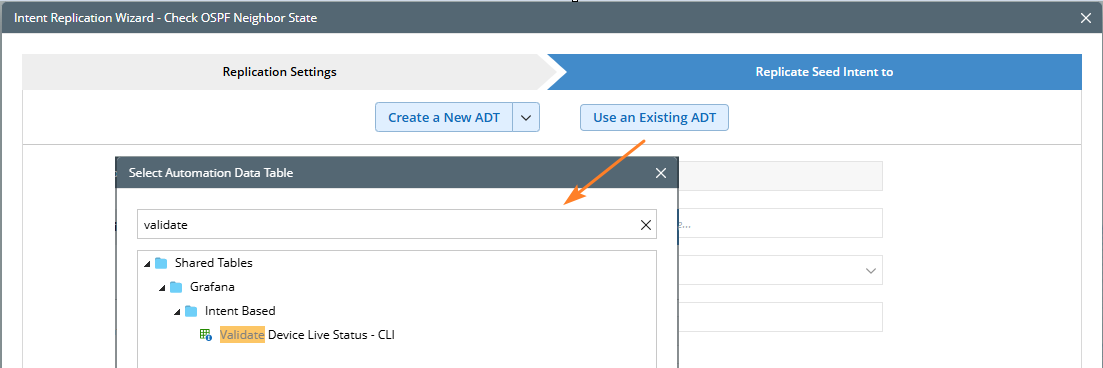
Note: When the seed intent in intended to do device-based replication, it is required to select an existing ADT containing device column or device list column. Otherwise, an alert message will appear. 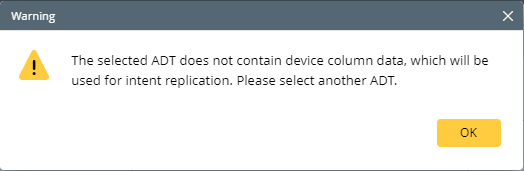
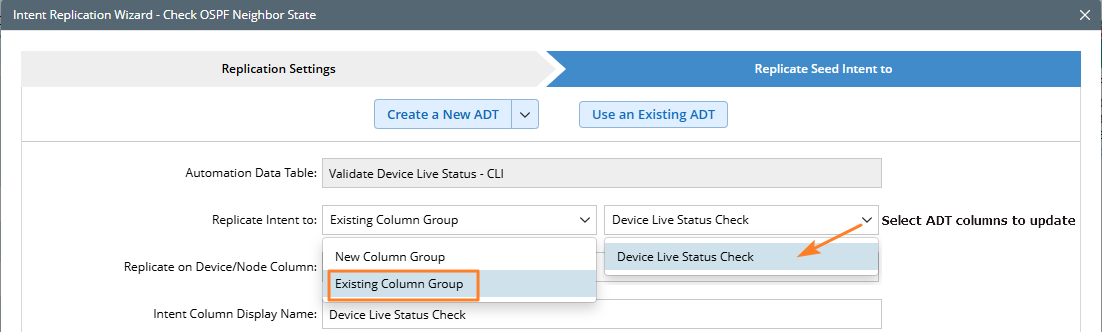
- In the Replicate Intent to area, select Existing Column Group, then select a column group to be updated (all the column groups of the selected ADT are listed).
- In the Replicate on Device Column area, select the device column or device list column to replicate intent using the device properties in the selected column.
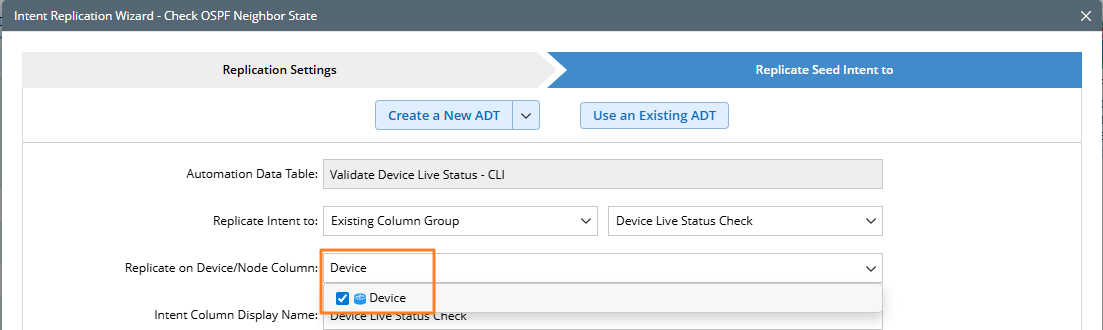
- In the Intent Column Display Name field, enter the intent column name displayed in the ADT.