Command Finder
The command finder finds pre-defined automation, CLI commands, and config parsers with their unique descriptions.
Intent Template
Prerequisites: The intent templates should be enabled for Auto Intent.
For the AI Bot to find an intent template, users need to add and define it in the AI bot:
-
Navigate to AI Bot Manager and add an intent template.
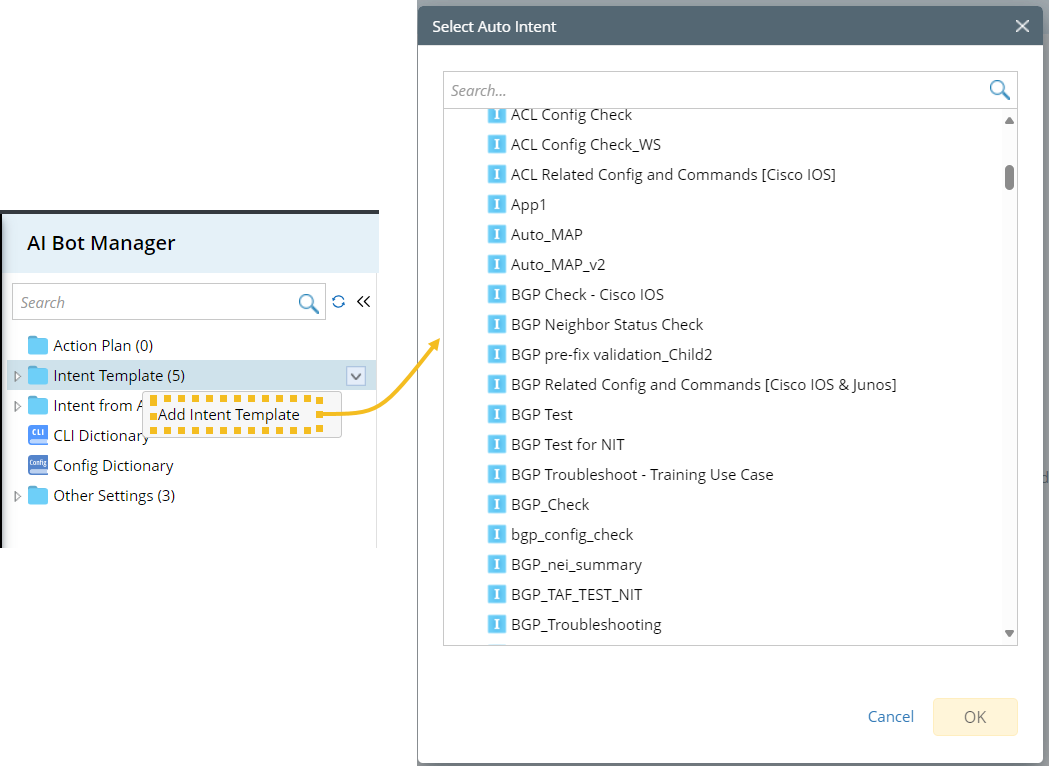
-
Define the description for the intent template for LLM to understand their purposes.
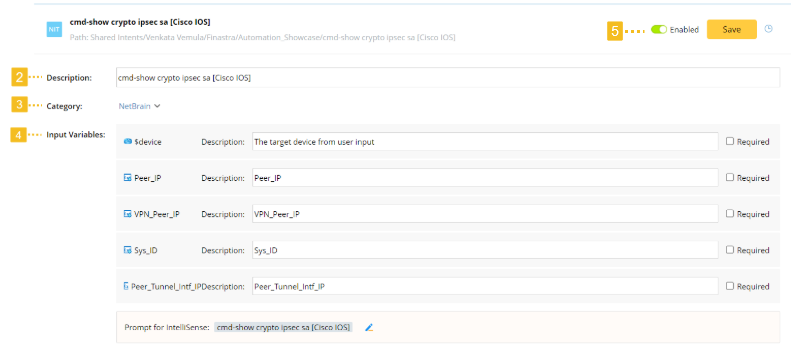
- Select a category. The intent template will be stored in the Default category by default.
-
Define the description for Input Variables, and Prompt for IntelliSense.
-
Description: The description for macro variable or/and task variable defined in the intent template.

Note: The $device is provided by default for AI bot to receive a user’s input device/device list. The default description is ‘The target device’. -
Determine if an input variable is required by enabling/disabling the Required checkbox.
- Enable Required: When users’ input does not include value for this variable, AI Bot will request it from the user.
- Disable Required: When users’ input does not include value for this variable, AI Bot will use the default value defined in the intent template. If no default value is defined, AI Bot will treat it as an empty value.
-
Define Prompt for IntelliSense to encourage users to enter the required input.
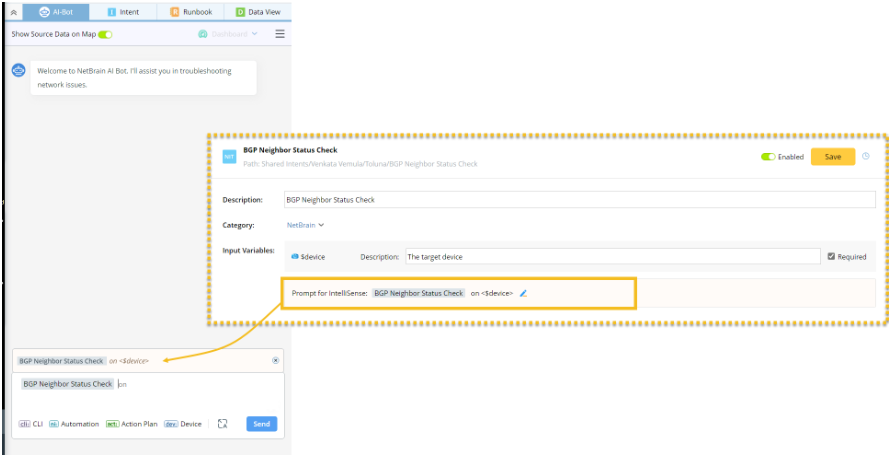
-
Description: The description for macro variable or/and task variable defined in the intent template.
- Enable the intent template for the AI Bot to use it.
Intent from ADT
An intent column in ADT can be added to AI Bot Manager as an automation resource.
When a user’s question can be addressed by an intent column, the command finder will search the intent column for an appropriate intent.
For the command finder to search an intent column, users need to add and define it in the AI bot:
-
Navigate to AI Bot Manager and add an intent column.
- Select an automation data table.
-
Select intent column(s).
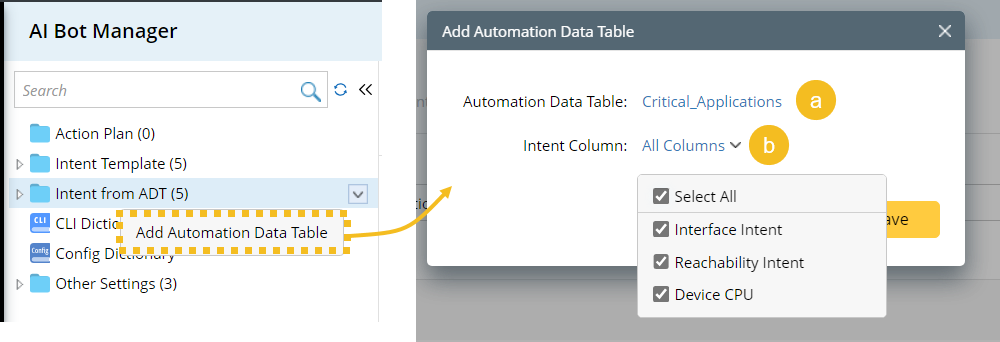
-
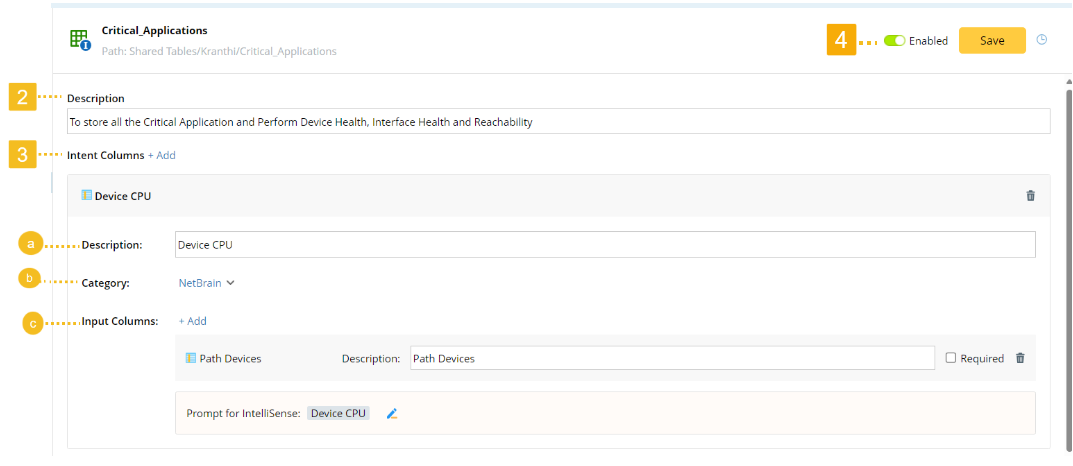
Define the description of ADT for LLM to understand its purposes.
-
Define the following settings for intent columns.
- Define its description for LLM to understand the purpose.
- Select a category. The ADT columns will be stored in the Default category by default.
- Define the description for Input Columns, and Prompt for IntelliSense.
-
Input Columns. The input column is for matching with the key column to locate the corresponding intent.
- By default, the ADT column defined in the replication setting is used as the input column.
- For golden intent, the input column will be the All Device column.
- The following column types are also applicable: device/device list/device interface/device interface list/str/floating/int/path/Boolean.
-
Determine if an input variable is required by enabling/disabling the Required checkbox.
- Enable Required: When users’ input does not include value for this variable, AI Bot will request it from the user.
- Disable Required: When users’ input does not include value for this variable, AI Bot will not use it to match against the intent column.
-
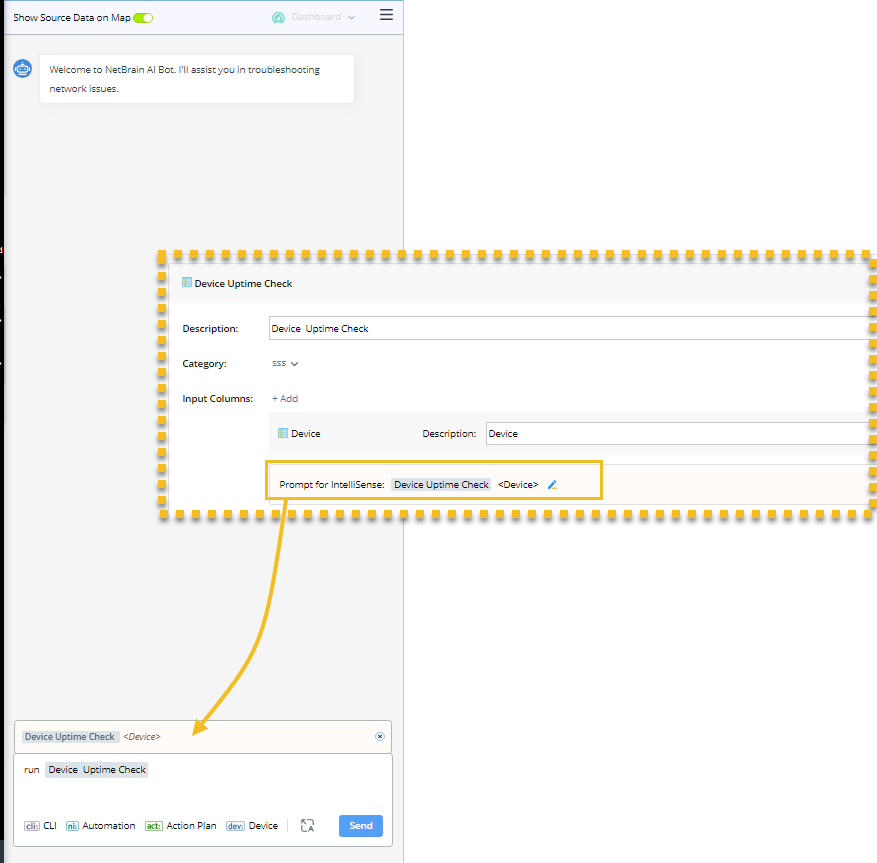
Define Prompt for IntelliSense to encourage users to enter the required input.
-
CLI Dictionary
The CLI dictionary can dynamically search for a related CLI command based on the user’s input.
CLI commands are sorted by device type in the CLI dictionary. To answer a user’s query involving different vendors, the system issues appropriate commands to each device, ensuring the correct commands are issued to each vendor’s device.
|
|
Note: Only the device types existing in the current domain, along with their CLI commands are listed in the CLI dictionary.
|
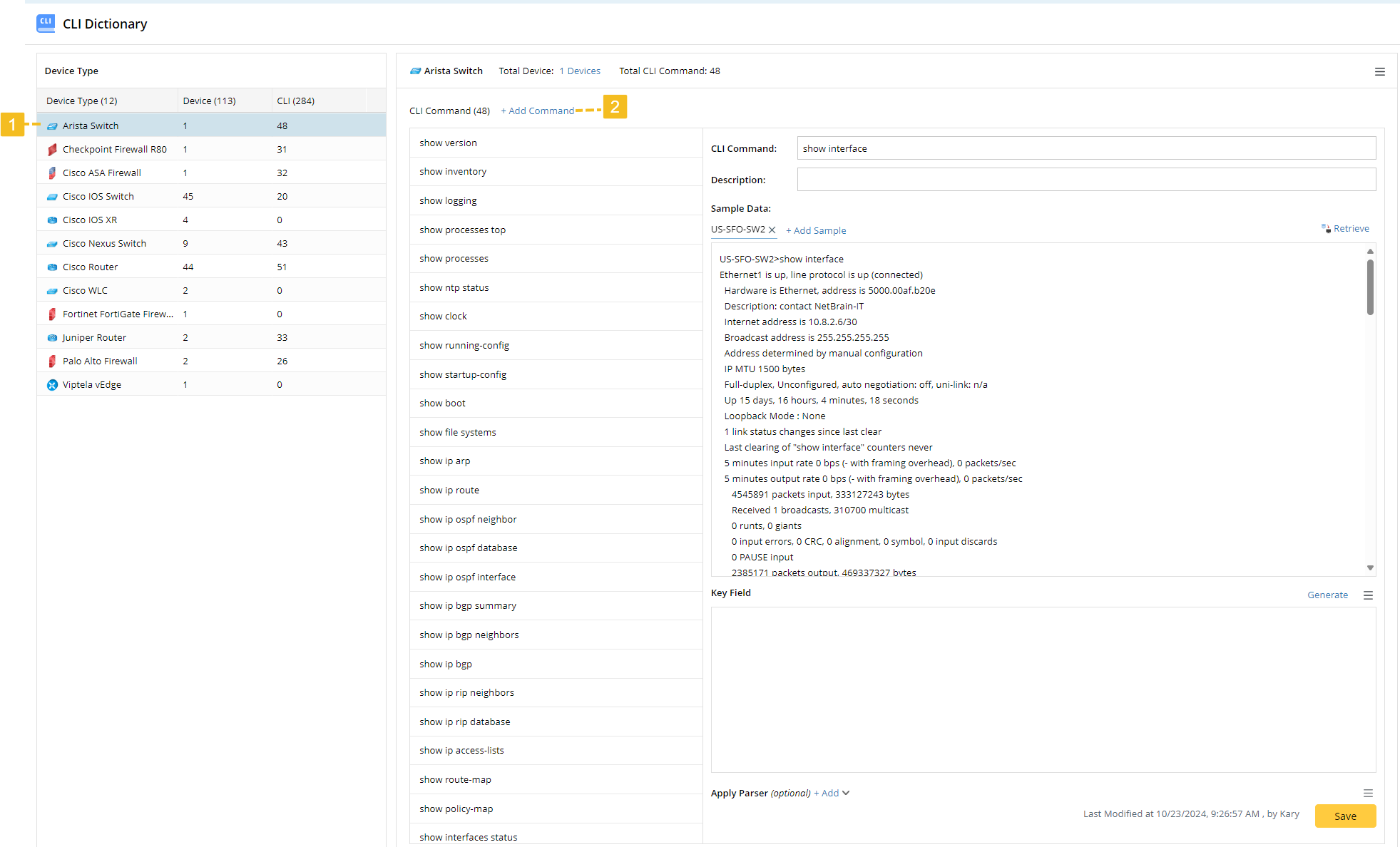
- Select a device type.
-
Click Add command to add a CLI command for the device type.
-
CLI Command. Define a CLI command.
- Variable(s) can be included. For example: show ip route $dest
- Each CLI command must be unique under the same device type.
- Description. The description for the LLM to understand the purpose of the CLI command.
-
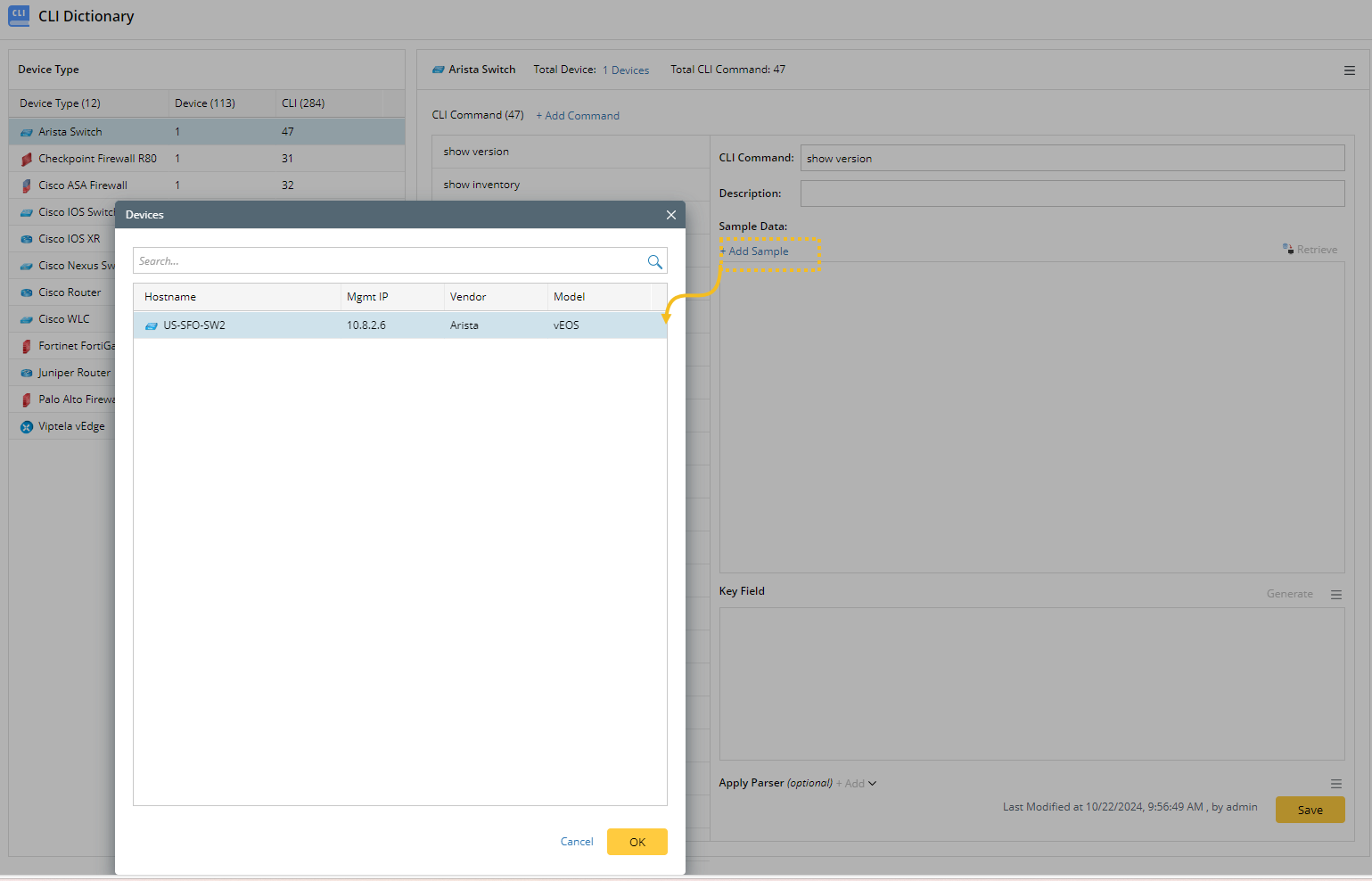
Sample Data. Add Sample data for the CLI Command
- Select a device from the current device type to retrieve its data.
- Click Retrieve.
-
(When the CLI command contains variable) In the Set Command Parameters window, enter the value of the variable. Click OK.
Example: For CLI command show spanning-tree vlan $vlanid, enter the value of the variable $vlanid in the Set Command Parameters window.

-
Generate Key Fields. Key fields can facilitate the search for CLI commands in the vector database.
-
For other CLI commands, key fields are generated by users clicking Generate. The LLM will generate key fields and their descriptions after receiving sample data and the prompt.
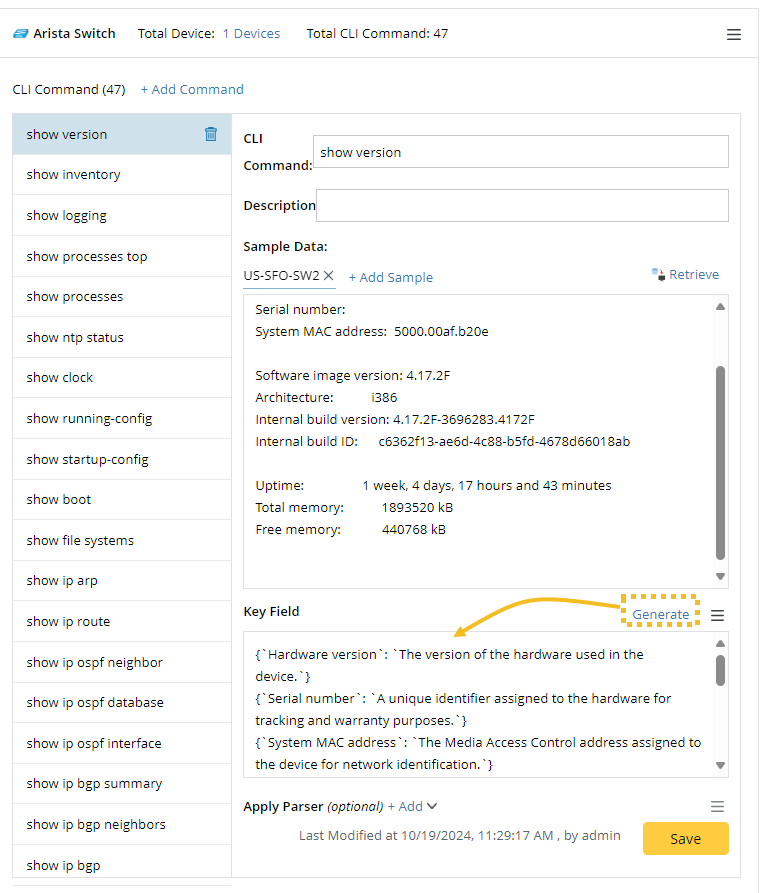
If the fields and their descriptions are not accurate enough, users can do the following to tune the accuracy:- Modify the fields and descriptions manually.
-
Modify the prompt and use it to re-generate the fields and descriptions.
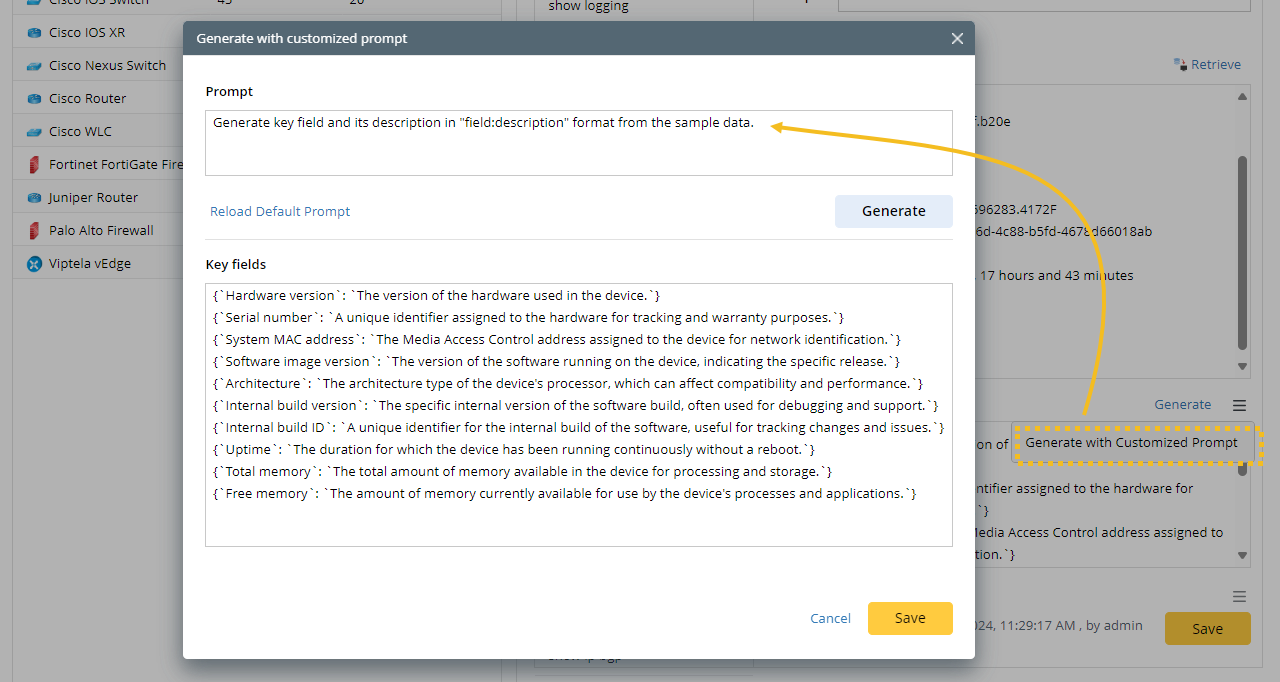
-
For other CLI commands, key fields are generated by users clicking Generate. The LLM will generate key fields and their descriptions after receiving sample data and the prompt.
-
(Optional) Apply Parser. Apply a visual parser for the LLM to parse variables.
Note: The LLM can only invoke a visual parser when it is applied in the CLI dictionary. -
Users can select an existing parser or create a new one by clicking Add.
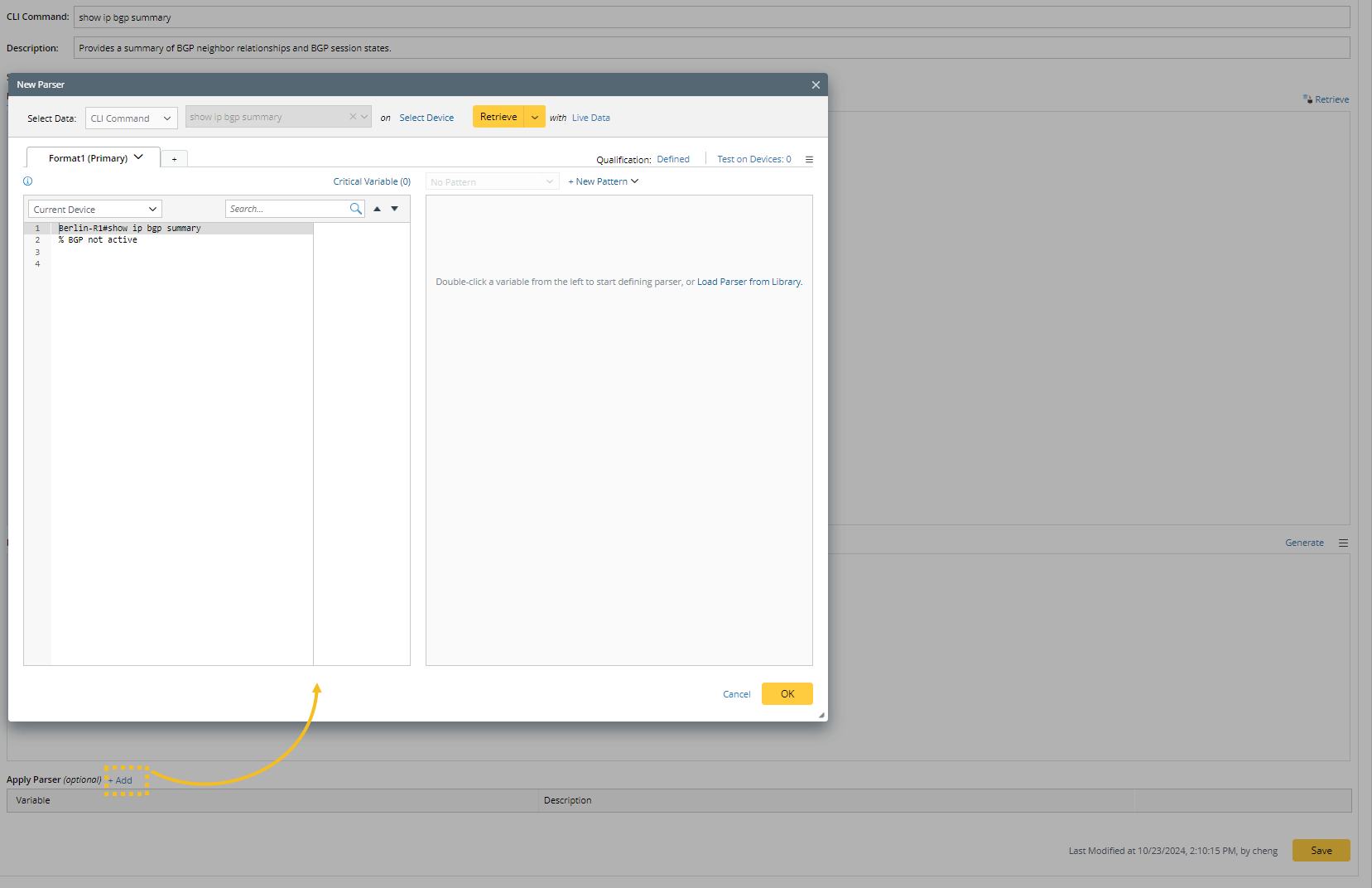
- Define a new parser in the New Parser window.
-
Select an existing parser from the parser library by clicking Load Parser from Library.
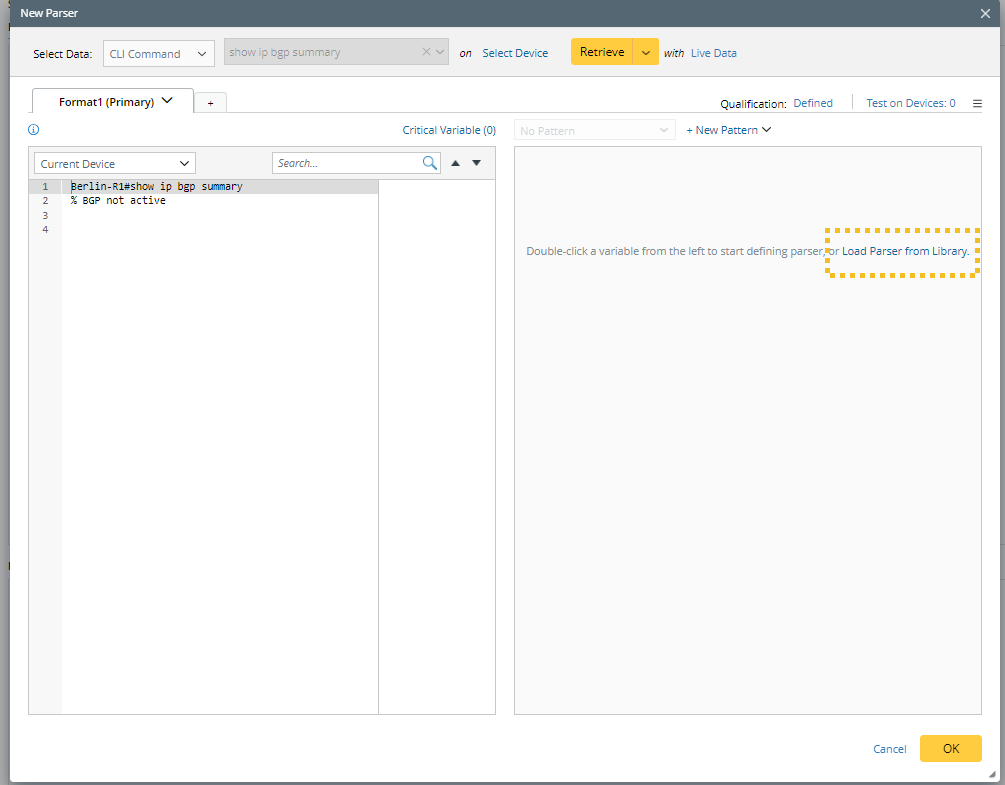
-
Users can inline edit the description for the variables.
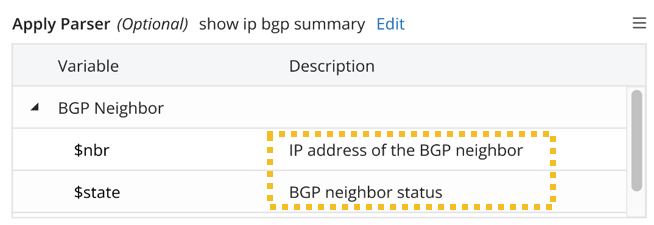
-
Users can select an existing parser or create a new one by clicking Add.
-
CLI Command. Define a CLI command.
During the system discovery task, the system will pre-define CLI commands and generate key fields for major vendors in the dictionary.
|
|
Note: The system discovery task will not overwrite the CLI commands and key fields defined by users. |
Config Dictionary
When the LLM detects that the user wants to analyze a section of a config file, the command finder will search for config parser in the config dictionary.
When no config parser is applied in the dictionary, the AI bot will retrieve the raw data. If a config parser is applied, the AI bot will parser the value and retrieve the raw data.
|
|
Note: The LLM can only search a config parser when it is applied in the config dictionary. |
Config parsers are sorted by device type in the Config dictionary. Config parser’s description is used to match against user’s input.
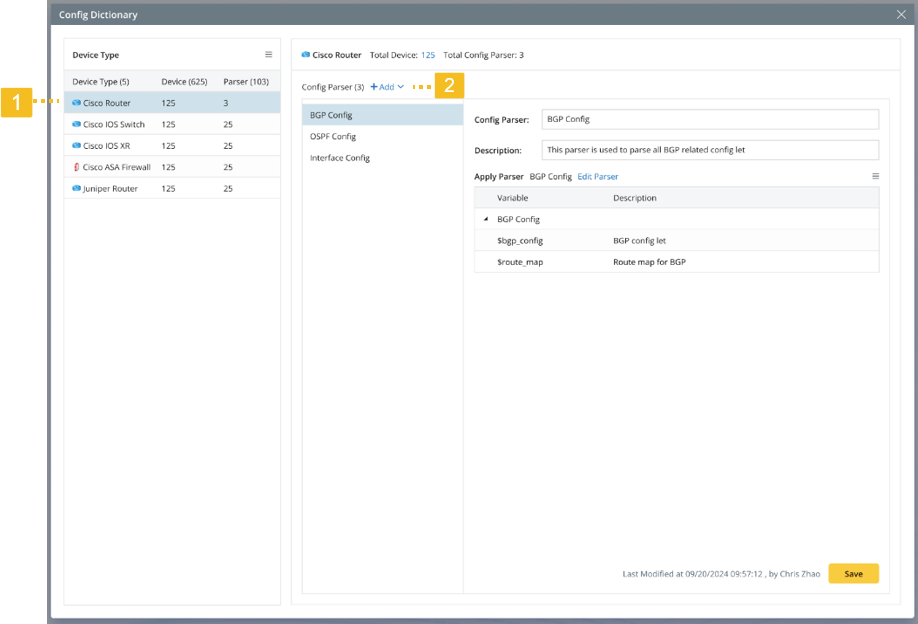
- Select a device type.
- Add a config parser for the device type. Users can select an existing config parser or create a new one.
Users can edit the description for the variables.
The config dictionary can be updated via Knowledge Cloud.