Critical Functions of Intent Creation
There are also some helpful actions as follows for you to create an meaningful intent:
- Active Cache Setting
- Duplicate Section
- Switch Devices
- Add SNMP Diagnosis
- API Diagnosis
- Ping Diagnosis
-
Trace Diagnosis
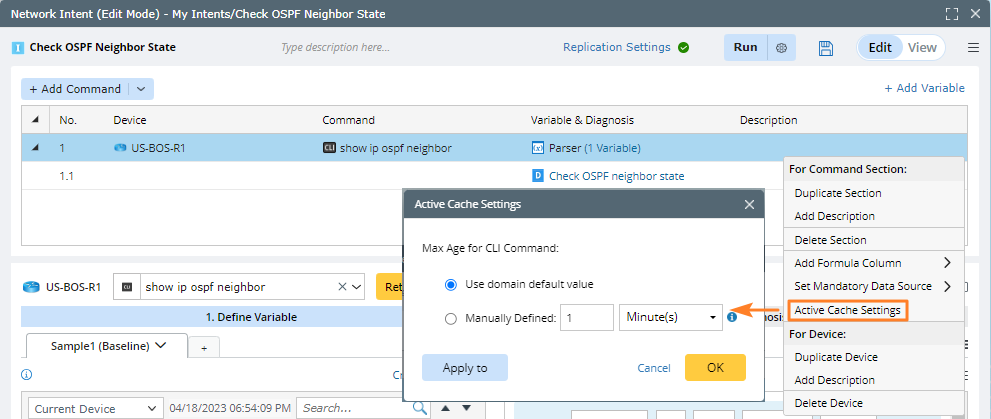
Active Cache Setting
The Active Cache effectively reduces redundant live data retrievals, preventing excessive strain on core devices or problematic devices. You can specify the maximum age of the CLI command/configuration file in the intent definition, specifically at the device command section level.
Duplicate Section
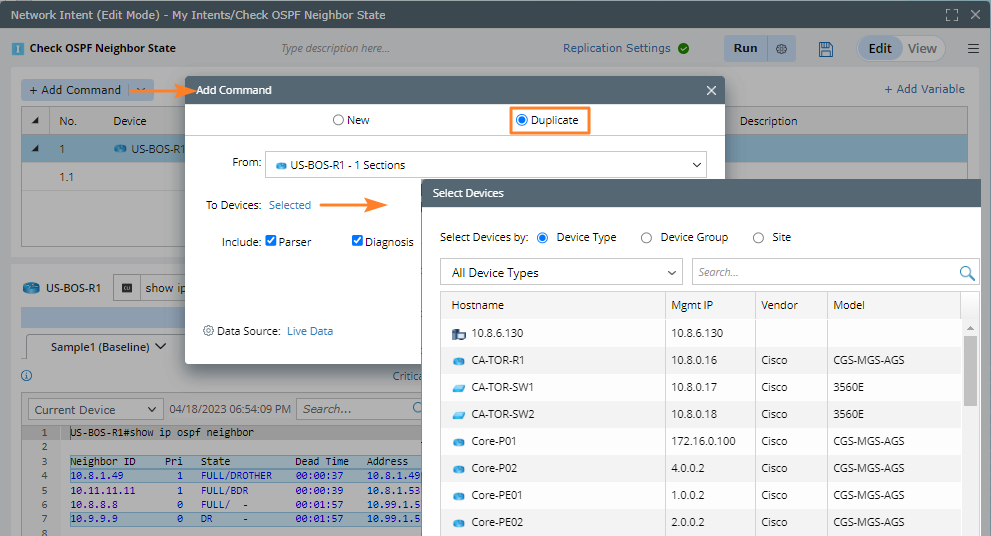
In the Add Command dialog, you can select Duplicate to duplicate the parsers and diagnosis defined under the current device to another device.

|
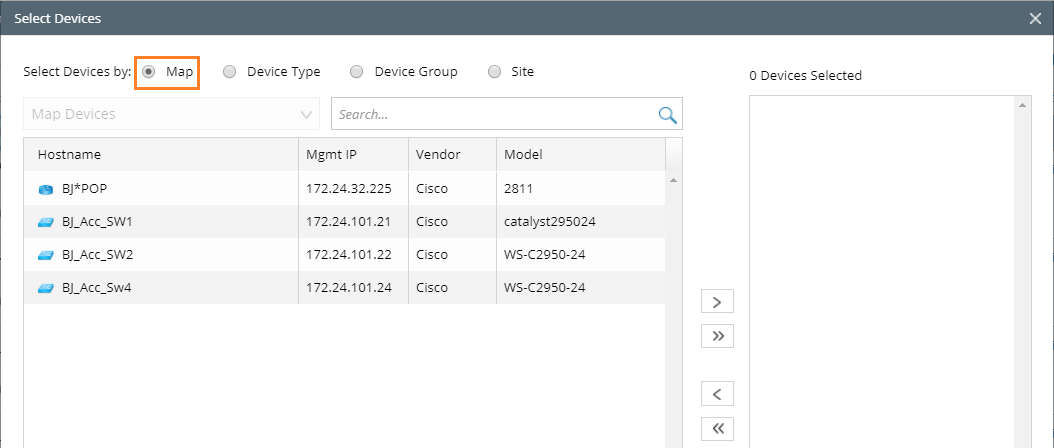
Note: If you open a NI from a map, the map devices are also displayed for you to select when you duplicate a section.
|
After selecting the device, the variables and diagnosis under the device "US-BOS-R1" will be duplicated to the selected device.
Switch Devices
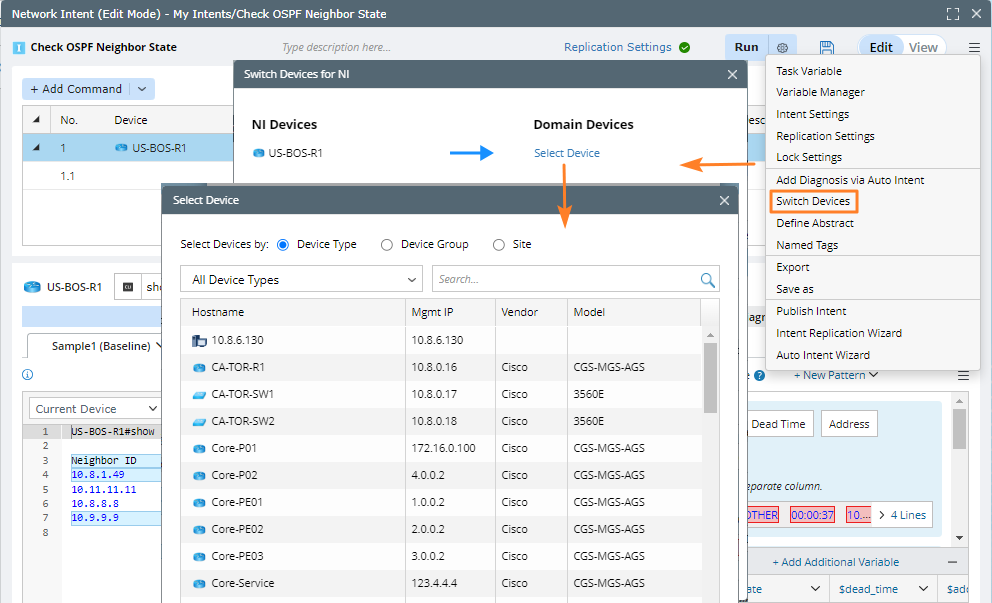
When using a sample NI, click the  icon and select Switch Devices to switch the devices in the sample NI to your real network devices. The system will switch the devices in diagnosis, compound variable, compound table, and Formula Column, and the baseline data of new device will get from live or current baseline.
Add SNMP Diagnosis
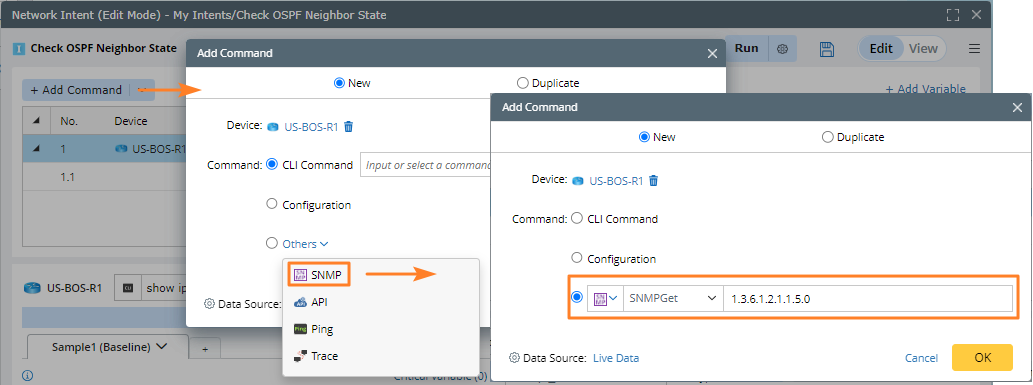
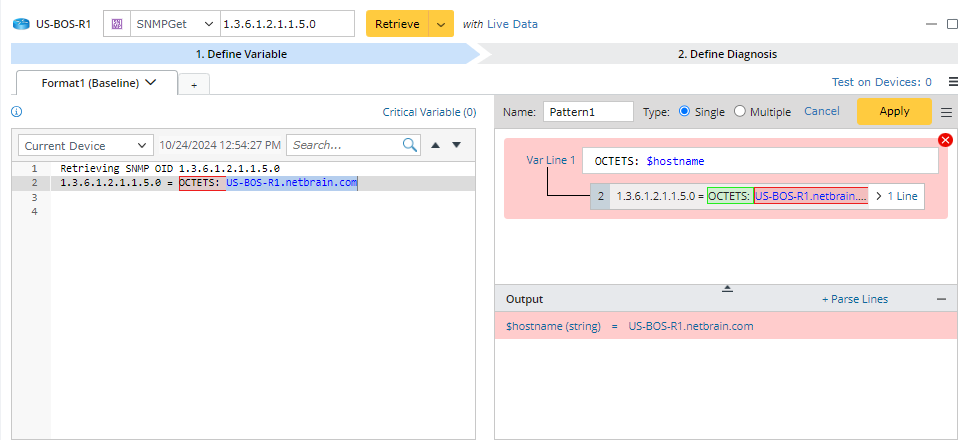
After obtaining the SNMP baseline data, you can use the visual Parser to parse the variables.
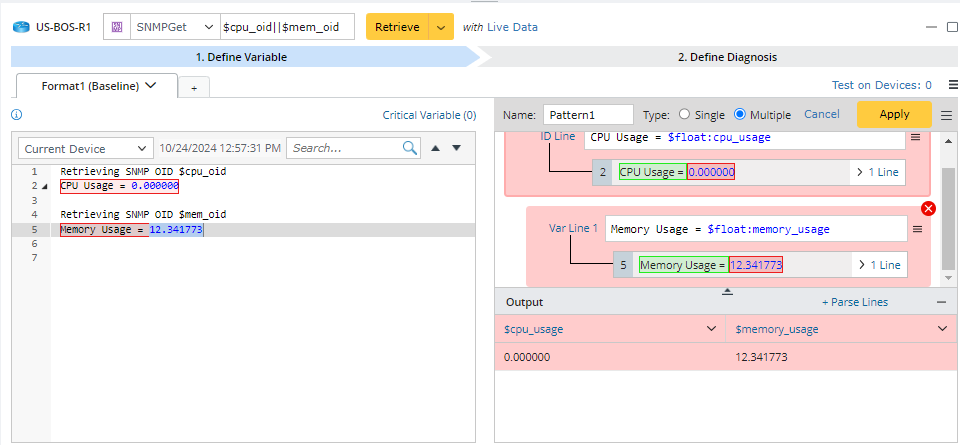
SNMP diagnosis supports referencing SNMP OIDs corresponding to three specific variables, such as $cpu_oid and $mem_oid. It also supports multiple OIDs, which are separated by double vertical bars (||), such as SNMPGet $cpu_oid||$mem_oid.
API Diagnosis
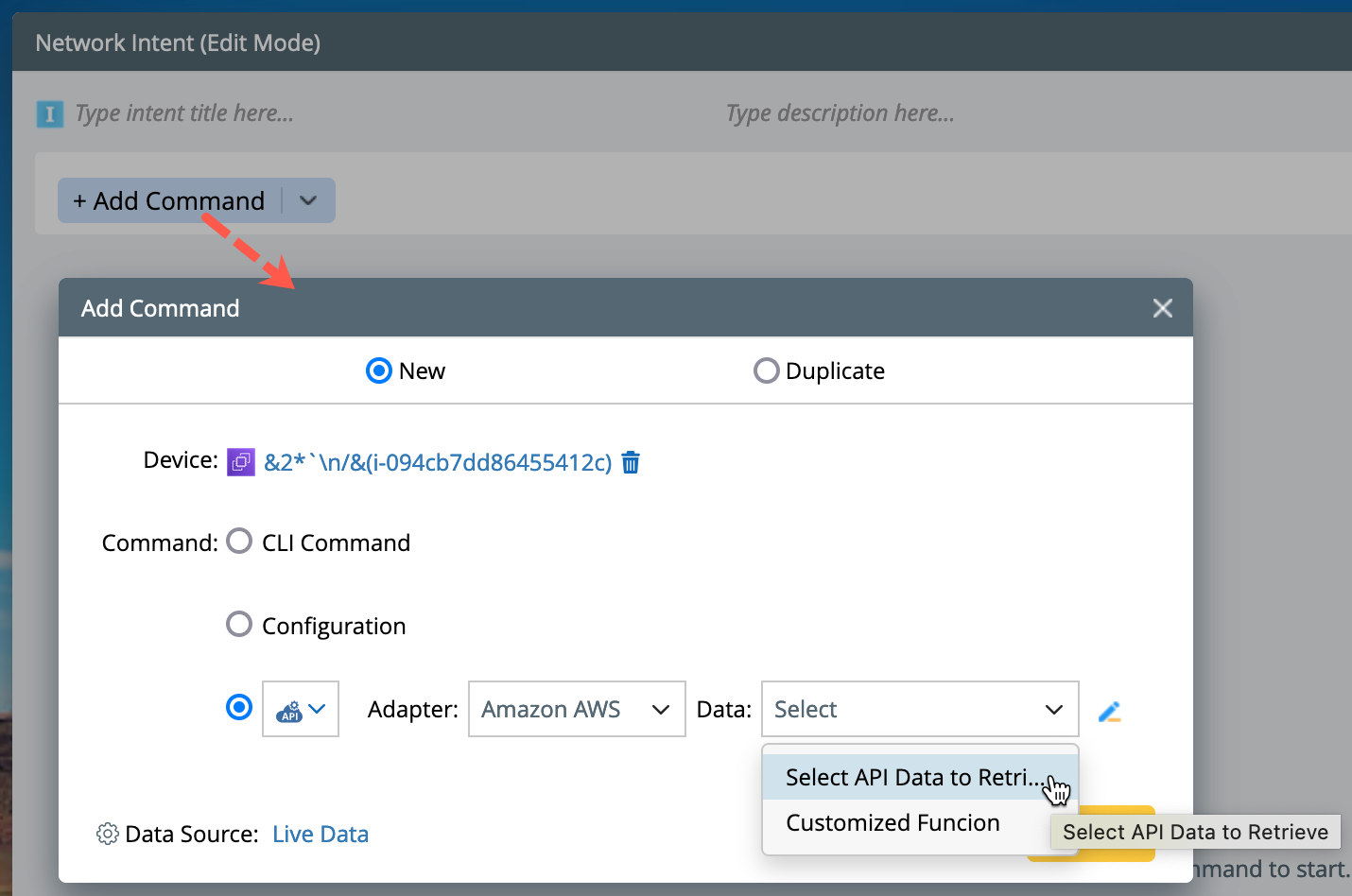
You can add API diagnosis to enable the diagnosis of SDN/Cloud Network and SPOG Data View from an external system via REST API (such as Splunk, SolarWinds, and ServiceNow). You can add and retrieve the values from API Data Library without involving the functionalities like parsers. In the NI Editor, add the API section from the drop down menu and:
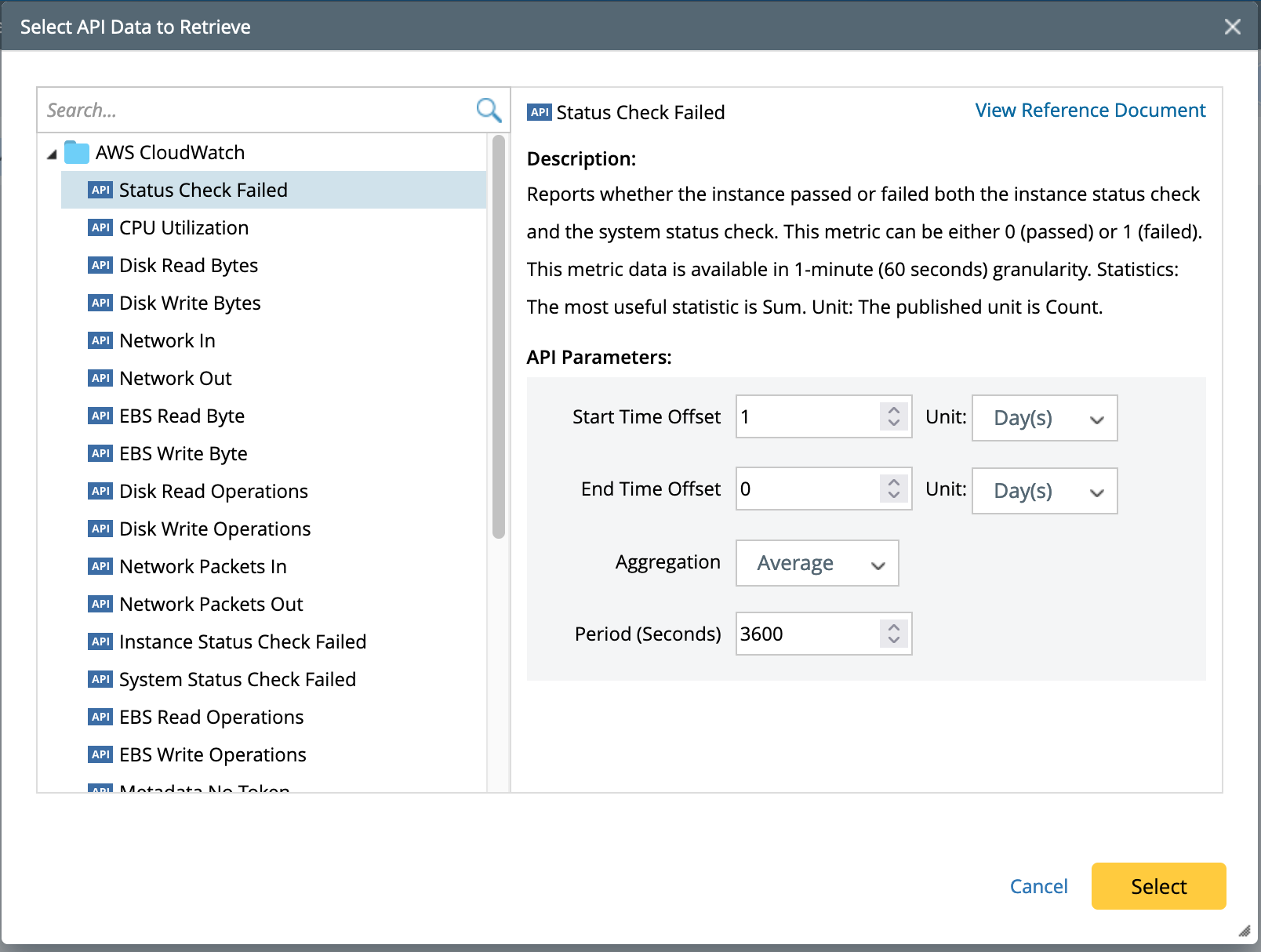
- Select API Data to Retrieve to choose an API Data from library which has a pre-defined list of API data.
- Modify API parameters (if required) and select the API Data.
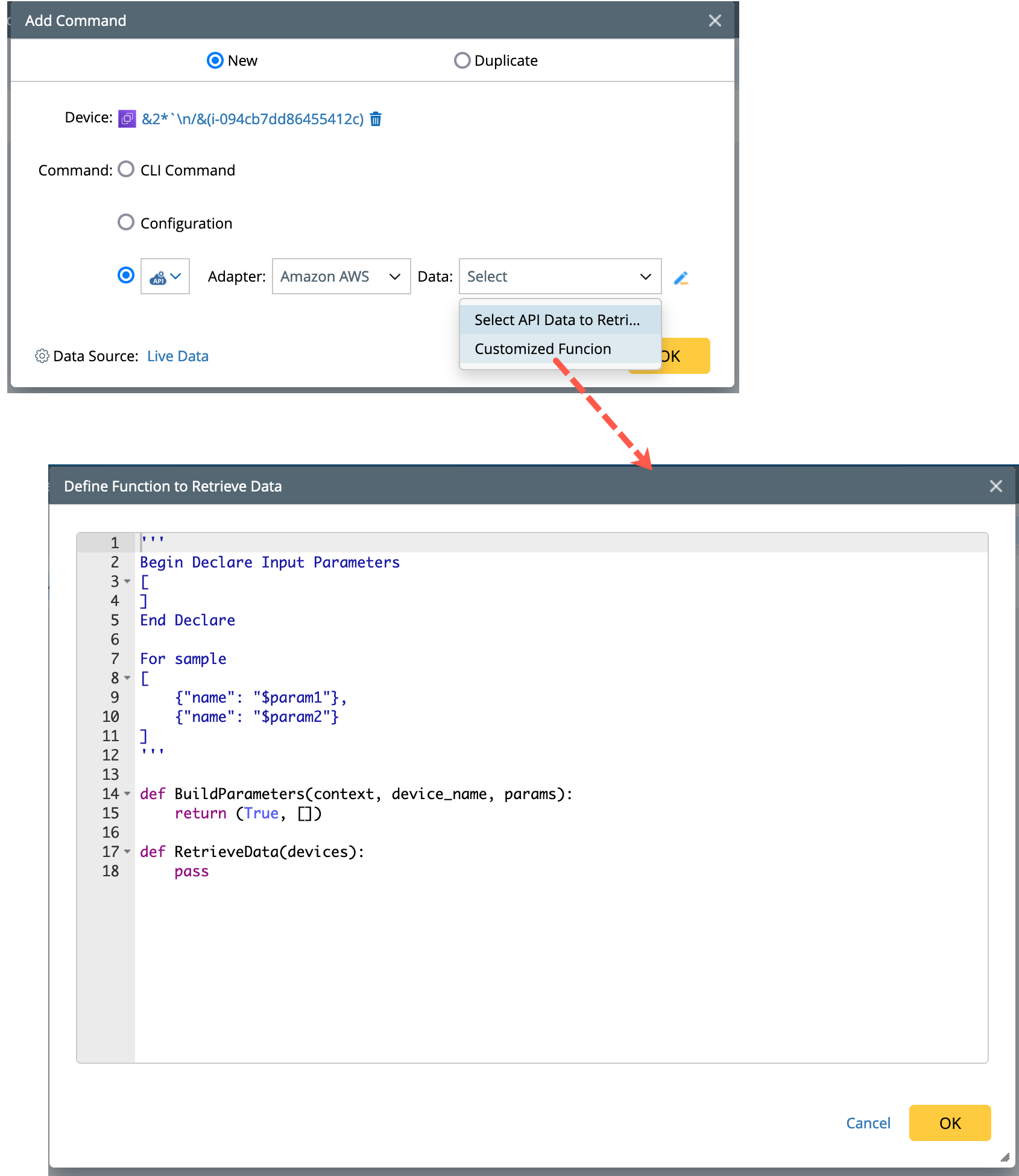
- Also, you can choose to customize the API Data function script. The Retrieve Data Function is defined by Python script, and it is defined same as the advanced API parser.
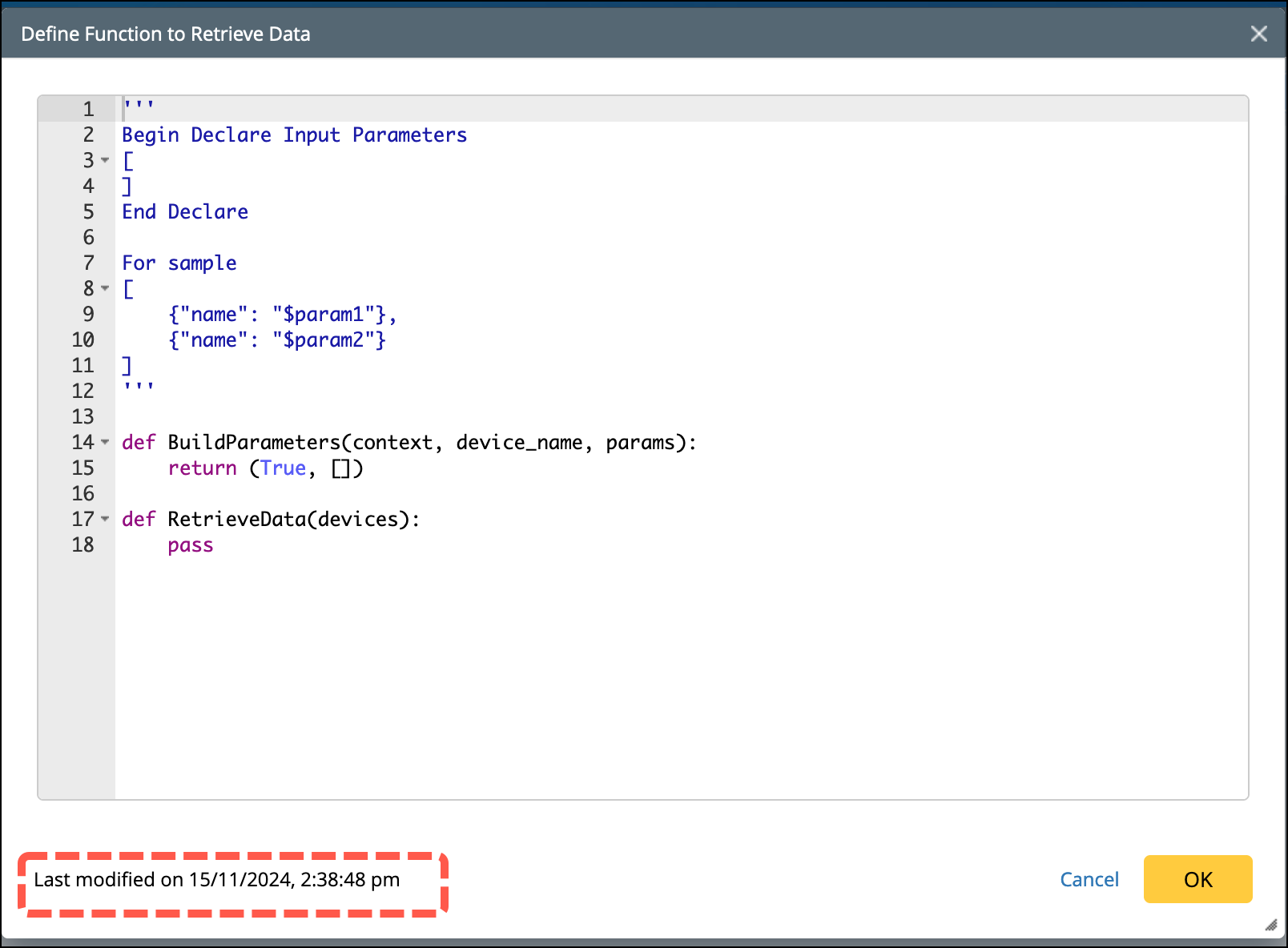
When a modified script is opened, the last modified date and time will appear at the bottom of the function window.
Use JSON Group to parser the JSON result into a table. After retrieving the JSON data by the defined retrieve data function, use JSON Group to parser the JSON result. JSON Group will read all the keys from the JSON result and convert the JSON result to Table Format by selecting the JSON key.
Ping Diagnosis
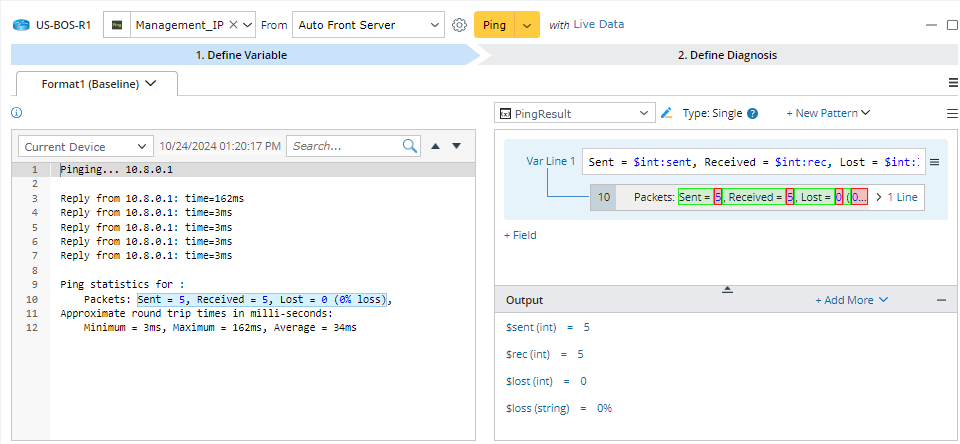
To diagnose device connectivity, you can add a Ping diagnosis to ping the current device via front server.
In the Add Ping Diagnosis dialog, select a front server to ping the current device, and click Settings to set more settings.

Click OK and the result is displayed.
Trace Diagnosis
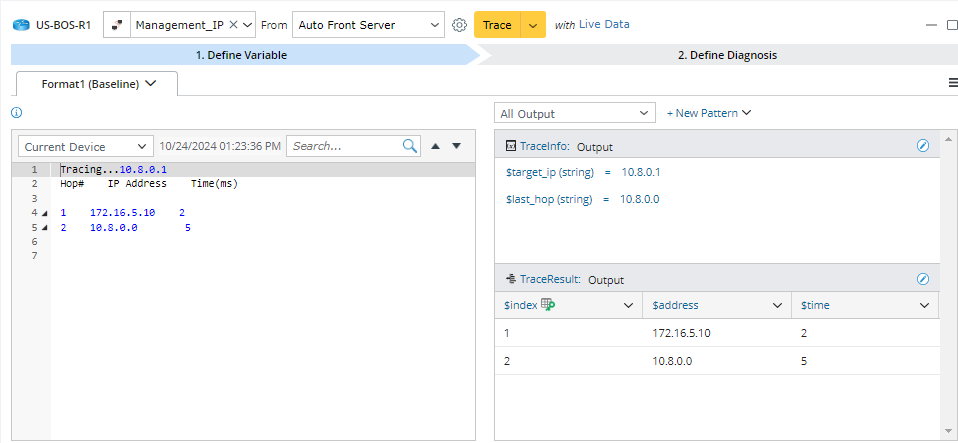
To diagnose device connectivity, you can also add a Trace diagnosis to ping the current device via front server.
In the Add Trace Diagnosis dialog, select a front server to trace to the current device, and click Settings to set more settings.
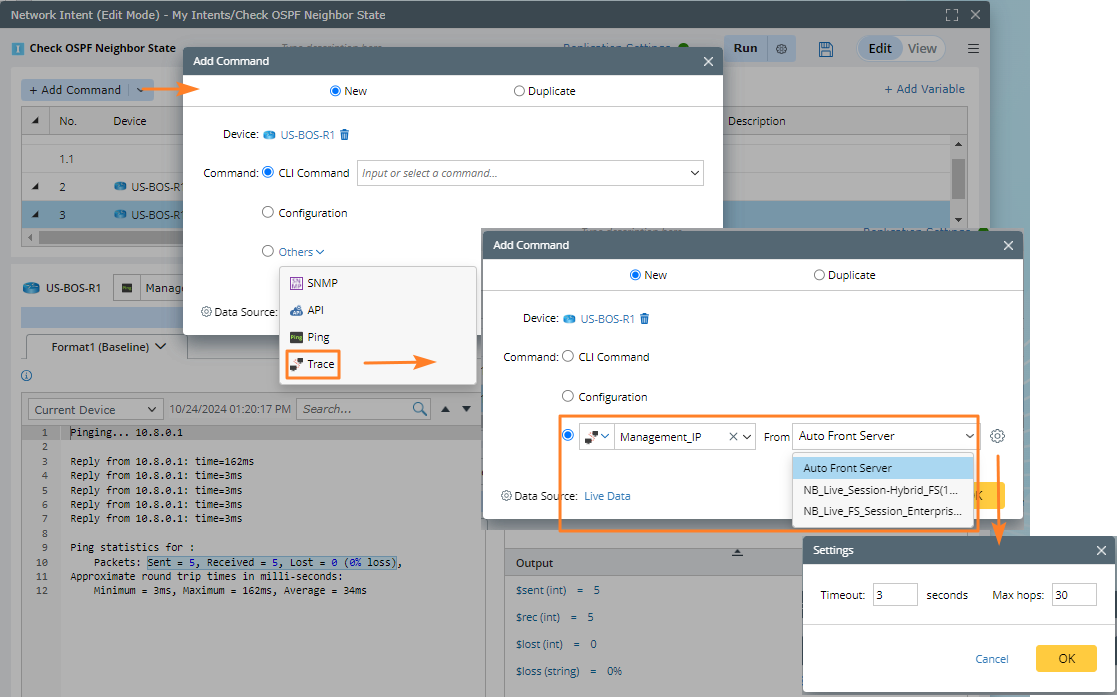
Click OK and the result is displayed.