R12 Publication-2025July16
Define Chart
You can use various charts to display the analyzed result of the Report in Dashboard.
Chart Details
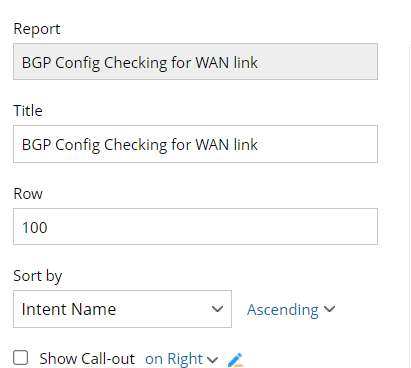
Based on different pivot table settings, Dashboard provides various chart types to display data.
| Chart Type | UI Annotation for Chart Settings | Chart Settings | ||
|---|---|---|---|---|
|
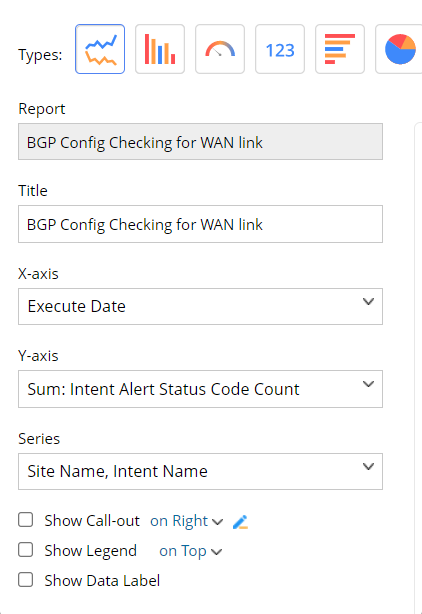
Line Chart, Bar Chart, Column Chart |
|
|
||
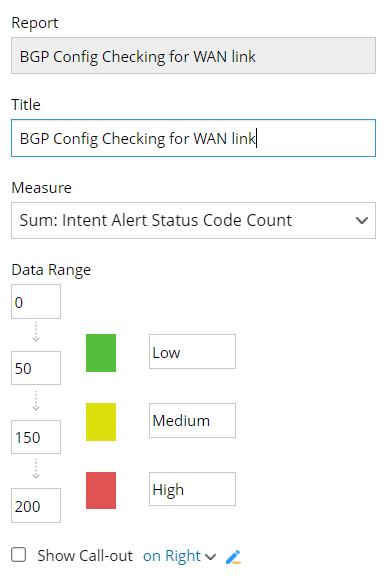
| Gauge Chart |
|
|
||
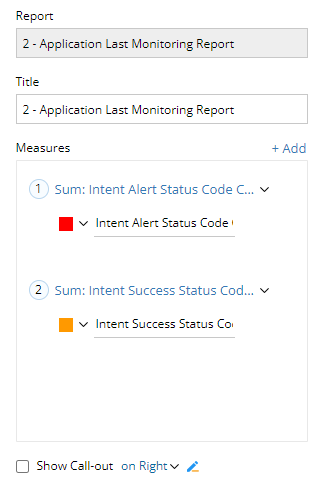
| Metric Chart |
|
|
||
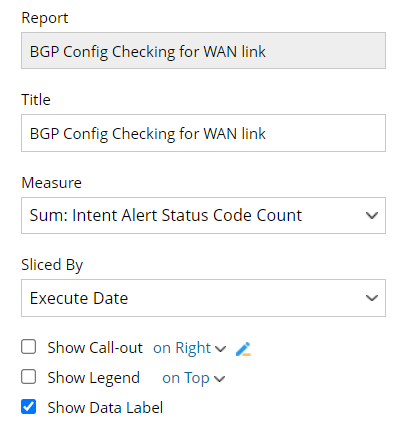
| Pie Chart |
|
|
||
| Table Chart |
|
|

Example: Add Bar Chart to Display Intent Alert Count by Date
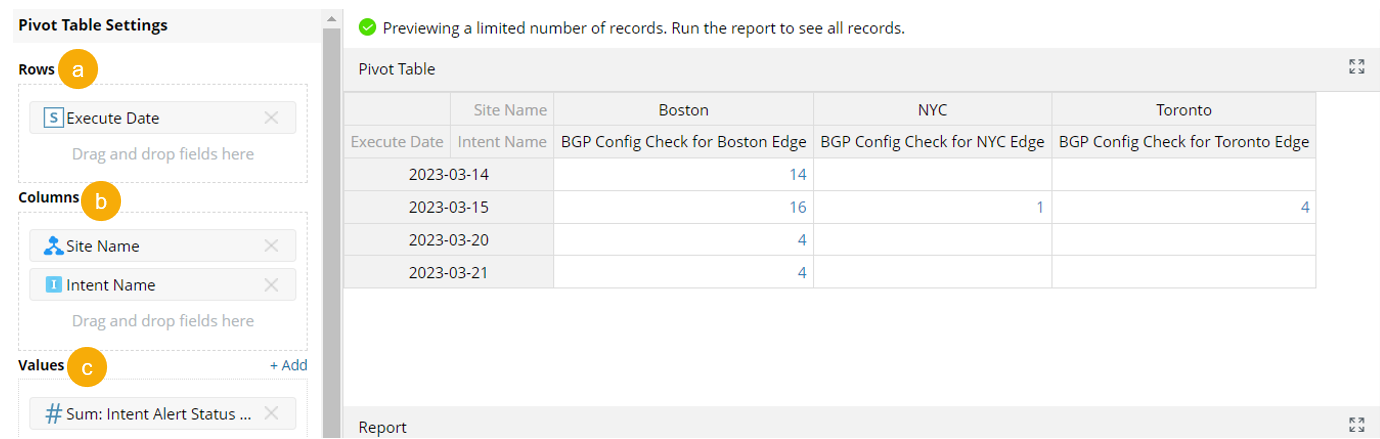
Goal: Add the Pivot Table below as a Bar Chart to display the total number of Intent Alerts by execution date. The Intent alerts are categorized by Intent name and site.
-
In the report BGP Check for WAN Link, have a Pivot Table ready with the following settings:
- Set the Pivot Table rows to Execution Date
- Set the Pivot Table columns to Site Name and Intent Name
-
Set Pivot Table Values to Sum of Intent Alert Status Code Count
-
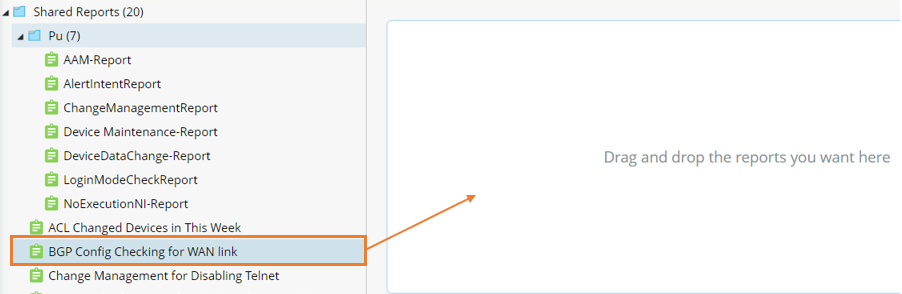
In Dashboard, select and drag & drop the report to add a widget.
-
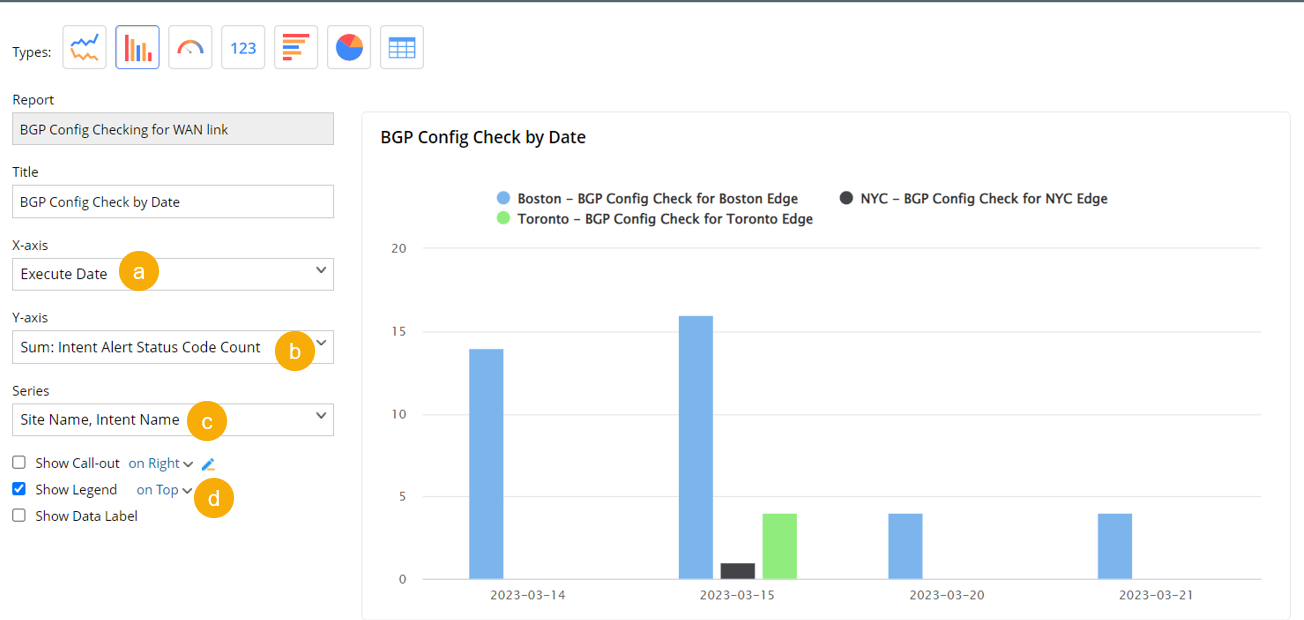
In the Edit Widget window:
- Select the X-axis as Execution Date,
- Select the Y-axis as Sum: Intent Alert Status Code Count
- Select the Series as Site Name and Intent Name and the chart title to BGP Config Check Alerts by Date.
-
Check Show Legend to show the label for data.
- Click Save to add the pane.