R12 Publication-2025July16
Discover NSXT-T Local Manager in NetBrain Domain
1. Add an the related vCenter into API Server Manager
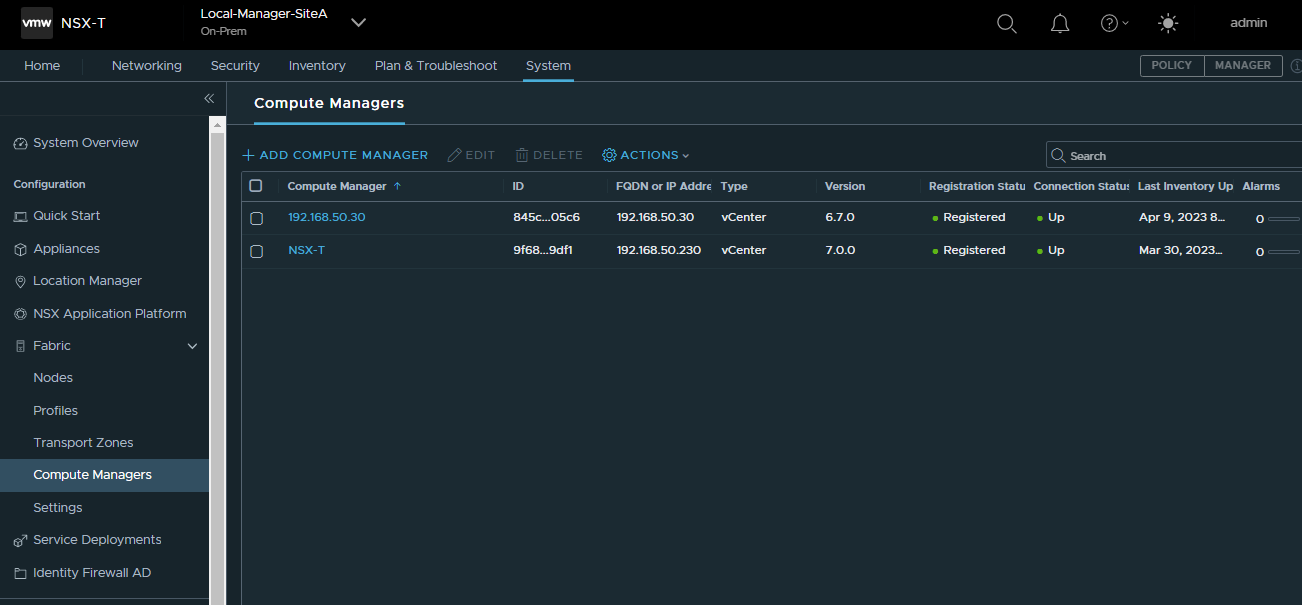
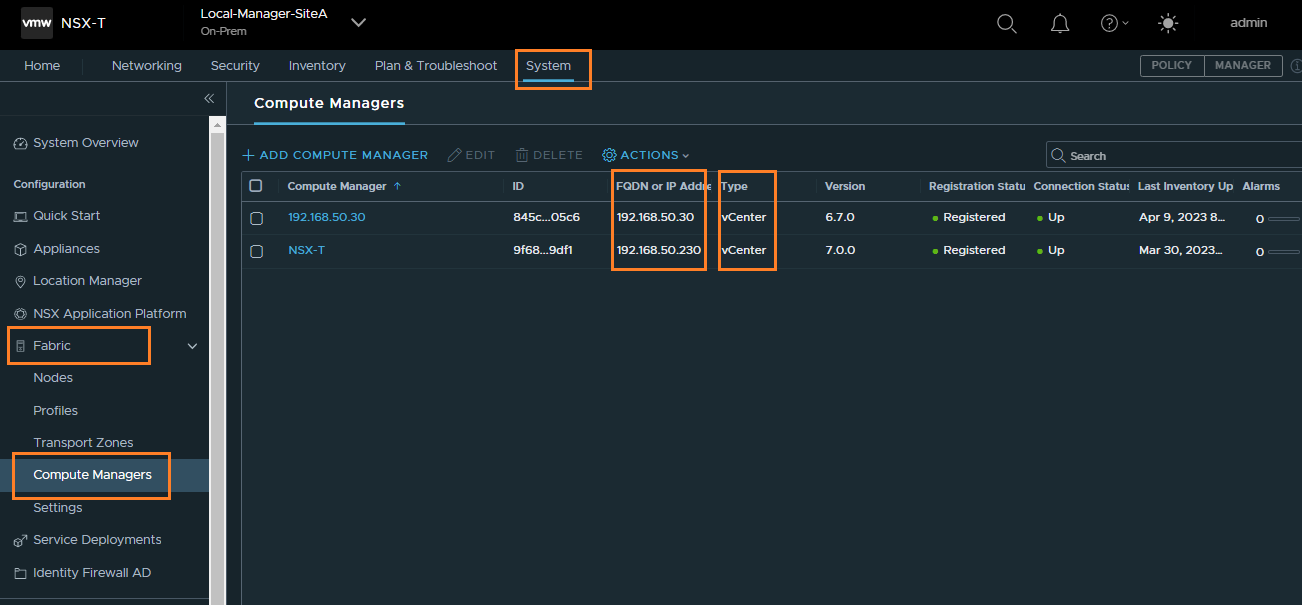
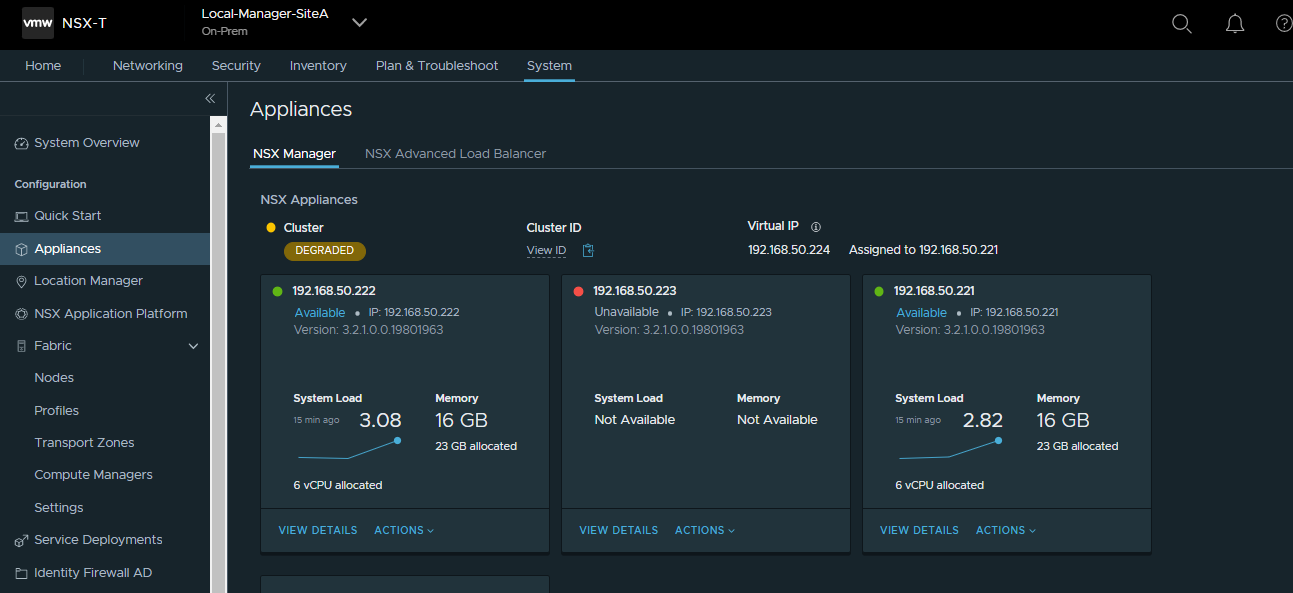
Because the NSX-T is built on the top of VMware ESXi, NetBrain need the access to the vCenter also. You can find the related vCenter FQND or IP Address (Transport Manager) from NSX-T Local Manager GUI in following pictures:
- Click the domain name from the quick access toolbar and select Domain Management.

- In the Domain Management page, click the start menu
 and select API Server Manager.
 - Click Add API Server on the API Server Manager tab.
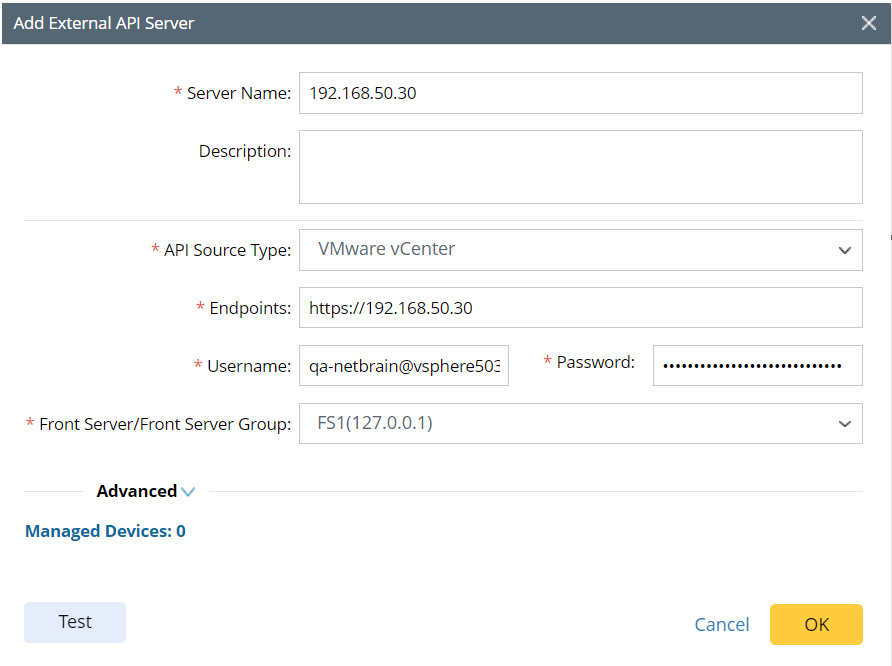
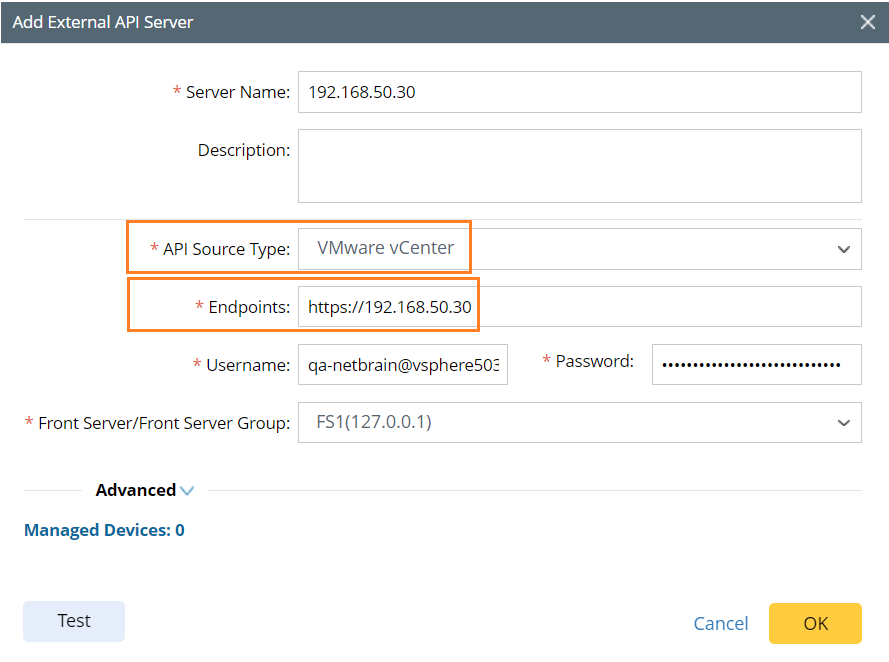
- Enter a unique name in the Server Name field.
- Select VMware vCenter from the API Source Type drop-down menu.
- In the Endpoints field, enter the URL of the vCenter.
- Enter the username and password to access the vCenter.
- Select a Front Server or Front Server Group from the Front Server/Front Server Group drop-down menu.

Note: Make sure that the port 7086 of your NetBrain Front Server is not occupied by other applications, because this port is used by the service components of a Front Server to communicate with each other. - Click Test, and make sure it tests successfully.
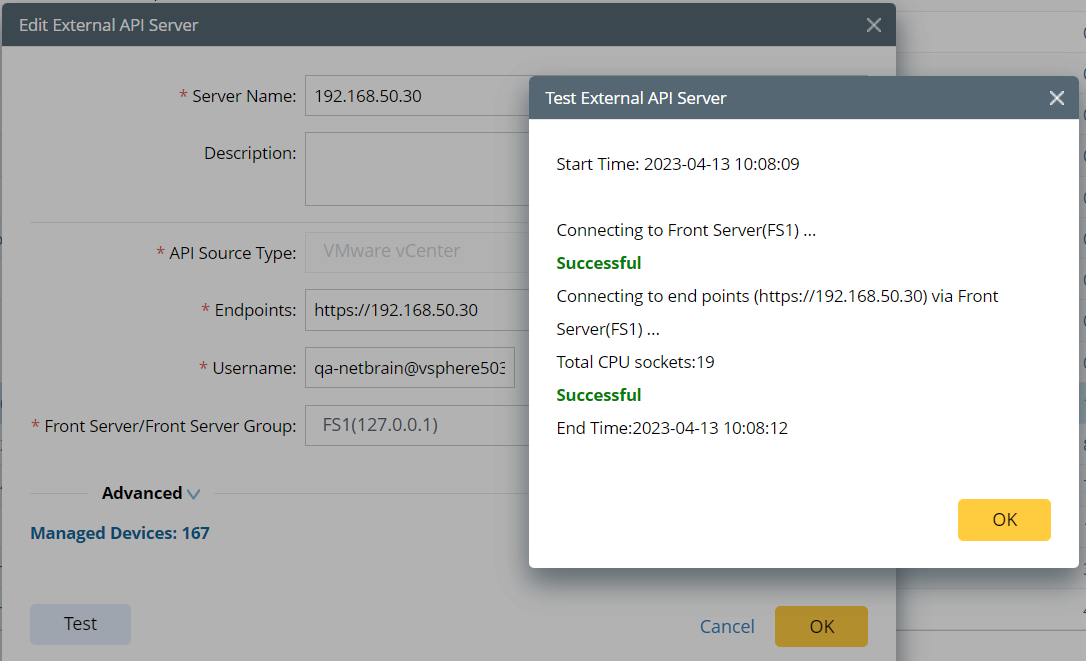
- Click OK to save it.
Note: If there are more than one Transport Manager, repeat above steps to add the rest of them.
2. Add an the NSX-T Local Manager into API Server Manager
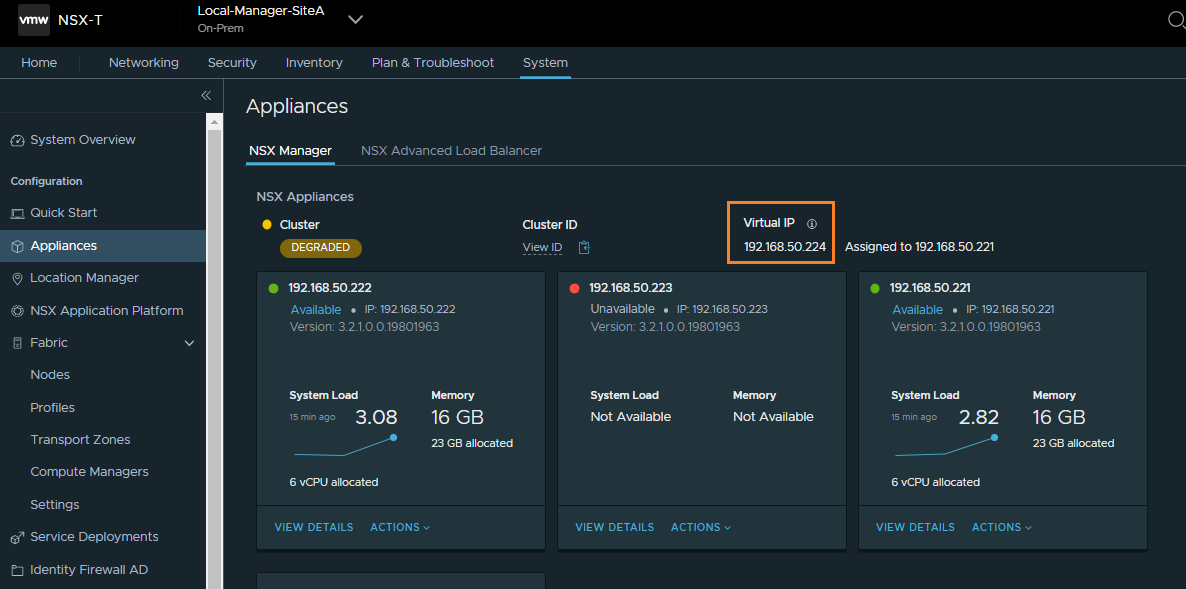
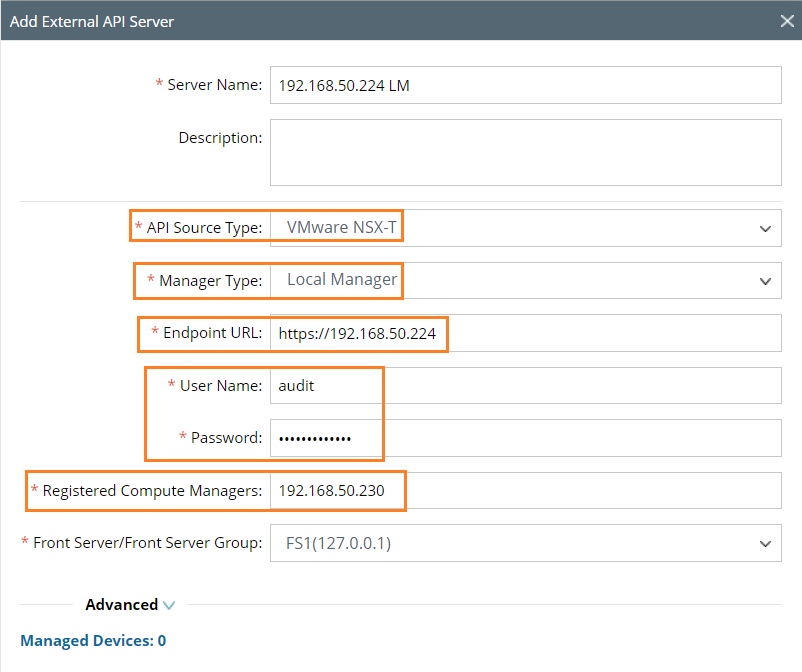
You can use the NSX-T Local Manger GUI URL as the endpoint. But if you use IP address inside the endpoint URL, please use the Virtual IP of the NSX Manager like following pictures:
- Click the domain name from the quick access toolbar and select Domain Management.
- In the Domain Management page, click the start menu and select API Server Manager.
- Click Add API Server on the API Server Manager tab.
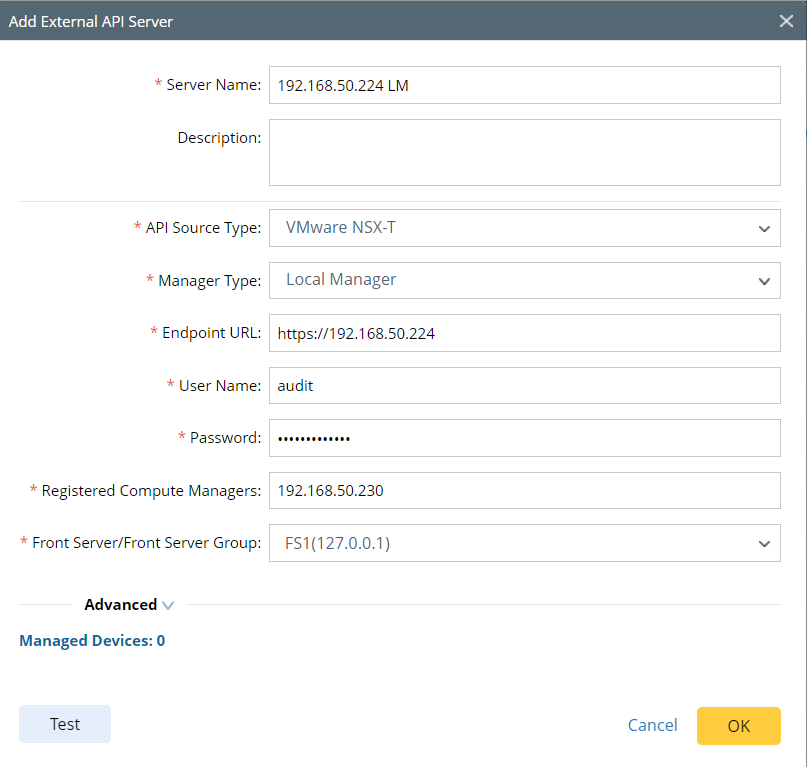
- Enter a unique name in the Server Name field.
- Select VMware NSX-T from the API Source Type drop-down menu.
- In the Endpoints field, enter the URL of the NSX Manager.
- Select Local Manager from the Manager Type drop-down menu.
- Enter the username and password to access the NSX Manager.
- In the Registered Compute Managers field, input the IP addresses of registered Computer Managers.
Note: For the successful discovery of NSX-T, please make sure to input the correct IP addresses of those Computer Manager (vCenter) and the vCenter API Server Setting for those IP addresses in step1.3.1 can be tested successfully.
Note: You can input more than one IP address, like 1.1.1.1;1.1.1.2.
- Select a Front Server or Front Server Group from the Front Server/Front Server Group drop-down menu.
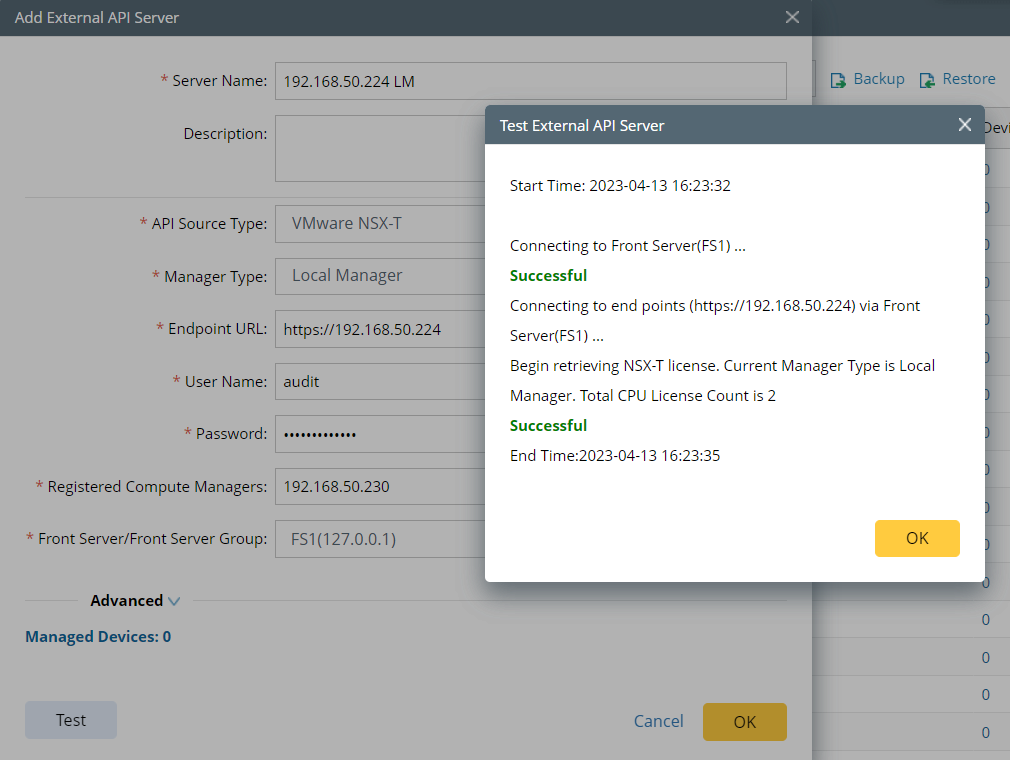
Note: Make sure that the port 7086 of your NetBrain Front Server is not occupied by other applications, because this port is used by the service components of a Front Server to communicate with each other. - Click Test, and make sure it tests successfully.
|
|
Note: CPU count number can be detected from the test. |
- Click OK to save it.
3. Discover Your NSX-T Network
|
|
Note: Please make sure all the vCenters and NSX-T API Server Setting can be tested successfully. The NSX-T Discover will faile if the Registered Compute Managers API Server Setting is tested. |
- In the Domain Management page, click the start menu .
- Click Select API Servers and select the NSX-T Local Manager that you have configured.
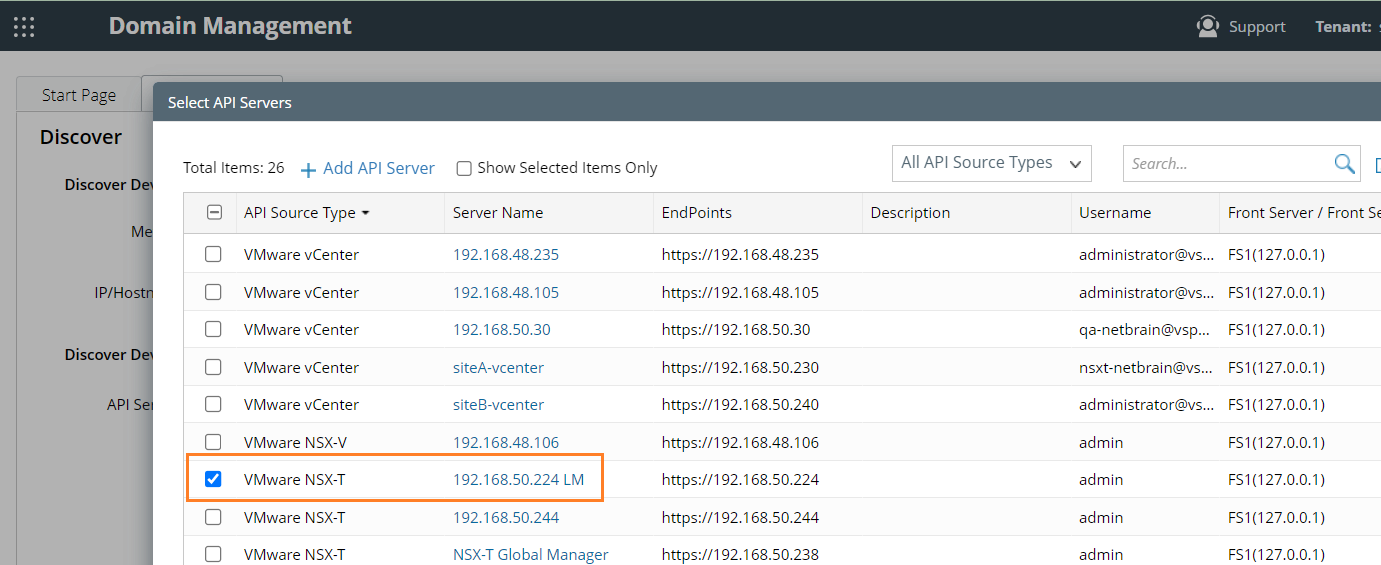
- Click Start Discovery.
The Discovery will discover the NSX-T Local Manger and all its registered vCenters automatically.
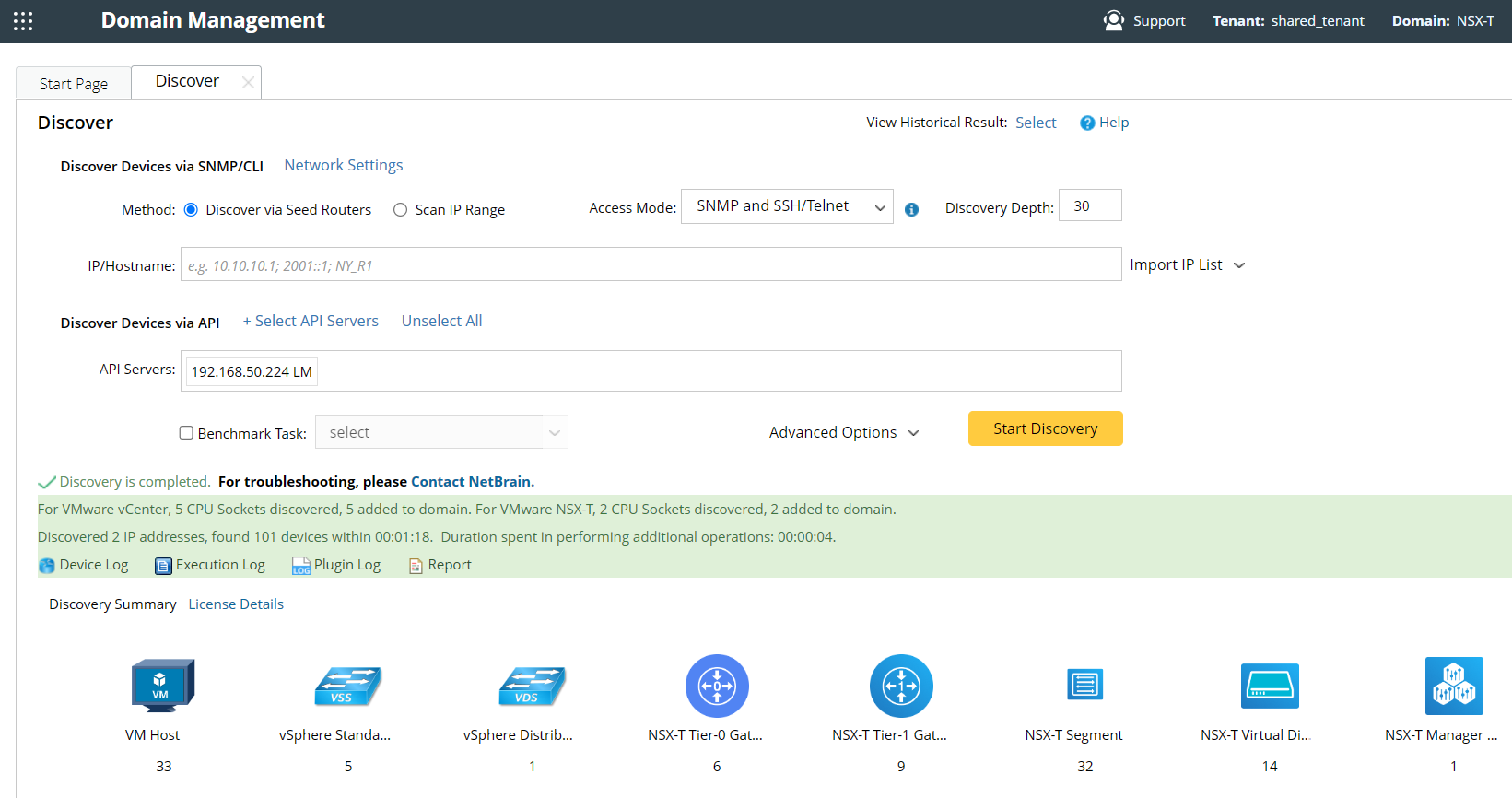
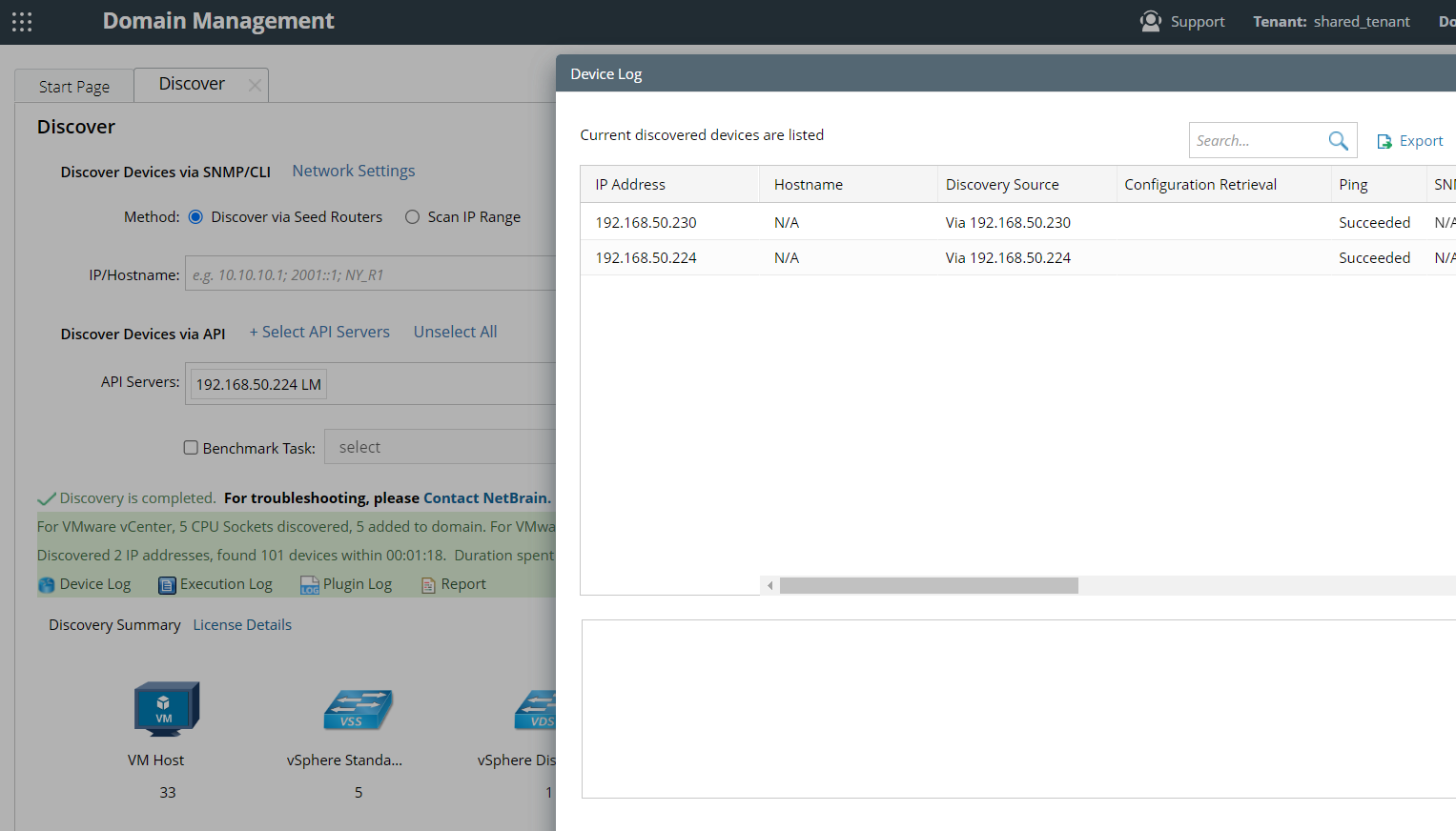
The vCenters and NSX-T discover logs can be found in the Device Log.