Create New ADT in Intent Replication Wizard
Automation Data Table provides two quick ways of building a basic ADT in the wizard and then enrich the ADT column groups or update column group data in the wizard.
Create ADT by Using the Current NIT as Data Source
The current intent template is used as base table data to build a new ADT. This ADT is populated by the pre-decoded results of the current NIT, and each pre-decoded device will create one row. The number of decoded devices for the current intent is displayed for reference. 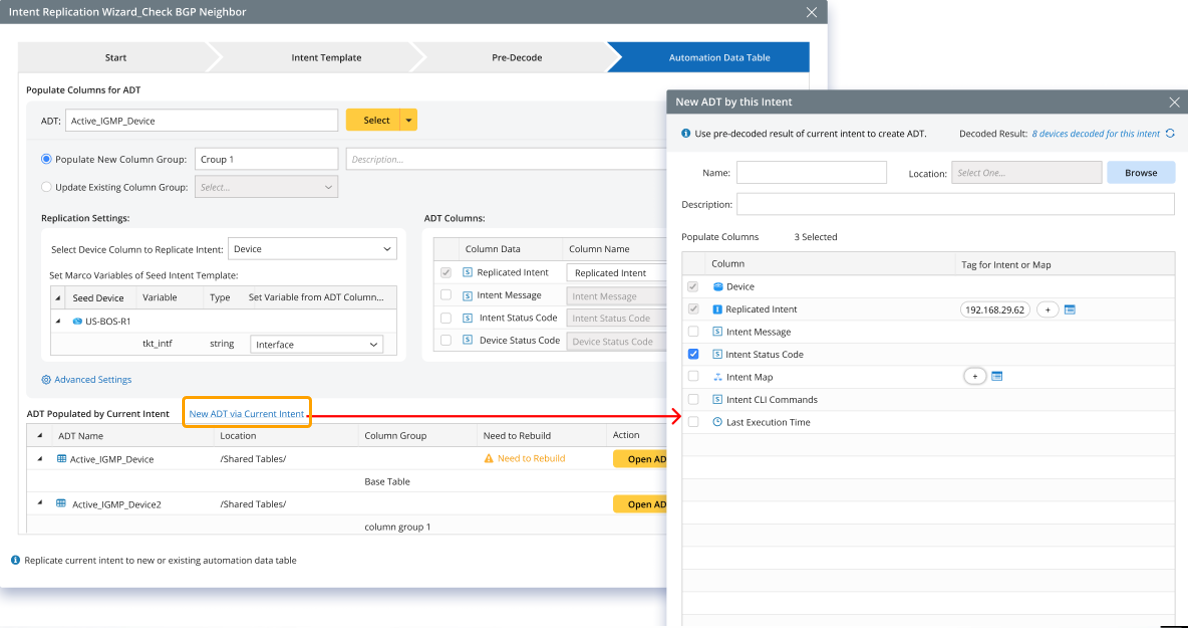
Follow the steps below to create a new ADT using the current intent as data source.
- Click New ADT via Current Intent in the ADT Populated by Current Intent block.
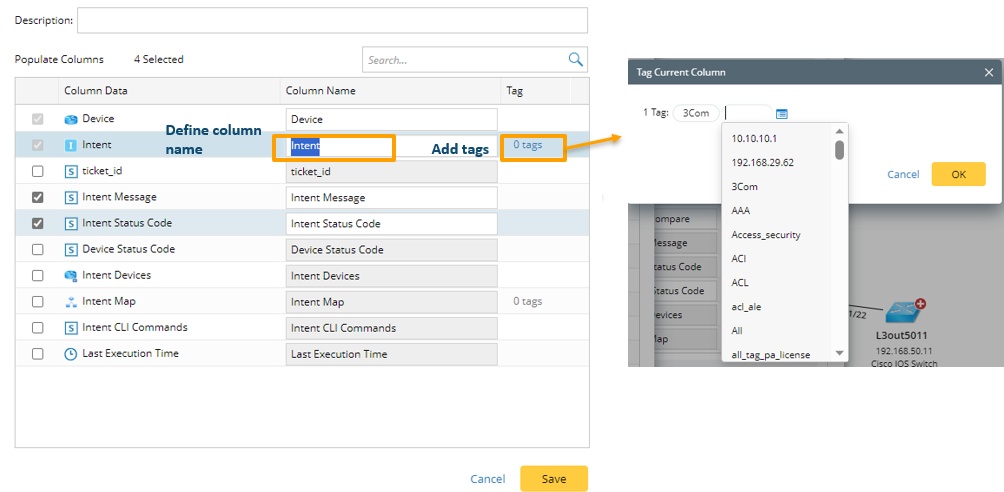
- In the New ADT via This Intent dialog, define the following settings:
- Define basic information: Enter Name, Description of the new ADT. Select a folder for storing the ADT in ADT Manager.
- Populate Columns: The data fields in this area can be selected as the output columns. The “Device” field and “Replicated Intent” field are selected by default and cannot be unchecked. Tags can be assigned to “Replicated Intent” column and “Map Intent” column. Click Save to save the settings for populating columns.
The ADT created in the way will be added as a base table to the ADT Populated by Current Intent table node structure below.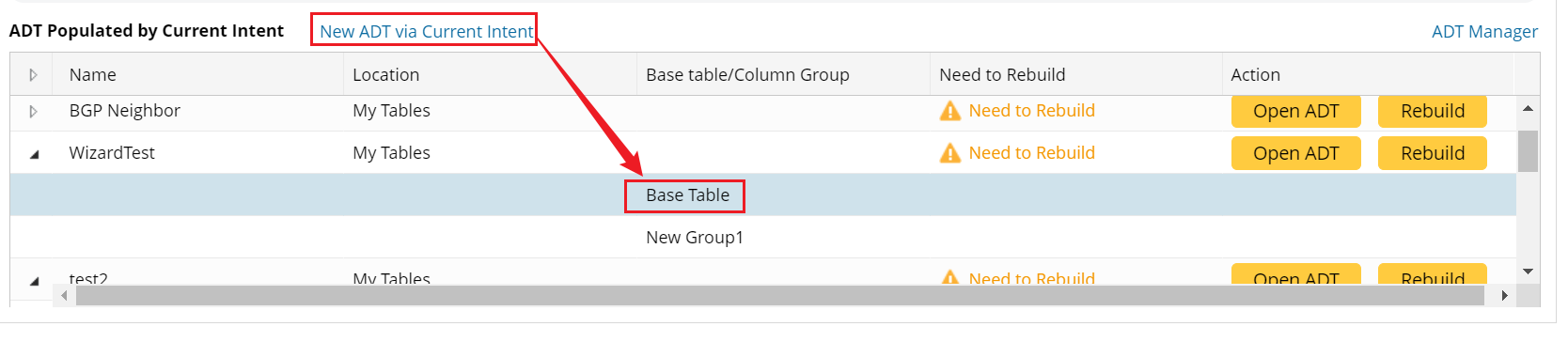

|
Note: The data in the selectable data fields listed is from the decoded devices for the current NIT. |
Create ADT by Using the Data Source from Device Groups
The system supports creating a new ADT by pre-defined device group. After choosing the pre-defined device groups, each device of the selected Device Groups will create one row. After creating the ADT, you can optionally add a new column group by using current NIT as data source to enrich each row.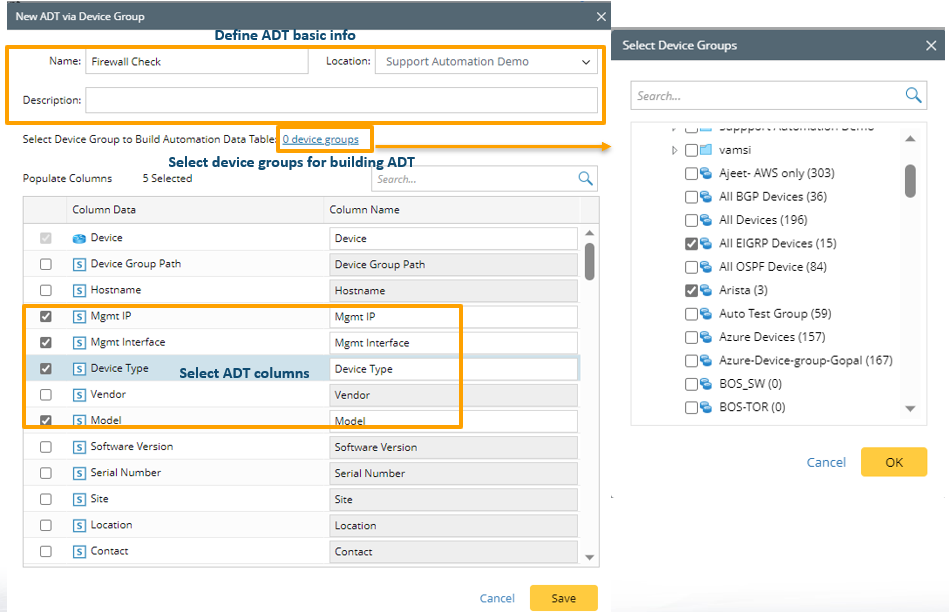
- Click New ADT via Device Group from the drop-down menu of the Select button.
- In the New ADT by Device Group dialog, define the following settings to create ADT by using devices in device groups as data source:
- Define basic information: Input Name, Description of the new ADT. Select a folder for storing the ADT in ADT Manager.
- Select Device Group to Build Automation Data Table: Select device groups as the data source. After the selection, click the “* Device Groups” link to view or change selected device group in the dialog.
- Populate Columns: The data fields in this area can be selected as the output columns. The “Device data” field is selected by default and cannot be unchecked.
Note: The data fields listed are from the data in the selected device groups.
- Click Save to save the settings and close this dialog.
After all the settings in the Automation Data Table tab are done, click Finish to save the settings and close this wizard.