2023-Nov-03-R11.1a
Define Settings for Intent
After an intent is selected, you can configure more settings for the diagnosis based on this intent.
- After selecting an intent, the Settings for Intent-based Triggered Diagnosis dialog will pop out, and you can make relevant settings. You can also click Settings for Intent to open this dialog.
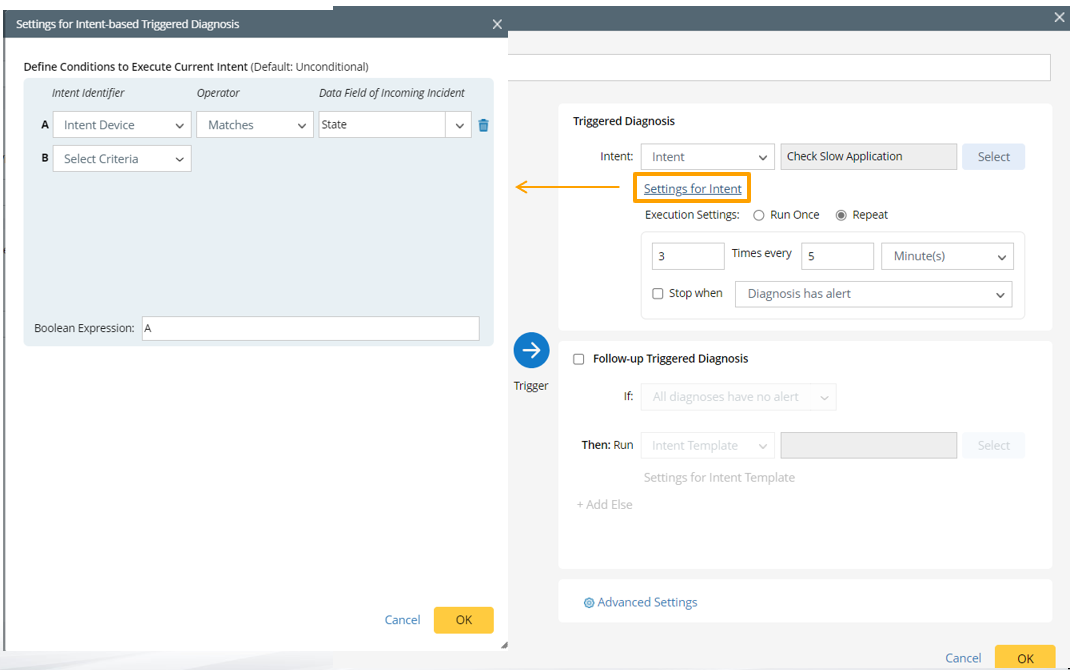
- Define Conditions to Execute Current Intent: Define one or more conditions for triggering the diagnosis by matching the intent properties with the data fields in the incident type used for this triggered diagnosis.
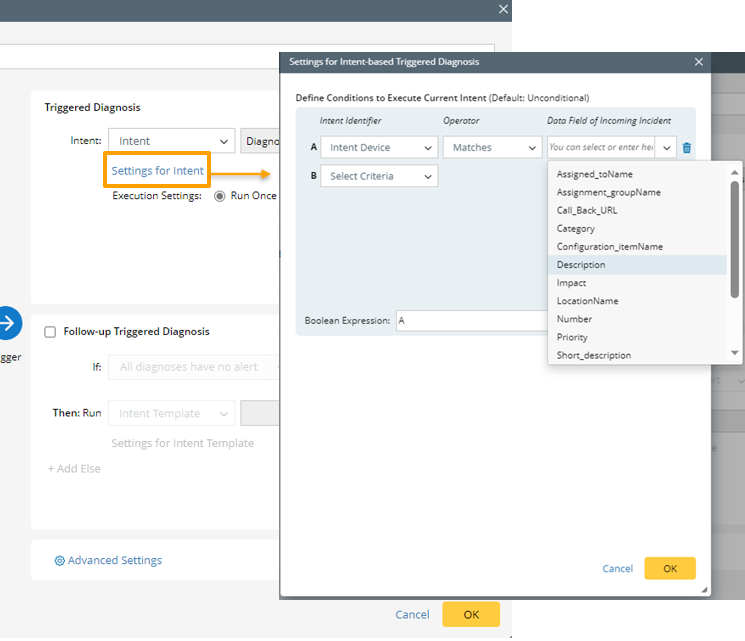
- Select Intent Identifier: Select the identifiers for the Intent, Intent Device or Intent tag for matching.
- Select Operator: Select a matching logic, for example Matches.
- Select Data Field of Incoming Incident: Click
 , then select a data field of the incident type for matching the intent from the drop-down list.
You can repeat this step to add more conditions (B, C, ...). - Define Boolean Expression: The system will automatically input the Boolean Expression (if only one condition is defined, it will be "A"; if multiple conditions are defined, it will be like "A and B").
- Define Parameter Settings: Task variables can serve to pass information about third-party system (for example, ServiceNow incident ID) from home intent to any follow-up intents. To define the task variable, click
 from the Set Value from Incoming Incident field and select an incoming incident value (for example, ticketID) as the task variable value.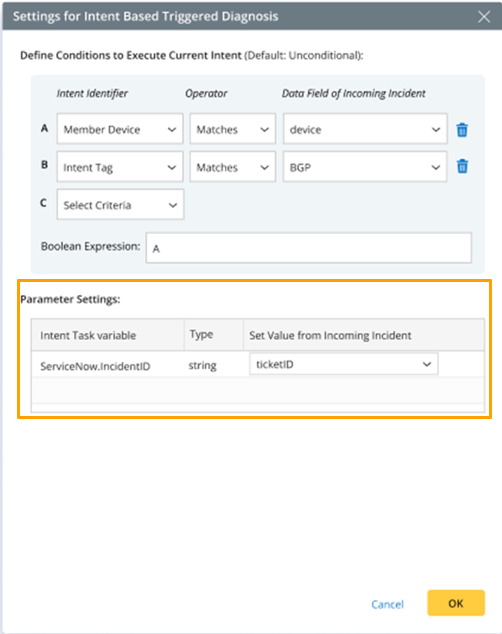

Note: The Parameter Settings block is only visible when the intent has task variables defined. - Click OK in this dialog to save the settings and close the dialog.