Defining Integrated IT System

Contents
The first step of integrating an IT system is to define the API call signature (or identification) from that system to the NetBrain IE system. This can be done via defining an Integrated IT System at the system management level. An Integrated IT system describes what types of API calls (category) and the data included in these API calls. In addition, the system provides a mechanism to support multi-tenant and domain deployment for MSP and other customers with the multi-tenant and domain deployment.
Follow the steps:
1. Create an integrated IT system
2.Manage the integrated IT system
3.Configure Multi-tenant support
Creating an Integrated IT System
1.Login to System Management page.
2.Click  and select Integrated IT System.
3.Click the +Add Integrated System.
4.In the New Integrated IT System window:
1)Enter the basic setting.
• Source: the name of the ticket system, such as ServiceNow.
•URL Address: the URL of the ticket system, such as netbrain.servicenow.com. This field is used to differentiate which source an API call is from.
•Description: describing this IT system.
2)Click the +Add Category to add a new category.
Each category corresponds to the different types of API calls from this ticket system, which usually has various data fields or parameters. For example, one category for the Incident ticket and another category for the Change Request ticket.
a)Change the name.
The default name is Incident. Enter another name in the Name field.
Note: The name cannot include any special character, such as the space.
b)Add data fields. There are two ways to add the data fields:
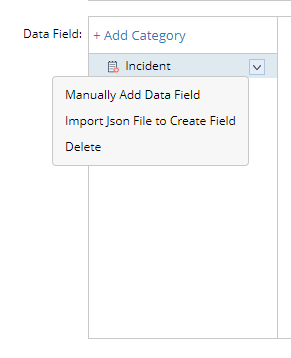
o(Recommended) Import from a JSON file: Click  and select the Import JSON file to Create Fields.
Example:
{
"parent": "",
"u_path_analysis_set": "",
"made_sla": "true",
"caused_by": "",
"watch_list": "",
"u_nb_task": "",
"upon_reject": "cancel",
"sys_updated_on": "2019-06-27 15:54:14",
"child_incidents": "0",
"approval_history": "",
"skills": "",
"number": "INC0011879",
"u_destination_port": "1234",
"u_source_ip_new": "1.1.1.1",
"resolved_by": "",
"sys_updated_by": "Jack",
"opened_by": {
"link":
"https://10.10.1.1/api/now/table/sys_user/211d25ed4fceb60033c78c318110c751"
"value": "211d25ed4fceb60033c78c318110c751"
},
"user_input": "",
"sys_created_on": "2019-06-27 14:59:54"
}
oManually add data field: :Click and select Manually Add Data Field.
➢Enter the name (used in TAF)
➢Enter the original data field (from the ticket system).
➢(Optional) Enable the Value Translation, mapping the value of the original data field to the human-readable value.
Example: For the state of a ticket, mapping 1 to New, 2 to Active, etc

1)(Optional) Define the condition.
You can define a condition of a category used by TAF to tell which category an incoming API call from this ticket system belongs to.
a)Click the +Add Condition
b)Select a data field> select an operator (contains, does not contain, matches, does not match)> enter a keyword.
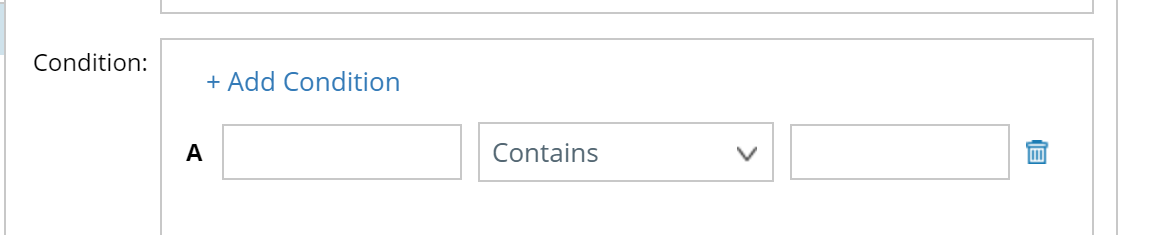
Tip: You can combine multiple simple conditions with the standard Boolean AND/OR operations.
4)Click OK to save the setting.
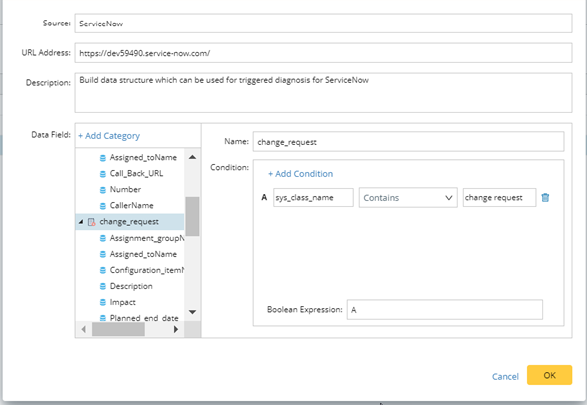
Note: ServiceNow App 3.0 provides the Send Data Fields to NetBrain feature, automatically creating or updating the integrated IT System for the ServiceNow. In addition, the auto-created Integration IT System includes the particular field, category.
Managing the Integrated IT System
1.Login to System Management page.
2.Click and select Integrated IT System.
3.To manage the integrated IT system, select the entry and click , you can:
•Edit the integrated IT system
•Delete the integrated IT system
•Export the integrated IT system: The entry will be exported in a local file named <Integrated IT system name>.xits.
Tip: To export all entries, click  . The system will create a local zip file.
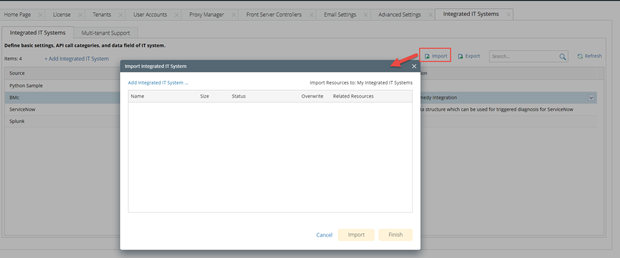
4.To import Integrated IT systems from a file, click Import > click Add Integrated IT System … > select a local file.
Configuring Multi-tenant Support
To support the multi-tenant/Domain, an API call must include a particular data field, scope, and define mappings between scopes and Domains for Integrated IE systems. TAF framework will forward the API call to the matched domain.
To define mappings between scopes and Domains for Integrated IE systems:
1.Login to System Management page.
2.Click and select Integrated IT System.
3.Click the Multi-tenant Support tag.
4.Click the Add New Mapping.
5.In the New Mapping window, enter the Scope name and select the corresponding tenant and domain.
